Integrate API compliance validation with automation pipelines
Configure governance policies, establish the compliance level, and let Policy Enforcement prepare everything else so you can run the validation using the Sensedia CLI.
By enforcing policies, your organization can mitigate risks, enhance API performance, and maintain compliance with governance standards. Policy Enforcement acts as a safeguard, ensuring that interactions within the system are secure, controlled, and aligned with the company's strategic objectives.
Policy Enforcement for the Maturity Report
Follow the steps below to configure Policy Enforcement for the Maturity Report:
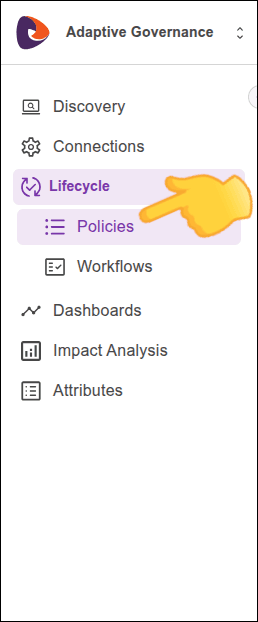
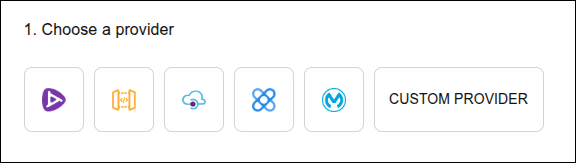
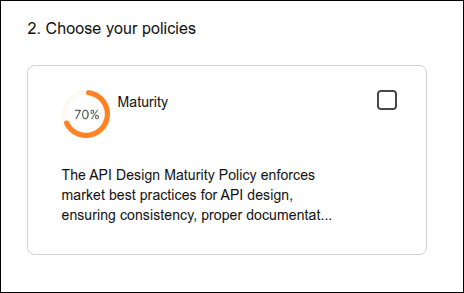
Step 4
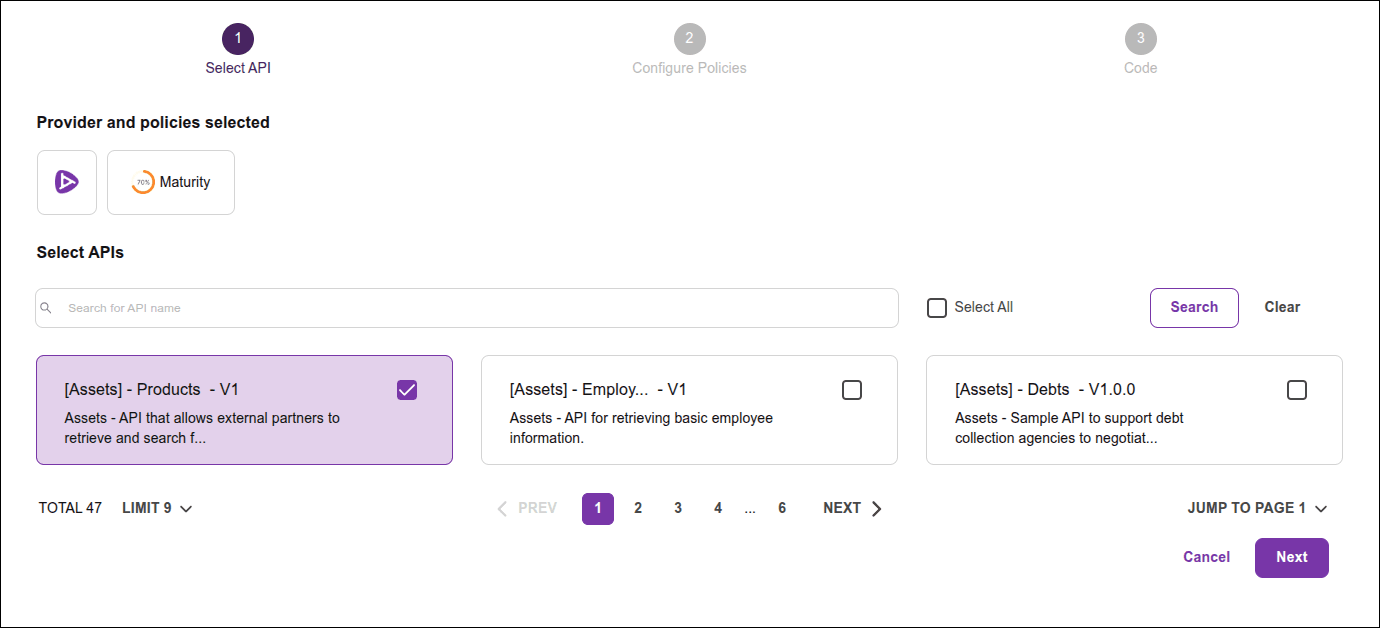
Select one or more APIs.
NOTEIf your connection is non-native, skip to step 5. You can search by API name, select from the list, or click Select All to select all APIs. Then, click Next.
Step 5
Indicate the target maturity level and click NEXT.
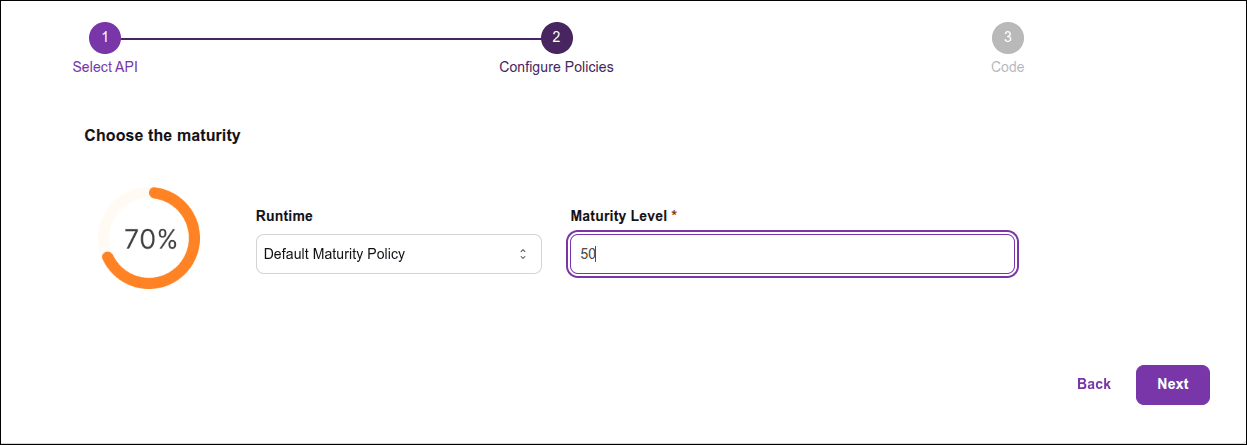
For example, if you enter "50" as the maturity level, Policy Enforcement will validate whether the selected APIs have a maturity score equal to or greater than 50%. If an API has a maturity score below 50%, when running the CLI command, Policy Enforcement will return an error, indicating that the API does not meet the established maturity level. If the APIs have maturity scores equal to or greater than 50%, a success message will be returned.
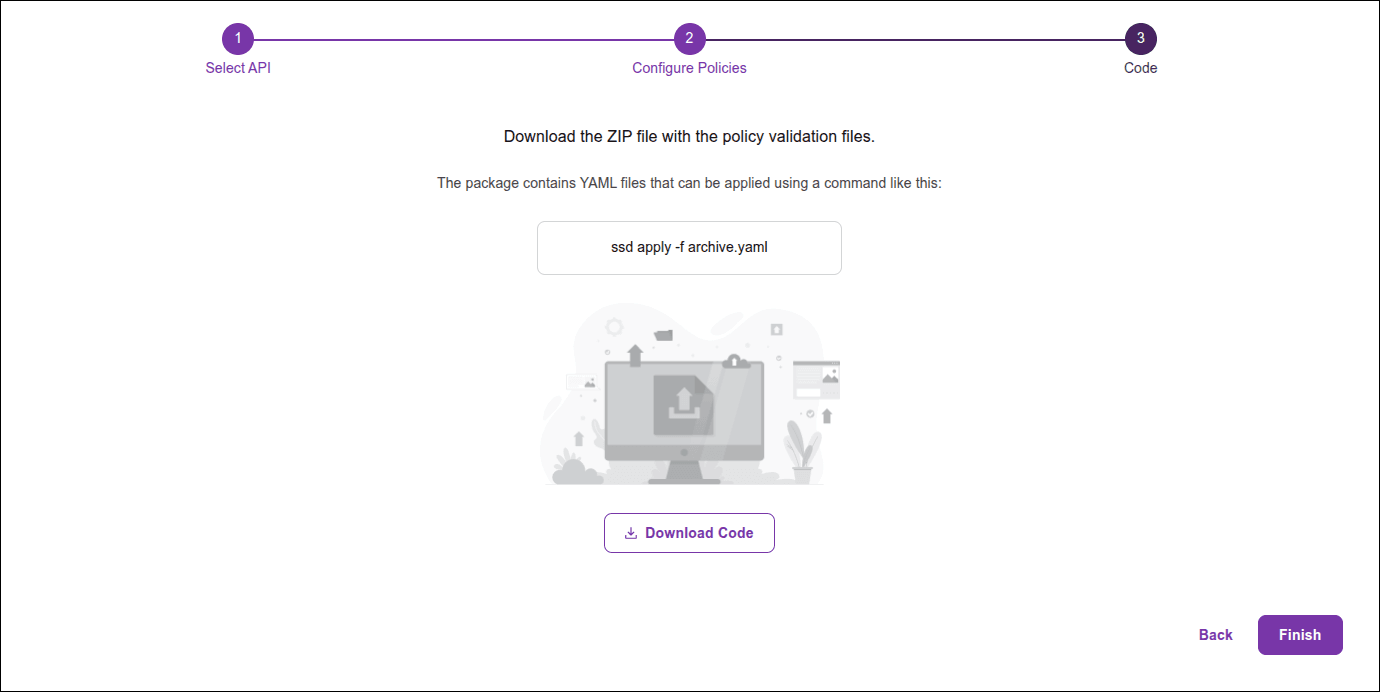
Step 7
Unzip the downloaded .yaml file. To make it easier, you can save it in the same folder in which the contracts of the APIs you want to validate are located.
Step 8
Open the downloaded .yaml configuration file and, in spec > artifact, replace YOUR_PATH_FILE with the API contract file name. Do not include the less-than or greater-than signs. If the .yaml file is in the same folder as the API contract, enter only the file name. Otherwise, also enter the path to the file.
NOTEThe contract must be in
JSONformat, compressed in.zipformat.
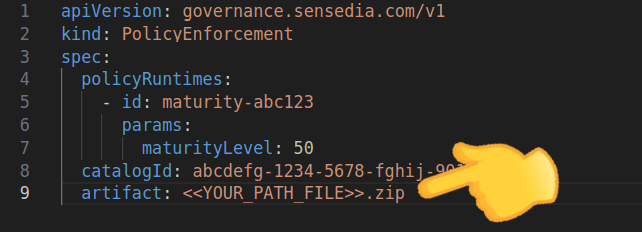
Step 9
The rest of the process is done via Sensedia CLI:
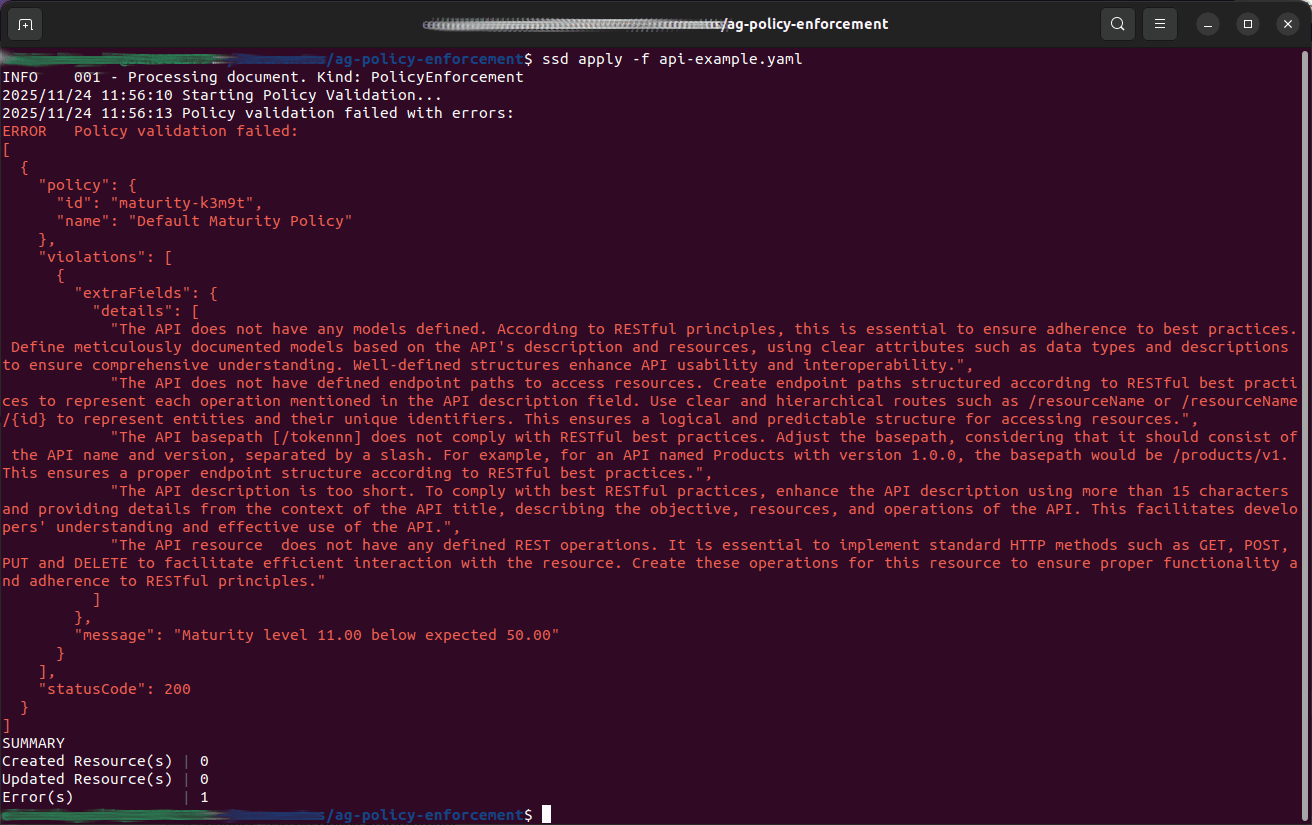
- In the CLI, apply the YAML file by running a command like the one you copied in step 6:
ssd apply -f [file-name].yaml, substituting[file-name]with the name of the configuration file you downloaded. Do not use the '[]'.
TIPIf you do not yet have the Sensedia CLI, see the Sensedia CLI installation documentation.
If the API complies with the specified policy, the command will return a success message.
Otherwise, the command will return an error message indicating what was non-compliant.
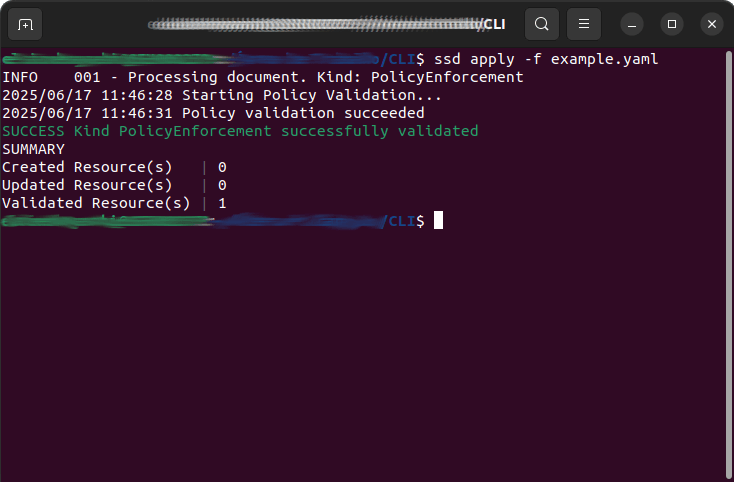
TIPConsult the Sensedia CLI documentation for more details on:
- The Sensedia CLI installation.
- The Policy Enforcement configuration.
IMPORTANTUse our AI resources to: