- Home
- Documentation
- Connections
- Apigee
Access Credentials
This page explains how to obtain access credentials to configure a connection with Apigee:
- Creating a Service Account.
- Granting Permissions to the Service Account.
- Creating the Credentials.
TIP
- Refer to the Apigee documentation for more details.
Creating a Service Account
To create a service account, follow the steps below:
Step 1
Go to the Google Cloud Platform Console.

Granting Permissions to the Service Account
To grant permissions to the service account, follow the steps below:
Step 1
Go to the Google Cloud Platform Console and:

Creating the Credentials
To create the credentials, follow the steps below:
Step 1
Go to the Google Cloud Platform Console and:

Importing APIs
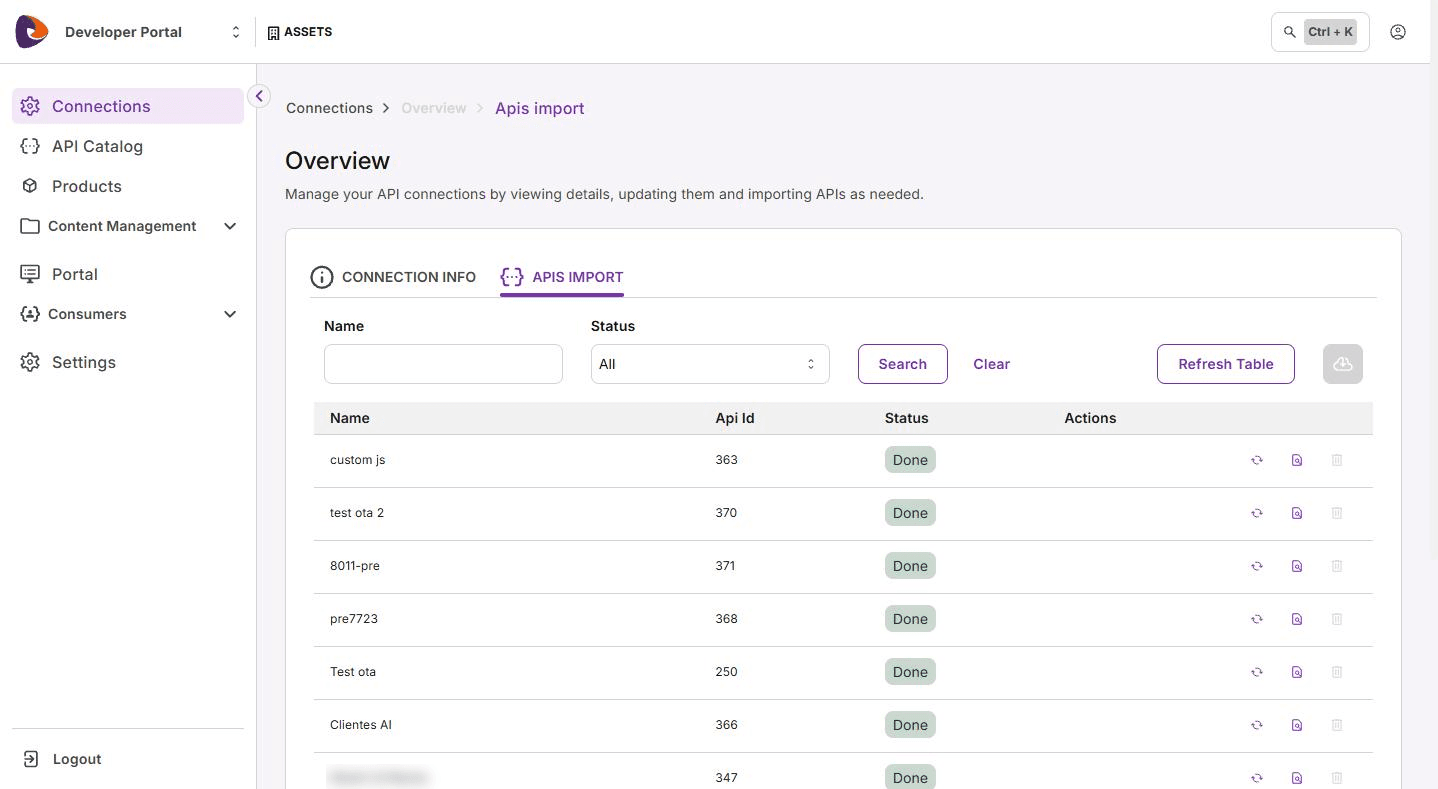
To import APIs manually, follow the steps below:
Step 1
Open the Connections screen by clicking on the left sidebar menu or on the card on the home screen.
 icon. If needed, use the search bar to locate the desired connection.
 , to the right of Refresh Table.

NOTEWhenever an API is updated, click
.
Importing OpenAPI/Swagger Contracts
IMPORTANTNative connections with the Apigee only import Swagger/OpenAPI files from APIs that have this file manually attached.
This is due to a limitation in Apigee's own API Manager, which does not offer native OpenAPI generation. This behavior is not a limitation of our solution.
For your API contract to be imported correctly, before importing or synchronizing the API, follow the steps below:
Step 1
Attach the OpenAPI file to the API Proxy in Apigee at Proxy Development > API proxy > Develop.

Step 2
If the API already exists in the Sensedia catalog, re-Sync the API by clicking the button to synchronize APIs.

If the API does not exist, proceed normally with the import process.

After synchronization/import, check if the contract was imported correctly.
-
When using Adaptive Governance:
- Access Discovery.
- In the Actions column, click the icon to view the API.
- Go to the Documentation tab.
- See the documentation in the Preview tab.
-
When using the Developer Portal:
- Access API Docs.
- In the Actions column, click the icon to view the API.
- See the documentation in the General Info tab.
