In the Apps tab, you can:
- Define the approval method (manual or automatic) for apps created by developers using the Developer Portal (apps Sensedia).
- View information about webhook configuration in your connections.
- Configure webhooks to manage AWS application credentials.
- Reset webhook configurations.
To access this functionality, click Settings in the left side menu and select the Apps tab.
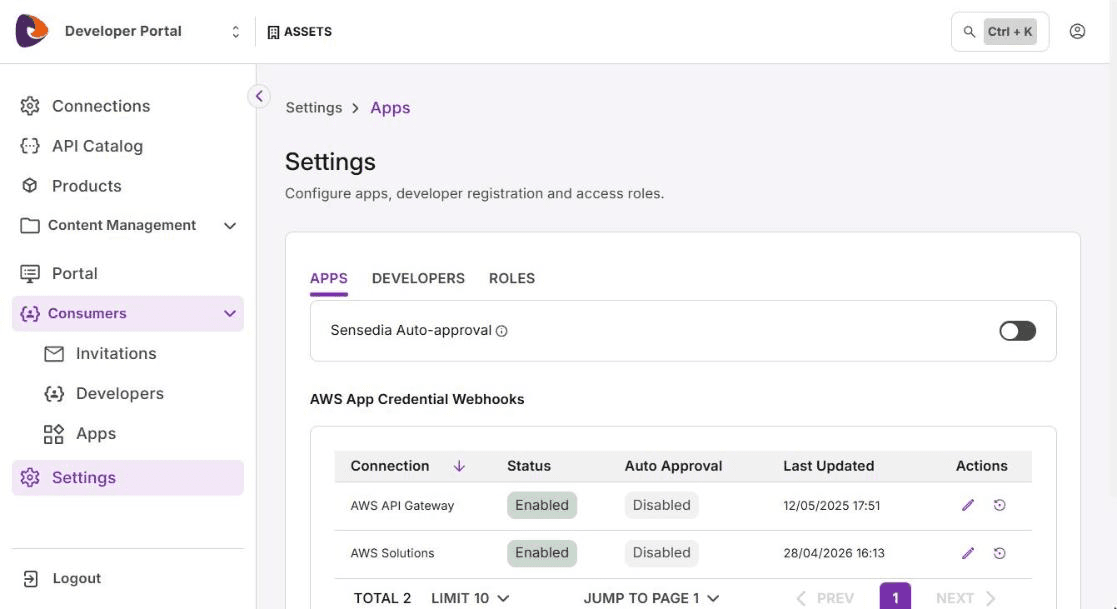
Sensedia Apps Auto-Approval
You can define whether apps created by developers using the Developer Portal will be approved automatically or require manual approval.
Enabled: click to enable app auto-approval. All apps created by developers will be approved automatically.

Disabled: while app auto-approval is disabled, all apps created by developers will require manual approval. Created apps will only be published after approval by an administrator. By default, auto-approval is disabled.
TIPSee how to:
- Allow -- or prohibit -- developers from registering their applications in the Developer Portal.
- Approve or Reject AWS apps manually created by developers.
- Enable auto-approval for AWS apps created by developers in the Developer Portal.
Effect on the additional information
The same setting applies when a developer edits an App and changes the additional information:
- Auto-approval enabled: the change is applied immediately, with no administrator review.
- Auto-approval disabled: the App moves to
PENDINGand the change only takes effect after an administrator approves it in Consumers > Apps. If it is rejected, the App goes back toAPPROVEDwith the previous values.
IMPORTANTIf an additional field has the key your environment's interceptors use to decide access, such as an allowed IP list, with auto-approval enabled the developer can change that value and the change takes effect with no review at all. If any field in your portal controls access, keep auto-approval disabled.
App Listing
The listing has the following columns:
- Connections: name of the connection.
- Status: indicates whether the webhook is configured/activated or not (enabled or disabled).
- Auto Approval: indicates whether the auto-approval option is enabled or disabled (enabled or disabled).
- Last Update: date of the last update of the webhook credentials.
- Actions: actions to edit and reset the webhook configurations.
Configuring the webhook
Follow these steps to configure a webhook:
Step 2
Click the  in the Actions column for the connection for which you want to configure the webhook.
TIP
Step 3
On the Configure Webhook screen, provide:
- Username: name of the user registered in AWS.
- Password: password registered in AWS.
- Base URL: URL obtained after creating the webhook.
- Users audit: emails that will receive webhook error alert messages (optional).
- Auto approval: option to enable or disable auto-approval.
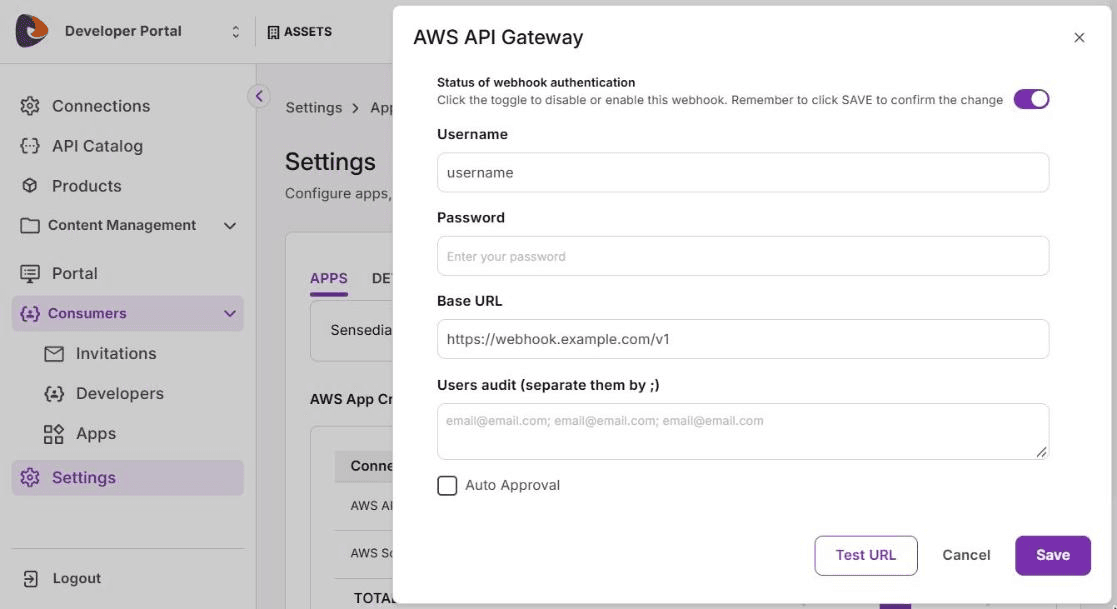
IMPORTANTTo enable or disable the webhook, click the toggle button at the top of the form and click SAVE.