Direct
The Direct component defines a direct route to a specific endpoint. That is, it acts as an internal connector, allowing one route to call another directly, without the need for queues or external components.
Configuring a Direct route in Diagram
You can configure as many Direct routes as needed for your integration flow.
Additionally, you can navigate between routes using the Route Tree panel, to the left of the canvas. Click a route to display it.
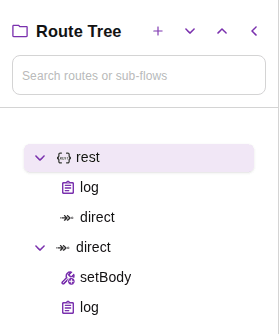
TIPWhen you select a Direct route, the Route Tree panel will highlight the selected route.
To configure a Direct route and link it to the main route:
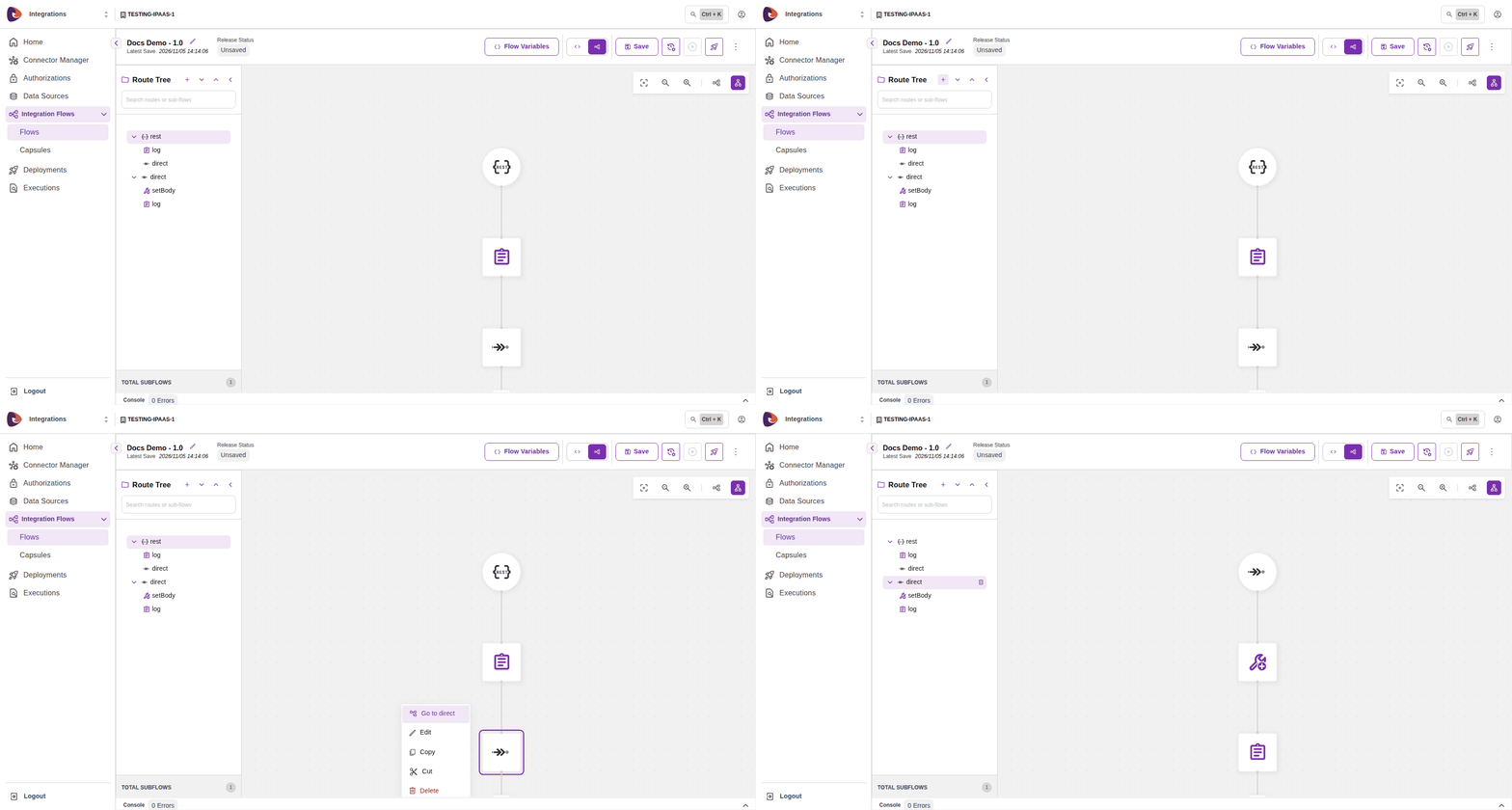
In the Route Tree panel, click the + button (Create Direct route). By clicking this button, you will be creating a new route.
After creating the new route, you will be directed to it and the Direct component will appear as the first step of the integration.
Return to the main route and add the Direct component to the canvas.
Open the Direct component configuration form and type the Direct route name in the Name field in the Common tab.
To access the linked route, click the Direct component and select Go to direct in the actions menu. You will be directed to the Direct route.
The animation below illustrates adding and linking a Direct route.
Changing the Direct route name
The Direct route name is automatically generated, but can be changed. The name must be unique.
To do this:
Access the Direct route whose name you want to modify.
Open the Direct component form, which will be the first step of the route.
Change the Direct route name in the Name field in the Common tab.
Click Confirm.
IMPORTANTIf you change the name of a Direct route that is linked to a Direct component, an alert in the Direct component will be displayed to notify that the route does not exist.
Deleting a Direct route
To delete a Direct route:
In the upper left corner of the canvas, click the arrow next to "main.yaml" to see existing Direct routes.
Select the Direct route you want to delete and click the trash icon next to it.
NOTEWhen deleting the Direct component from the main route, only the component will be removed from the flow. The Direct route will continue to exist.