- Home
- Documentation
- Integrations
- Error Validation
Error Validation
Console
The console is located at the bottom of the Source screen. To access it, click the up arrow icon (chevron) and expand the panel.
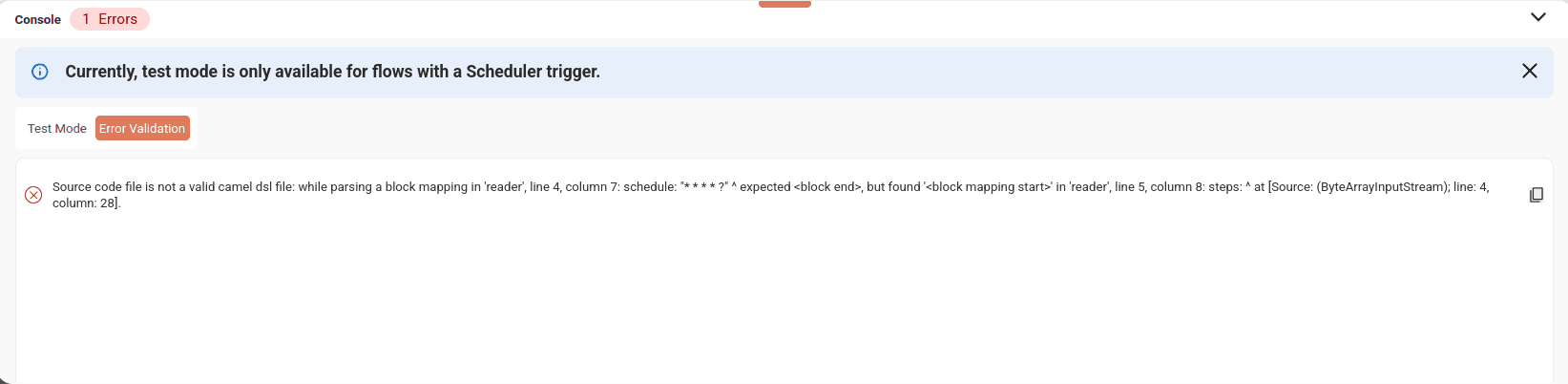
It contains the Test Mode and Error Validation tabs, which display:
-
Complete details of the integration deployment and execution in test mode. Read more about test mode.
-
Syntax and structure errors identified by the Full Validation feature (Source Code tab) or during saving of the
main.yamlfile.
Error validation
To check for syntax and/or structure errors in the integration code, save the file or click Full Validation in the top right of the editor (checkmark symbol), on the Source Code tab.
NOTEThe validation feature (Full Validation button) is only available in the Source Code tab.
The errors identified are displayed at the bottom of the screen in the console (on the Error Validation tab).
-
Validation applies only to the
main.yamlfile code. Scripts in resources files are not validated. -
When you correct the code and run a new validation, previous error messages are automatically removed from the console.
-
While validation errors are listed in the error panel, you can save the integration, but the system will block Test Mode initialization and deployment, preventing code with failures from executing.