- Home
- Documentation
- Access Control
- Federated Login
Federated login allows access to multiple systems using a single authentication method. After the authentication process is completed, the user gains access to the remaining federated domains without the need to perform additional logins.
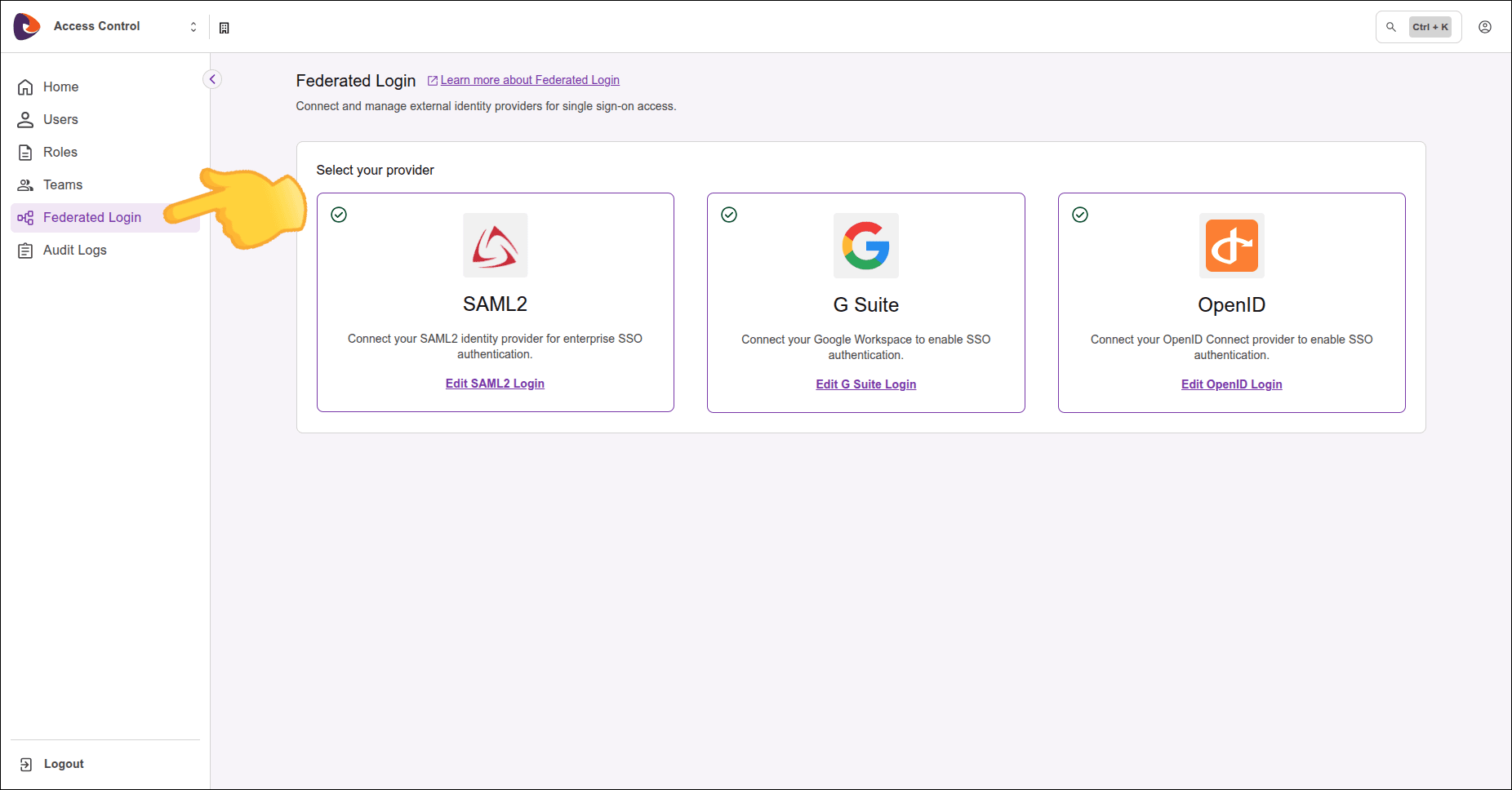
We support three types of federated login:
Click the links above for configuration details for each option.
NOTE
- Client Credentials cannot be generated using federated logins.
- Each environment allows only one active Federated Login provider at a time. If there is already a provider with Active status, it will not be possible to activate or create another provider. To configure a new provider, first deactivate the active provider. Once the status has been changed, the creation or activation of another provider will be permitted.
WARNINGWhen you delete a federated login provider:
- Users originally created as local users in Access Control regain access via login and password, after a password reset.
- Users created exclusively through federated login, who were never local users, are permanently deleted, automatically and without prior notice. This data cannot be recovered after deletion.
Before confirming the deletion, you are asked whether to send a password reset email to all users active at that moment.
- If you choose to send, originally local users receive the email and can reset their password to regain access via login and password.
- If you choose not to send, each user must ask the platform administrator to reactivate their account.
These settings are configured from the Federated Login screen in Sensedia Access Control:
Creating multiple users when using Federated Login
Pay close attention to attribute configuration in your identity provider (Identity Provider - IdP). If a user already has a manually created account and signs in using Federated Login, the system creates a new user if the mapped attributes do not exactly match those of the existing account.
To ensure proper user association and avoid duplicate accounts, make sure that attribute mapping in Access Control is aligned with the information provided by the identity provider.
Scenario:
- The user already has an account in Access Control.
- A Federated Login is configured afterward.
- At the time of federated login, the attributes configured in the provider do not exactly match the attributes of the existing user.
In this case, a new user is created. The newly created user is not associated with the previously existing user, and permissions, roles, and associations are not automatically shared between these accounts.
Defining the username in Federated Login
In Federated Login integration, the username is defined based on the information provided by the identity provider.
- The
usernameattribute is generated for federated users by combining a fixed identifier with the name of their Identity Provider (IdP). - This behavior may not meet custom user identification requirements.
To generate a username aligned with your business rules, you must configure attribute mapping for the preferred_username attribute.
For more information, see the AWS documentation.