- Home
- ...
- Content Management
- File Repository
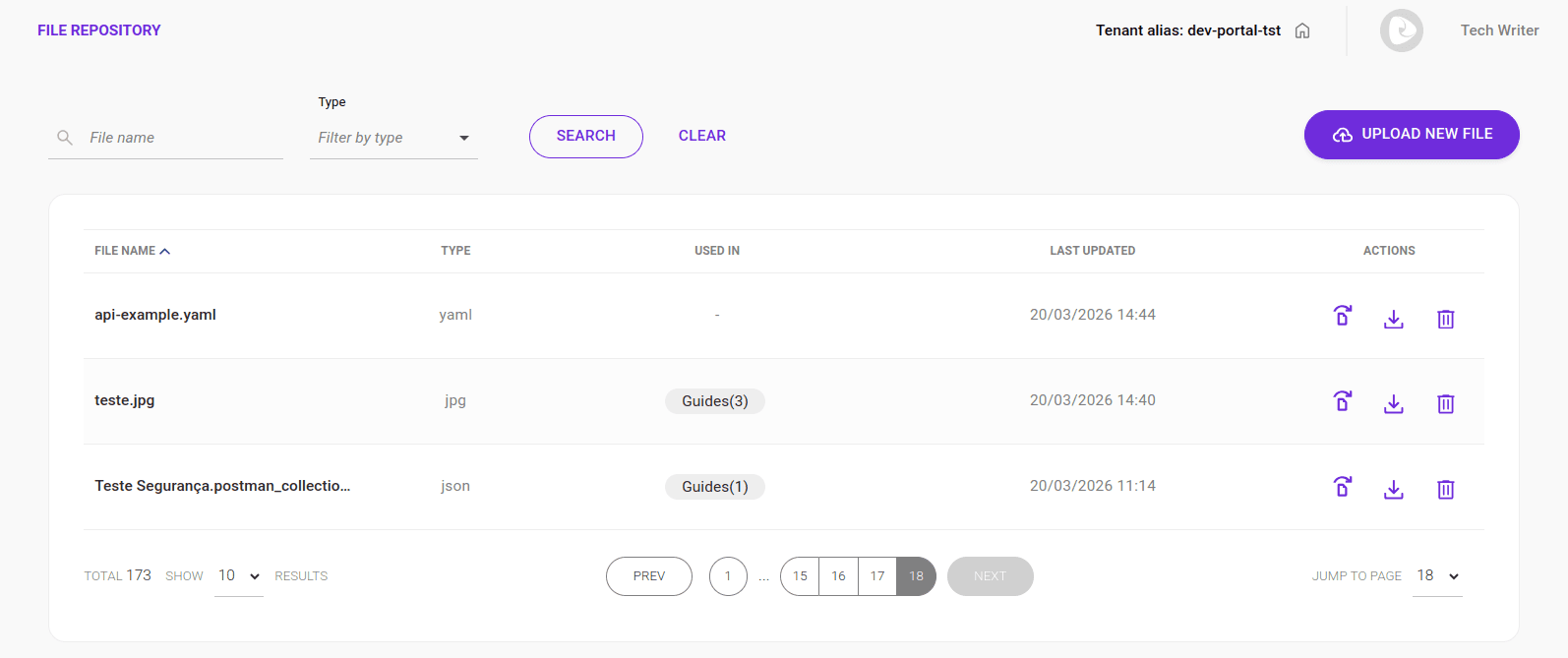
The File Repository is a centralized system for managing and distributing digital files in the Developer Portal. It works as a single repository where you can upload, store, manage, and reuse files (such as Collections, SDKs, documentation, and resources) across different content.
The system provides granular permission control, storage limits, and file usage tracking across the platform.
The image below shows the file repository screen:
Requirements
Supported file formats
The system accepts only the following file types:
- Images:
png,jpeg/jpg,svg,webp,gif - Documents:
pdf - Structured data:
json,yaml/yml - Plain text:
txt
Upload limitations
- Maximum of 50 files per upload
- Maximum of 3.3MB per batch
- On-screen notification when the limit is reached
Storage quota per client
- Maximum limit: 500MB per client
- Automatic upload blocking when the limit is reached
IMPORTANTOnce the 500MB quota is reached, no new uploads will be allowed until you free up space by deleting files.
Uploading a file
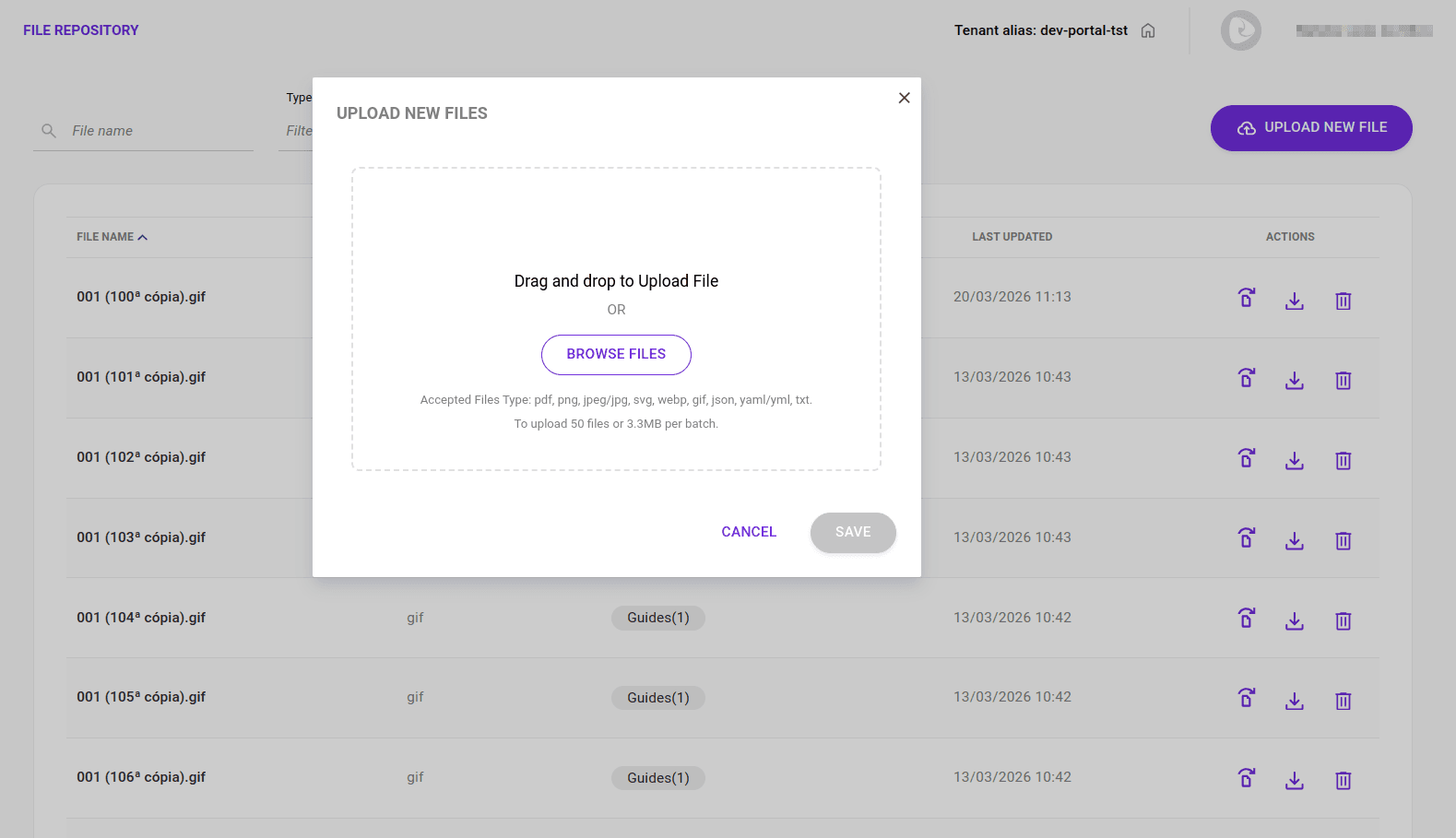
To upload a file to the repository, follow the steps below:
Go to Content Management > File Repository in the Developer Portal side menu.
Click UPLOAD NEW FILE in the top-right corner.
Drag and drop the desired file or click BROWSE FILES to select a file.
Click SAVE.
Find your file in the repository list using the search bar or by browsing the pages.
Replacing an existing file
To replace an existing file, click the first icon on the left in the Actions column (replace). Then select the new file with the same name and format and click SAVE.
NOTEReplacing a file automatically updates references in linked content, with an informational message.
Downloading and deleting files
To download a file from the repository, click the download icon in the Actions column.
To delete a file, click the trash icon in the Actions column and confirm the deletion.
NOTEDeleting a file automatically removes all references in APIs, Guides, and FAQs.
"Used In" section
The Used In section shows where repository files are being used and allows you to detach files from APIs, Guides, and FAQs.
IMPORTANTIf this feature is not available, contact the Sensedia team.
Associating and detaching files
You can associate a repository file with a Guide.
NOTEThis feature will soon be available for APIs and FAQs. For now, only Guides can be associated with repository files.
Associating with a Guide
Go to the edit screen of the desired Guide or create a new one.
Click the paperclip icon (Associate File) in the top-right corner of the Guide content editor.
Select the desired file from the repository list and click SAVE.
NOTEYou can associate up to 20 files per Guide.
To detach a file, uncheck the file selection box in the repository list and click SAVE.