Configure the language options for your Developer Portal and ensure a multilingual experience.
The language options available in the Developer Portal interface are defined in Portal Manager and can be changed at any time. You can choose which languages will be available to portal users, as well as set the default language.
NOTE
- The default language defines the language of elements from the Developer Portal's interface such as menus, buttons, and fixed texts.
- Content from the FAQ, Guides, Products, and other items registered via Portal Manager are not translated.
Accessing language settings
Step 1
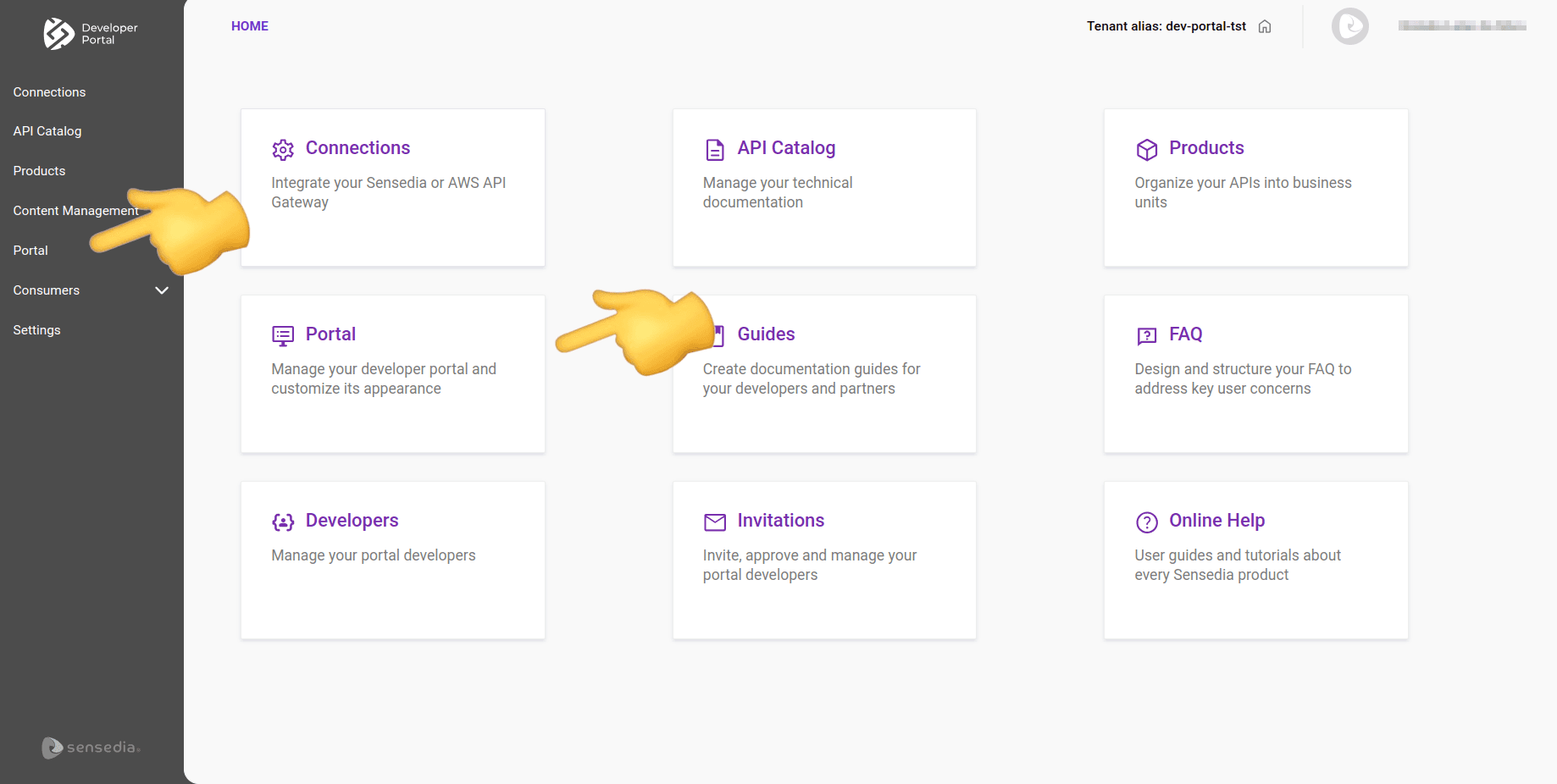
In the Portal Manager, navigate to "Portal" by clicking the corresponding card on the Home page or in the left sidebar menu.
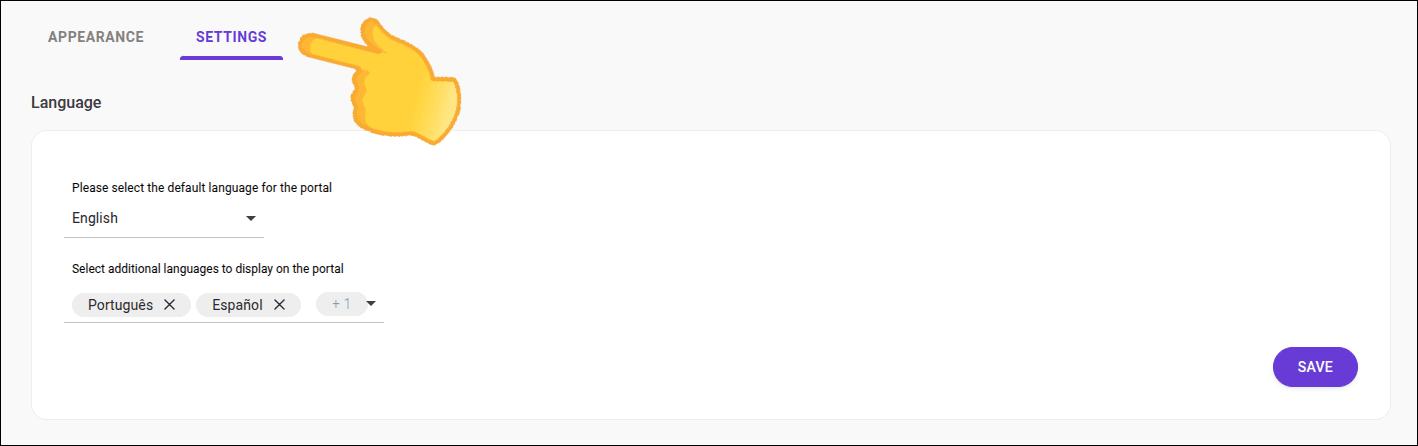
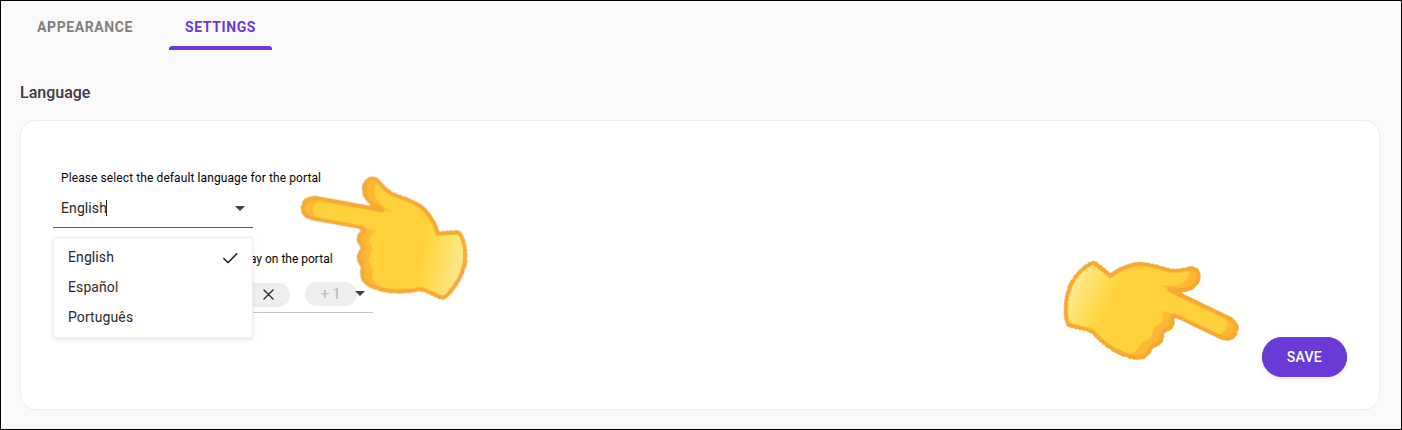
Changing the default language
NOTE
- The default language is English, and can be changed at any time.
- The default language is a required field.
- You can configure up to two additional languages (optional).
Configuring additional languages
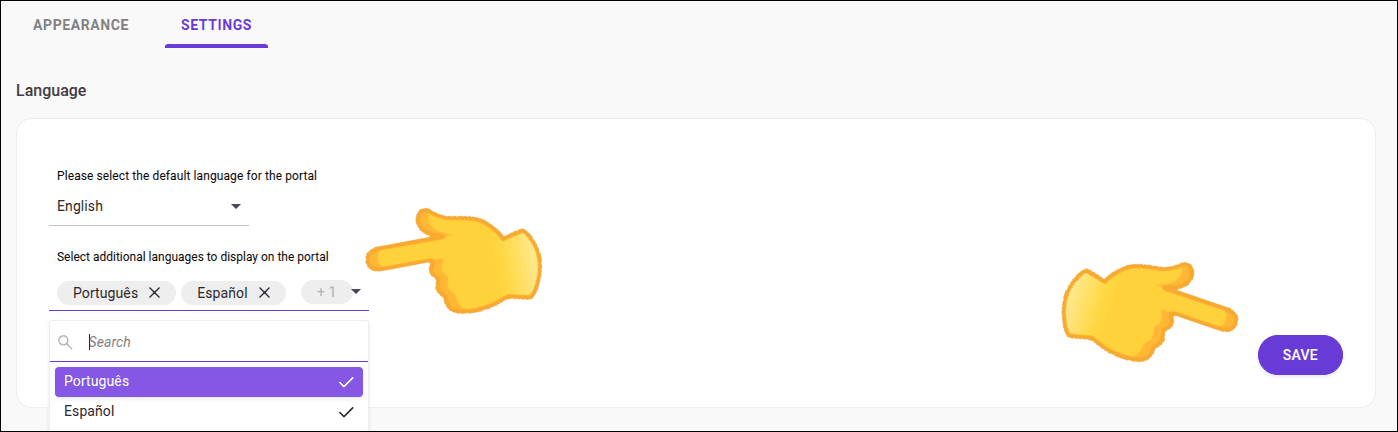
NOTEAfter defining the default language and additional languages, be sure to save the settings. Changes will be reflected immediately in the Developer Portal.
Access Permissions
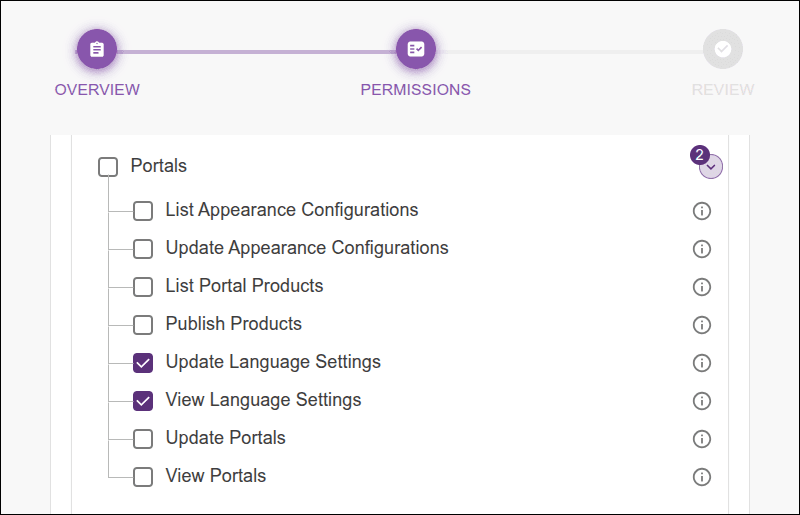
Administrator: the role associated with your user must have the necessary permissions to manage language settings, which are:
- Portals
- Update Language Settings
- View Language Settings
See more about permissions in the Access Control user guide -- permissions.
TIPTo choose the language in the Developer Portal, simply click the language icon located in the top right corner of the screen.