In the notifications tab, administrators customize the emails sent to Developers and Apps, aligning communication with the company's visual identity. You can customize:
- Company logo
- Email subject
- Email body
NOTENotification customization is available on Premium plans. For more information, contact your account manager.
Header customization
Email header customization allows you to upload a logo for emails, with the following specifications:
- Maximum resolution: 300 pixels wide by 74 pixels high
- Maximum file size: 1MB
- Supported file types: JPG, JPEG, and PNG
Message body customization
To customize the message body, select the category that will receive the notification: App or Developer.
According to the selected category, choose the notification type you want to customize by clicking on the pencil icon in the corresponding row.
App:
- Approve App
- Reject App
- Update App Reject
- Cancel App
- Delete App
- Create App
- Update App
- Webhook Auto Approval Error
Developer:
- Developer Registration Confirmation
- Invitation Rejected
- Reset Password
- Invitation Register Approval
- Send Invitation
The animation below shows the App and Developer categories and the notification types available for each one of them:
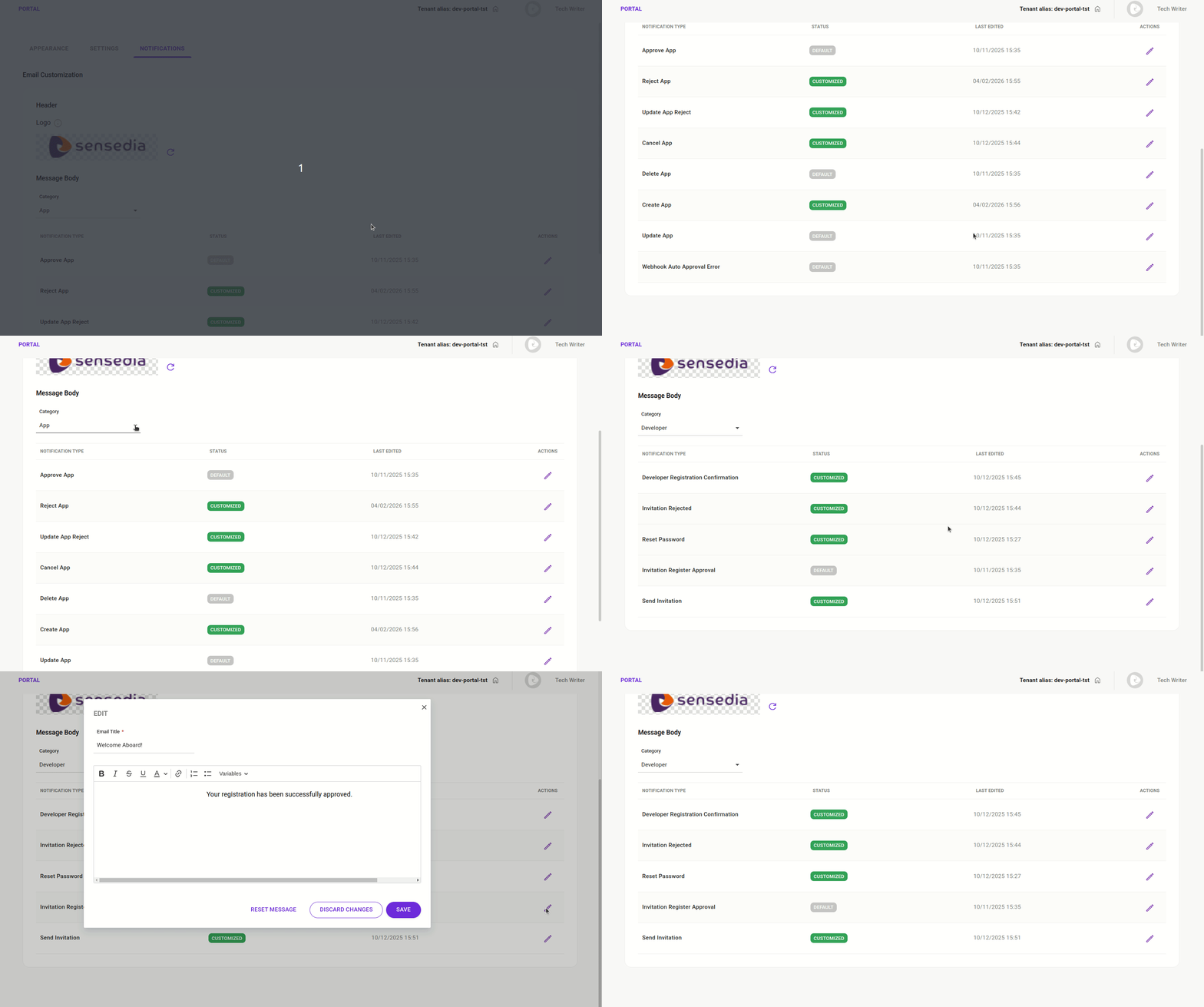
NOTEThe default message is enabled for all notifications (Default label in the Status column). When customizing a notification, the default message is replaced by the custom version and the Status column displays the Customized label, in green.
To customize a notification, follow the steps below:
Text editor features
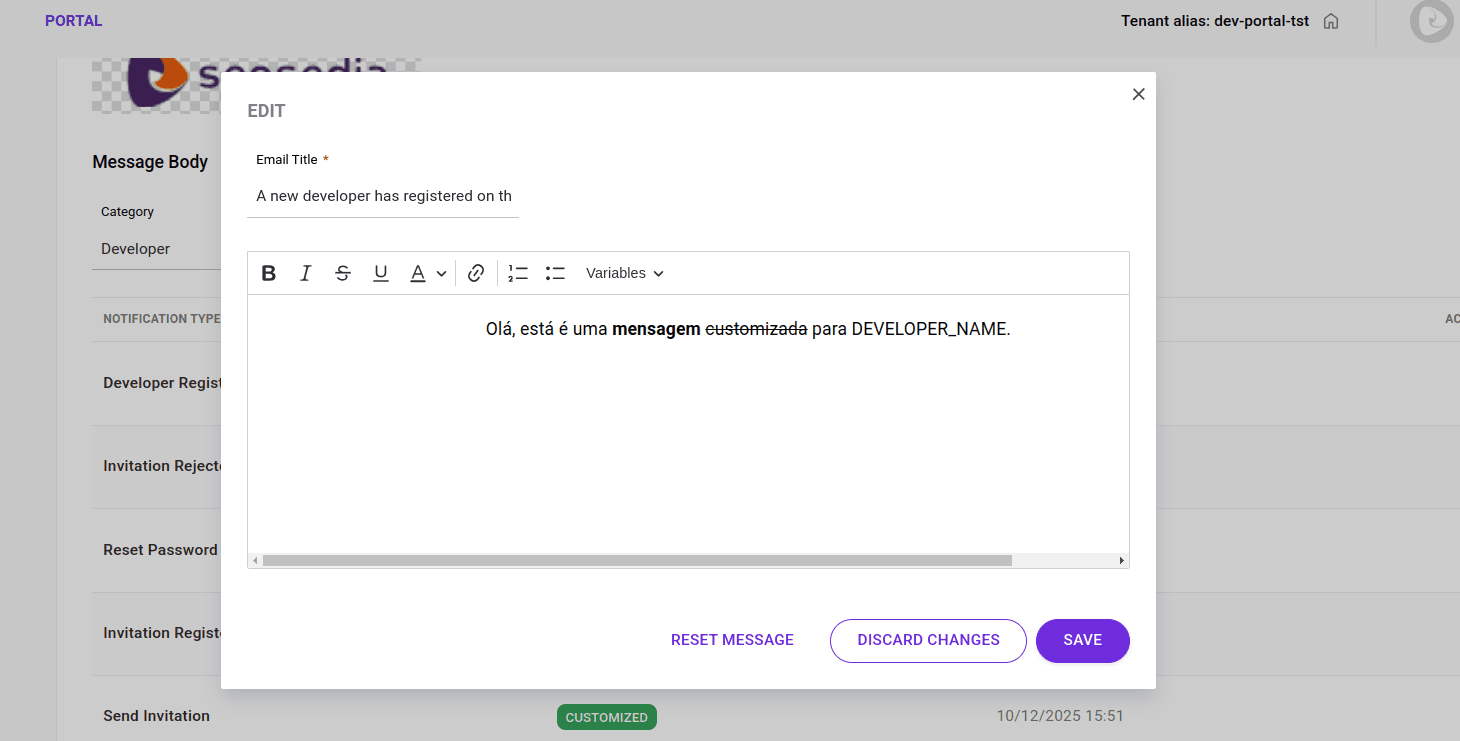
The text editor offers several tools to help you create clear and well-formatted notifications. You can:
-
Format text (max 1000 characters)
- Apply bold, italic, underline, strikethrough, and choose font color.
- Create lists to organize information.
-
Insert links
-
Use variables For Developer category notifications:
-
DEVELOPER_NAMEand -
CONFIRMATION_ACCOUNT_LINK(for "Invitation Register Approval" and "Reset Password" notifications) For App category notifications: -
APP_NAME.
-