Understand how to configure developer registration, including auto-approval and notifications in the portal.
A developer can create an account in your Developer Portal to access its content.
The administrator can configure these options:
- Auto Approval: By default, the auto approval option is disabled.
 Enabled: when the auto approval option is enabled, accounts are created automatically without requiring administrator approval.
 Disabled: when the option is disabled, the portal administrator must manually approve each account registration made by a developer.

See details about the difference in the account creation process with auto approval enabled or not.
NOTE
- Auto approval is available only for developers who created their accounts from Developer Portal (your instance) and with standard authentication¹.
- It does not change the settings of Access and Identity Management (AIM) for Single Sign-On (SSO), such as GSuite, OpenID Connect, and SAML 2.0. ¹ Standard authentication: when the developer uses their email and password to access the product.
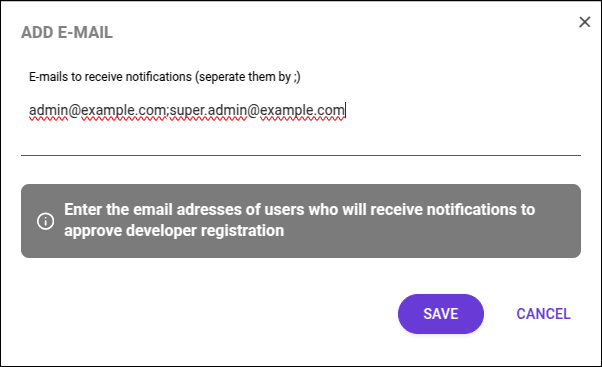
- Admin Notification: click CONFIGURE to add the emails that will be notified for each account created. This configuration is optional.
Enabling and disabling auto approval
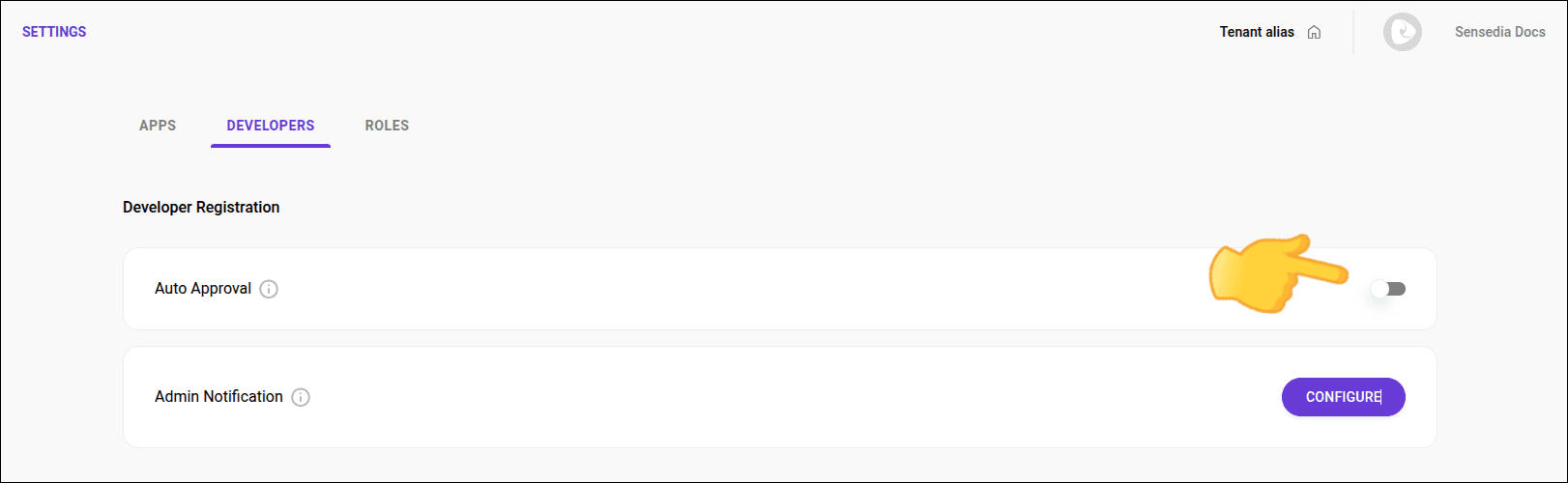
Follow the steps below to enable or disable auto approval:
Step 4
Activate the "Auto approval" option by sliding the toggle to the right.
NOTE
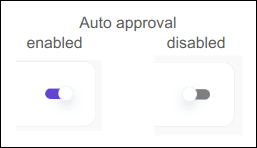
- The purple toggle set to the right indicates that auto approval is enabled, allowing any developer to create an account and access your portal content.
- The gray toggle set to the left indicates that auto approval is disabled, requiring the portal administrator to manually approve each account created.
TIPSee how to approve or reject a developer registration.
Adding emails for notifications
You can configure one or more emails to be notified when a new user is created in your Developer Portal instance.
This notification allows you to remember to manage registrations by approving or rejecting the new user.