- Home
- ...
- Developer Portal
- Catalog
The Catalog page displays the documentation for your APIs, organized by product.
The upload of API documentation and the organization of APIs into products are done through the Portal Manager.
Follow the steps below to download a swagger file.
Step 1
Access your Developer Portal. Go directly to the link or access the Portal Manager and click Portal to get the link.

Step 4
Click the API's DOCUMENTATION button. The images below are for illustrative purposes only. Colors, logos, and other elements may vary depending on the customization made in Portal > Appearance of the Portal Manager.
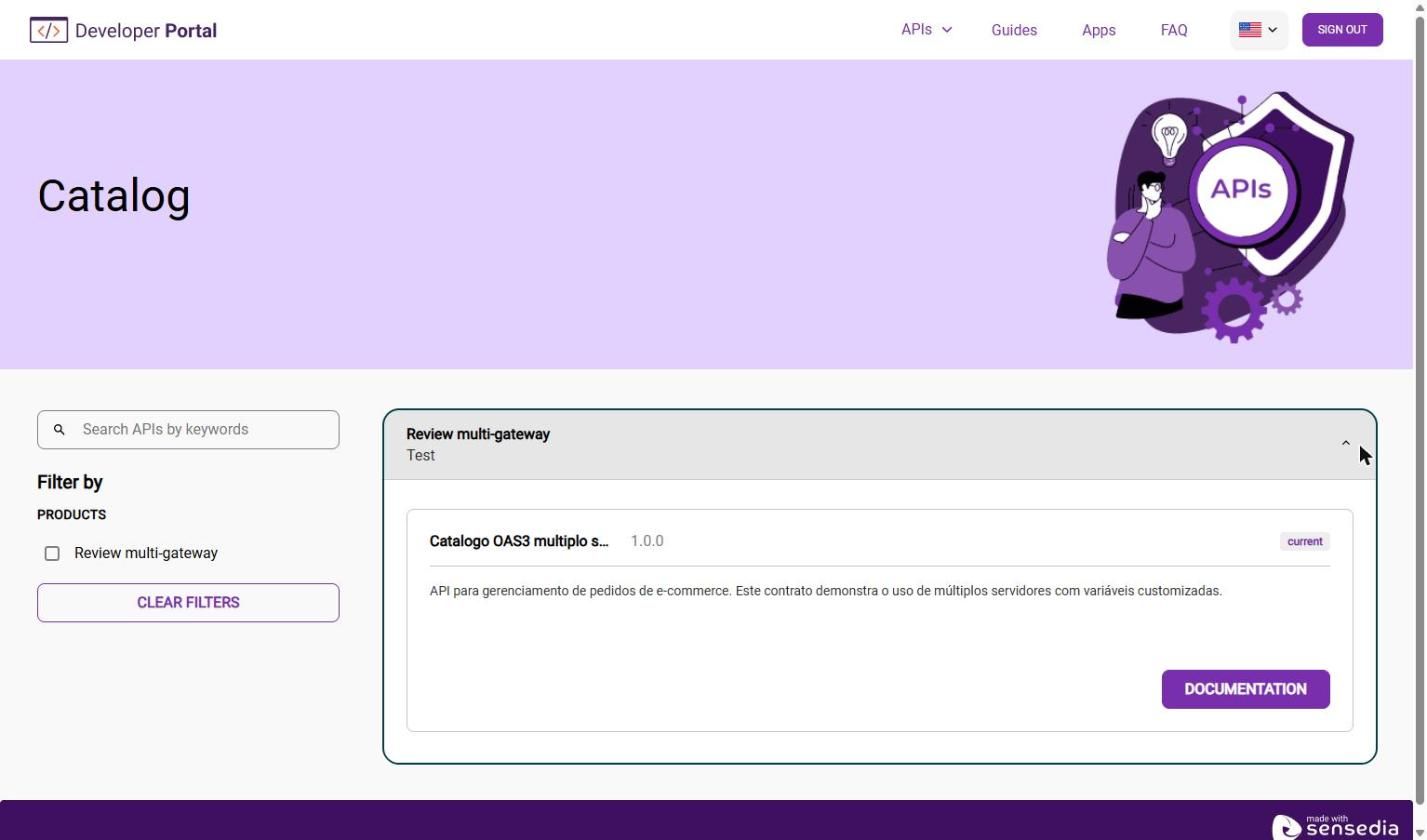
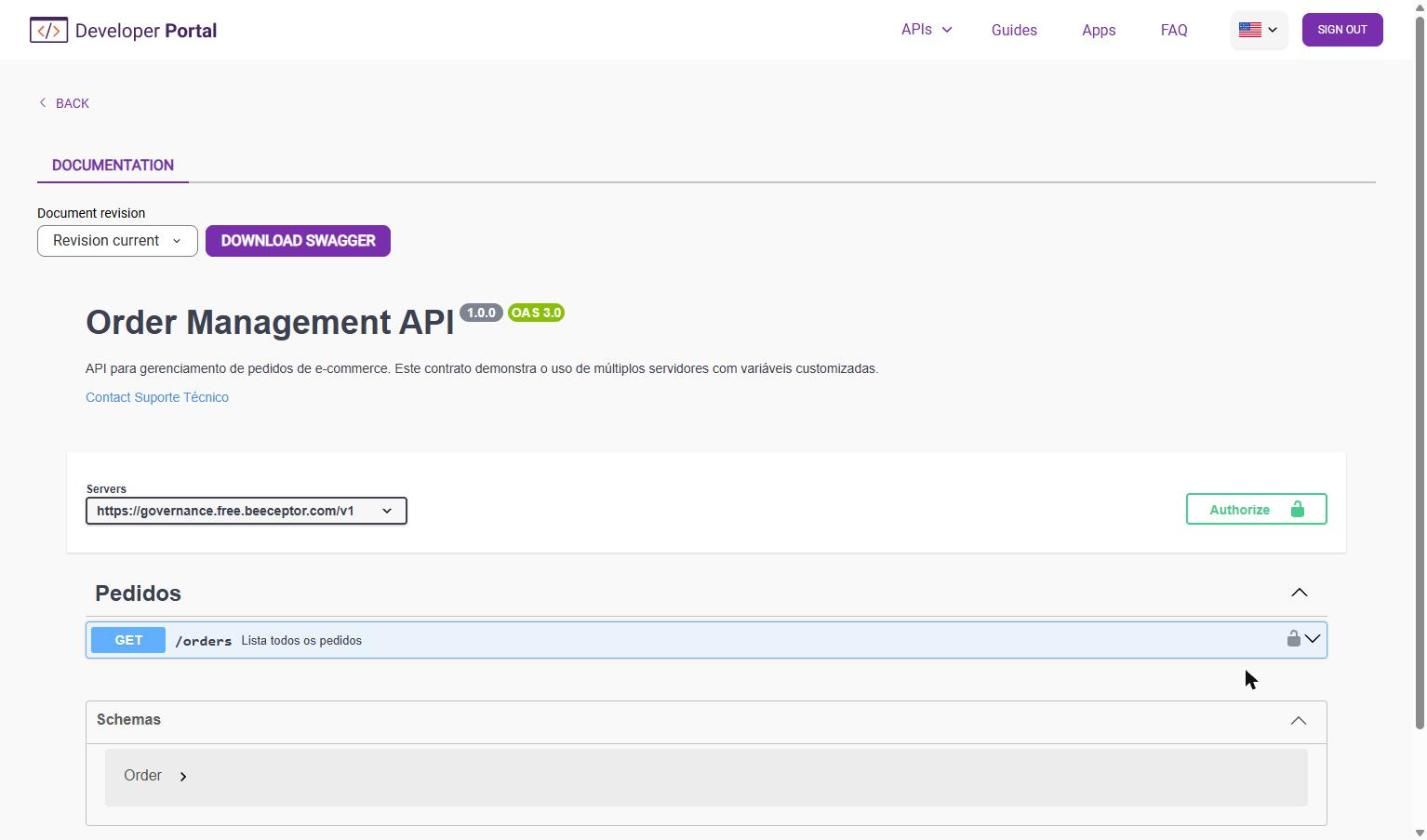
Downloading supporting files for the API
Some APIs have associated supporting files, such as Collections, SDKs, and specifications. To download them:
In APIs > Catalog, select the product and click DOCUMENTATION on the API.
Click the RESOURCES tab, next to DOCUMENTATION. The table shows the name, type, and update date of each file.
In the ACTIONS column, click the download icon of the file.
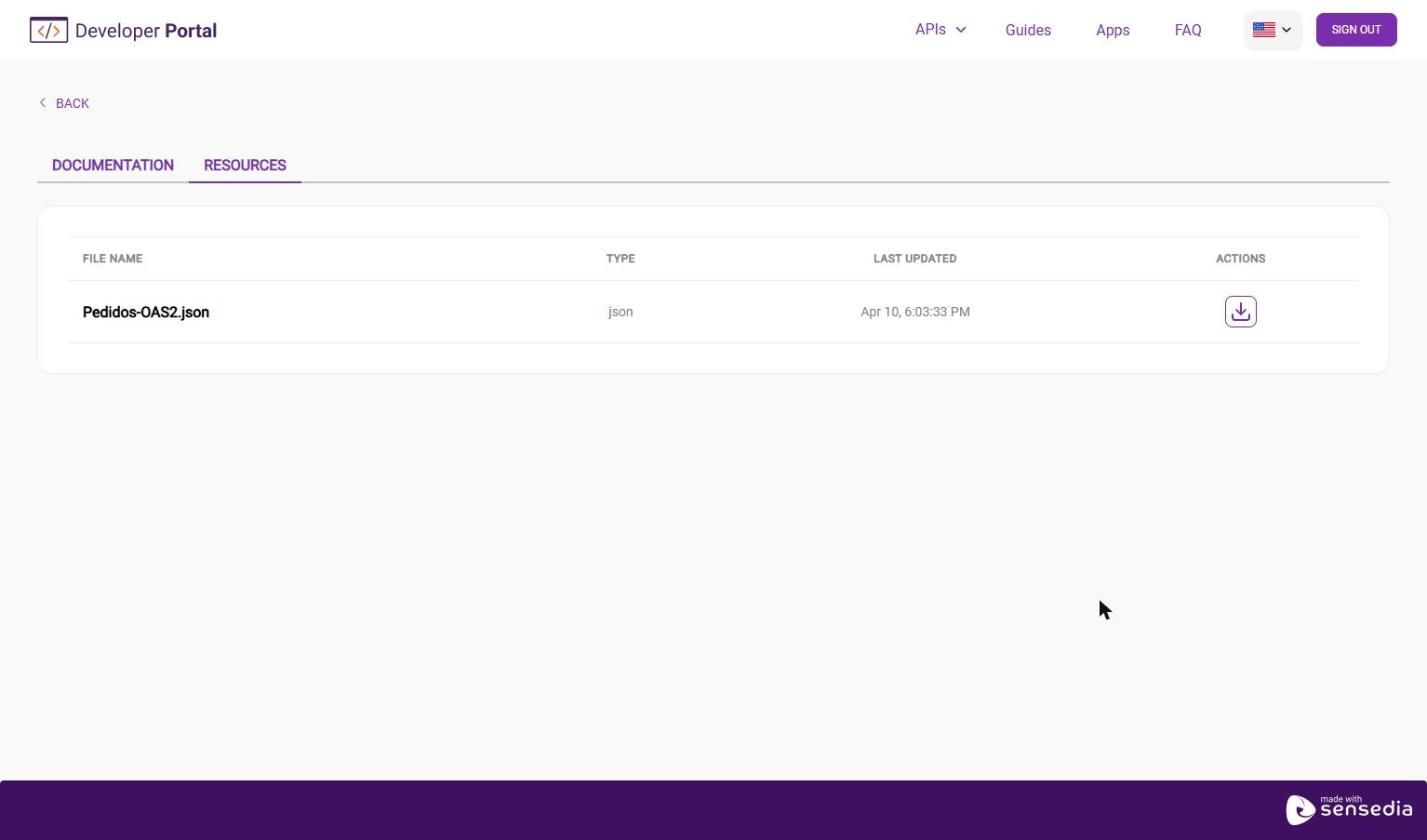
NOTEThe RESOURCES tab appears only when the API has associated files. Files are associated with the API in the Portal Manager, in the File Repository.
IMPORTANTSupporting files depend on the File Repository, a premium feature that is not included in the Basic plan. If the portal does not have the feature enabled, the RESOURCES tab does not appear.
Accesses
To view the documentation for an API in the catalog, it is necessary:
Administrator, if a user does not see a product or API in the API catalog, verify:
-
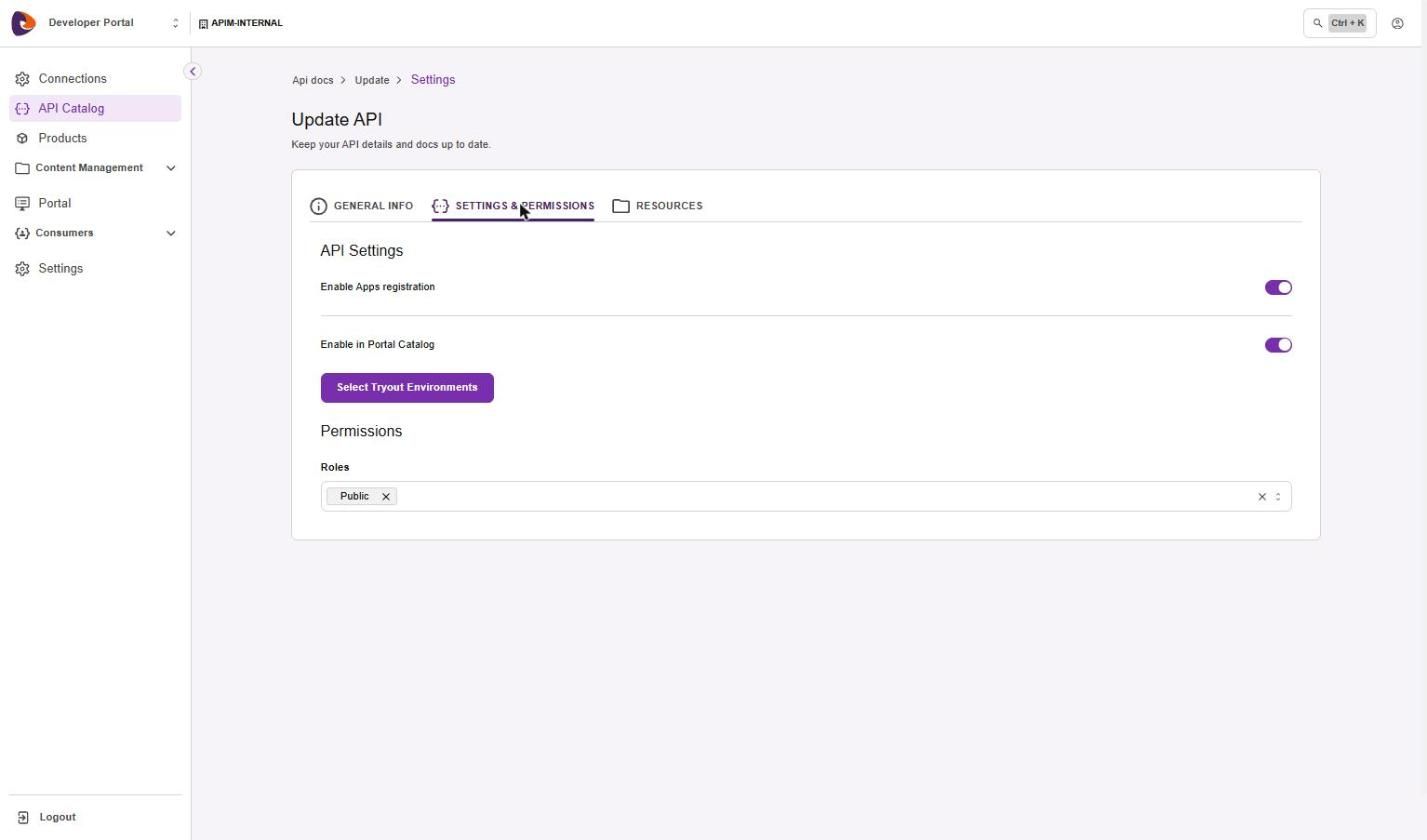
If at least one role has API Catalog defined as one of its routes.
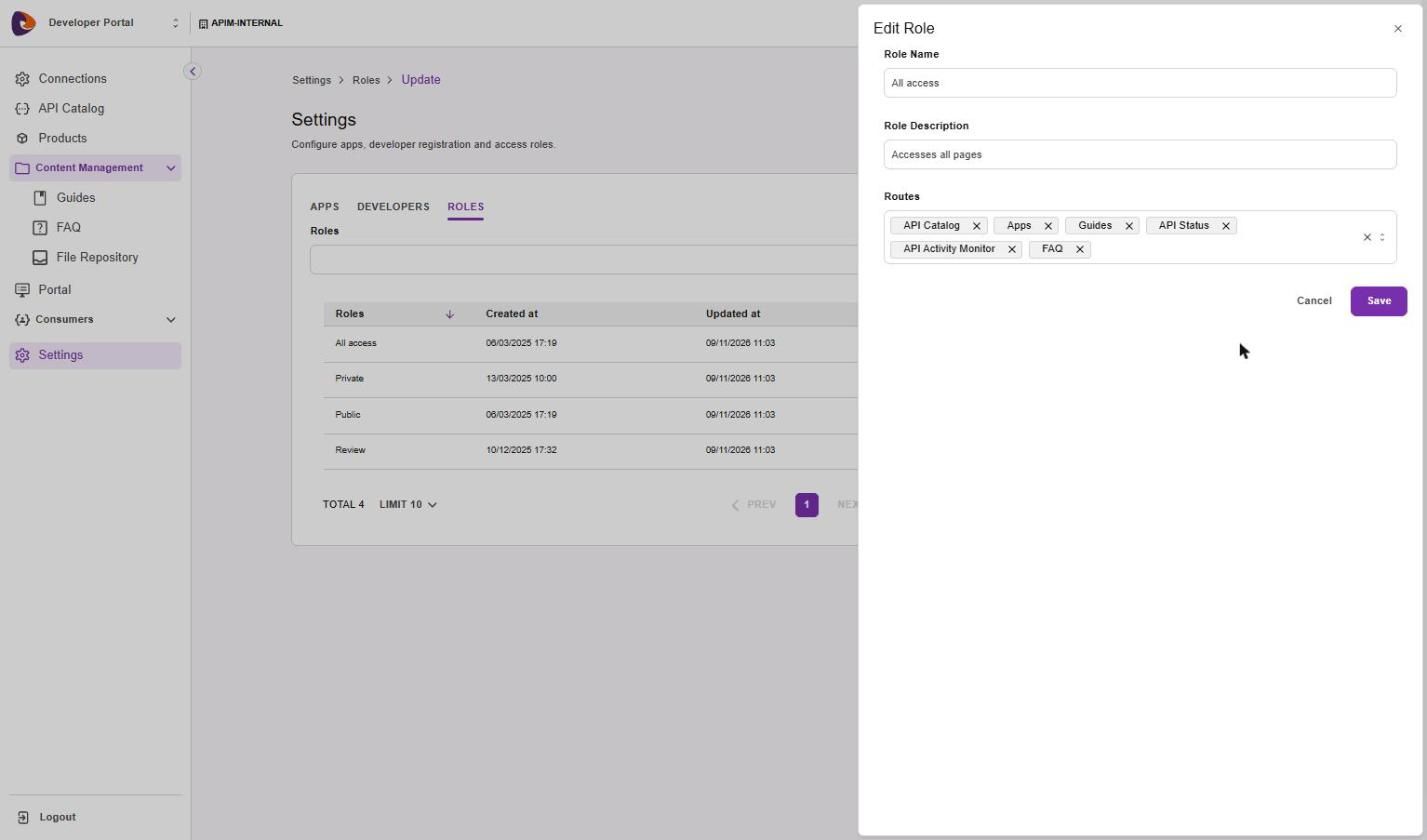
-
If the API:
-
If the user has this role.
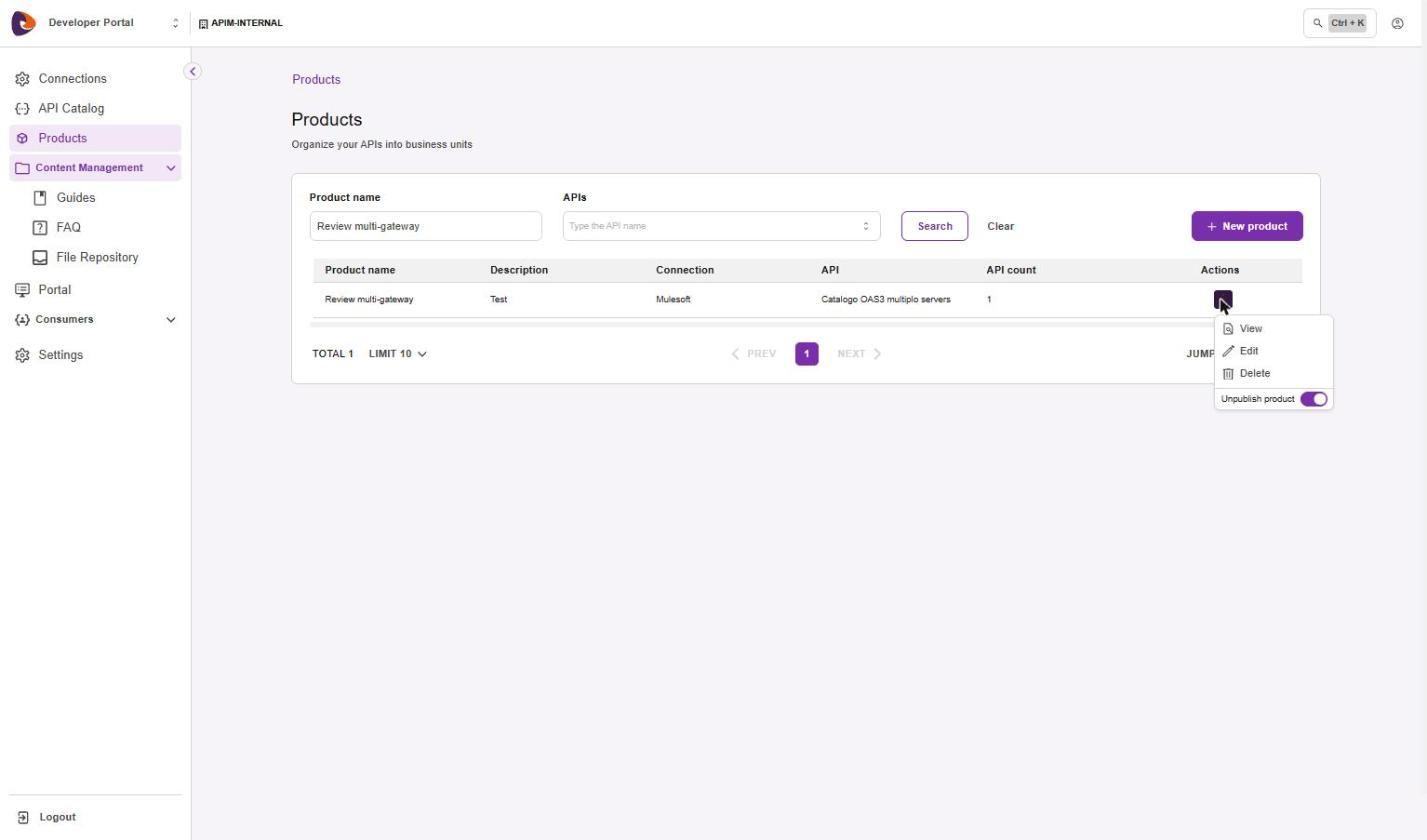
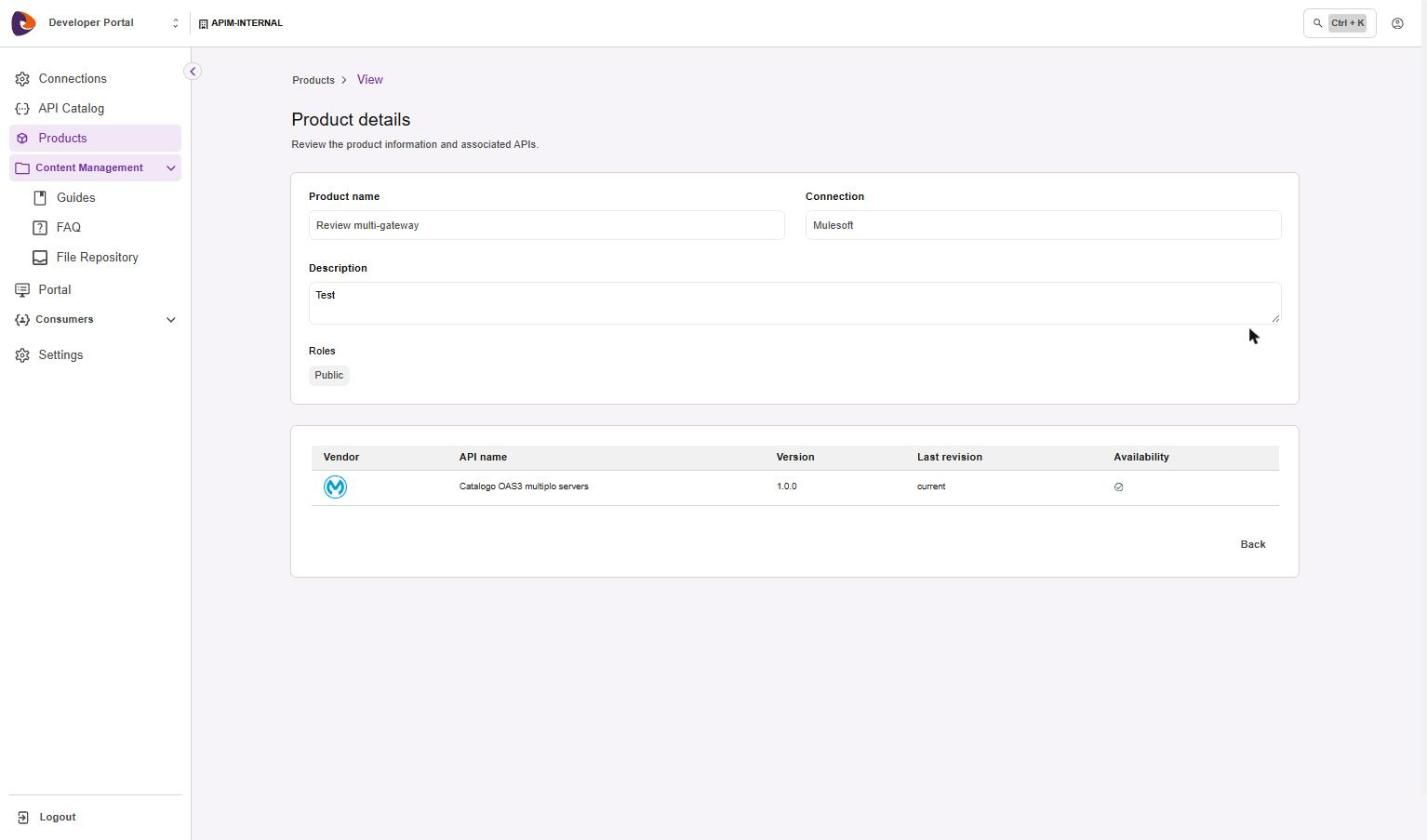
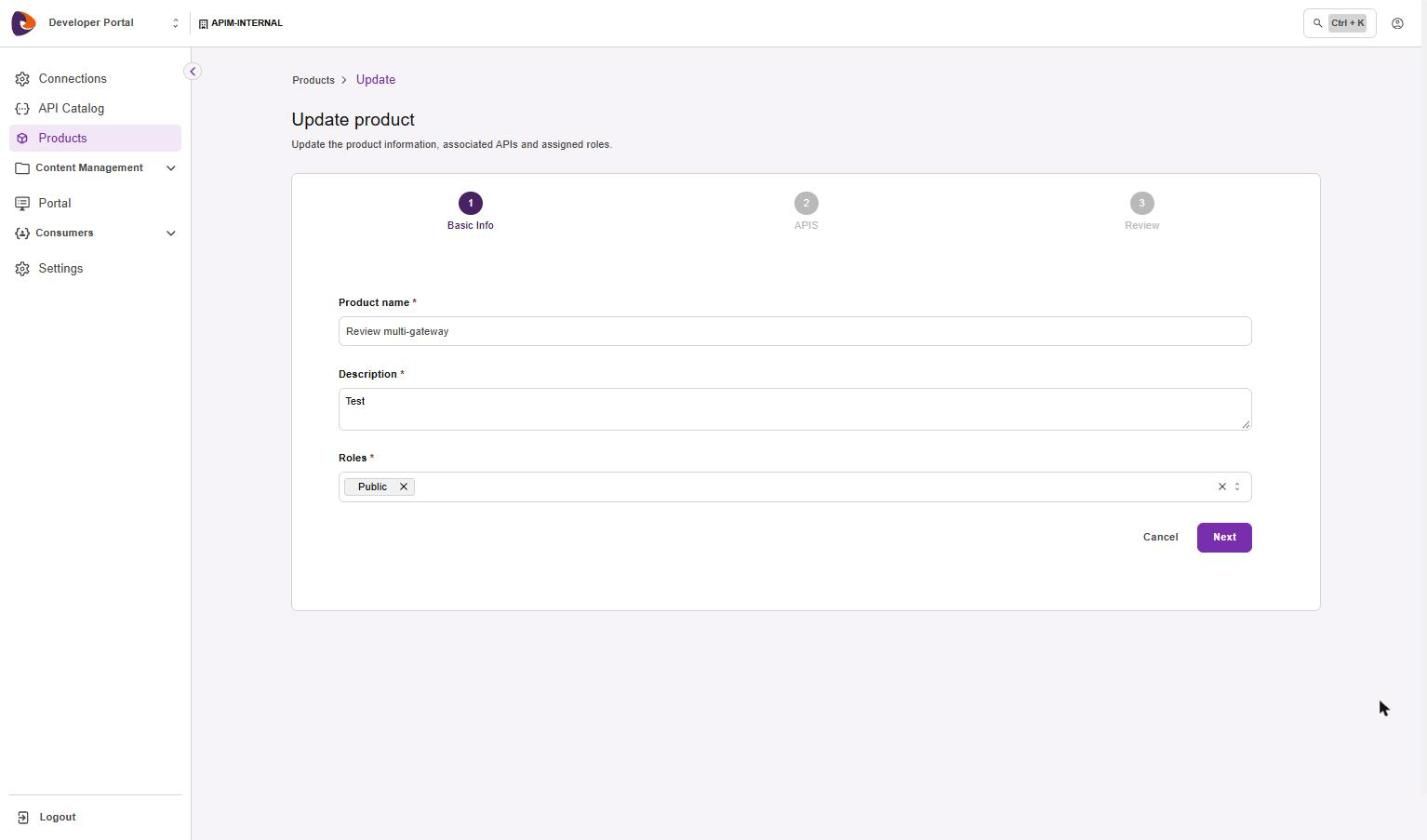
Registering and editing roles for a product
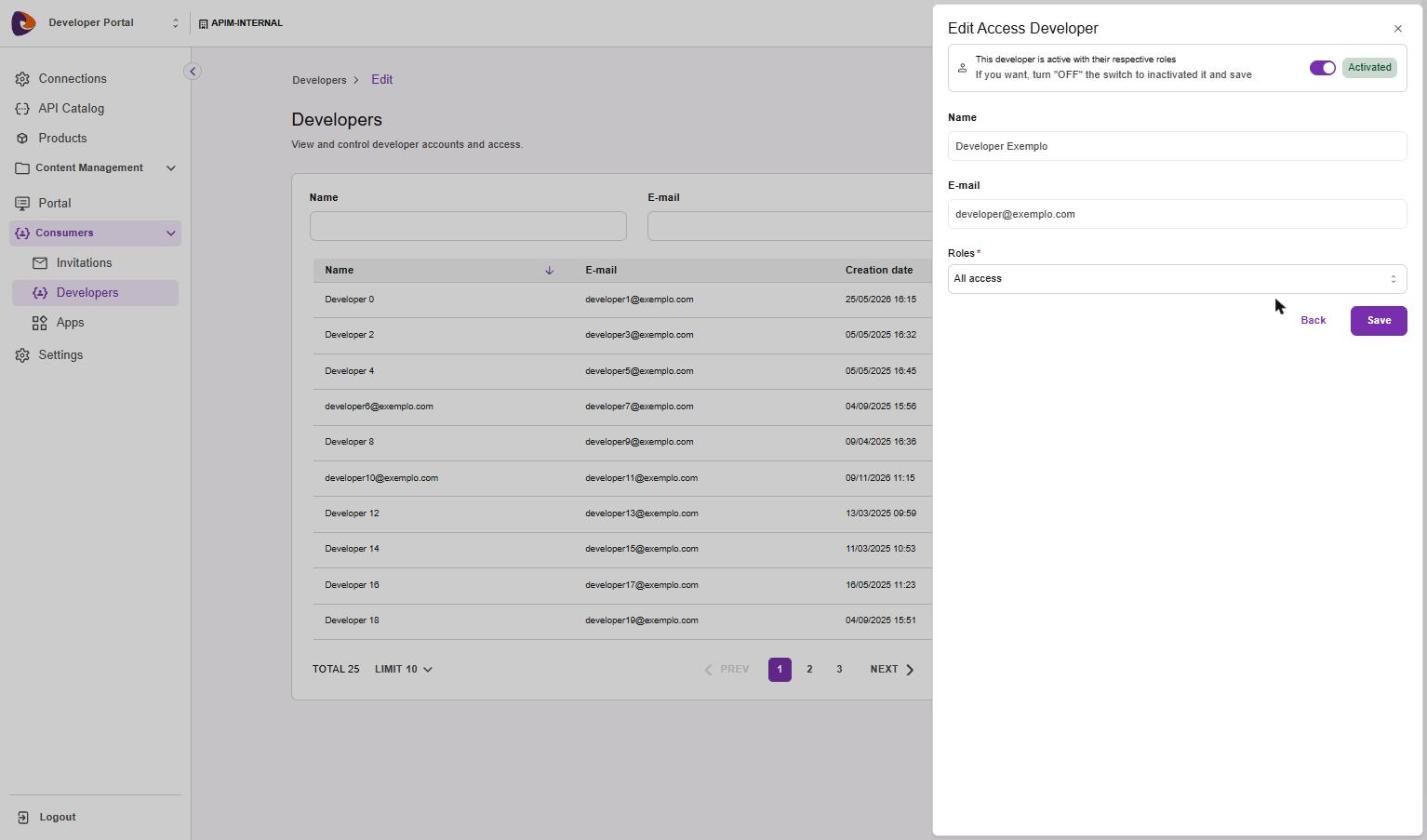
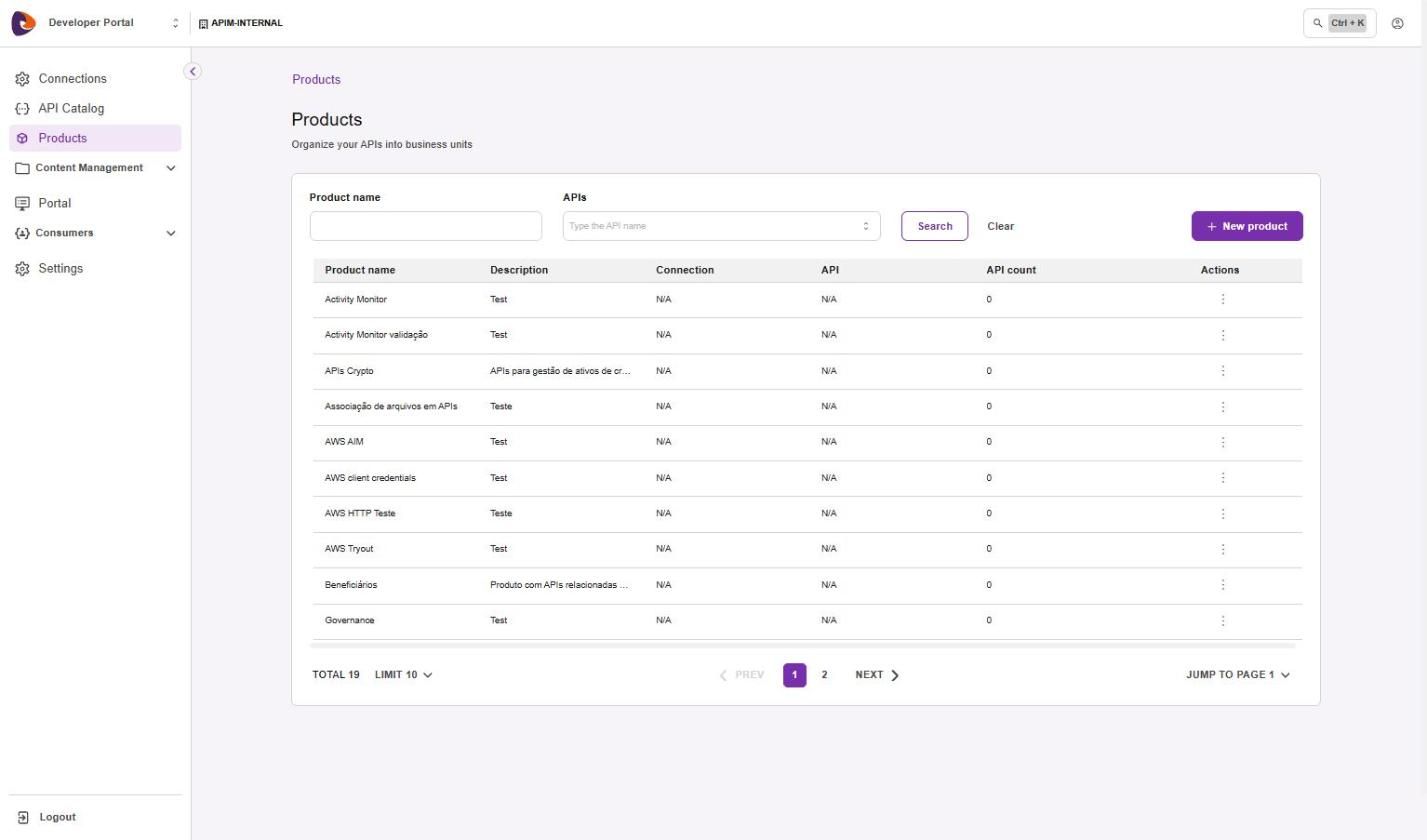
Administrator, follow these steps to define which roles can access the API Catalog:
TIP
- See how to assign roles to a user.
- Publish a product so that it appears in the API catalog.
- Create a new product.