Developers gives you a complete list of all developers that are registered and able to access the private information published in your portal.
Both active and inactive accounts are displayed in this list.
Search
You can search developers by name, email and status. Part of the name or email is enough to perform the search.
Write your search and click SEARCH to update the list of developers.
Click CLEAR to clear the entered search.
Search for one name at a time.
List of developers
The developer list displays the following columns:
- Name: developer name;
- Email: email to which the invitation was sent;
- Creation date: date and time of account creation;
- Status: activated or inactivated;
- Actions: edit the developer's access.
NOTEThe list of developers is different from the Developer Portal user list. Developers you register here, as Consumers, can access (consume) your APIs and APPs documents that are published on your portal. Access to the Portal Manager of your Developer Portal (for example, access to add documents, organize APIs in Products, etc.) can be obtained in Access Control.
See here how to create a user for your Sensedia products.
Activating and inactivating a developer
Developers with inactive status are unable to log in to your portal.
To activate or inactivate a developer:
Locate the developer. You can search by name, email, or status.
Click the  icon in the Actions column.
In the Edit Access Developer window, click the toggle to activate or inactivate the developer. The label next to the toggle shows the current status (Activated or Inactivated).
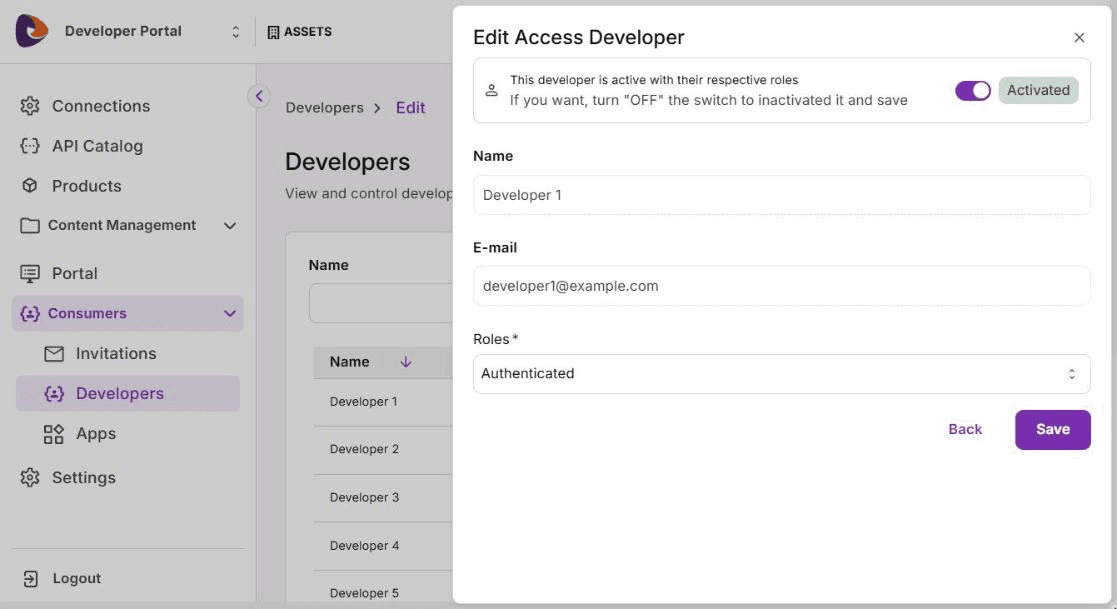
Click Save.
Access
The pages developers can access are defined by the role assigned to the developer.
New developers (new users) automatically receive the role set as default.
Follow these steps to edit a user's role:
Go to Consumers > Developers in the left side menu of your Portal Manager:
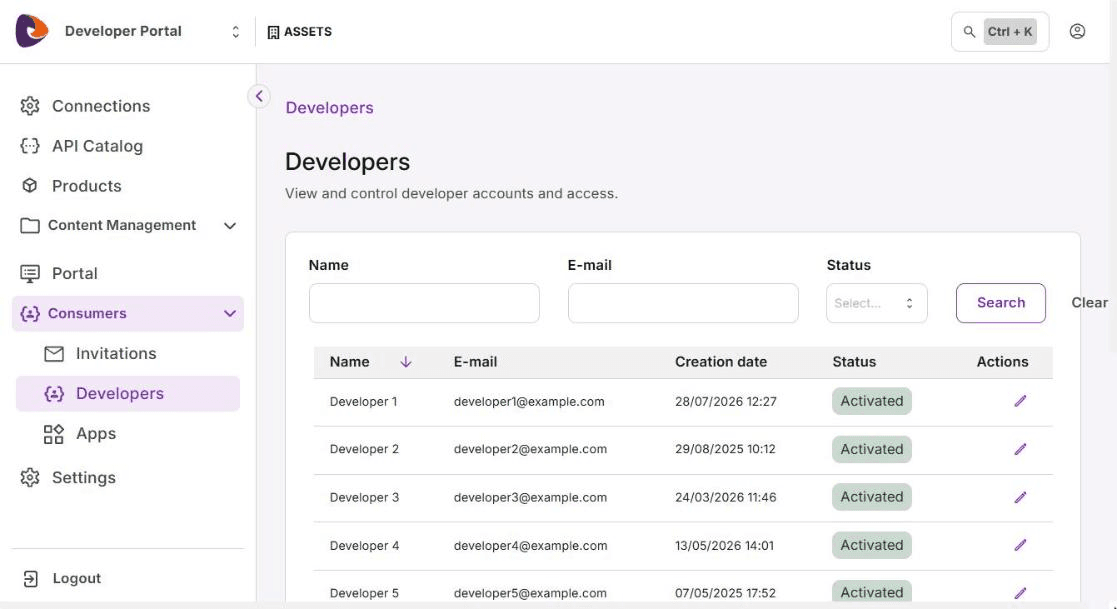
Locate the user.
In the Actions column, click the icon.
Choose one or more roles for the user and click Save.
TIP