- Home
- ...
- Content Management
- File Repository
The File Repository is the central file repository of the Developer Portal. In it, you upload, store, replace, and reuse supporting files, such as Collections, SDKs, specifications, and documentation, across different content in the portal.
You access the repository in the Portal Manager, under Content Management > File Repository. After uploading a file, you can associate it with APIs, Guides, and FAQ questions. Associated files are available for download in the Developer Portal.
IMPORTANTThe File Repository is a premium feature of the Developer Portal and is not included in the Basic plan. Without the feature enabled, the File Repository screen is blocked and the Associate files button is disabled in APIs and FAQs. To subscribe, contact your account manager.
How it works
The same file can be used in several pieces of content at the same time. When you replace a file in the repository, all associated content starts using the new version. This avoids duplicate uploads and helps control storage usage.
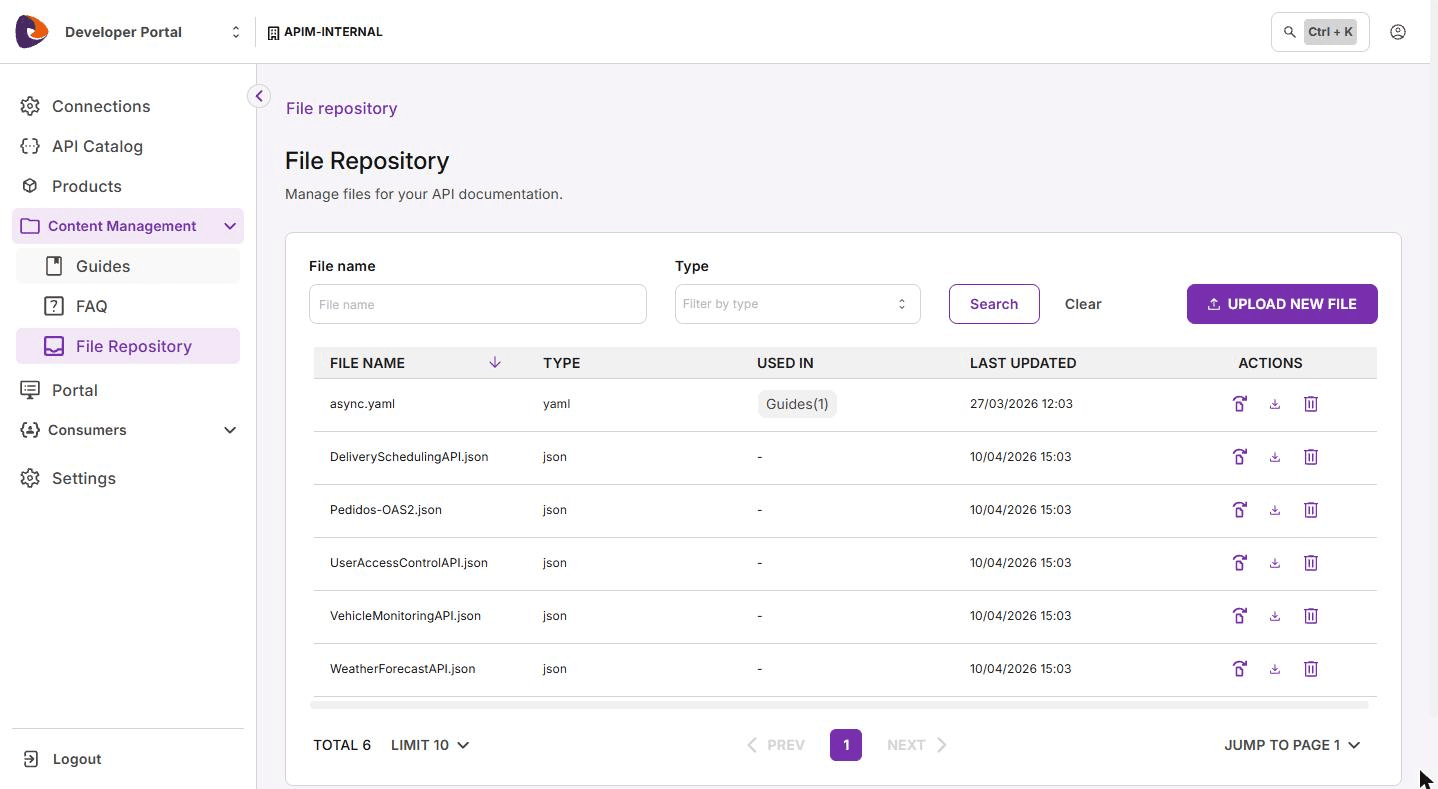
The File Repository screen lists the files with the following columns:
- FILE NAME: name of the file.
- TYPE: file format.
- USED IN: where the file is associated, with the count per content type. Example: Guides(1), FAQ(1).
- LAST UPDATED: date and time of the last update.
- ACTIONS: replace, download, and delete actions.
To find a file, use the File name field and the Type filter, and click Search. To clear the search, click Clear.
Limits
Supported formats
- Images:
png,jpeg/jpg,svg,webp,gif - Documents:
pdf - Structured data:
json,yaml/yml - Plain text:
txt
Upload
- Up to 50 files per upload
- Up to 3.3 MB per batch
- An on-screen notification appears when the limit is reached
Storage
- Up to 500 MB per client
- When the limit is reached, new uploads are blocked
IMPORTANTOnce you reach the 500 MB quota, you can only upload new files after freeing up space by deleting files.
Association
- Up to 20 files per Guide, per API, and per FAQ question
Uploading files
Open the File Repository
In the Portal Manager, go to Content Management > File Repository.
Open the upload window
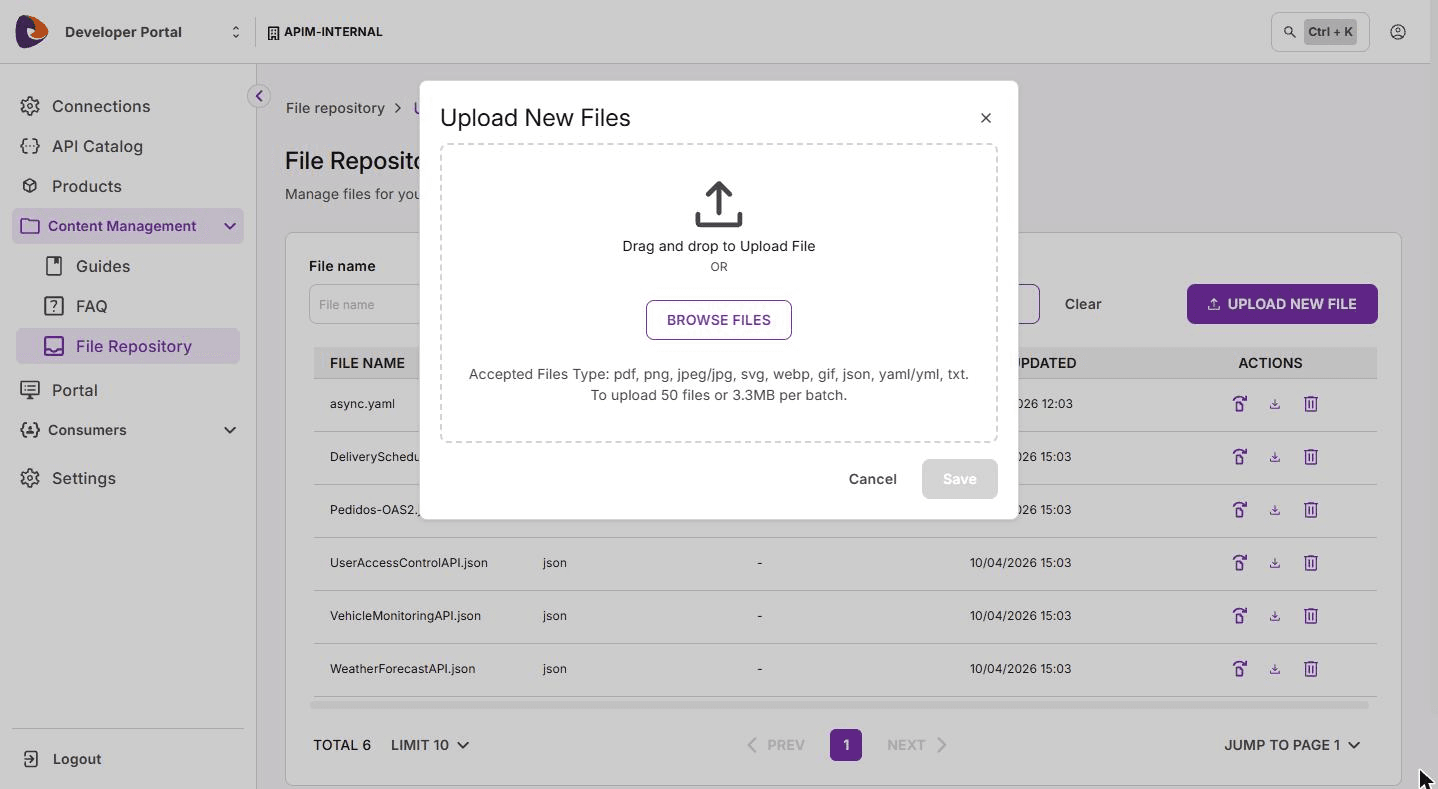
Click UPLOAD NEW FILE, in the upper right corner. The Upload New Files window is displayed.
Select the files
Drag and drop the files into the window or click BROWSE FILES to select them.
Save
Click Save. The files appear in the repository list.
Replacing a file
Use replacement to update a file without redoing its associations.
Open the replacement
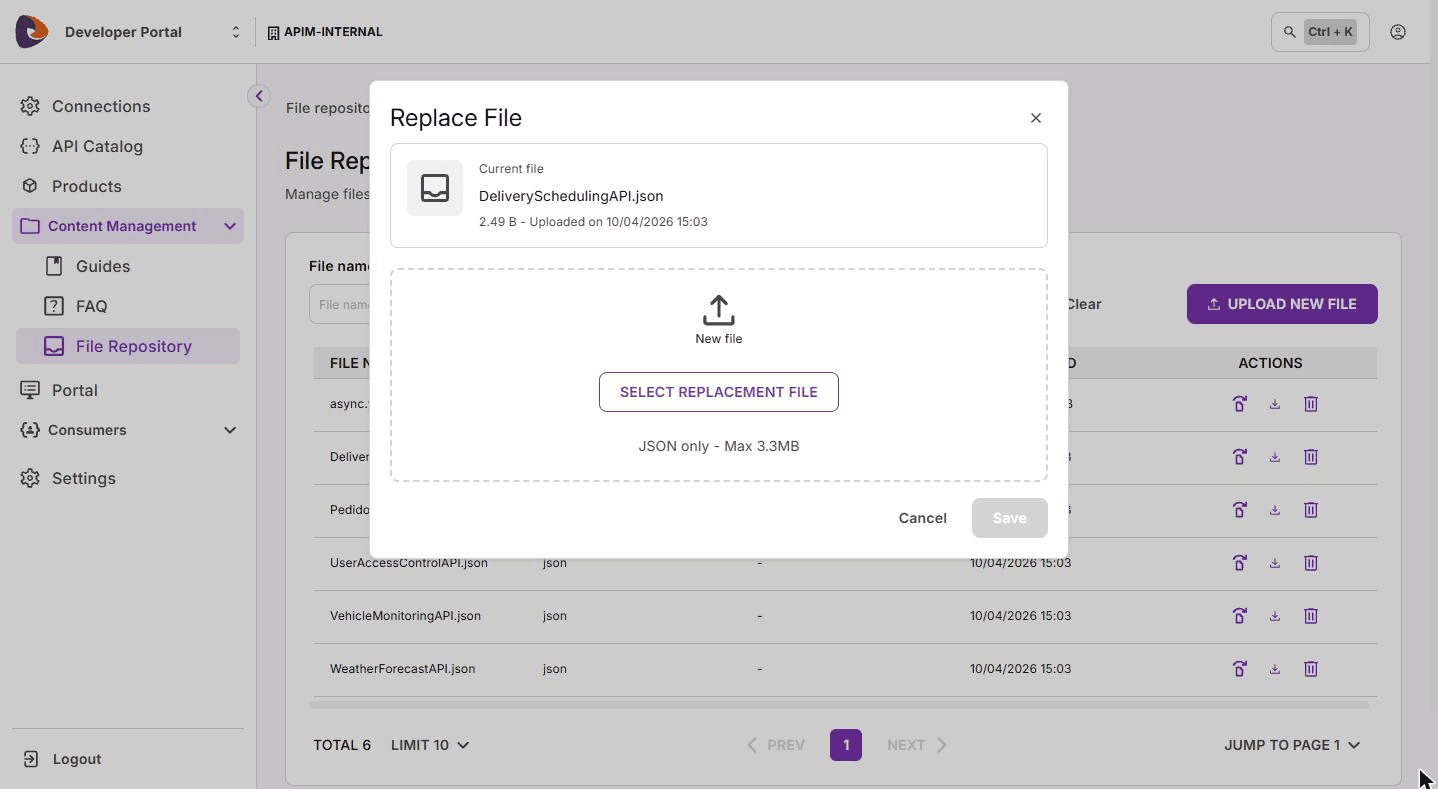
In the ACTIONS column, click the first icon (Replace) of the file. The Replace File window shows the current file details and where it is used.
Select the new file
Click SELECT REPLACEMENT FILE and select the new file. The window accepts only the same format as the original file and shows the maximum size. Example: YAML only - Max 3.3MB.
Save
Click Save.
NOTEReplacement automatically updates the file in all associated content. The repository does not keep previous versions.
Downloading and deleting files
To download a file, click the download icon in the ACTIONS column.
To delete a file, click the trash icon in the ACTIONS column and confirm the deletion.
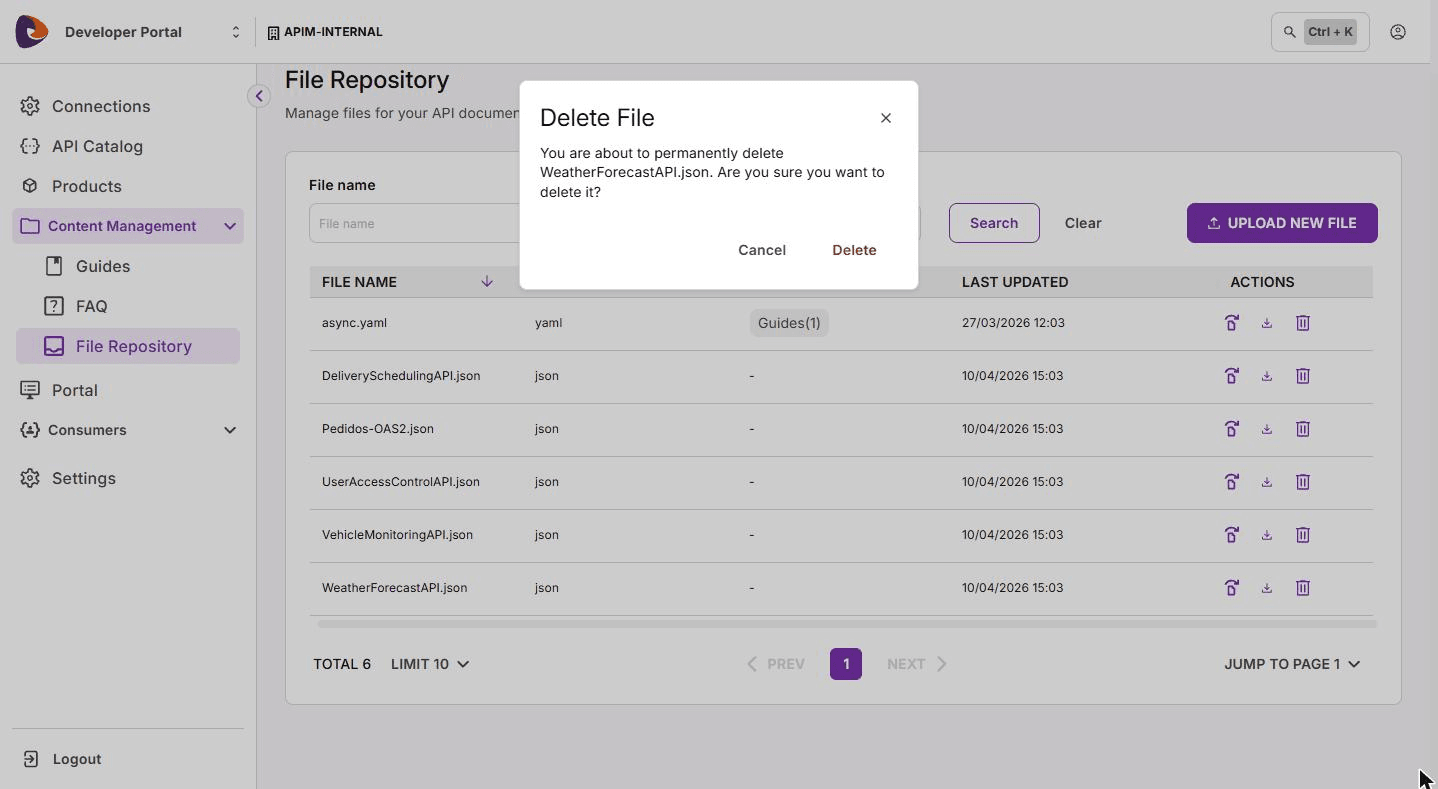
WARNINGWhen you delete a file, it is automatically removed from all APIs, Guides, and FAQs it was associated with.
Associating files
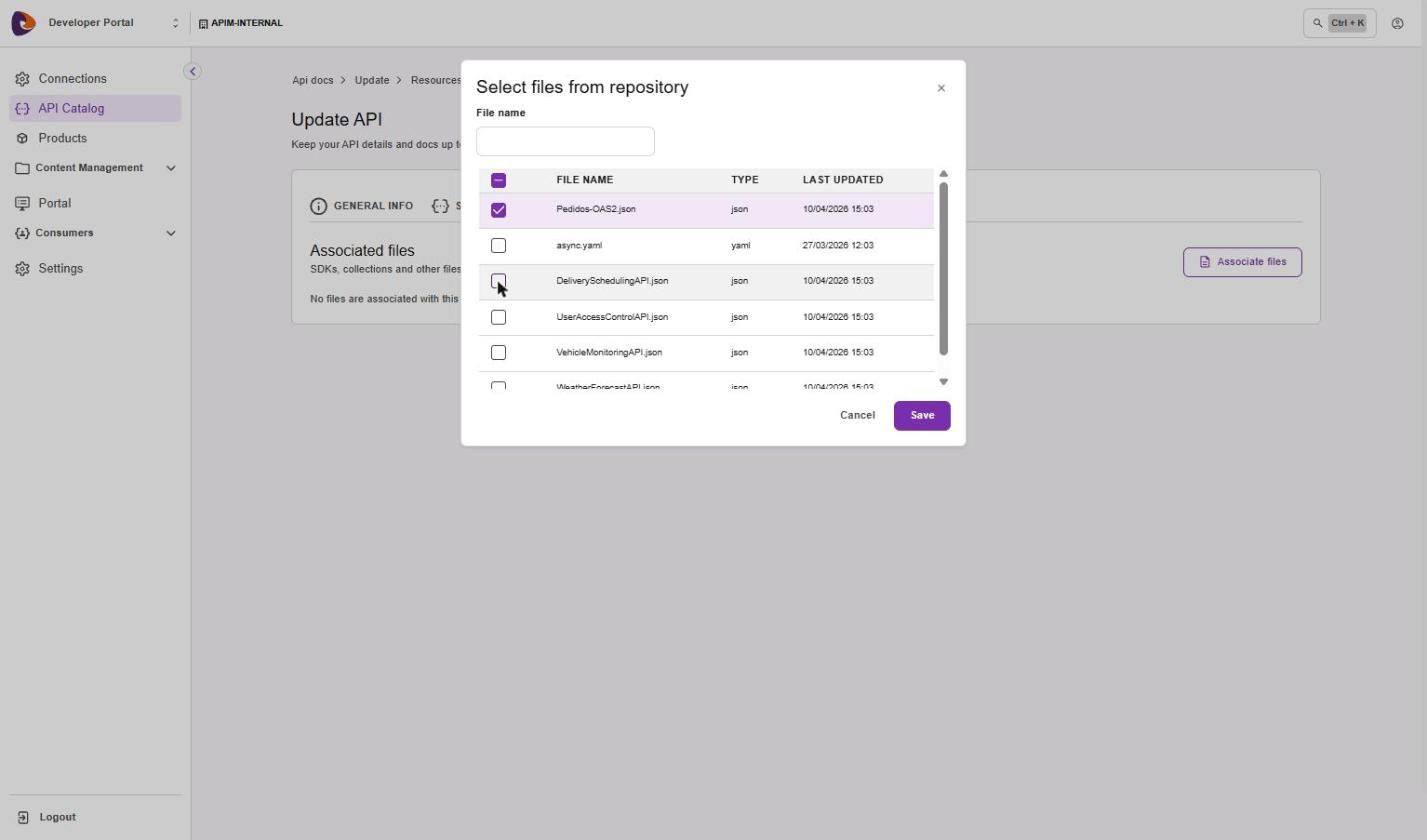
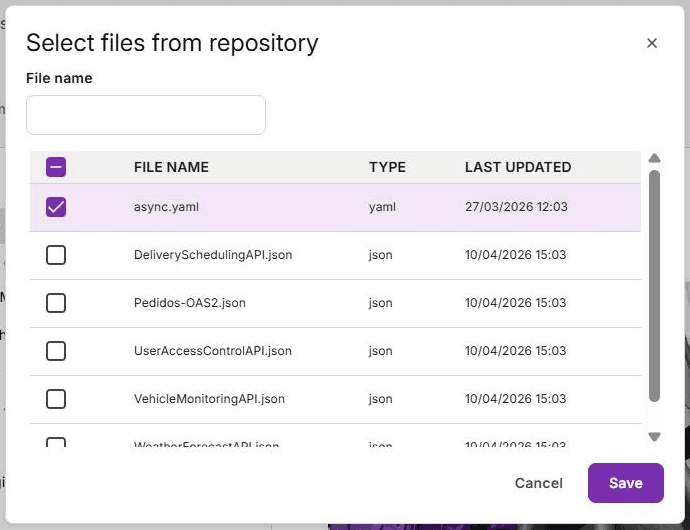
You can associate repository files with APIs, Guides, and FAQ questions. In all cases, you select the files in the Select files from repository window, where you can search by file name and check one or more files.
Open the API
In API Catalog, click the edit icon of the API.
Open the Resources tab
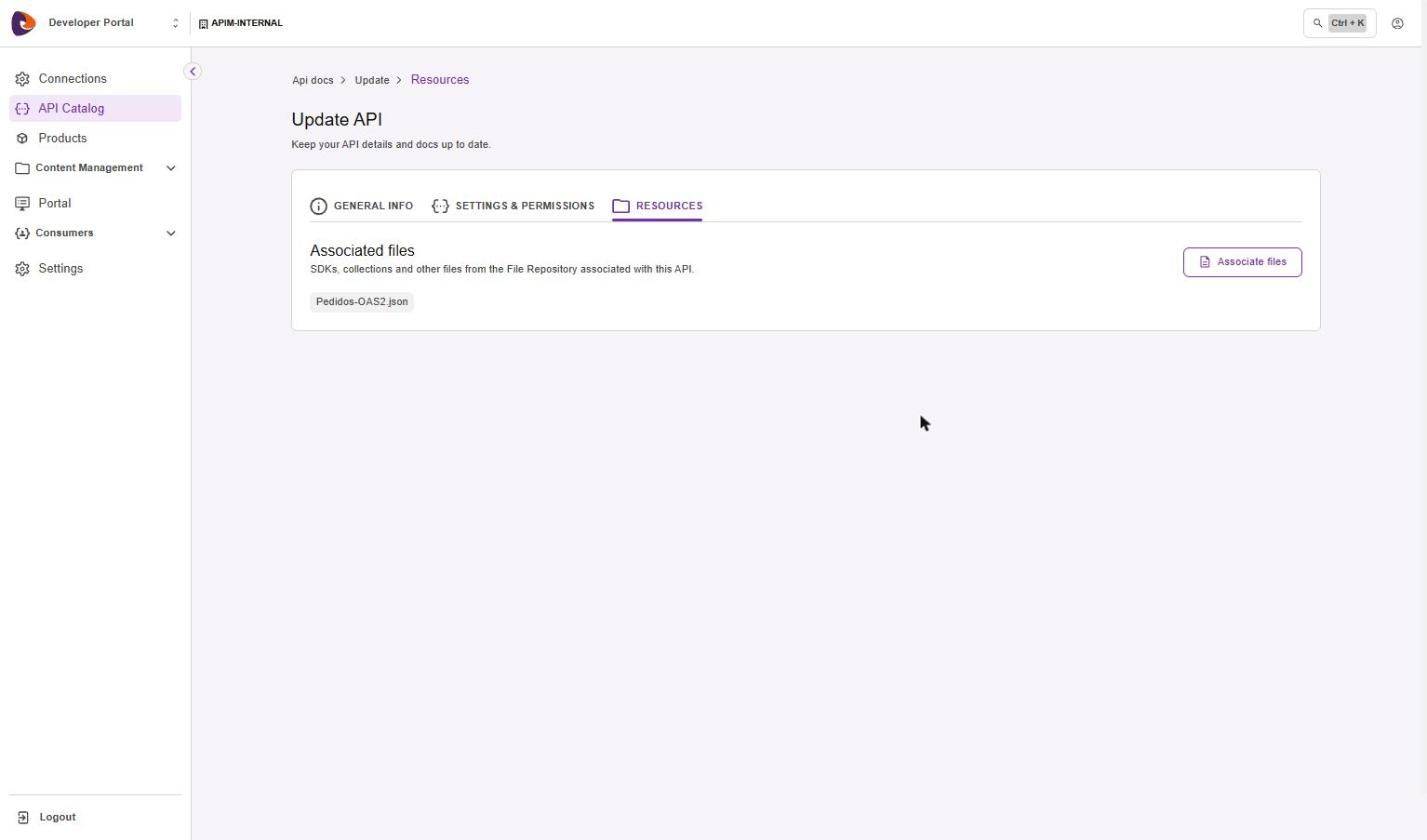
On the Update API screen, click the RESOURCES tab. The Associated files section lists the files already associated with the API.
Select the files
Click Associate files, check the files in the Select files from repository window, and click Save.
In the Developer Portal, the files appear in the RESOURCES tab of the API documentation.
Open the Guide
In Content Management > Guides, select the Guide or create a new one.
Open the file association
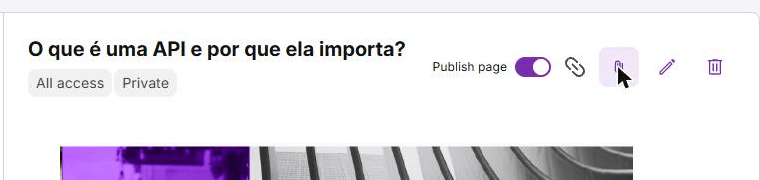
Click the paperclip icon (Associate File), in the upper right corner of the Guide.
Select the files
Check the files and click Save.
In the Developer Portal, the files appear in the Resources section, right below the Guide title.
Open the topic
In Content Management > FAQ, open the topic that contains the question.
Open the file association
In the question list, click the paperclip icon (Associate files) in the Actions column of the question.
Select the files
Check the files and click Save.
Files are associated per question, not per topic. In the Developer Portal, the files appear in the Resources section, above the answer, when the question is expanded.
Detaching files
You can detach a file in two ways:
- From the selection window: open the file association in the content again, uncheck the file, and click Save.
- From the USED IN column: in the File Repository, click the label in the file's USED IN column. The Used in window lists the associated content, with type and name. Click the detach icon in the content row.
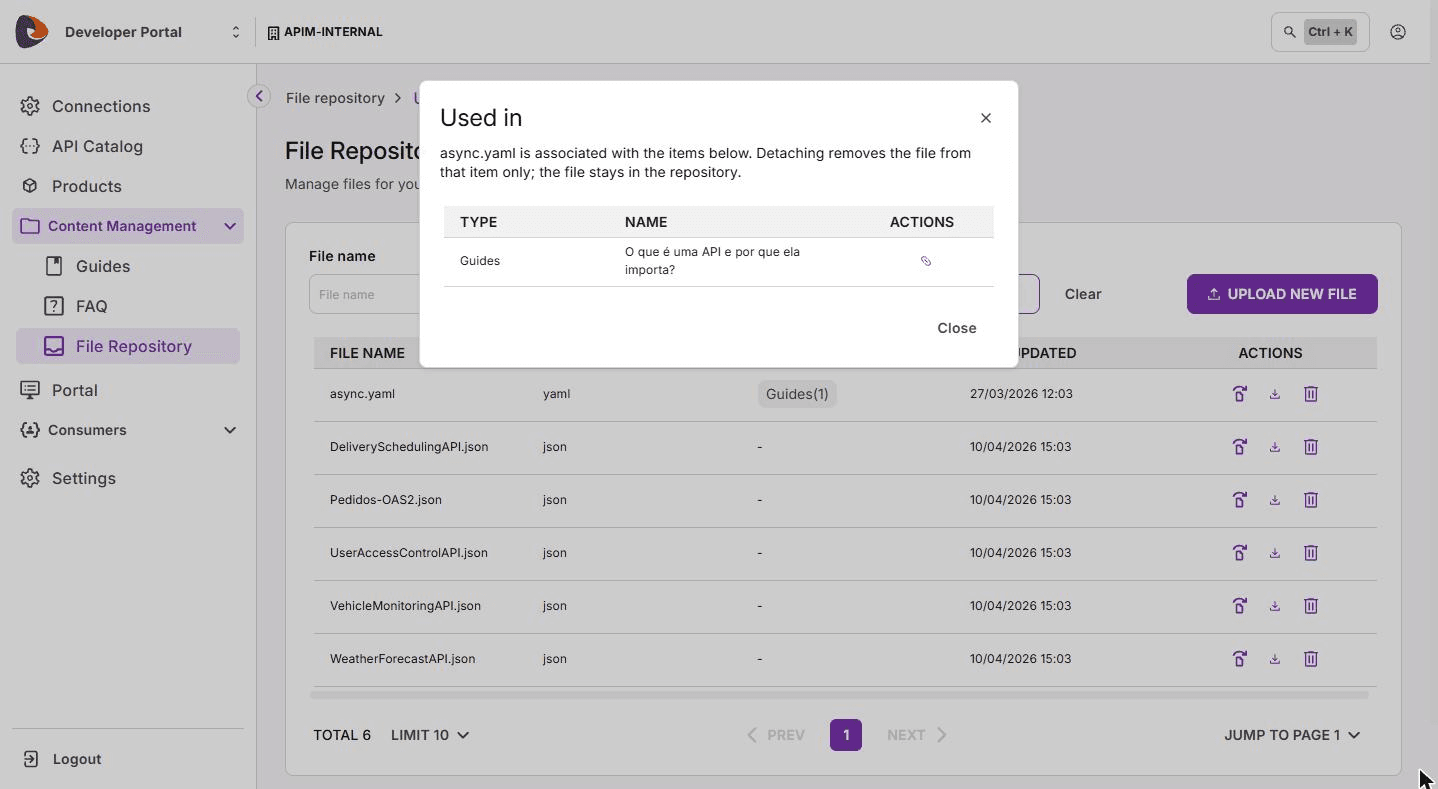
NOTICEIn the Used in window, the file is detached as soon as you click the icon, without a confirmation prompt. The file is removed only from that content and remains available in the repository.
Files in the Developer Portal
Associated files are available for download to people who access the Developer Portal:
- APIs: in APIs > Catalog, click DOCUMENTATION on the API and open the RESOURCES tab. The table shows the name, type, and update date of each file, with the download button in the ACTIONS column. The tab appears only when the API has associated files.
- Guides: in the Resources section, below the Guide title. Click the file name to download it.
- FAQ: when you expand a question, in the Resources section, above the answer. Click the file name to download it.