- Home
- ...
- Data Sources
- SAP RFC Data Source
The SAP RFC data source stores the connection settings used by the SAP RFC connector to communicate with an SAP system through the RFC (Remote Function Call) protocol.
It is a connection type separate from JDBC data sources: instead of pointing to a relational database, it points to an SAP Application Server and authenticates with SAP-specific credentials (client, system number, language) over the proprietary JCo (SAP Java Connector) protocol.
IMPORTANTBefore creating an SAP RFC data source, the JCo driver files must be uploaded for your tenant. See Prerequisite: JCo drivers. Without them, the SAP RFC data source cannot be created or deployed.
Prerequisite: JCo drivers
Communication with SAP relies on the JCo (SAP Java Connector) libraries, which are proprietary to SAP and are not bundled with the platform for licensing reasons. You must download them yourself from the SAP support portal — SAP Java Connector (JCo) — and upload them for your tenant.
IMPORTANTDownload the version for Linux for Intel compatible processors, which is the platform where the integrations run.
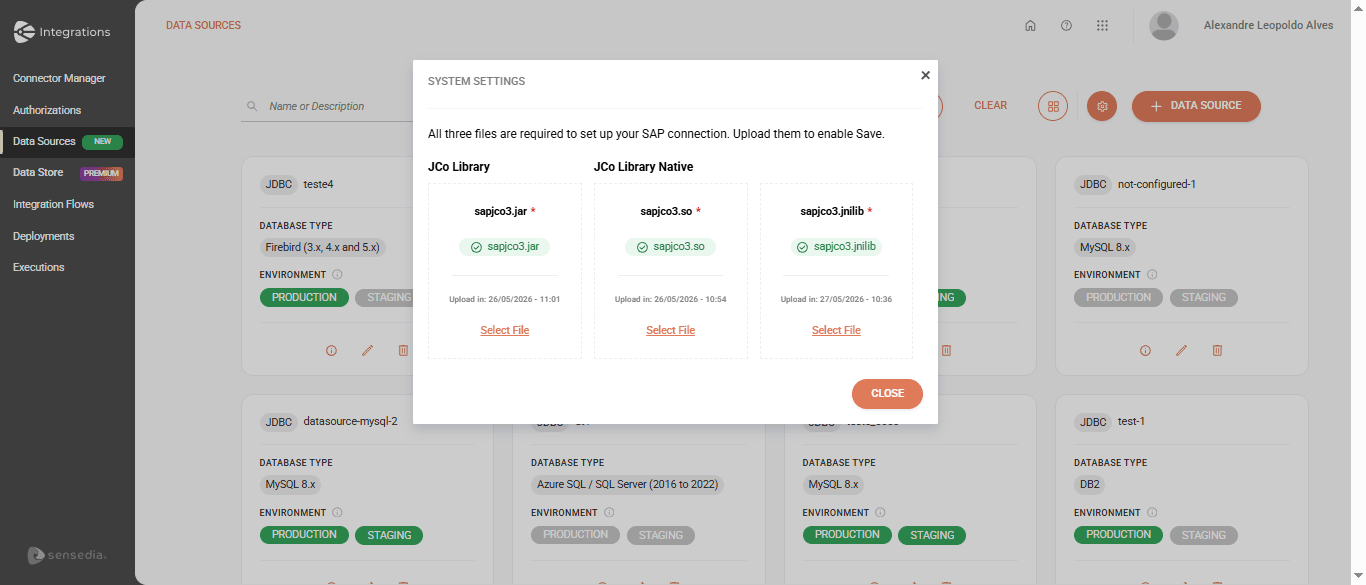
To upload them, go to the Data Sources screen and click the System Settings button (next to + DATA SOURCE). In the System Settings dialog, upload the three required files:
- JCo Library:
sapjco3.jar - JCo Library Native:
sapjco3.so sapjco3.jnilib
All three files are required to enable saving.
Creating an SAP RFC data source
To create a new SAP RFC data source, access the Data Sources screen, click + DATA SOURCE, and select the SAP RFC type.
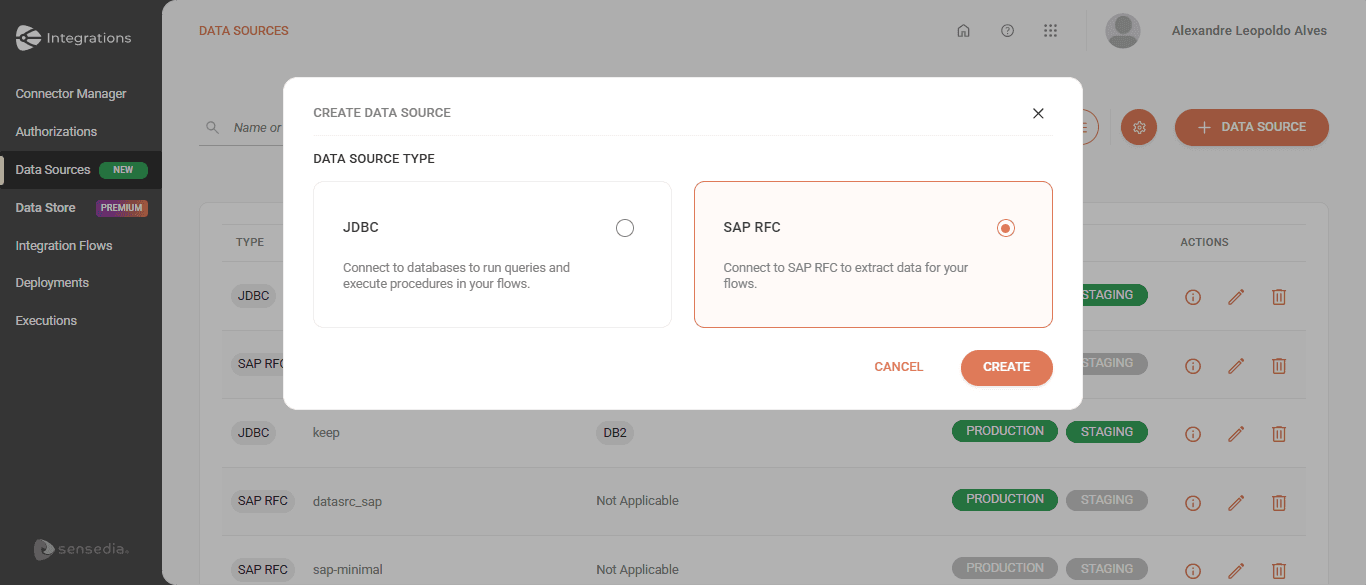
IMPORTANTThe SAP RFC option is available only when the SAP RFC feature is enabled for your tenant.
The configuration is organized into the sections below.
Basic information
- Name: unique name that identifies the data source. This name appears in the data source list when configuring the SAP RFC connector.
- Description: a free-text description of the data source.
Configuring the environment
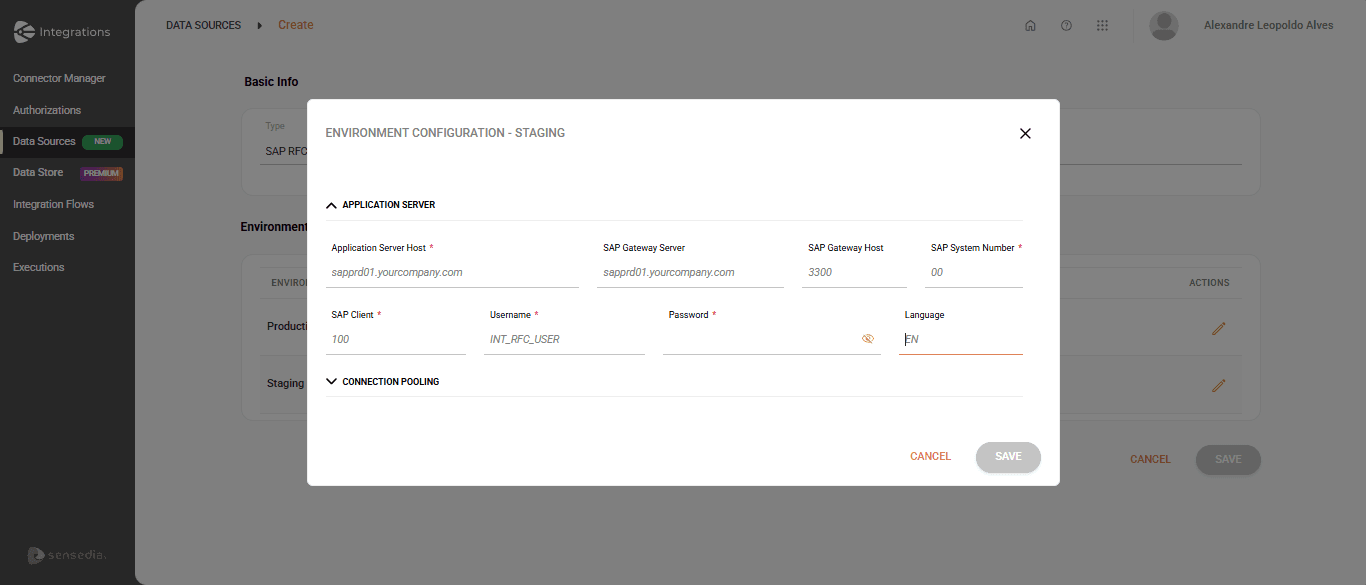
The connection settings are configured per environment. In the Environment Configuration section, each environment (Staging and Production) shows a status of NOT CONFIGURED or CONFIGURED; click the edit icon to open its configuration. Each environment has its own settings, and changes in one do not affect the other.
The environment configuration is organized into two sections.
Application Server
Fields marked with * are required.
- Application Server Host
*: host or IP address of the SAP server. - SAP Gateway Server: the service name or TCP port the SAP Gateway uses to listen for external connections (e.g.,
3300). - SAP Gateway Host: host or IP of the server where the SAP Gateway process runs.
- SAP System Number
*: the SAP instance number (e.g.,00). Positive digits only. - SAP Client
*: the SAP client/mandant number (e.g.,100). Positive digits only. - Username
*: the technical user with authorization to run RFCs/BAPIs. - Password
*: the user's password. - Language: logon language (e.g.,
EN,PT).
Connection Pooling
These fields control the JCo connection pool. They are optional and have default values.
- Max Active Connections: maximum number of connections that can be active simultaneously. Default:
10. - Max Idle Connections: number of connections kept idle in the pool. Default:
5. - Connection Idle Timeout (ms): time, in milliseconds, after which an idle connection can be closed. Default:
60000. - Expiration Check Period (ms): interval, in milliseconds, at which the cleanup thread checks for expired connections. Default:
60000. - Max Get Client Time (ms): maximum time to wait for a connection when the limit has been reached. Default:
30000.
A deployment is blocked only if the data source is not configured for the target environment.
NOTEPasswords and sensitive data are stored encrypted, following the platform's security standards.
Next steps
After creating the SAP RFC data source, use it in a flow through the SAP RFC connector.