---
title: Teams
description: Managing user teams
documentId: access-control-groups
locale: en-US
---

# Teams

In **Teams** you can create and manage user teams for Sensedia products.
**Teams** is equivalent to **Groups** from some previous versions of API Manager and they help organize users, facilitating the management of API, environment, and Custom Interceptor visibility.

<Callout type="TIP" title="TIP">
Read more about visibility rules in the API Platform documentation.
</Callout>

## Creating teams

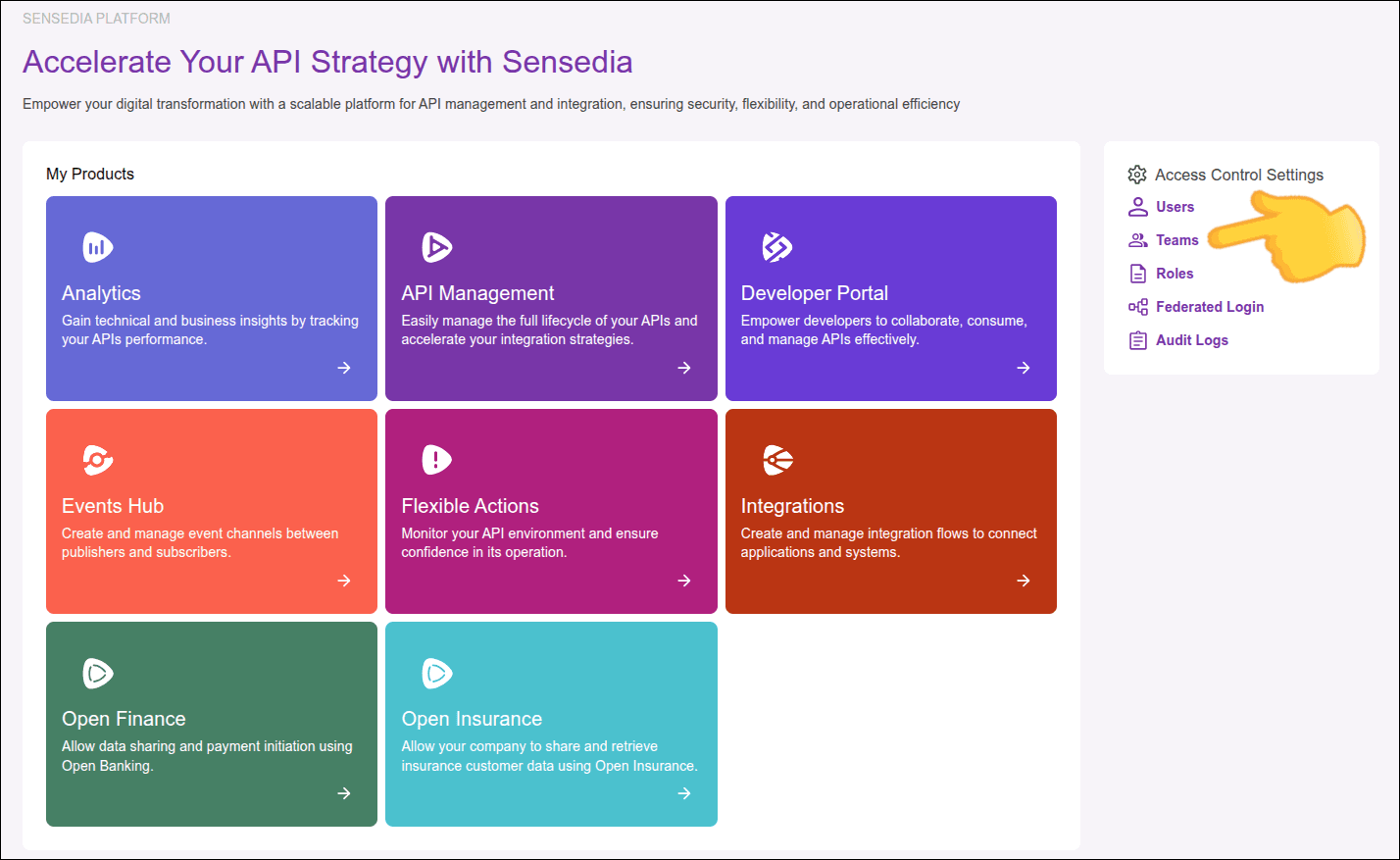
To register a new team, access **Teams** in Access Control Settings.

<Steps>
  <Step>
    Find Access Control Settings by clicking the icon in the upper corner of any Sensedia product screen, or look for it in the right sidebar menu of your platform's main screen.
    ![highlight for the Teams link on the Platform home screen](https://creative-ball-51b3fc85c0.media.strapiapp.com/teams_1c70ca6391.png)
  </Step>

  <Step>
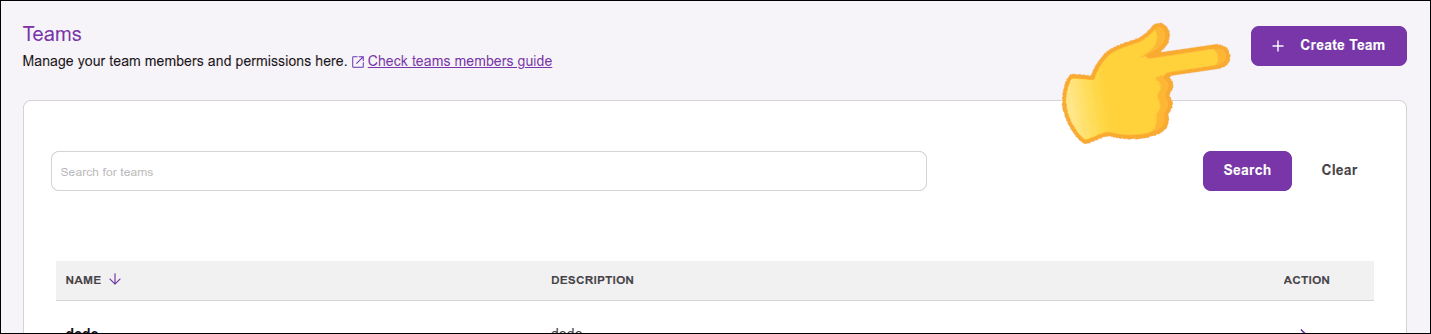
    Click **Create Team** in the upper right corner of the screen.
    ![highlight for the Create Team button on the Teams screen](https://creative-ball-51b3fc85c0.media.strapiapp.com/create_team_a177e56309.png)
  </Step>

  <Step>
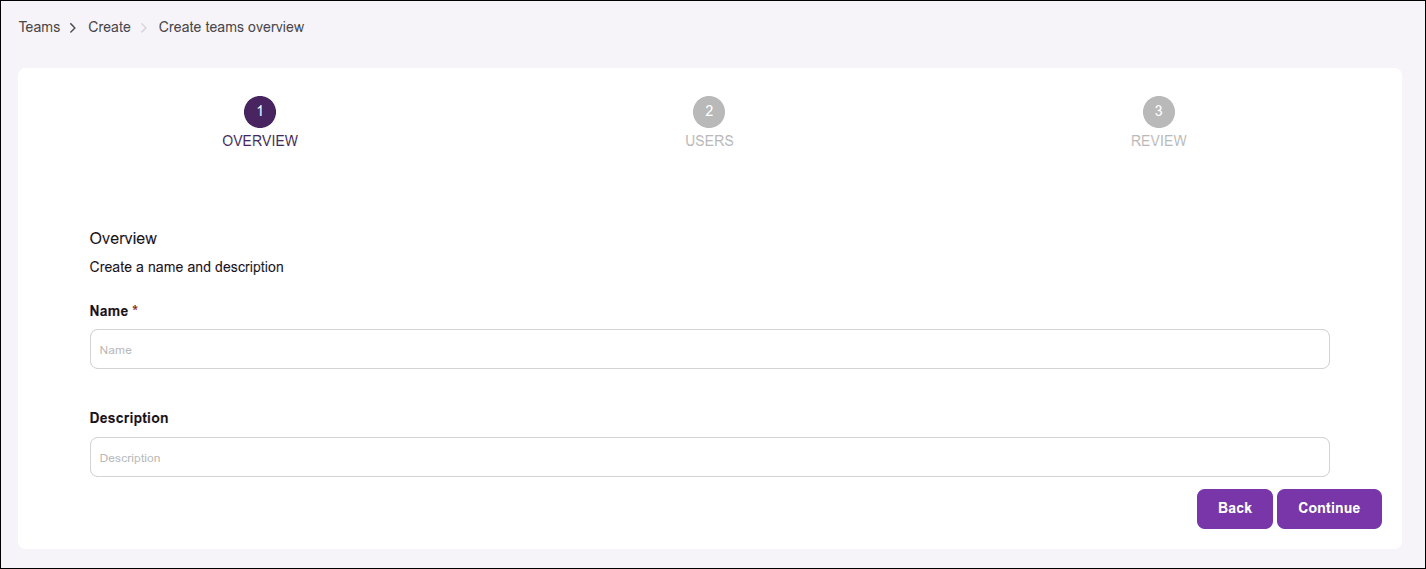
    Enter the team name (required), a description (optional), and click **Continue**.

    <Callout type="NOTE" title="NOTE">
    The team name should not contain spaces or special characters (except hyphens).
    </Callout>

    ![team overview](https://creative-ball-51b3fc85c0.media.strapiapp.com/team_overview_d0ae1ac025.png)
  </Step>

  <Step>
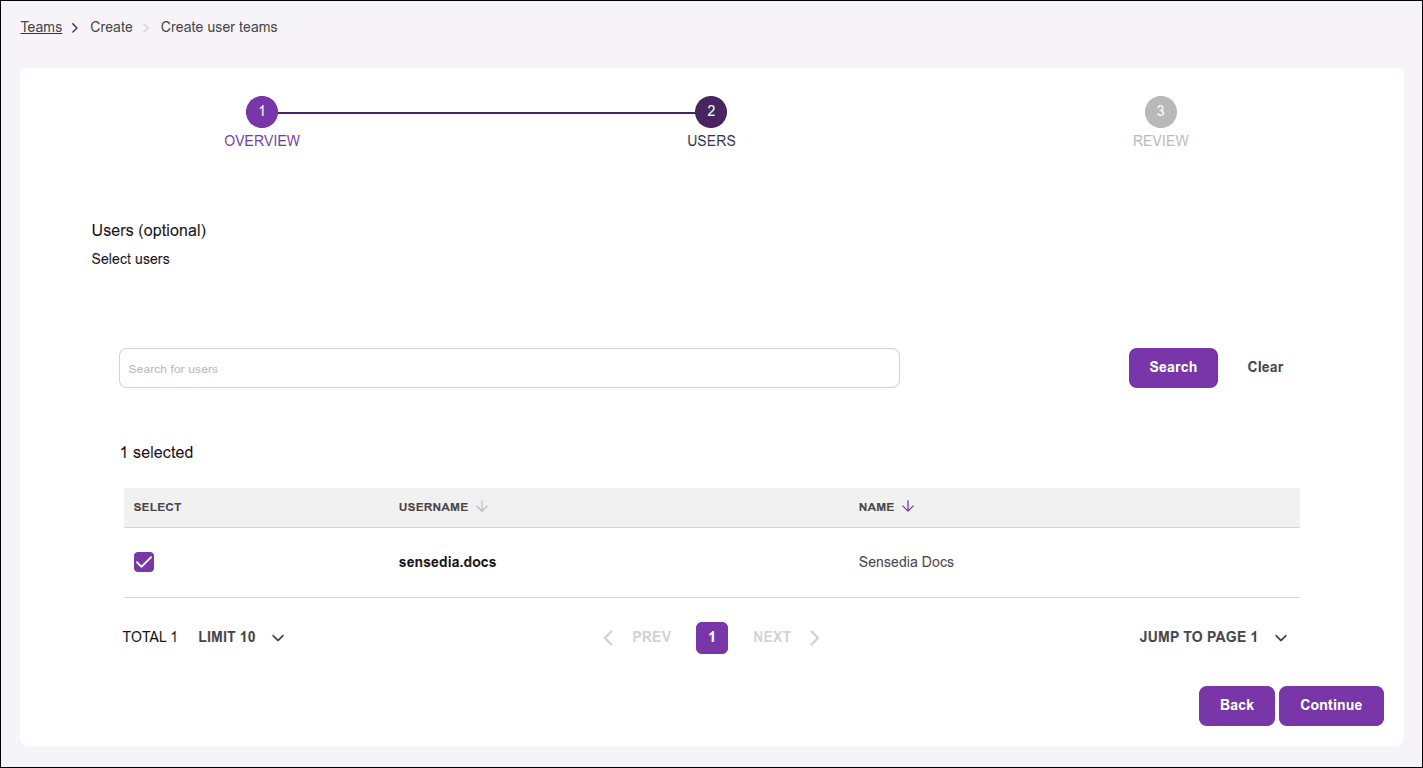
    Select the users who will be part of the team. You can select from the user list or search by specific name. You can add and remove users from the team at any time.

    Click **Continue** to proceed.
    ![team users](https://creative-ball-51b3fc85c0.media.strapiapp.com/team_users_d1dccaa0c1.png)
  </Step>

  <Step>
    Check the team information and click **Confirm new team** to complete.
  </Step>
</Steps>

## Editing a team

### Description

To edit a team's description, access [Teams](#ac-teams) in Access Control Settings and:

<Steps>
  <Step>
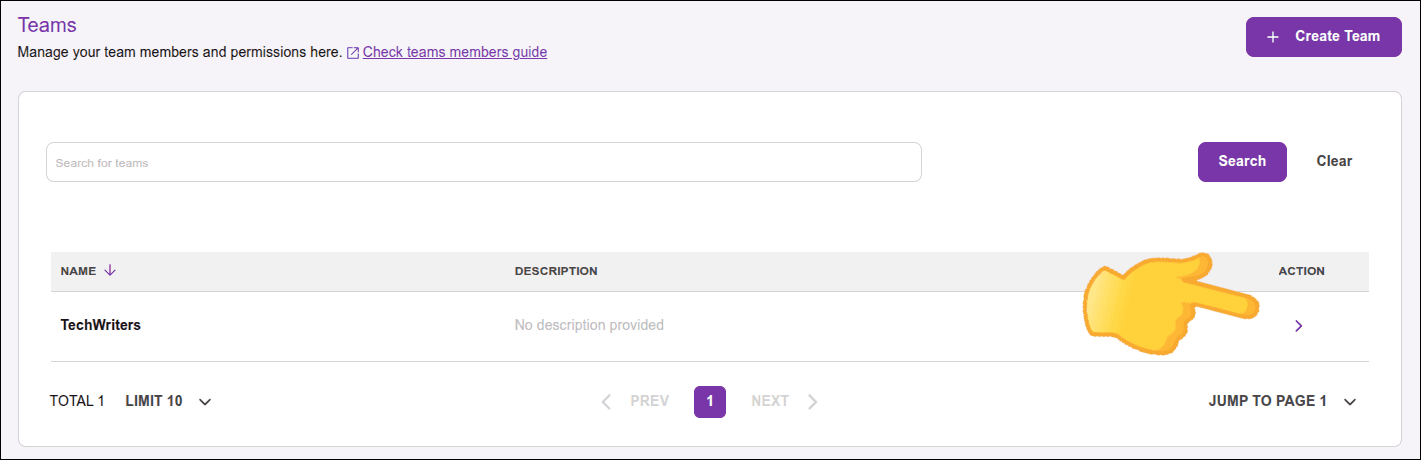
    Click **>** in the **Actions** column of the team row you want to edit.
    ![highlight for the Edit Team button on the Teams screen](https://creative-ball-51b3fc85c0.media.strapiapp.com/team_action_def66bc31d.png)
  </Step>

  <Step>
    In the **Team Info** tab, click **Edit Team Info**.

    ![highlight for the edit team info button](https://creative-ball-51b3fc85c0.media.strapiapp.com/edit_team_info_62335491df.png)
  </Step>

  <Step>
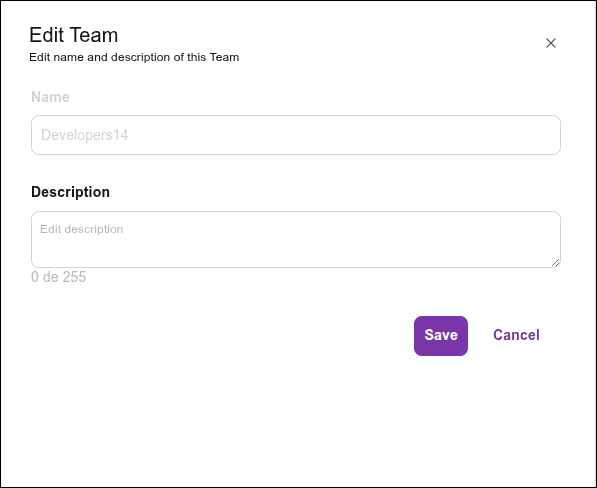
    Enter the new team description and click **Save**.
    ![highlight for the save button](https://creative-ball-51b3fc85c0.media.strapiapp.com/edit_team_modal_e8e3e862d5.png)
  </Step>
</Steps>

### Adding users to a team

To add users to a team, access [Teams](#ac-teams) in Access Control Settings and:

<Steps>
  <Step>
    Click **>** in the **Actions** column of the team row you want to edit.

    ![highlight for the Edit Team button on the Teams screen](https://creative-ball-51b3fc85c0.media.strapiapp.com/team_action_def66bc31d.png)
  </Step>

  <Step>
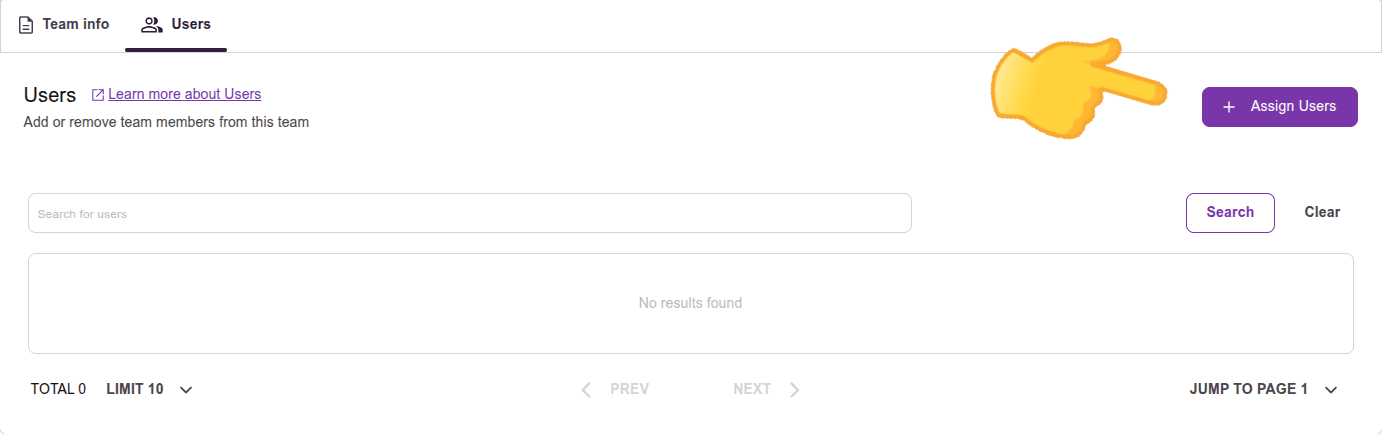
    In the **Users** tab, click **Assign Users**.
    ![highlight for the assign users button](https://creative-ball-51b3fc85c0.media.strapiapp.com/assign_users_groups_f43c58f9ff.png)
  </Step>

  <Step>
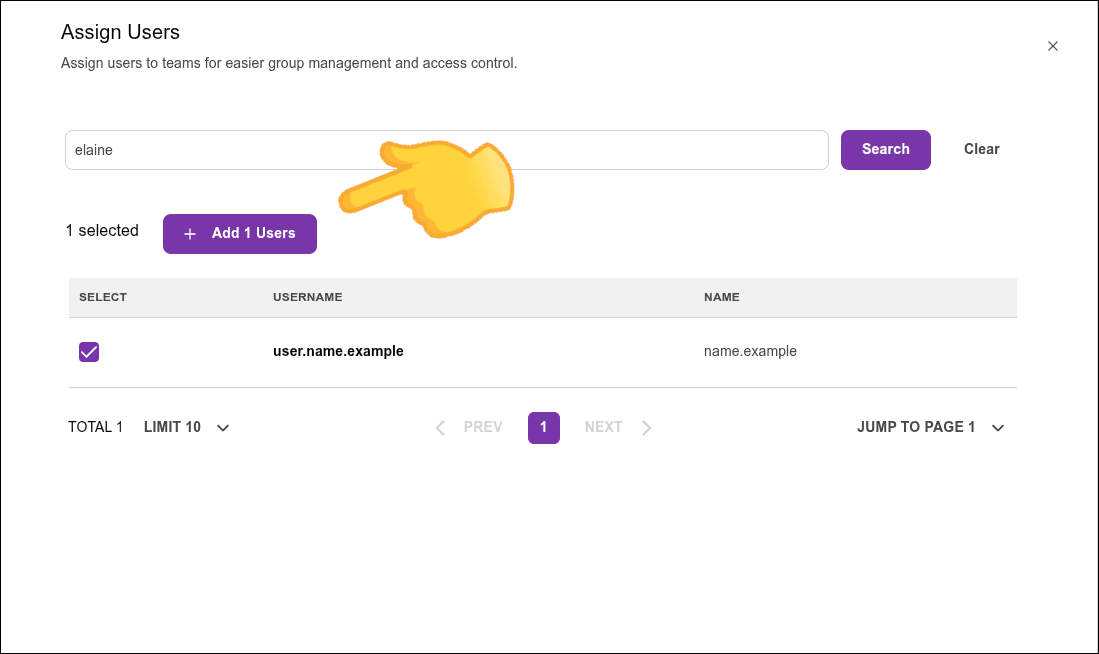
    Select the users you want to add to the team and click **Assign n Users**, where "n" is the number of users you selected.
    ![highlight for the assign users button in the modal screen](https://creative-ball-51b3fc85c0.media.strapiapp.com/assign_n_users_d5e5ae243f.png)
  </Step>
</Steps>

### Removing users from a team

To remove users from a team, access [Teams](#ac-teams) in Access Control Settings and:

<Steps>
  <Step>
    Click **>** in the **Actions** column of the team row you want to edit.

    ![highlight for the Edit Team button on the Teams screen](https://creative-ball-51b3fc85c0.media.strapiapp.com/team_action_def66bc31d.png)
  </Step>

  <Step>
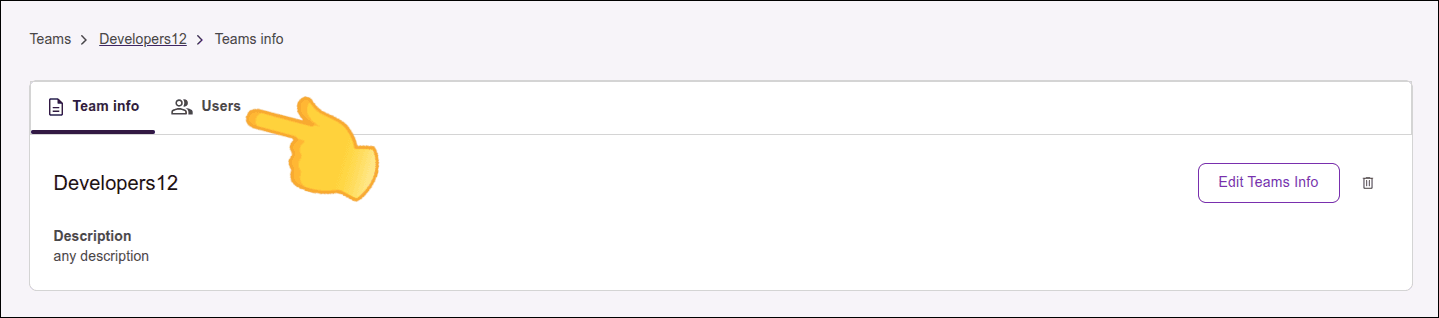
    Click the **Users** tab.

    ![highlight for the Users tab](https://creative-ball-51b3fc85c0.media.strapiapp.com/team_users_tab_4107ee84bd.png)
  </Step>

  <Step>
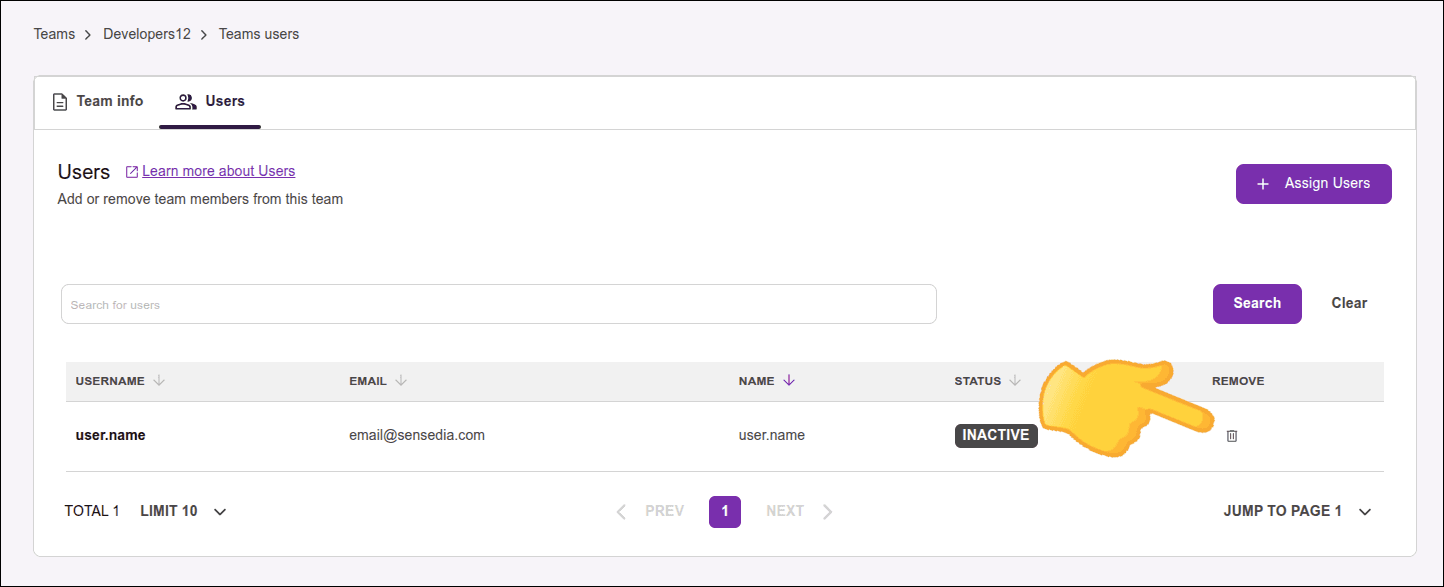
    Click the trash icon in the **Remove** column of the user row you want to remove from the team.
    ![highlight for the trash icon in the Remove column](https://creative-ball-51b3fc85c0.media.strapiapp.com/team_remove_user_bce28aea22.png)
  </Step>

  <Step>
    Confirm the removal by clicking **Confirm**.
  </Step>
</Steps>

### Deleting a team

To delete a team:

<Steps>
  <Step>
    Access [Teams](#ac-teams) in Access Control Settings.
  </Step>

  <Step>
    Click **>** in the **Actions** column of the team row you want to delete.

    ![highlight for the Delete Team button on the Teams screen](https://creative-ball-51b3fc85c0.media.strapiapp.com/team_action_def66bc31d.png)
  </Step>

  <Step>
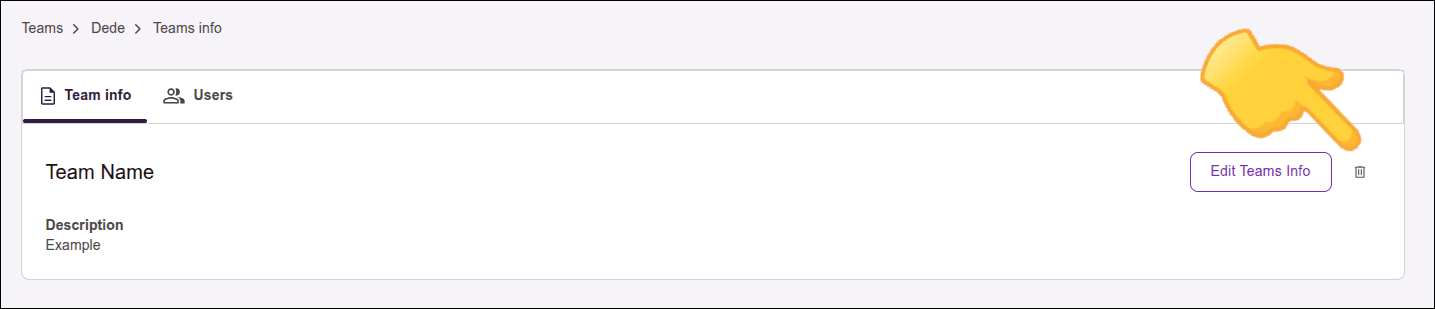
    In the **Team info** tab, click the trash icon.
    ![highlight for the trash icon on the Teams screen](https://creative-ball-51b3fc85c0.media.strapiapp.com/team_delete_63f3fa56e6.png)
  </Step>

  <Step>
    Confirm the deletion by clicking **Confirm**.
  </Step>
</Steps>

<Callout type="NOTE" title="NOTE">
To delete a team that is linked to a resource (API, environment, or Custom Interceptor), you must first remove the link.
</Callout>