---
title: Permissions
description: Controlling access and permissions
documentId: access-control-permissions
locale: en-US
---
Each product offers specific permission granularity, allowing you to have adequate control, limiting, when necessary, user actions and privileges.
Access management is different in Sensedia Platform 4.x versions.
Check [the documentation](/docs/en/ac-api-platform-guide:iam-users:roles).
See more about permissions on this page for:
- [Adaptive Governance and Developer Portal](#ag-devportal).
- [API Management](#api-management).
- [Integrations](/docs/en/integrations-guide:ROOT:permissions) (the link directs to a page in the Integrations user guide).
## Concepts
- **Resource:** any entity of a product that can be protected, such as files, APIs, data, or functionalities.
- **Permission:** determines if a specific action can be performed on a certain resource, such as create, delete, list, update, view, etc.
- **Role:** set of permissions grouped based on specific functions (e.g., "Administrator", "Editor", "Reader").
Permissions are assigned to roles, and users inherit these permissions when associated with roles.
**Practical example**
I want some users to only view the [Data Streamings](/docs/en/ac-analytics-guide:ROOT:data-streaming) already configured in [Sensedia Analytics](/docs/en/ac-analytics-guide:ROOT:index), while others can, in addition to viewing, also create, edit, and delete Data Streamings.
Create two [roles](/docs/en/policies): "Data Streaming Viewer" and "Data Streaming Editor".
**Creating the "Data Streaming Viewer" role:**
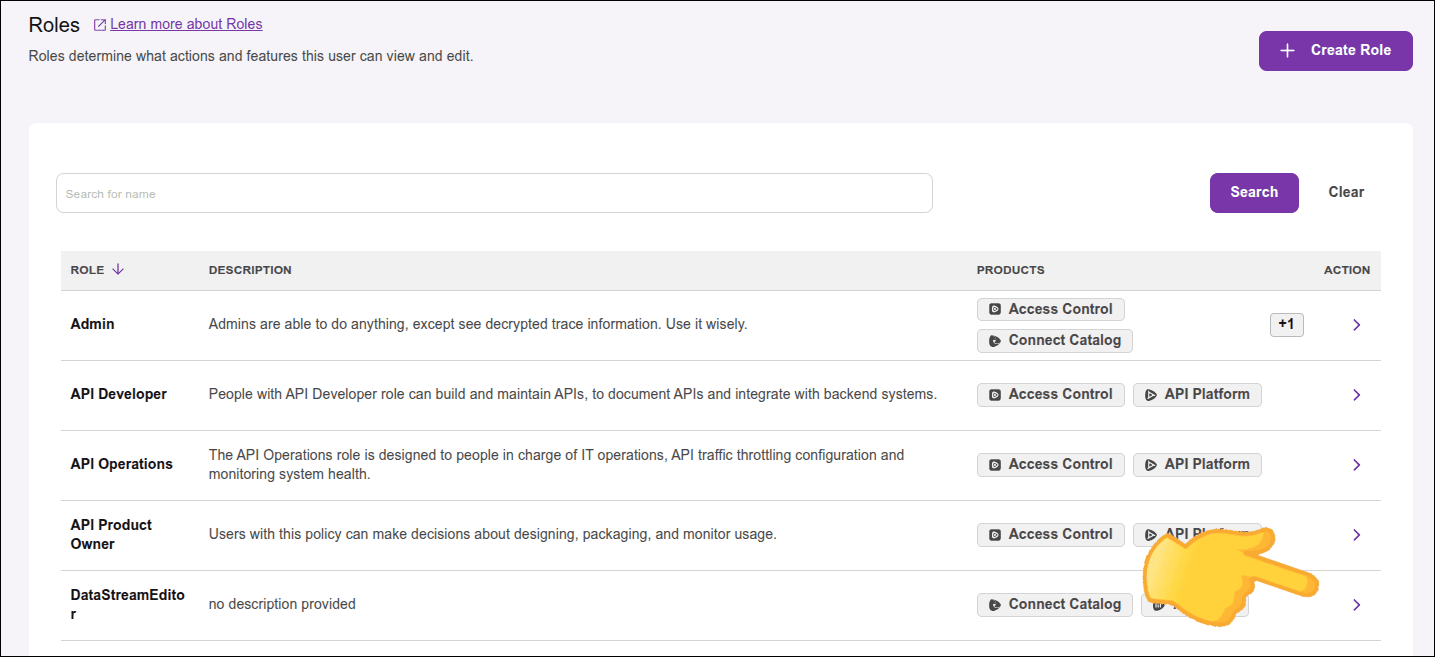
- On your Sensedia Platform home, click **Roles** in the menu located on the right sidebar.
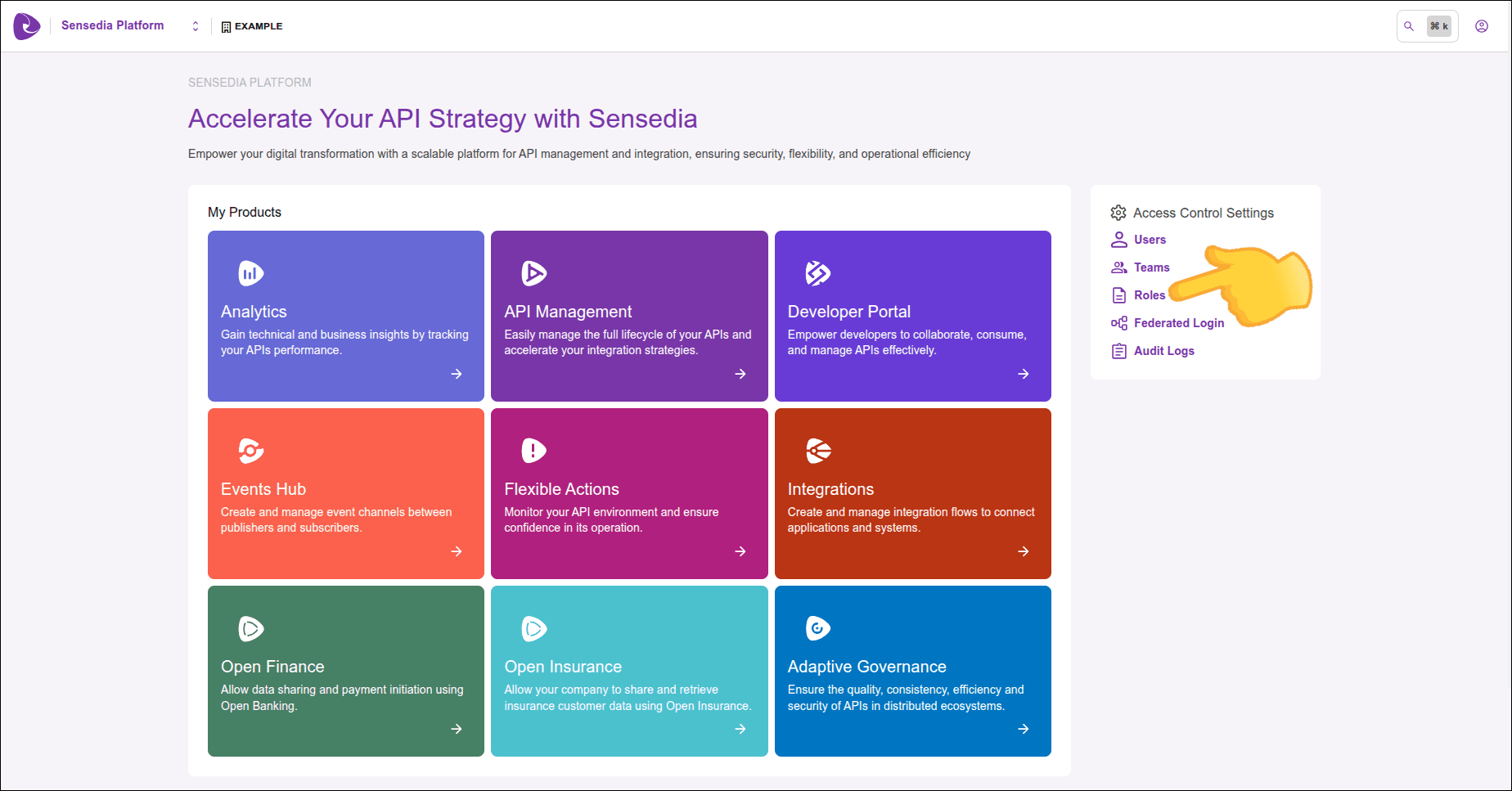
This screen may vary according to the Sensedia solutions you have.
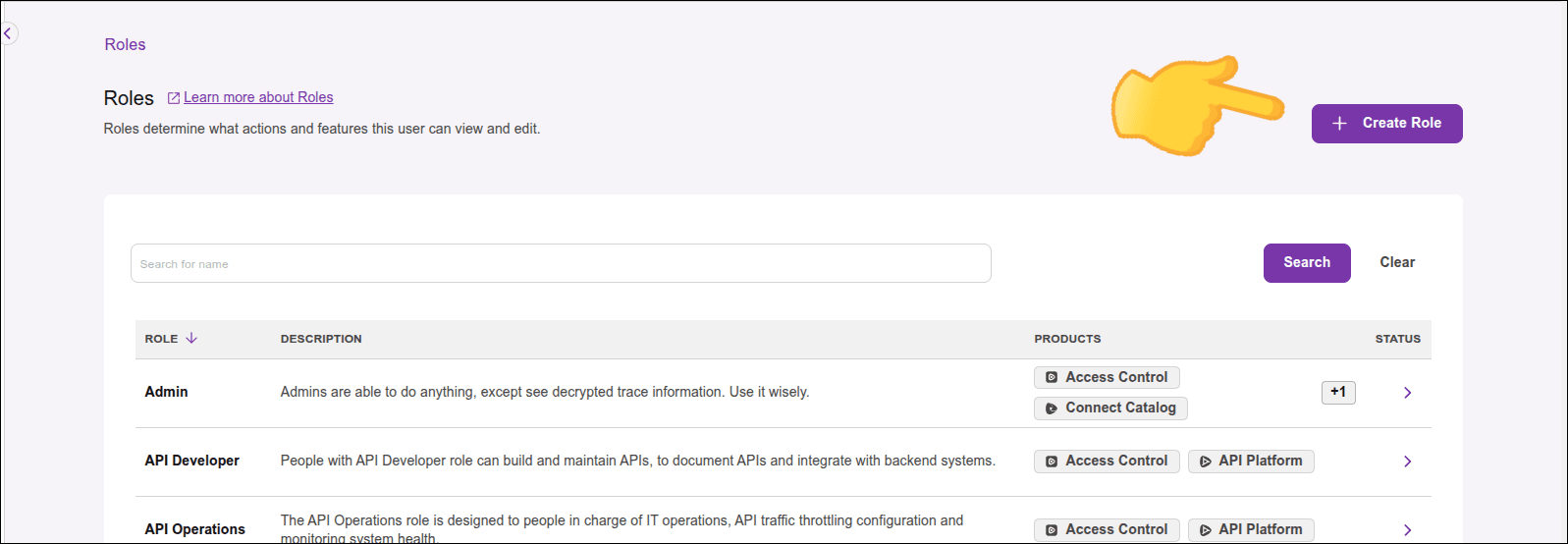
- Click the **+ Create Role** button, located in the upper right corner of the screen, to create a new role.
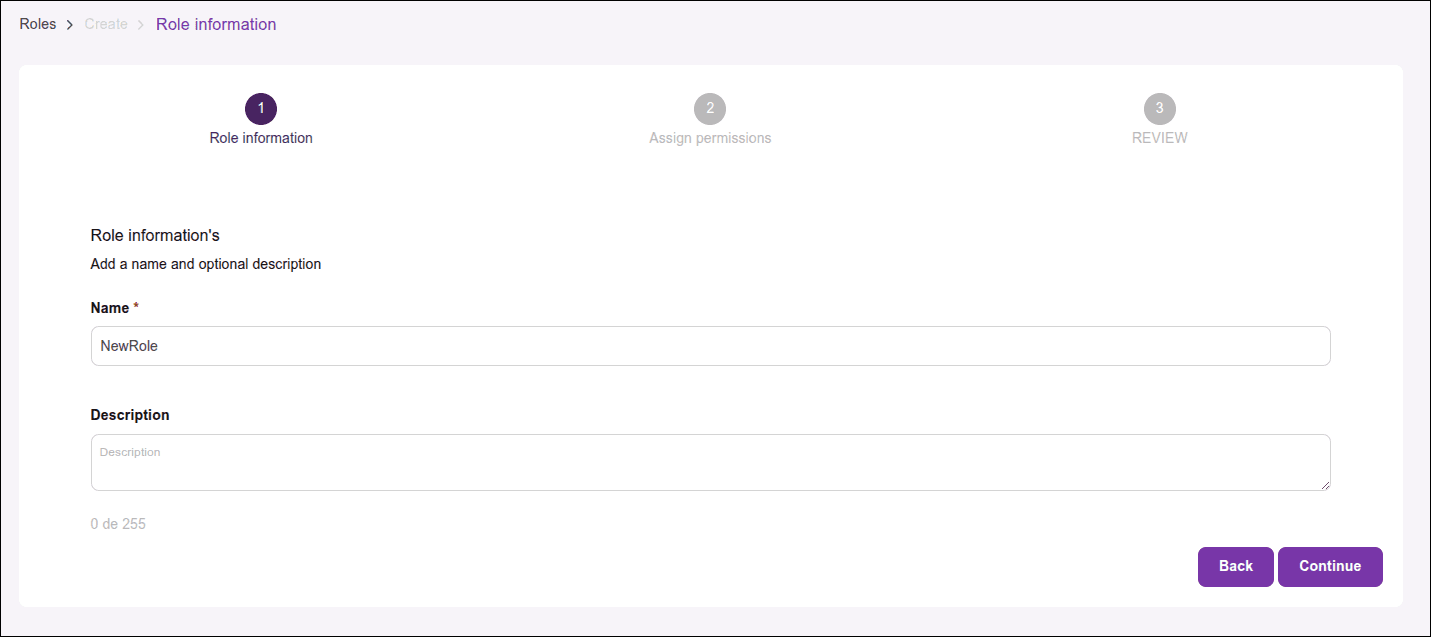
- In **Role information**, fill in the name (do not use spaces) and, optionally, the role description. Click **Continue**.
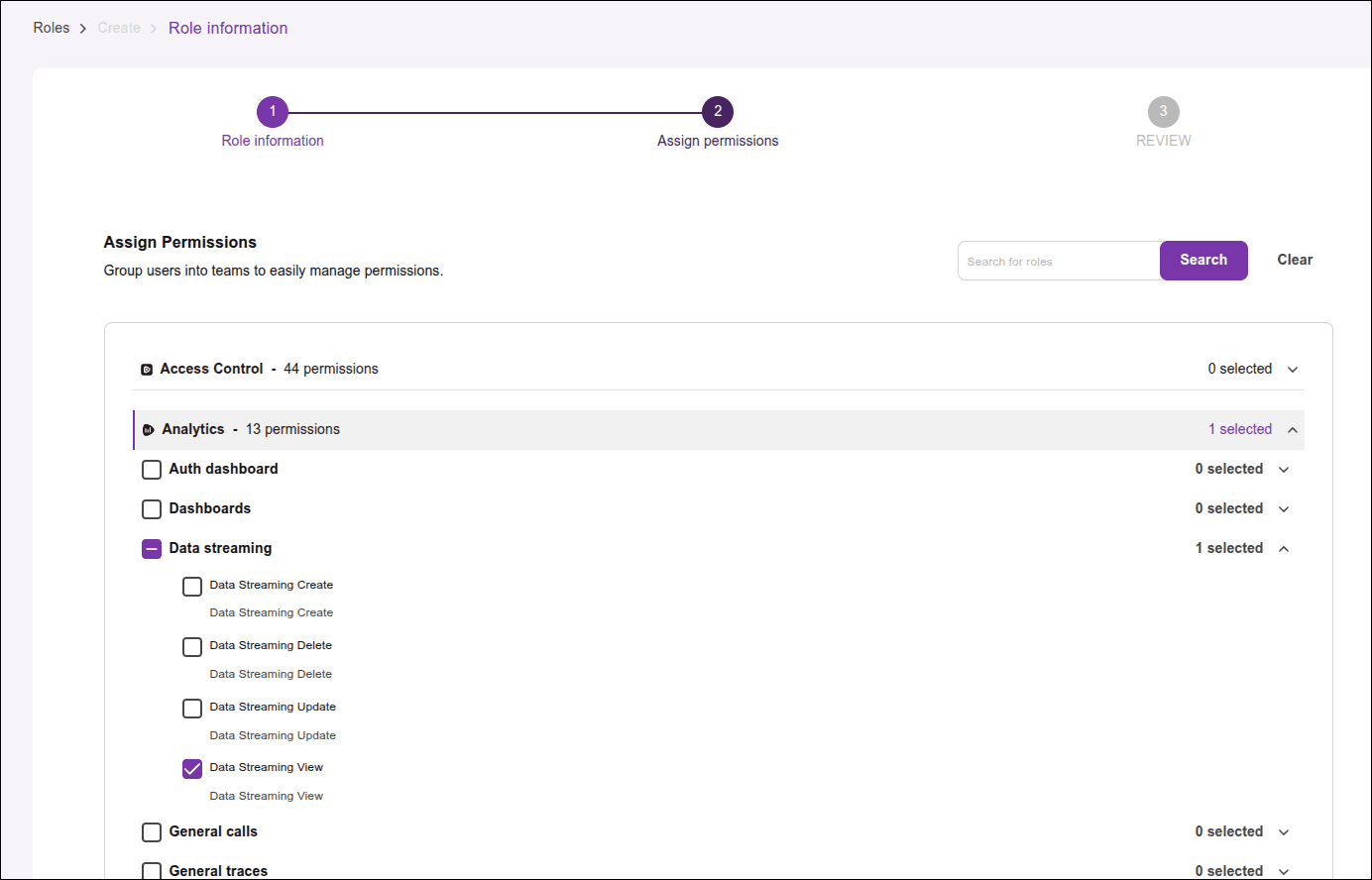
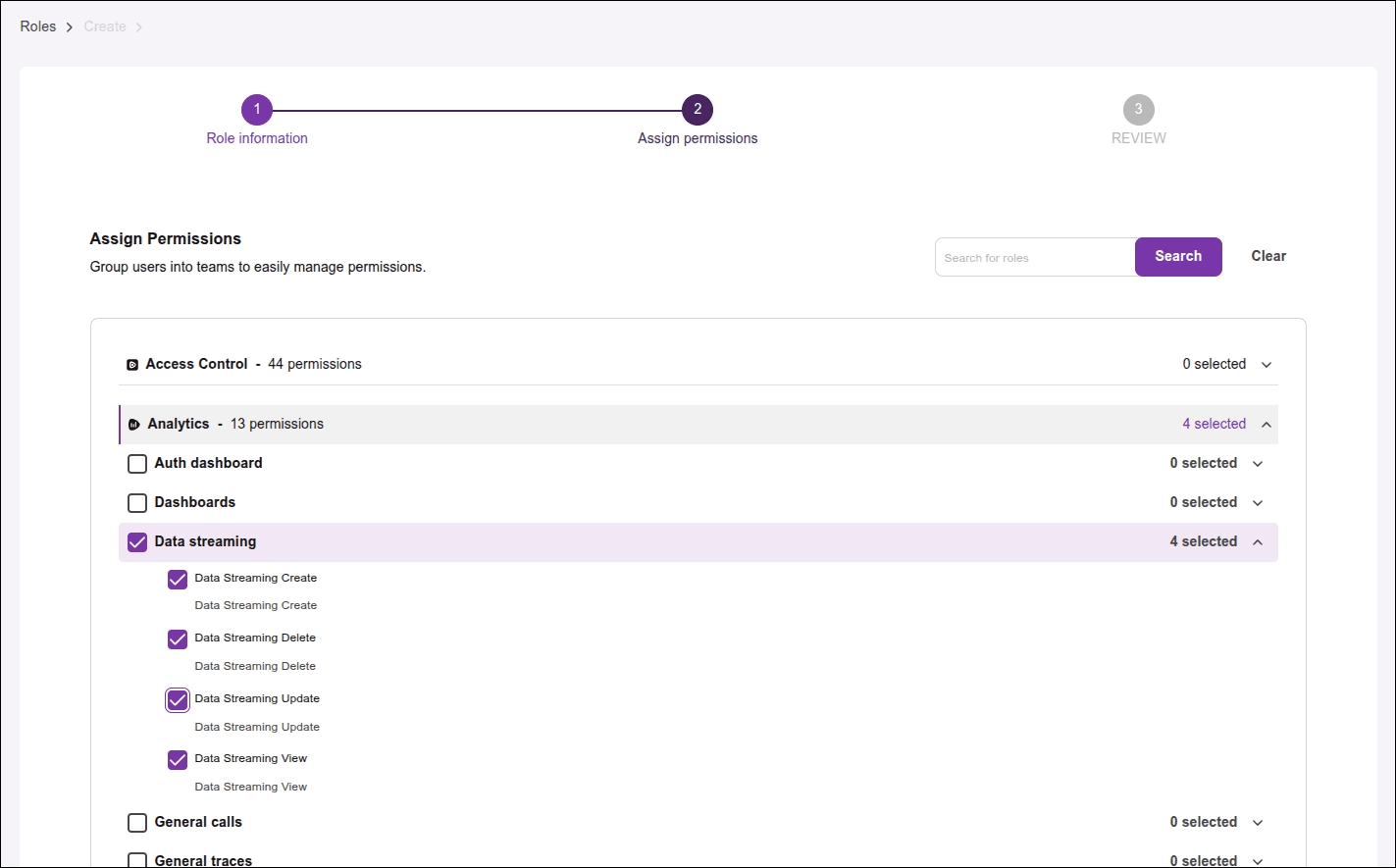
- In **Assign Permissions**, search for "Analytics" and select only the "Data Streaming View" permission in "Data Streaming" and click **NEXT**.
- In **Review**, review the role information and click **Create Role**.
**Creating the "Data Streaming Editor" role:**
- Repeat the same steps listed above to create the "Data Streaming Editor" role, but this time select the permissions:
- "Data Streaming View"
- "Data Streaming Create"
- "Data Streaming Update"
- "Data Streaming Delete" in "Data Streaming"
Associate users to the created roles.
- In **Roles**, locate one of the created roles and click **>** in the **Actions** column.
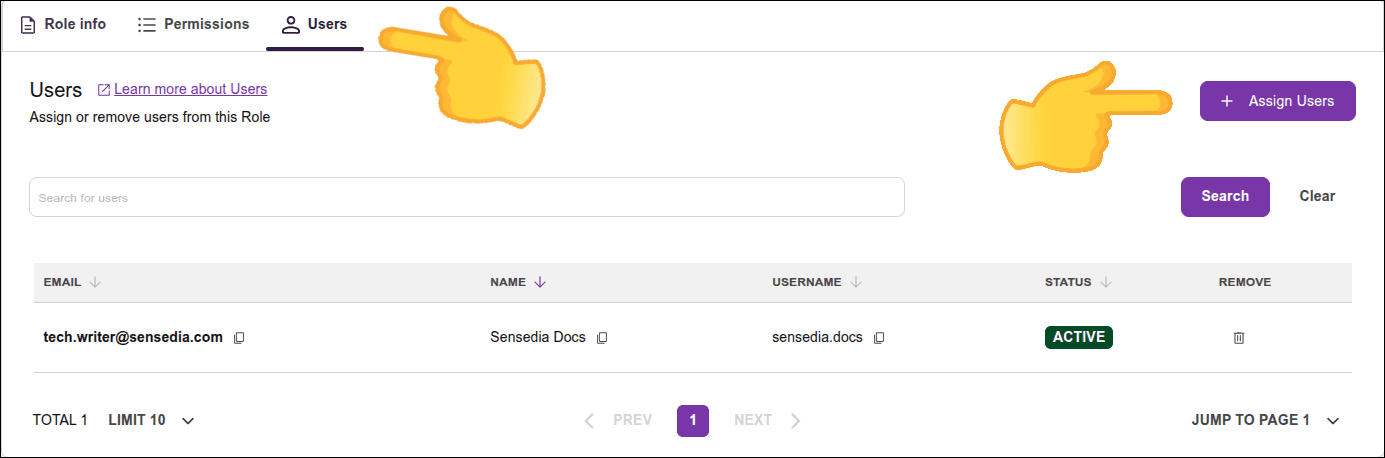
- Click the **Users** tab and then click the **Assign User** button.
- Select the desired users and click **+ Add 'n' Roles** ('n' is the number of selected users).
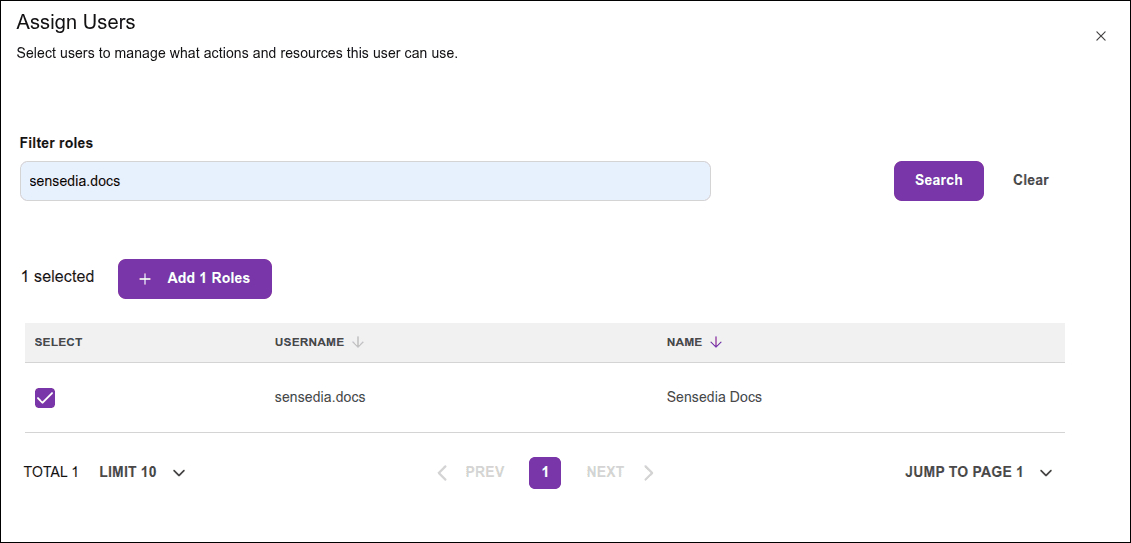
- Click **Assign Roles** to complete.
- Repeat the same process for the other created role.
Users who were associated with the "Data Streaming Viewer" role will only be able to view existing Data Streamings, while users who were associated with the "Data Streaming Editor" role will be able to create, edit, and delete Data Streamings.
## Adaptive Governance and Developer Portal
- Make sure the user is associated with a role that has the necessary permissions to access the Adaptive Governance and/or Developer Portal resource.
- In addition to [permissions for Adaptive Governance](/docs/en/permissions) and/or Developer Portal, you may also need to configure some permissions that are related to other products or resources.
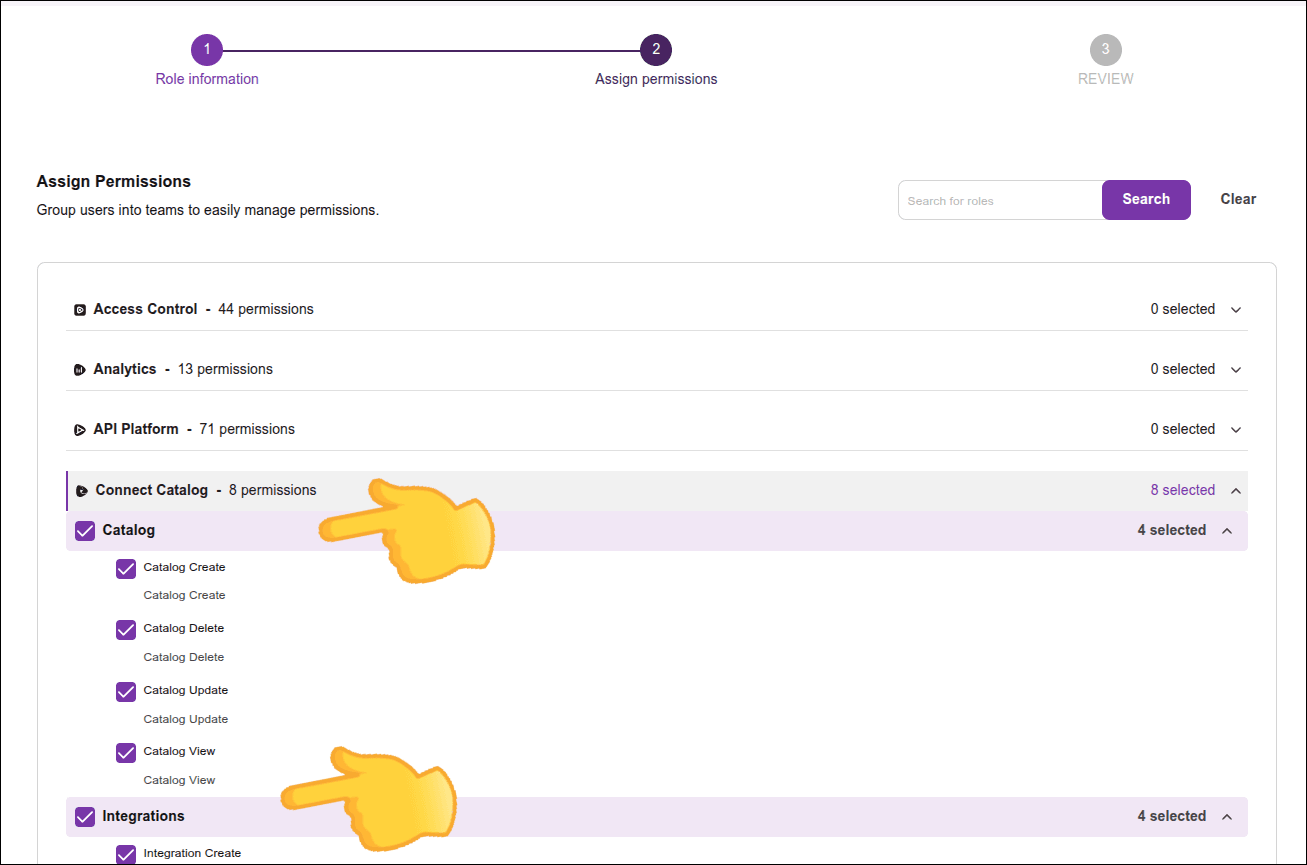
To access all functionalities related to the API catalog, both for Adaptive Governance and Developer Portal, **select the Connect Catalog permissions**, as well as the product's own permissions.
## API Management (Sensedia Platform)
In addition to permissions for API Management (Sensedia Platform) resources, you may also need to configure some permissions that are related to other resources.
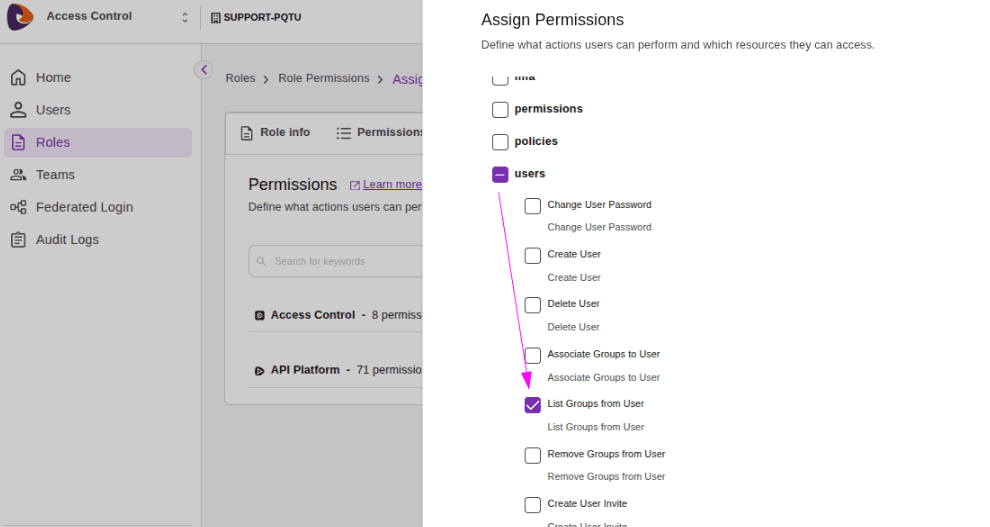
For example, to **view a list of APIs** in API Management (Sensedia Platform), the user must be associated with a role that has the permissions:
- "API List" in "API Platform" and
- "List Groups from User" located under "Users" in the "Access Control" permissions.
See more details about the necessary permissions for each resource in the [API Management](/docs/en/ac-api-management-guide:ROOT:permissions) user guide.