---
title: Editing a User
description: Steps to edit and activate users, change password, and assign teams and roles
documentId: access-control-edit-user
locale: en-US
---
See how to:
- [Activate or deactivate](#activate-or-deactivate-user) users.
- [Edit](#tags) user tags.
- [Assign](#teams-and-roles) teams and roles to users.
- [Change](#changing-password) user passwords.
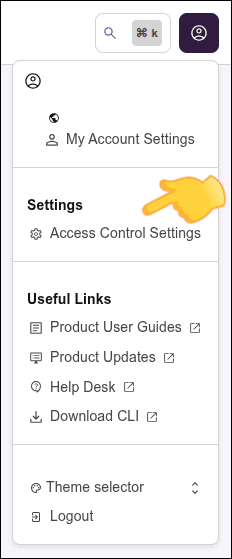
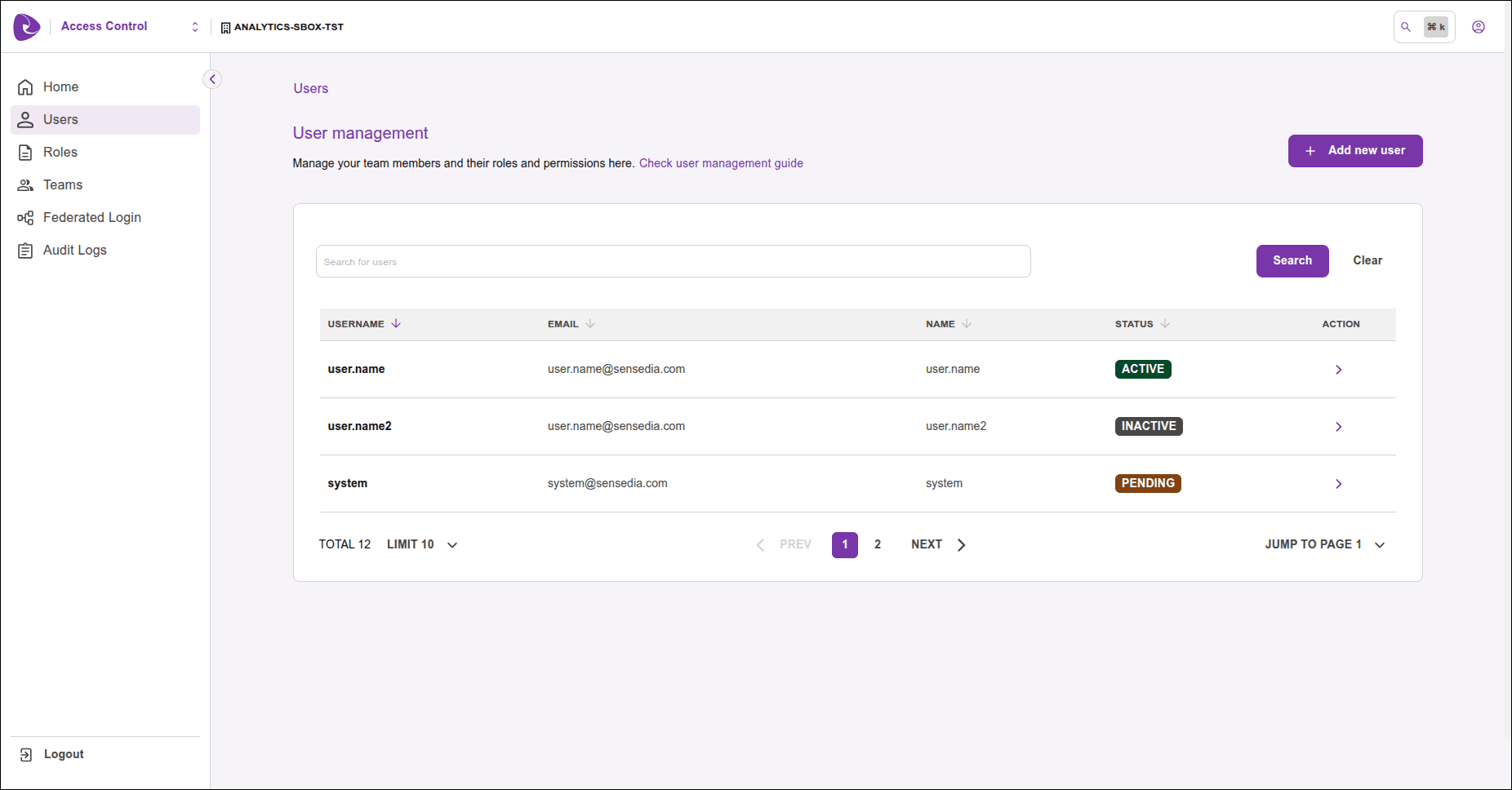
To perform these actions, access the **Users** screen in **Access Control Settings**.
You can access these settings through the icon in the upper right corner of any Sensedia product screen, or through the right sidebar menu of a home page.
|  |
|:--:|
|  |
- Users with inactive status cannot access Sensedia products.
- You must have permission to edit users.
## Activate or deactivate user
Use the deactivate option as an alternative to deleting a user.
Enter the [Users](#edit-users) screen.
Locate the user you want to activate or deactivate and click the **>** icon in the **Actions** column corresponding to the user.
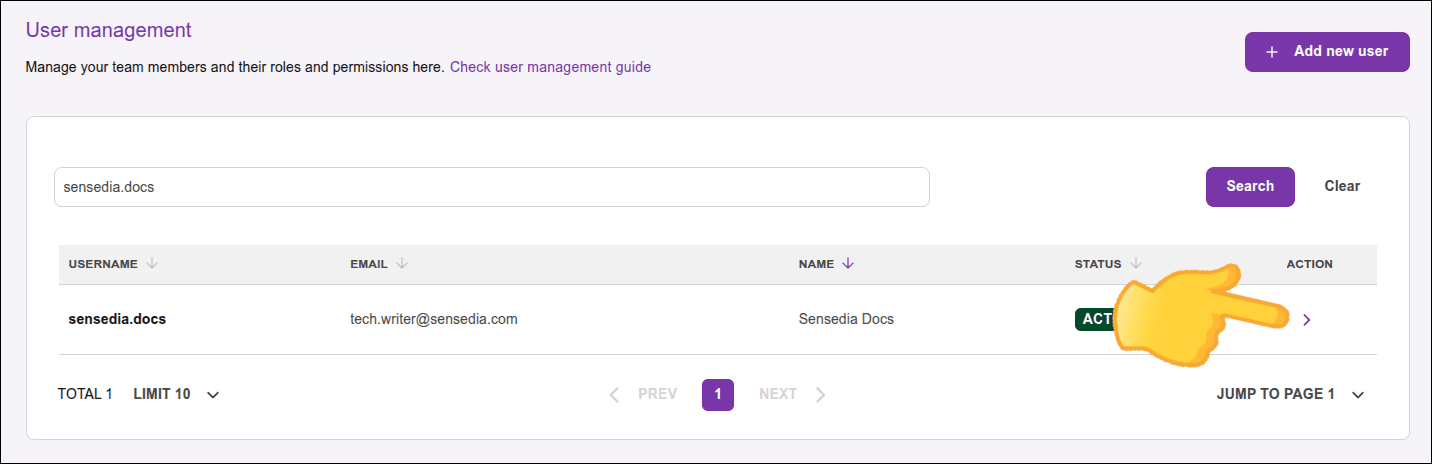
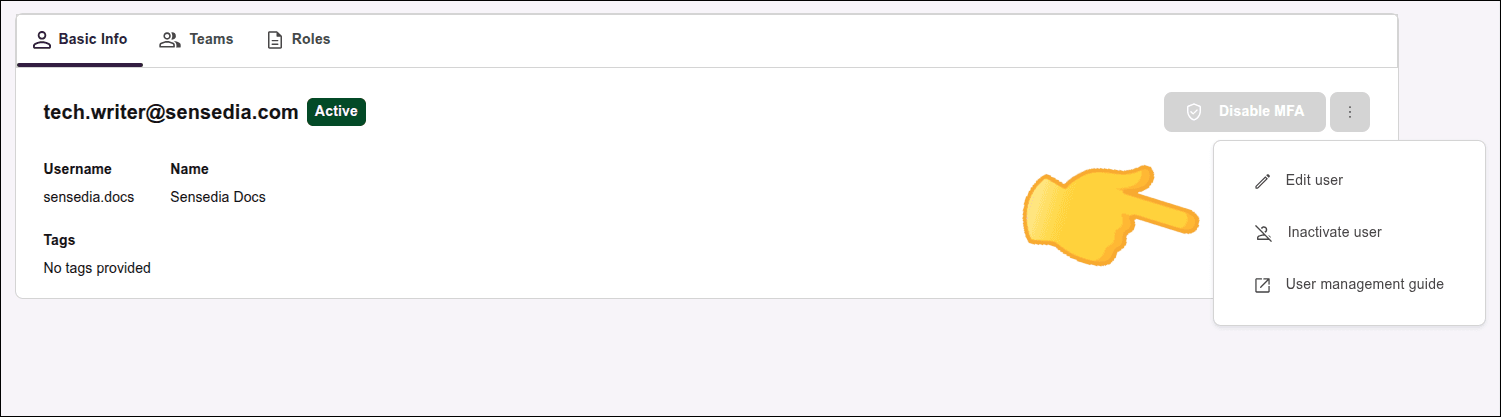
In the screen that opens, click the menu icon
 in the upper right corner of the screen and select the **Activate user** or **Inactivate user** option.
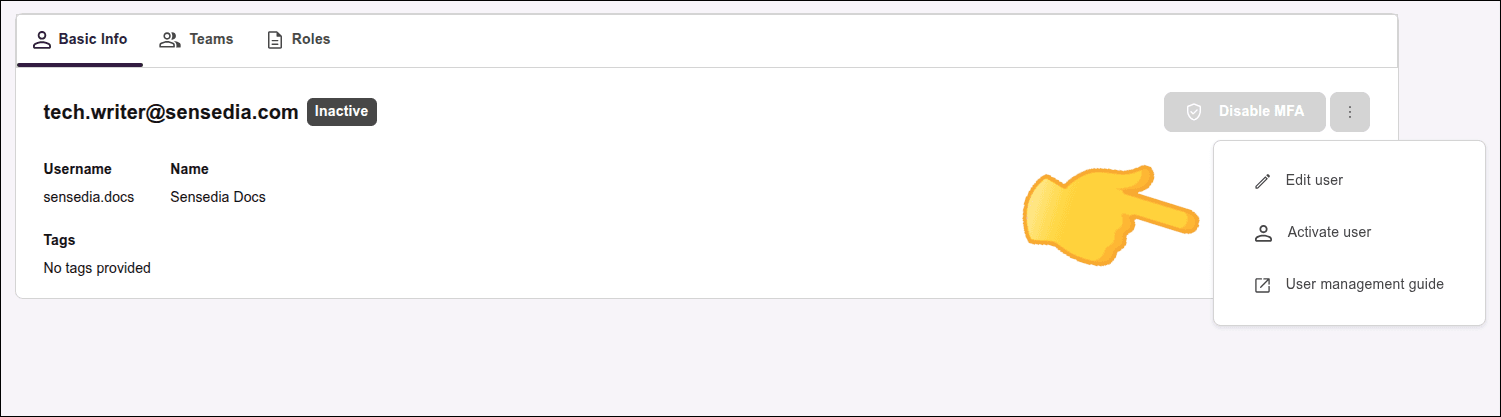
Confirm the action by clicking **Continue**.
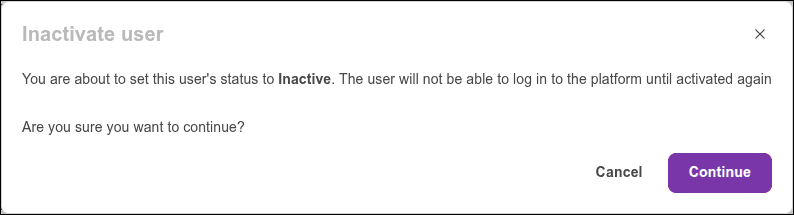
- When activating a user, the system automatically sends an email to the user's registered address with a link to reset the password.
- The link is valid for **48 hours**, and the account will only be reactivated after the user completes the password reset using the received link. If the user does not complete the process within the deadline, the account will be automatically deactivated.
- Users can also be automatically deactivated by the system if they do not log in for **90 consecutive days**.
See all [automatic deactivation](/docs/en/inactive-users) rules for users.
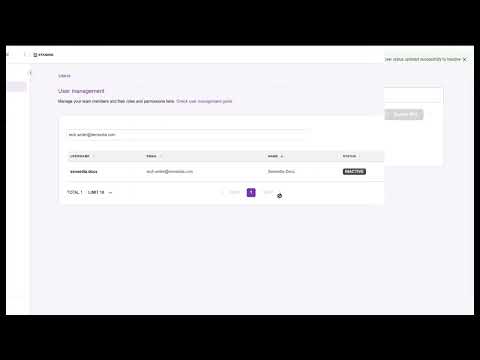
This video illustrates the process to deactivate and activate a user:
[](https://www.youtube.com/watch?v=vka-miclIQM)
---
## Tags
To edit a user's tags:
Enter the [Users](#edit-users) screen.
Locate the user you want to edit and click the **>** icon in the **Actions** column corresponding to the user.

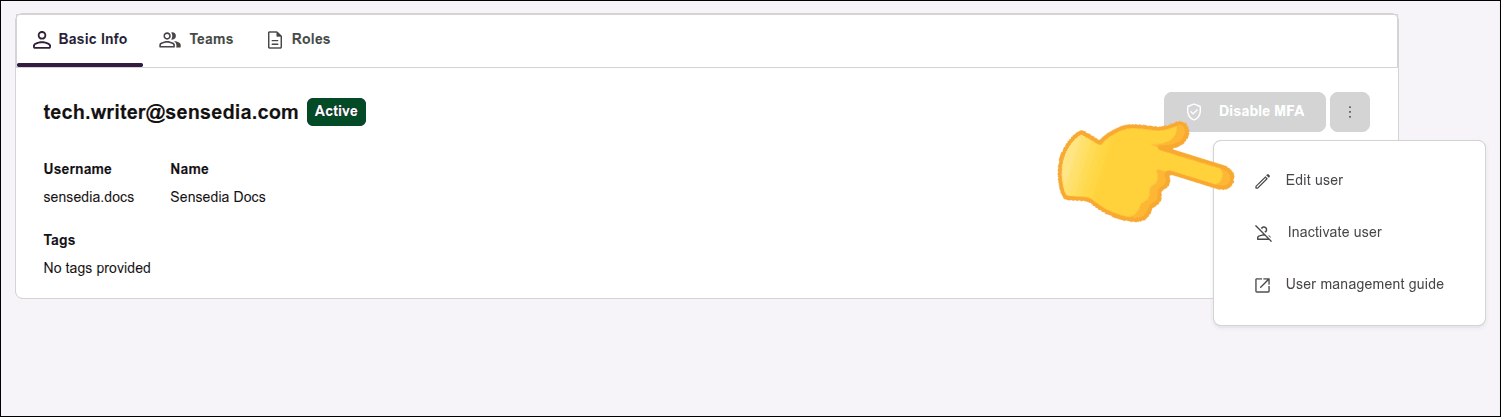
In the screen that opens, click the menu icon
 and select **Edit user**.
To add a tag, click the dropdown bar and select the desired tag or type text to create a new tag.
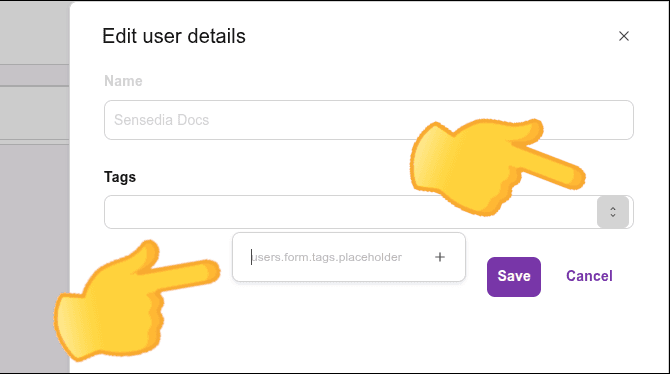
To remove a tag, click the **X** next to the tag you want to remove.

---
## Teams and roles
To assign teams and roles to a user:
Enter the [Users](#edit-users) screen.
Locate the user you want to edit and click the **>** icon in the **Actions** column corresponding to the user.

Select the **Teams** or **Roles** tab.
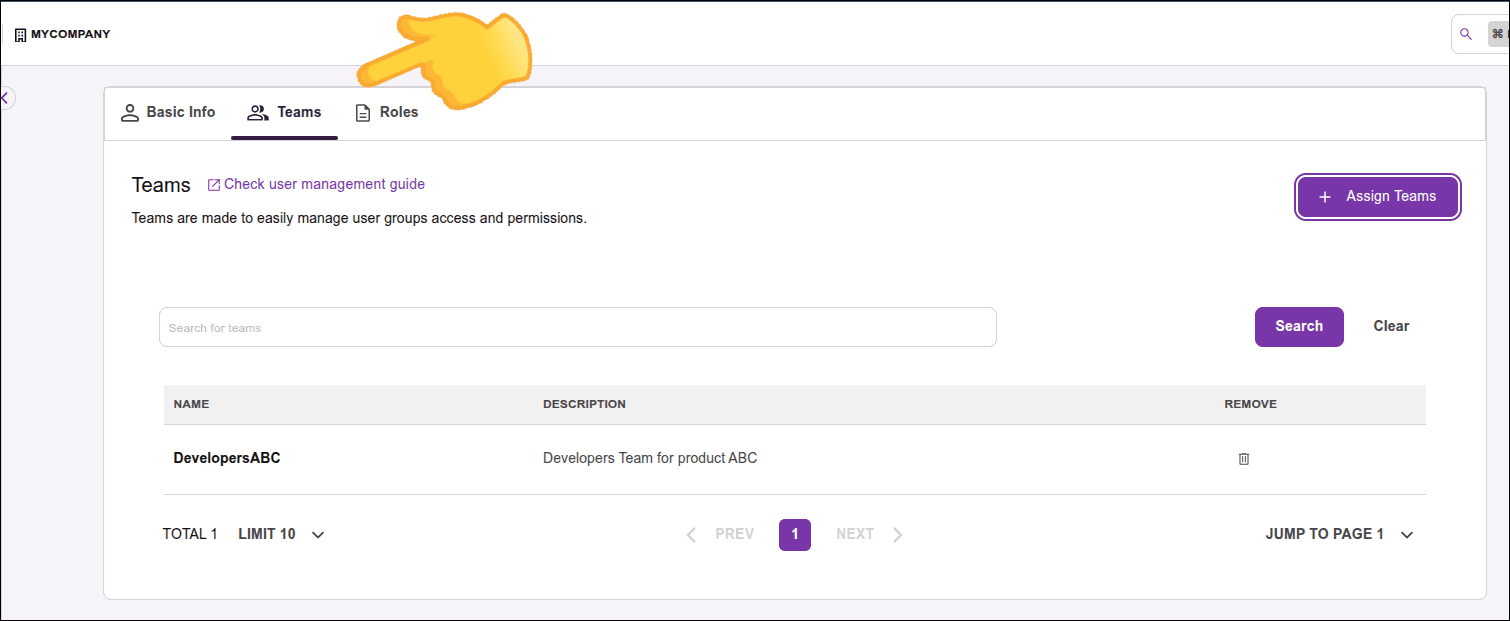
To assign a team or role:
- Click **Assign team** or **Assign role**.
- Select one or more teams or roles from the list and click **Add n teams** or **Add n roles**, where *n* is the number of selected items.


To remove a team or role, click the trash icon next to the item you want to remove.
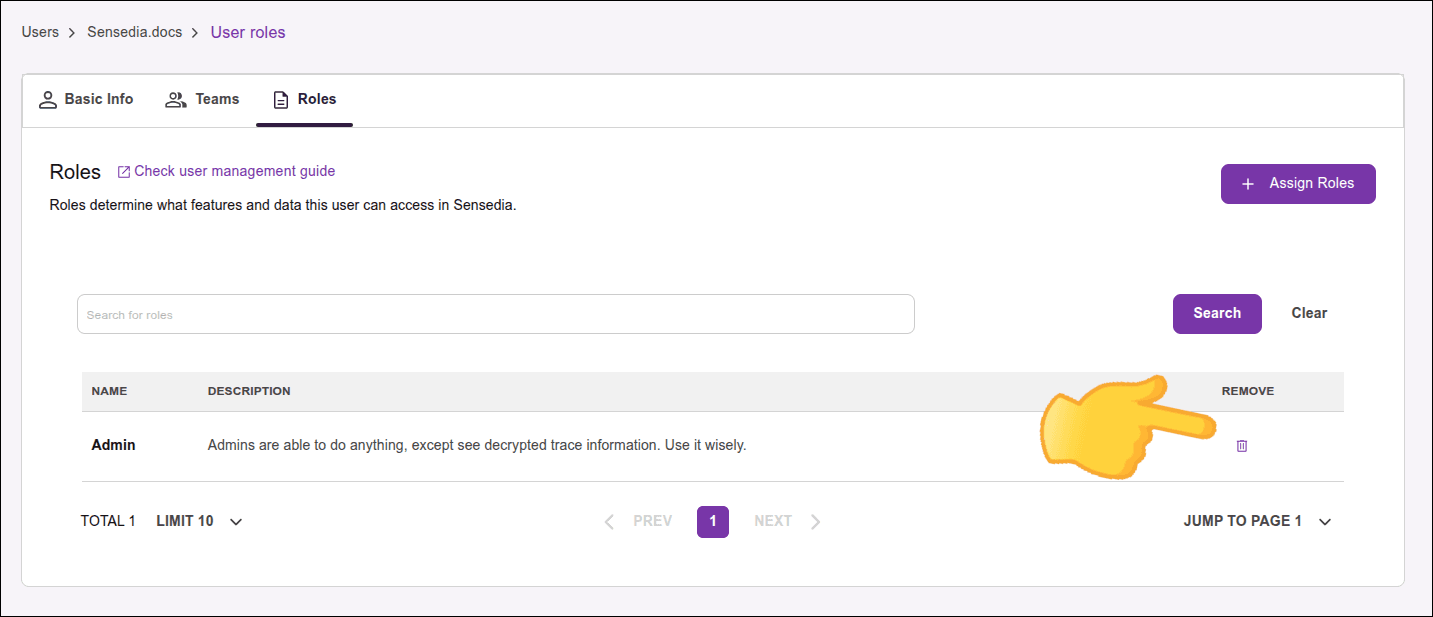
> **Note**
> *Teams* and *Roles* correspond to the former *Groups* and *Policies*, respectively.
---
## Changing password
To change the password:
On any Sensedia product screen, click the user icon in the upper right corner and select **My Account Settings**.
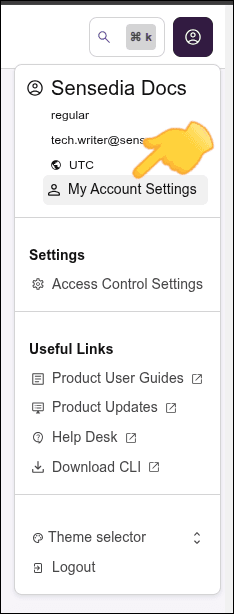
Click **Change Password**.
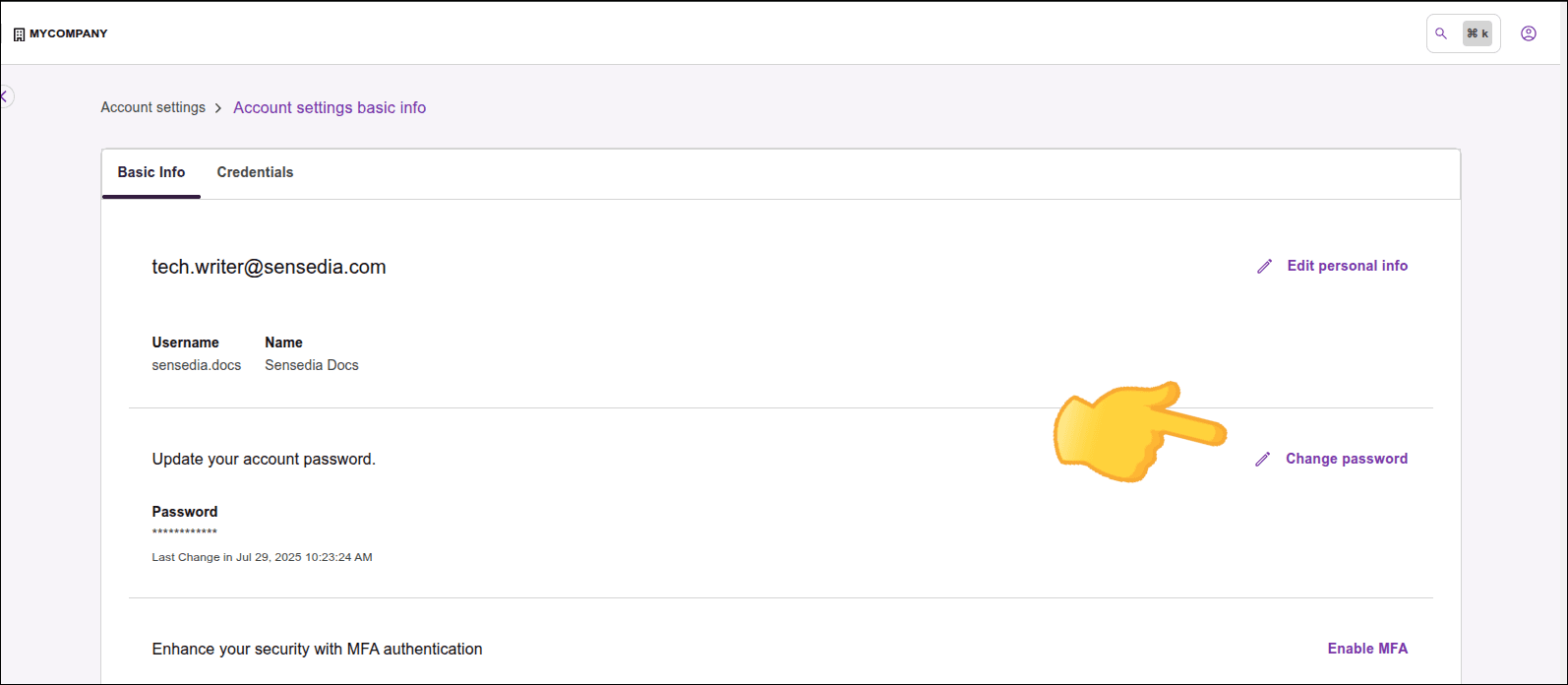
Enter the current password and the new password in the corresponding fields.
Click **Change Password** to confirm the change.
The password must contain:
- Uppercase and lowercase letters.
- Numbers.
- Special characters.
- Minimum of **12** characters.
Your new password must be different from the last four passwords used.
If you prefer, follow the procedure in the video below:
[](https://www.youtube.com/watch?v=tK67bmUu1wA)
Access Control does **not** require password changes at defined intervals (such as every 45, 60, or 90 days).
See the [NIST Recommendation](https://pages.nist.gov/800-63-3/).
Alternatively, you can also [configure integration](/docs/en/integrations) with an external Identity and Access Management (IAM) provider for login to Sensedia products.