---
title: Multi-factor authentication (MFA)
description: Set up a second authentication factor, in addition to login and password
documentId: access-control-mfa
locale: en-US
---
## Configuring multi-factor authentication
To configure Multi-Factor Authentication (MFA) for the user you are logged in with:
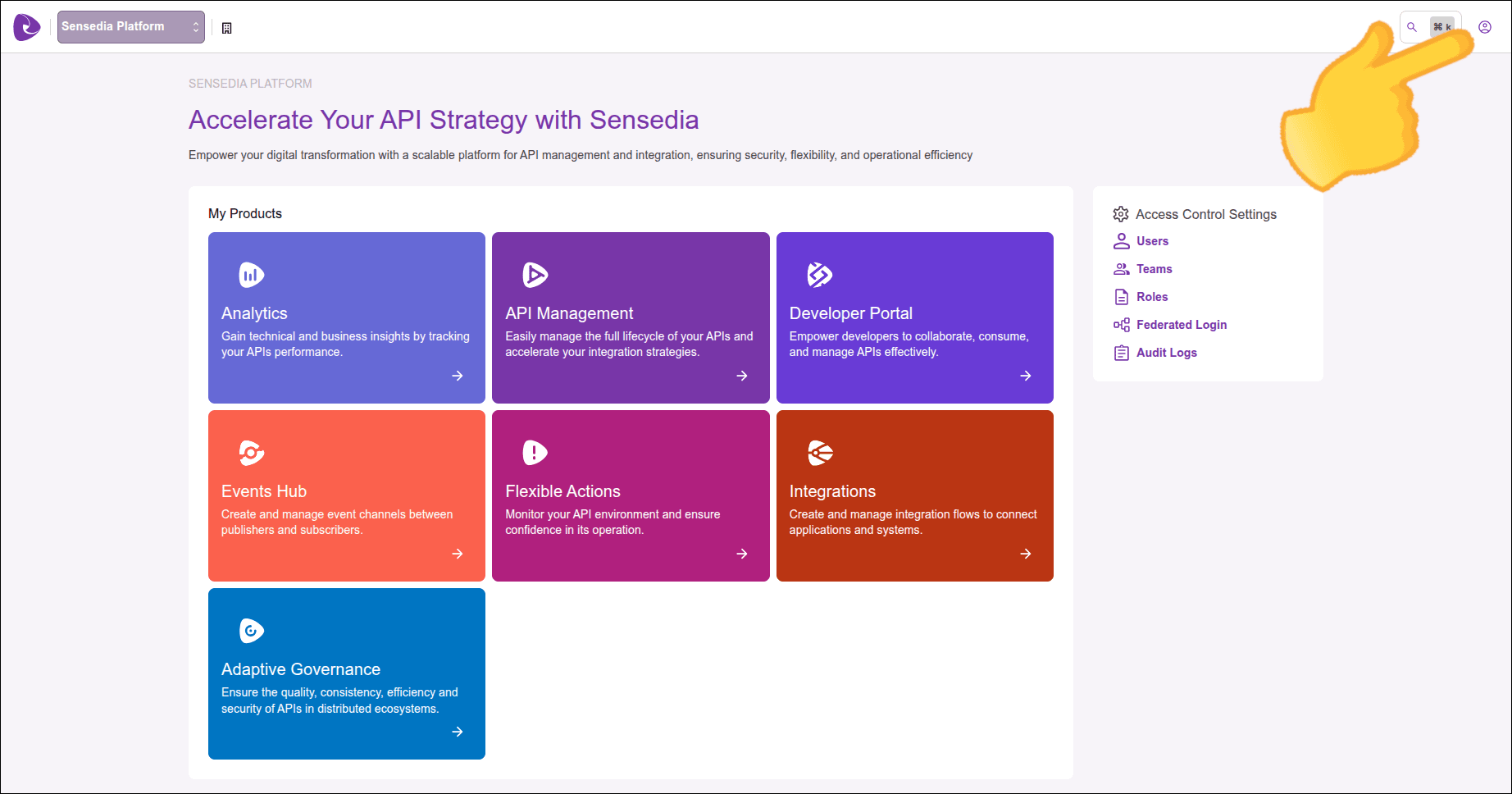
Click the icon in the upper right corner of the screen.
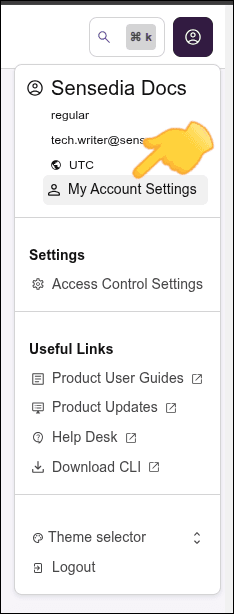
Then click **My Account Settings**.
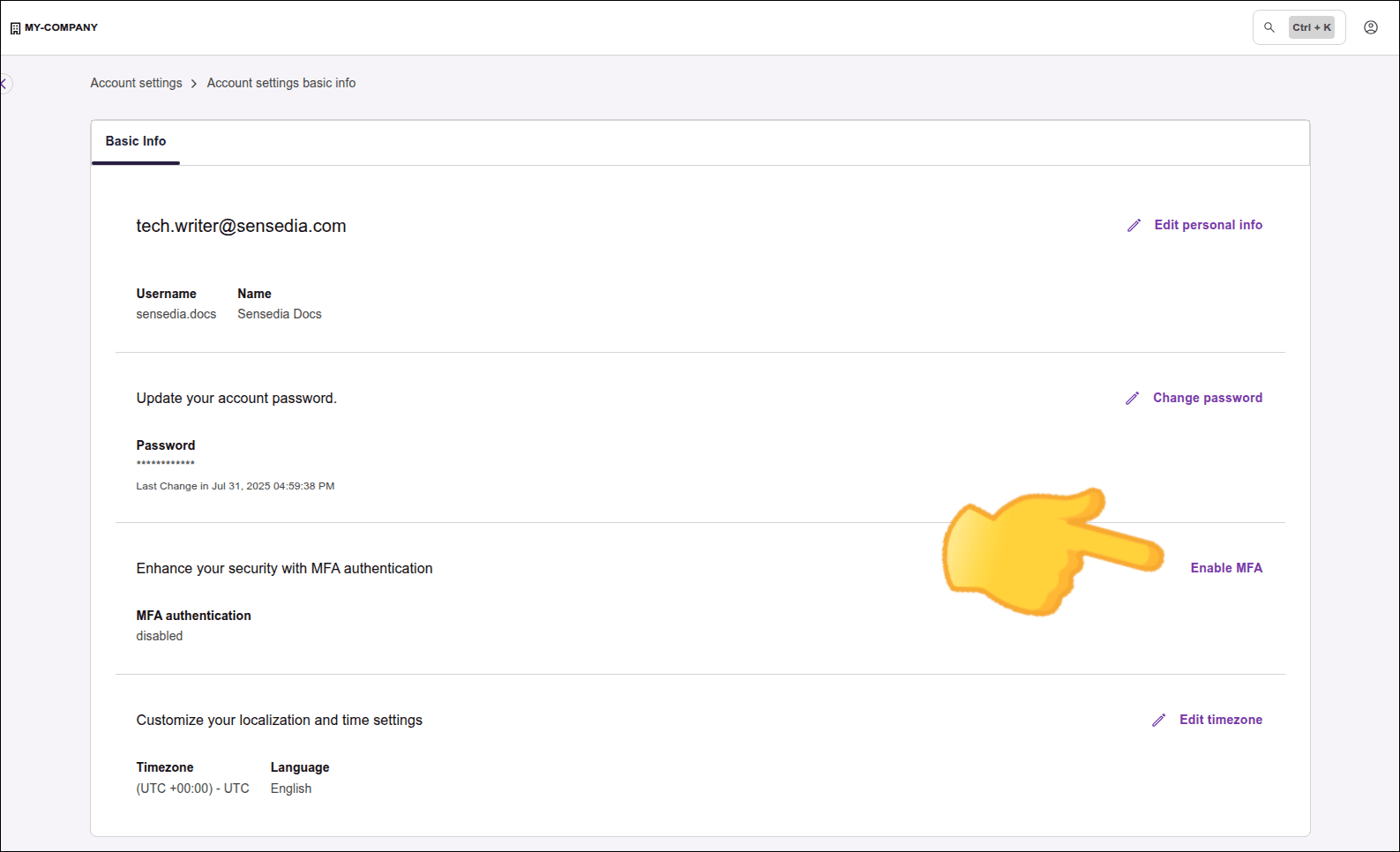
 In the screen that opens, click **Enable MFA**.
Have your phone in hand to manually enter the code that appears on the screen or scan the QR Code.
You can use the authentication app of your choice.
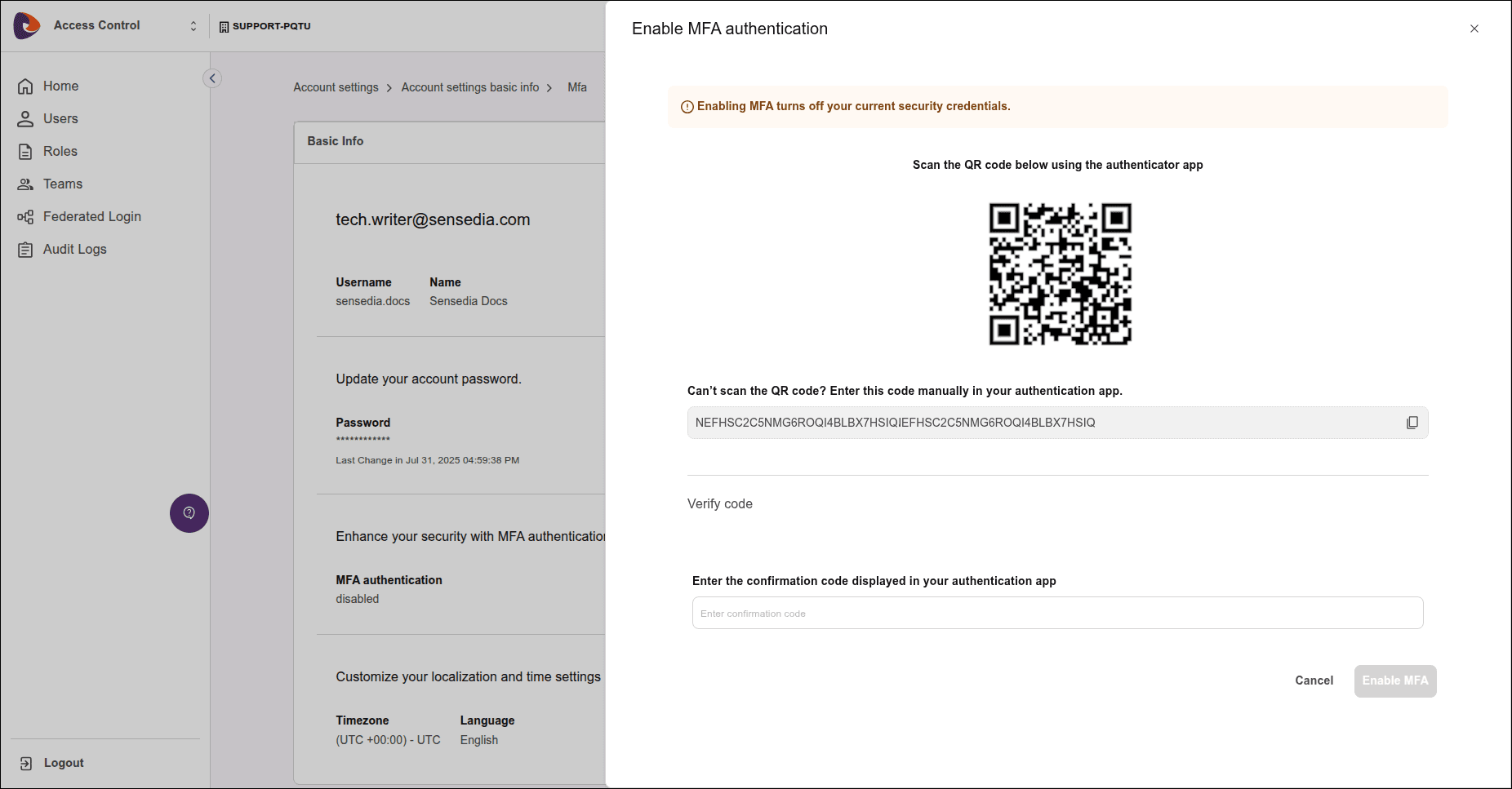
Enter the code generated by the authentication app and click **Enable MFA**.
Once activated, in addition to your password, you must enter the code provided by the chosen authentication app to log in.
MFA usage is not available for federated users.
## Disabling multi-factor authentication
### Disable MFA for your own user
When disabling MFA, you return to accessing only with your login and password, without the need to enter the security code.
To disable MFA for your user, repeat the process described above, clicking in the upper right corner of the screen, then **My Account Settings** and **Disable MFA**.
Every user can activate and deactivate their own MFA.
### Disable MFA for another user
When disabling MFA for another user, you allow the user to return to accessing only with their login and password, without the need to enter the security code.
Your user needs permission to disable MFA for another user.
To disable MFA for another user, follow these steps:
Click the icon in the upper right corner of the screen and **Access Control Settings**.
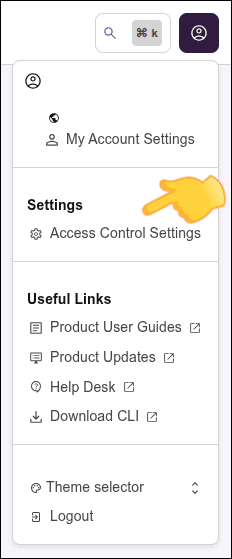
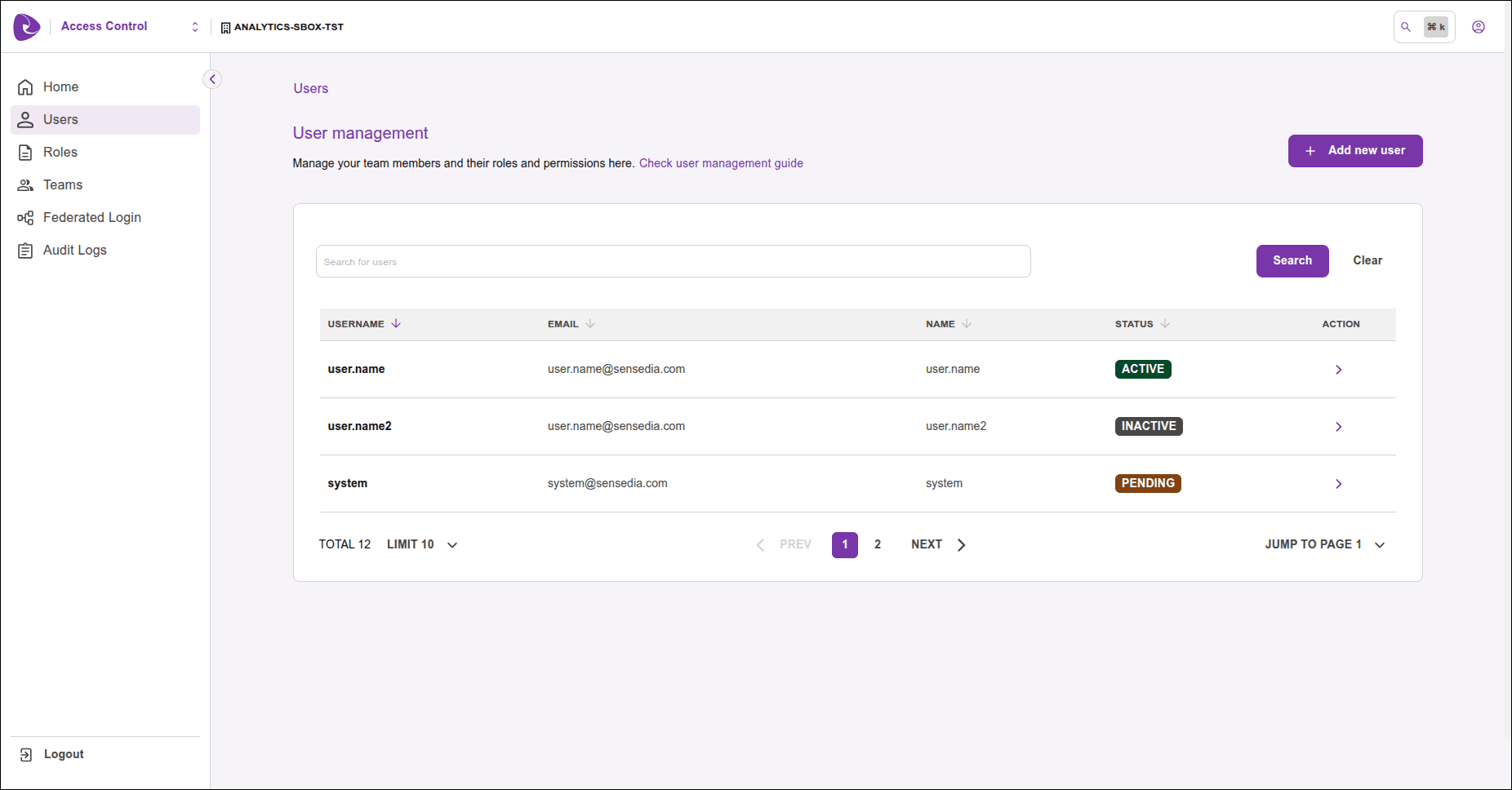
In the card in the center of the screen or in the left sidebar menu, click **Users**.
In the user list, click **>** in the **Actions** column of the desired user.
Click **Disable MFA**.
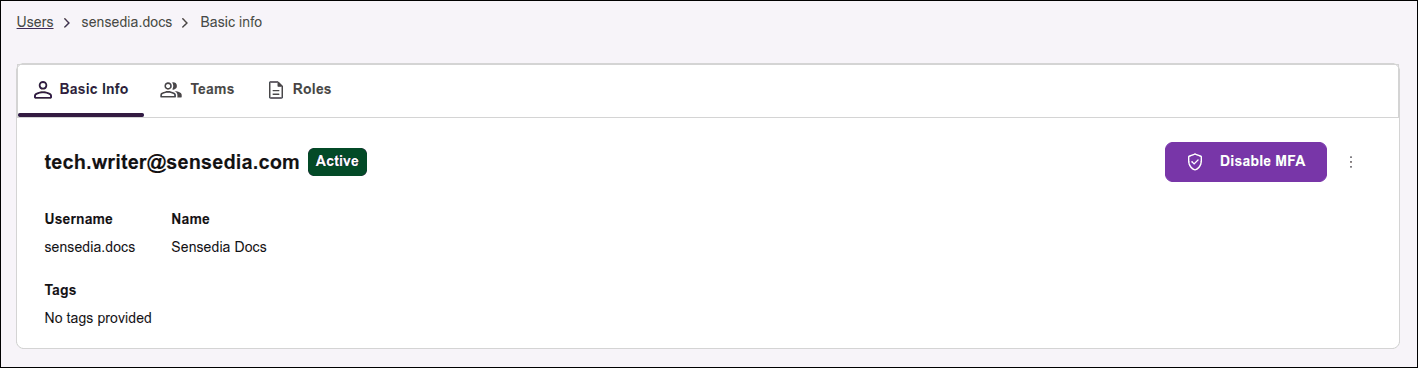
On this screen it is not possible to activate MFA.
In the screen that opens, click **Enable MFA**.

Have your phone in hand to manually enter the code that appears on the screen or scan the QR Code.
You can use the authentication app of your choice.

Enter the code generated by the authentication app and click **Enable MFA**.
Once activated, in addition to your password, you must enter the code provided by the chosen authentication app to log in.
MFA usage is not available for federated users.
## Disabling multi-factor authentication
### Disable MFA for your own user
When disabling MFA, you return to accessing only with your login and password, without the need to enter the security code.
To disable MFA for your user, repeat the process described above, clicking in the upper right corner of the screen, then **My Account Settings** and **Disable MFA**.
Every user can activate and deactivate their own MFA.
### Disable MFA for another user
When disabling MFA for another user, you allow the user to return to accessing only with their login and password, without the need to enter the security code.
Your user needs permission to disable MFA for another user.
To disable MFA for another user, follow these steps:
Click the icon in the upper right corner of the screen and **Access Control Settings**.

In the card in the center of the screen or in the left sidebar menu, click **Users**.
In the user list, click **>** in the **Actions** column of the desired user.

Click **Disable MFA**.

On this screen it is not possible to activate MFA.