---
title: Discovery | Adaptive Governance
description: Explore imported APIs, filters, issues, and tag management in Discovery.
documentId: adaptive-governance-discovery
locale: en-US
---
-
In **Discovery**, you have an overview of the main information about your APIs. This API catalog supports multiple gateways, allowing greater control and organization of your ecosystem.
The **Discovery** catalog includes APIs originating from different providers and gateway types, including APIs imported from **AWS API Gateway** in both **REST (v1)** and **HTTP (v2)** versions.
## Quick Links
See how to:
- Perform a [search](#filter-api)
- [Add a tag](#add-tag) to an API
- [Remove a tag](#remove-tag) from an API
- Apply a [batch edit](#bulk-edit)
- View the [API maturity level](/docs/adaptive-governance/ag-maturity-report#score-level)
- Obtain [_Smart Recommendations_](/docs/adaptive-governance/ag-smart-recommendations) (download contracts with the recommended changes already applied)
- Check for [redundant APIs](/docs/adaptive-governance/ag-redundancy-detector).
## Totals
At the top of the **Discovery** screen, you will find a dashboard with metrics from your catalog, based on the applied [filters](#filter-api).

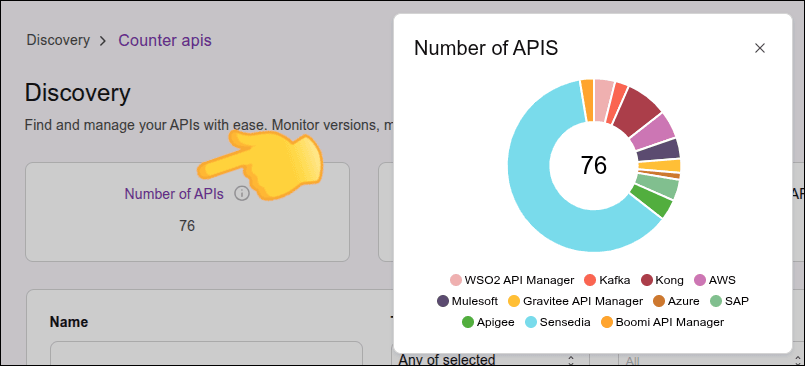
- **Number of APIs**: Displays the total number of APIs in the catalog.
Click the card to see a graphical representation of the total APIs categorized by provider.
- **Uncategorized APIs**: Total number of APIs without an associated tag.
- **APIs recently imported**: Total number of APIs imported into the catalog in the last 7 days.
See how to [change the period](#select-period).
- **APIs recently updated**: Total number of APIs in the catalog updated in the last 7 days. See how to change the period:
### Step 1
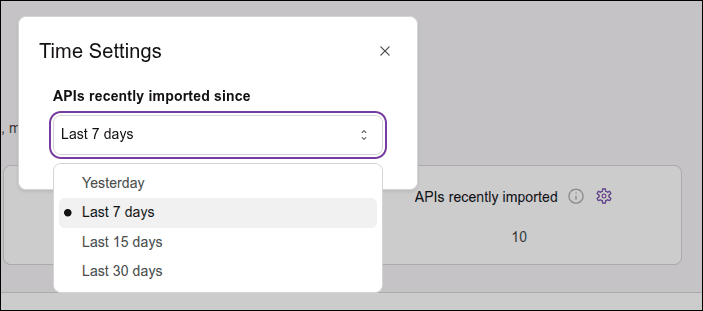
To **change the period** for **APIs recently imported** or **APIs recently updated**:
### Step 2
Click the  on the card.
### Step 3
Select the desired period: --
- **Yesterday**: Previous day.
- **Last 7 days**: Last 7 days.
- **Last 15 days**: Last 15 days.
- **Last 31 days**: Last 31 days.
--
### Step 4
Click **OK**.
## APIs listing
Imported APIs are listed in a table with the following columns:
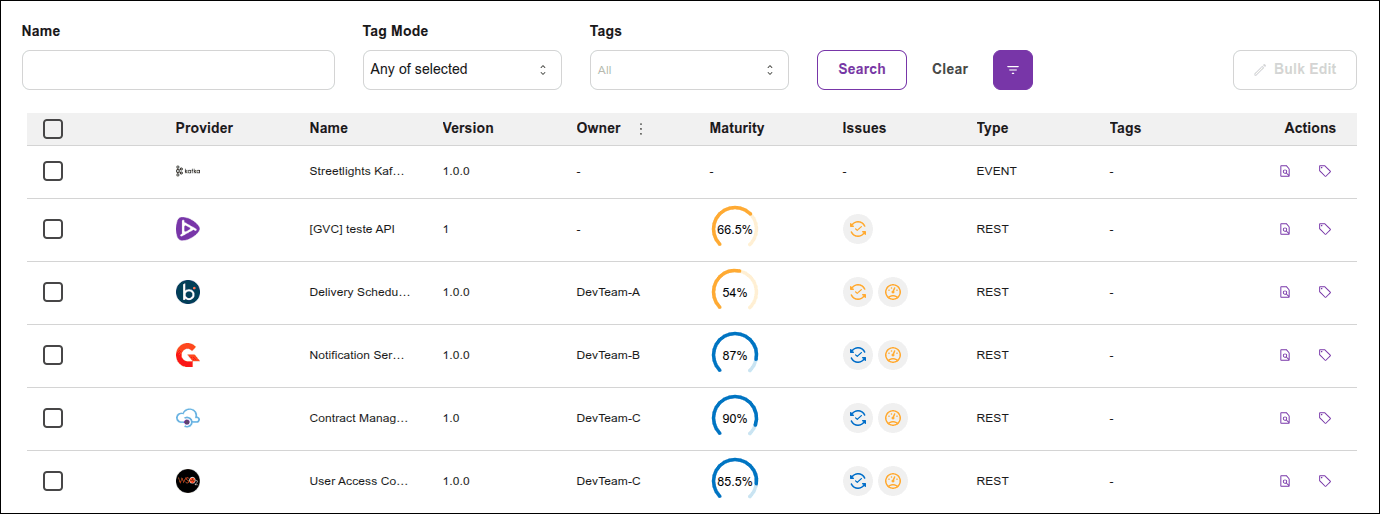
- **PROVIDER**: Icon identifying the gateway provider (examples: Sensedia, AWS, etc.)
- **NAME**: API name.
- **VERSION**: Current version.
- **OWNER**: Click  and select one of the options:
- **View owner**: View the API owner, which can be a team or user.
- **View shared with**: View who the APIs are shared with.
- **MATURITY**: API maturity score, which can be:
| Icon | Level | Range |
| --- | --- | --- |
|  | Basic | 0 to 29% |
|  | Intermediate | 30 to 79% |
|  | Advanced | 80 to 94% |
|  | Excellent | 95 to 100% |
Get the full [maturity report](/docs/adaptive-governance/ag-maturity-report) and [AI-generated recommendations](/docs/adaptive-governance/ag-smart-recommendations), with the option to download the Swagger with the applied recommendations.
- **ISSUES**: Indicates the presence of issues that may impact API quality and the ecosystem. Identifies elements that can be modified to improve aspects such as organization and performance.
Common Issues types:
- **Consistency**: Related to API consistency and organization. Indicates violations of best practices in OpenAPI contracts. Ensures that contracts are complete and consistent, aligning development and documentation with organizational rules.
- **Efficiency**: Related to resource usage. Indicates redundancies and optimization opportunities but does not cover performance aspects.
An empty field in the **ISSUES** column immediately after import does not necessarily indicate the absence of issues. After import, APIs need processing, and the time to generate **Issues** can vary from minutes to hours, depending on the number of APIs and the size of imported contracts.
- **TAGS**: Tags (labels). See how [tags](#tags-) work.
- **TYPE**: API category:
- REST: Synchronous request-response based APIs.
- Event: Event-driven APIs, such as webhooks, streams, or messages.
- **ACTIONS**:
- : View [details](/docs/adaptive-governance/ag-discovery-details) about the corresponding item, such as general data, revisions, and associated environments.
- : Add [tags](#tags-) to the corresponding item or manage existing ones.
### Searching for an API
To see all filtering options, click the  icon.
You can search APIs by:
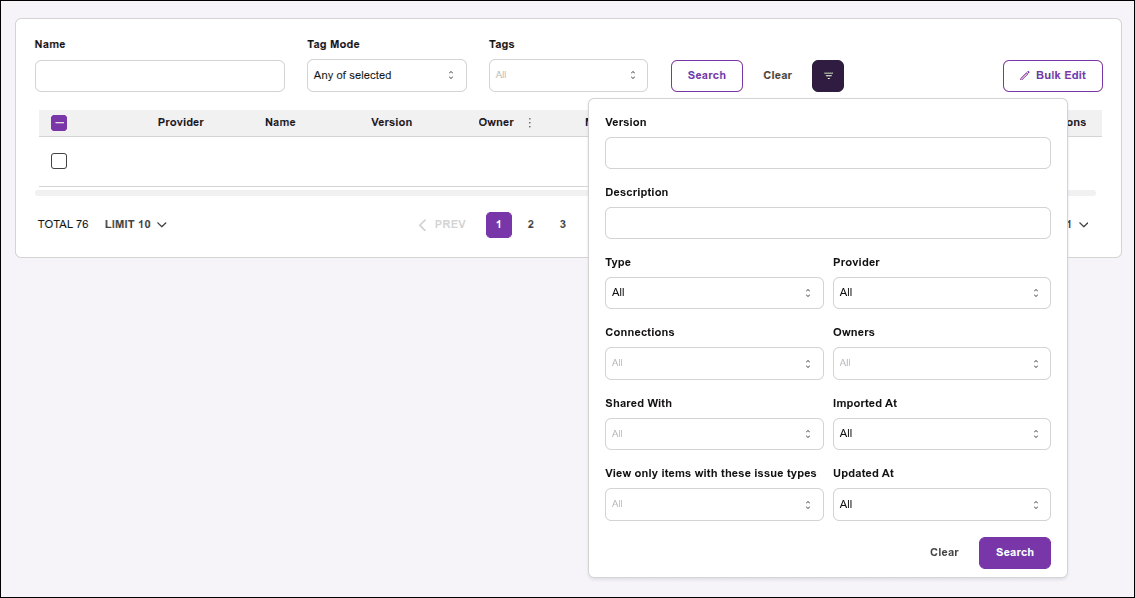
- **Name**: API name.
- **Tag Mode**: define the tag search criteria:
- **Any of selected**: APIs with **at least one of the selected tags** (default).
- **All of selected**: APIs with **all selected tags**.
- **None of selected**: APIs **without the selected tags**.
- **No tag applied**: Displays APIs **without tags**.
- **Tags**: Select or type the tag name. See how [tags](#tags-) work.
- **Version**: API version.
- **Description**: API description field content.
- **Type**: API category:
- REST: Synchronous request-response based APIs.
- Event: Event-driven APIs, such as webhooks, streams, or messages.
- **Provider**: Gateway provider (examples: Sensedia, AWS, etc.).
- **Connections**: Name of the [connection](/docs/catalogs).
- **Owners**: API owner (team or user).
- **Shared with**: Team or user the API is shared with. You can use one or more teams or users for the search.
- **Imported At**: API import date.
- **Updated At**: Last API update date.
- **View only items with these issue types**:
- Consistency: APIs with issues related to API maturity.
- Efficiency: APIs with issues related to resource redundancy.
After entering values in the desired fields, click **SEARCH** to perform the search or **CLEAR** to clear the fields.
## Categorization by Tags
Tag categorization allows you to classify and group catalog APIs using customizable labels, making API management easier and faster. This feature lets you search for APIs in the same category using their tags.
### Associate a Tag with an API
There are two ways to associate a tag with a catalog API:
### Step 1
- Tags icon 
### Step 2
In the [API listing](#apis-listing) on the **Discovery** screen, click the  icon for the API you want to categorize (associate a tag with).
### Step 3
If the selected API does not yet have an associated tag, click **ADD**.
### Step 4
In the **Tag Name** field, enter the name of the tag you want to associate (new or previously registered).
- A tag name must be between 2 and 30 characters long.
- Only lowercase alphanumeric characters and "-" are allowed.
- The tag name cannot start or end with "-".
### Step 5
Click **+** (or press ENTER on your keyboard) to associate the tag.
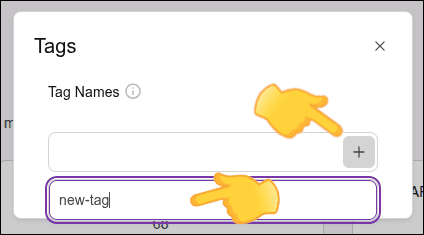
If you click **OK** without clicking **+** (or pressing enter), the tag will not be associated/created.
### Step 6
If you want to add another tag, repeat the last two steps. Each API can have up to 50 associated tags.
### Step 7
Click **OK** to close the window.
- View details icon 
### Step 8
In the [API listing](#apis-listing) on the **Discovery** screen, click the  icon in the **ACTIONS** column for the API you want to categorize (associate a tag with).
### Step 9
Click the  icon next to **Tags** in the **BASIC INFO** panel.
### Step 10
Follow steps 3 to 6 described above.
### Remove Tags from an API
There are two ways to disassociate one or more tags from a catalog API:
### Step 1
- Tags icon 
### Step 2
In the [API listing](#apis-listing) on the **Discovery** screen, click the  button corresponding to the API from which you want to remove the tag(s).
### Step 3
In the window that opens, locate the tag you want to disassociate from the API.
### Step 4
Click the **X** button for that tag to remove it.
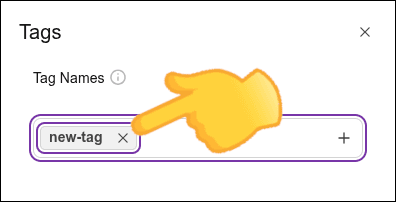
### Step 5
If you want to remove another tag from this API, repeat the last two steps.
### Step 6
Click **OK** to close the window.
You can also disassociate tags from the [API details screen](/docs/adaptive-governance/ag-discovery-details):
### Step 7
On the details screen of the desired API, click the  button in the **Tags** field of the **BASIC INFO** panel.
### Step 8
Follow steps 2 to 5 described above.
## Editing API Information
To edit API information, click the  icon.
In the **BASIC INFO** panel, you can edit:
- **Owner**: To edit the API owner (user or team), click **Owner**  and select the desired option.
- **Shared with**: To edit who the API is shared with, click **Shared with**  and select one or more users.
## Bulk Editing
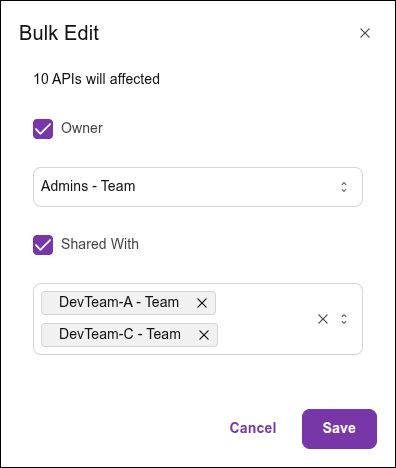
Use the **BULK EDIT** feature to apply the same information to multiple APIs in a single action.
To do this, follow these steps:
### Step 1
In the [API listing](#apis-listing) on the **Discovery** screen, select the APIs to be edited. To select all, click the checkbox next to **PROVIDER** in the row displaying the column titles.
### Step 2
Click the **BULK EDIT** button.
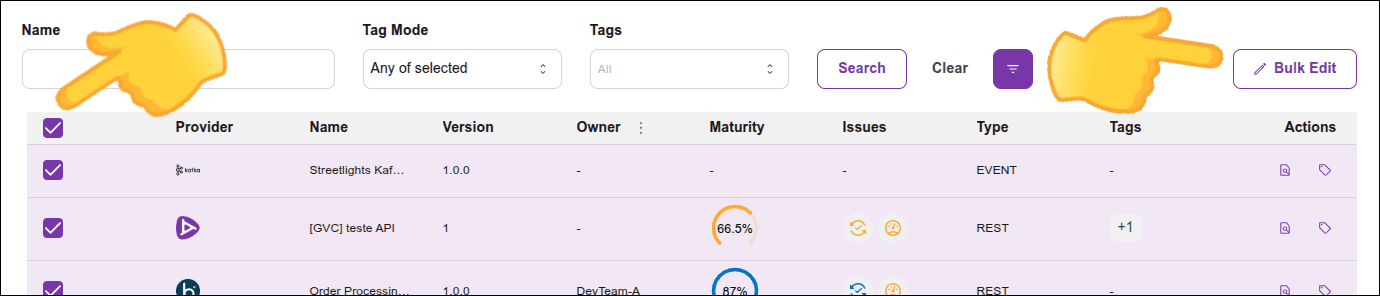
### Step 3
You can edit the _Owner_ and _Shared with_.