---
title: Policy Enforcement
description: Integrate API compliance validations with automation through Sensedia CLI.
documentId: adaptive-governance-policy-enforcement
locale: en-US
---
-
**Integrate API compliance validation with automation pipelines**
Configure governance policies, establish the compliance level, and let **_Policy Enforcement_** prepare everything else so you can run the validation using the **Sensedia CLI**.
By enforcing policies, your organization can mitigate risks, enhance API performance, and maintain compliance with governance standards. **_Policy Enforcement_** acts as a safeguard, ensuring that interactions within the system are secure, controlled, and aligned with the company's strategic objectives.
## Policy Enforcement for the Maturity Report
Follow the steps below to configure **Policy Enforcement** for the Maturity Report:
### Step 1
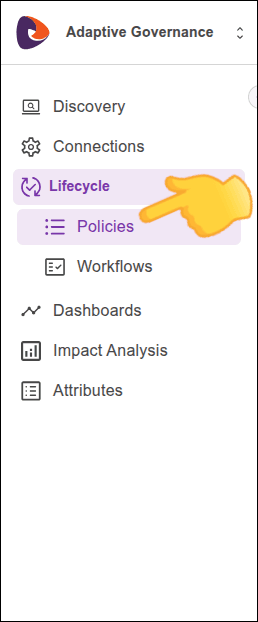
In the left sidebar menu, click **Lifecycle > Policies**.
### Step 2
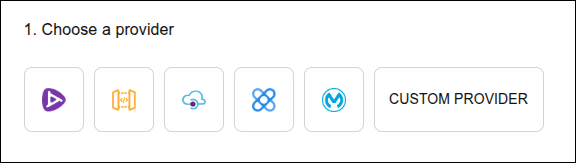
Select the gateway where your APIs are located.
### Step 3
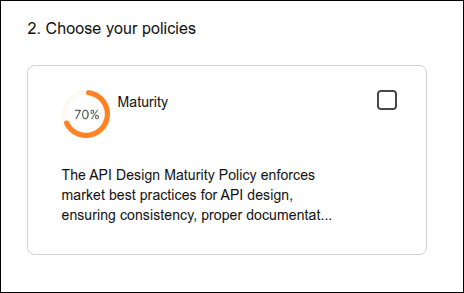
Select **Maturity** and click **GET AUTOMATION CODE**.
### Step 4
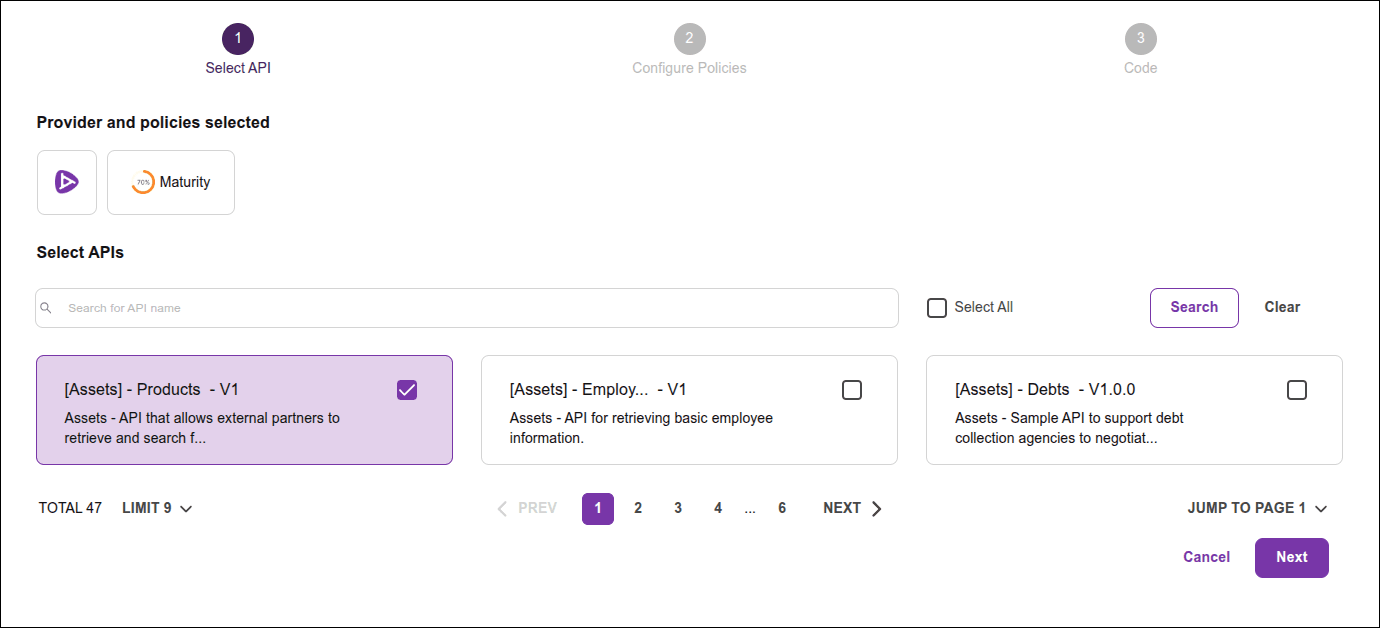
Select one or more APIs.
If your connection is non-native, skip to step 5. You can search by API name, select from the list, or click **Select All** to select all APIs. Then, click **Next**.
### Step 5
Indicate the target maturity level and click **NEXT**.
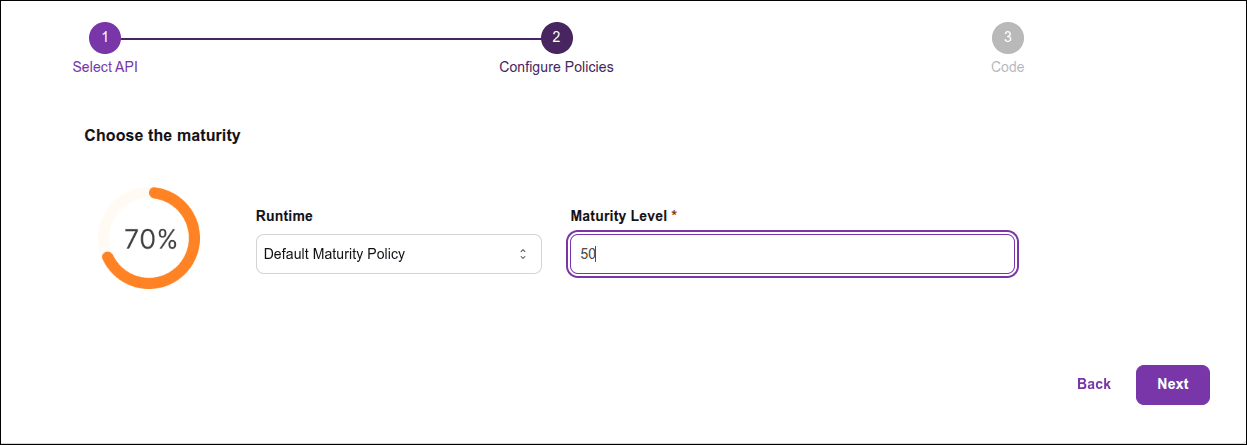
For example, if you enter "50" as the maturity level, **Policy Enforcement** will validate whether the selected APIs have a maturity _score_ equal to or greater than 50%. If an API has a maturity _score_ below 50%, when [running the CLI command](#cli-command), **Policy Enforcement** will return an error, indicating that the API does not meet the established maturity level. If the APIs have maturity _scores_ equal to or greater than 50%, a success message will be returned.
### Step 6
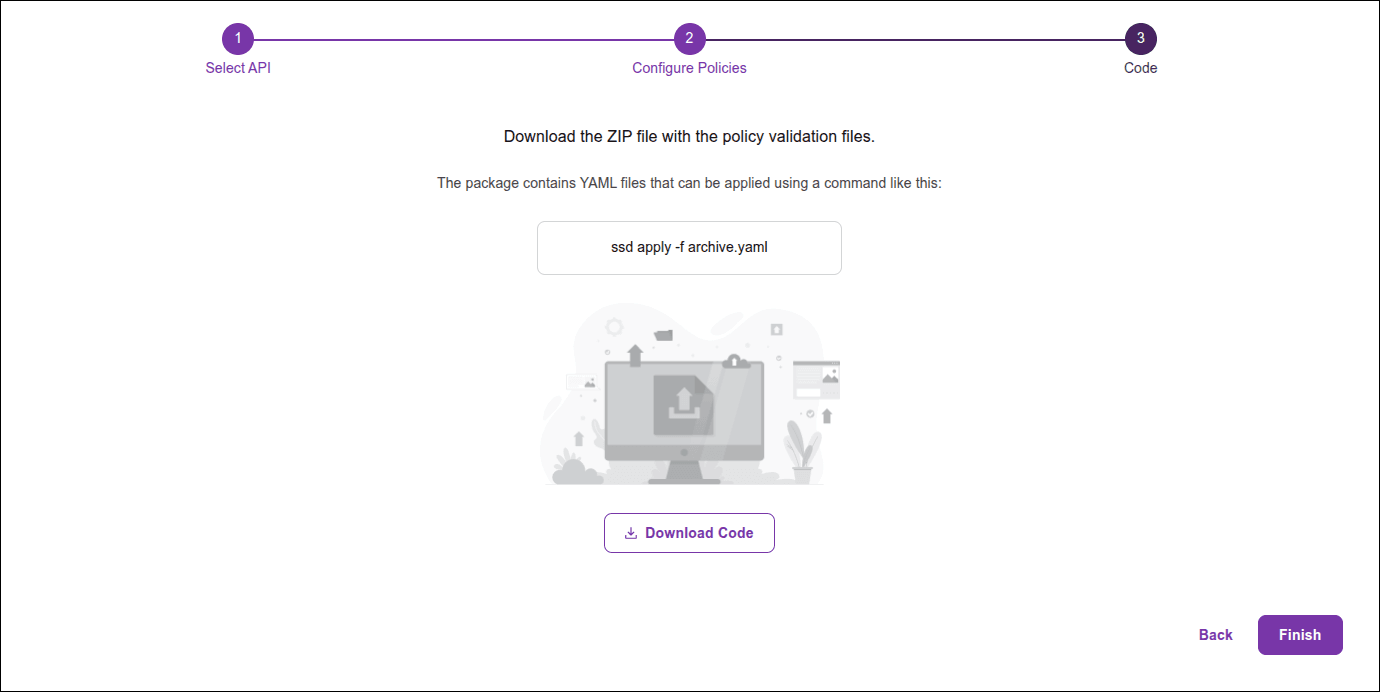
Copy the command (which will be used in step 9) and click **DOWNLOAD CODE**.
### Step 7
Unzip the downloaded `.yaml` file. To make it easier, you can save it in the same folder in which the contracts of the APIs you want to validate are located.
### Step 8
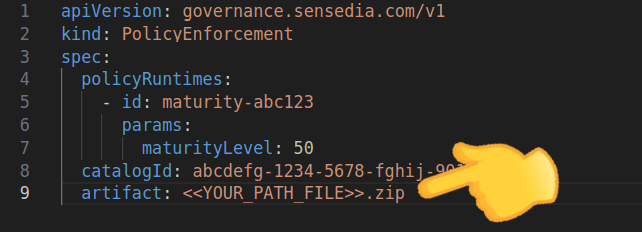
Open the downloaded `.yaml` configuration file and, in `spec` > `artifact`, replace `YOUR_PATH_FILE` with the API contract file name. Do not include the less-than or greater-than signs. If the `.yaml` file is in the same folder as the API contract, enter only the file name. Otherwise, also enter the path to the file.
The contract must be in `JSON` format, compressed in `.zip` format.
### Step 9
The rest of the process is done via **Sensedia CLI**:
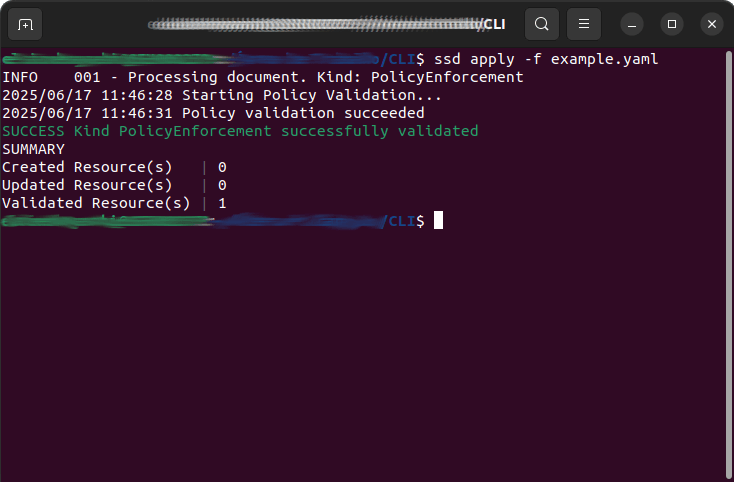
- In the CLI, apply the YAML file by running a command like the one you copied in step 6:
`ssd apply -f [file-name].yaml`, substituting `[file-name]` with the name of the configuration file you downloaded. Do not use the '[]'.
If you do not yet have the **Sensedia CLI**, see the [Sensedia CLI installation documentation](/docs/cli/how-to).
- If the API complies with the specified policy, the command will return a success message.
- Otherwise, the command will return an error message indicating what was non-compliant.
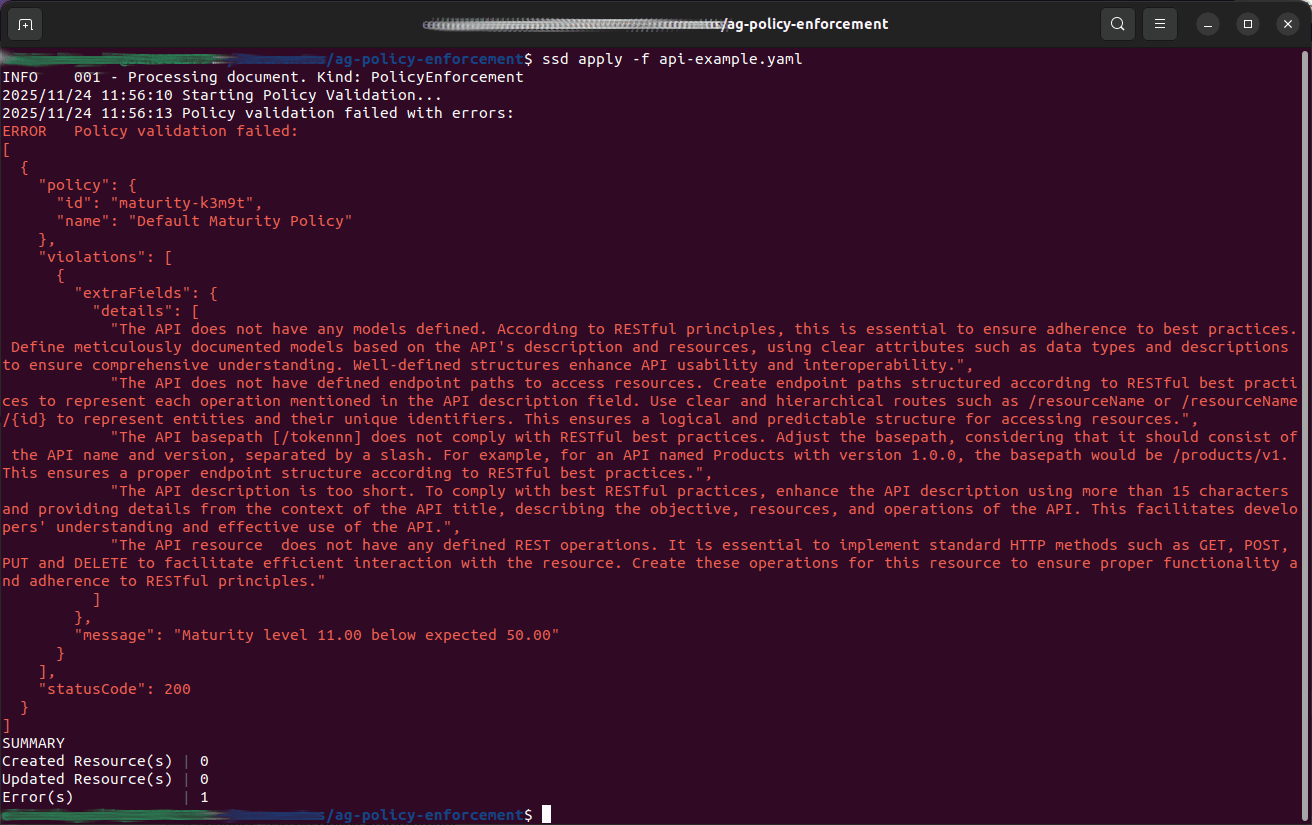
Consult the **Sensedia CLI** documentation for more details on:
- The [Sensedia CLI installation](/docs/cli/how-to).
- The [Policy Enforcement](/docs/cli/policy-enforcement) configuration.
Use our AI resources to:
- [Detect redundancy](/docs/adaptive-governance/ag-redundancy-detector).
- Get [Smart Recommendations](/docs/adaptive-governance/ag-smart-recommendations).