---
title: Activity Monitor
description: Understand how to access the Activity Monitor to view the history and details of calls made to your APIs in the Developer Portal.
documentId: developer-portal-activity-monitor
locale: en-US
---
In **Activity Monitor**, you can view the history of calls with details about each request made to the APIs registered in your Developer Portal.
Monitor and manage API usage for data analysis, gain insight into usage patterns, and make informed decisions.
## Accessing the Activity Monitor screen
To access the Activity Monitor screen:
### Step 1
In the top right menu of your Developer Portal, click **APIs**.
 This screen may vary depending on the customization made for each Developer Portal.
## Call Listing
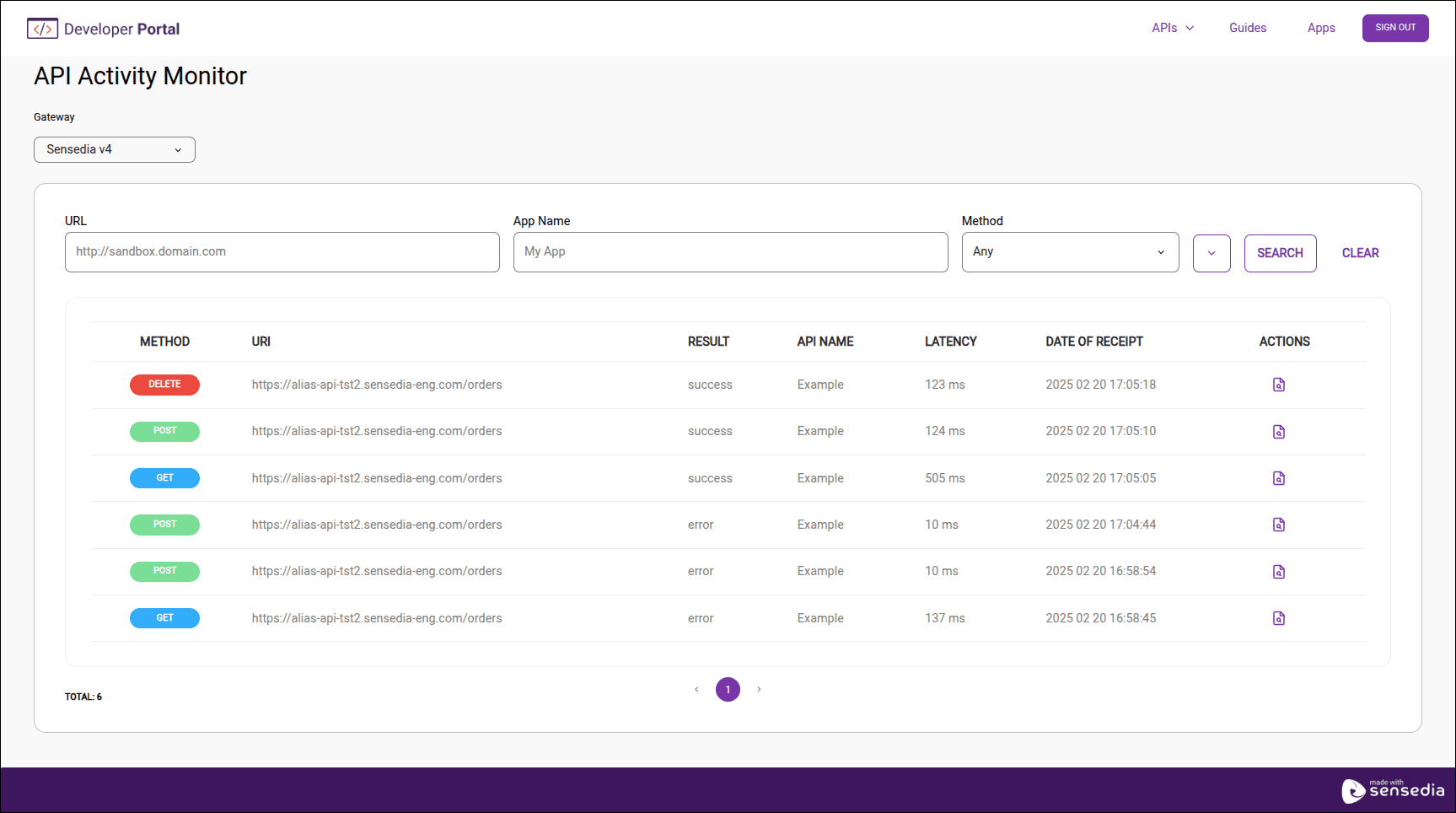
The table with the call history has the following columns:
- **Method**: HTTP method used in the request.
- **URI**: Complete requested address, including resource and parameters (when applicable).
- **Result**: HTTP status code returned.
- **API Name**: API name.
- **Latency**: Call latency in milliseconds.
- **Date of receipt**: Date and time the request was received by the gateway.
- **Actions**: Click the  to see call details.
## Searching for calls
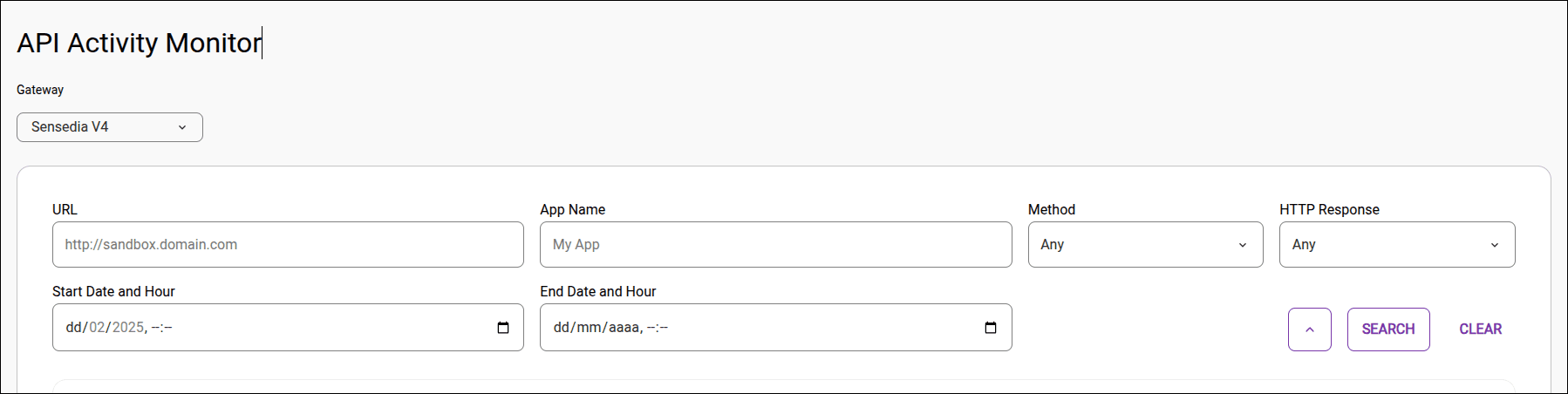
Click the **▾** button, to the left of the **SEARCH** button, to expand and view all search fields.

You can search by:
- Gateway
- URL
- App Name
- Method
- HTTP status code returned
- Start date and time: when the request was made.
- End date and time: when the response was received.
No search field is mandatory. Click **SEARCH** without filling out any fields to get the list of all calls.
- Calls are stored for up to 7 days.
Activities performed before this period are not displayed.
- The listing only displays calls for APIs registered by the user viewing the information.
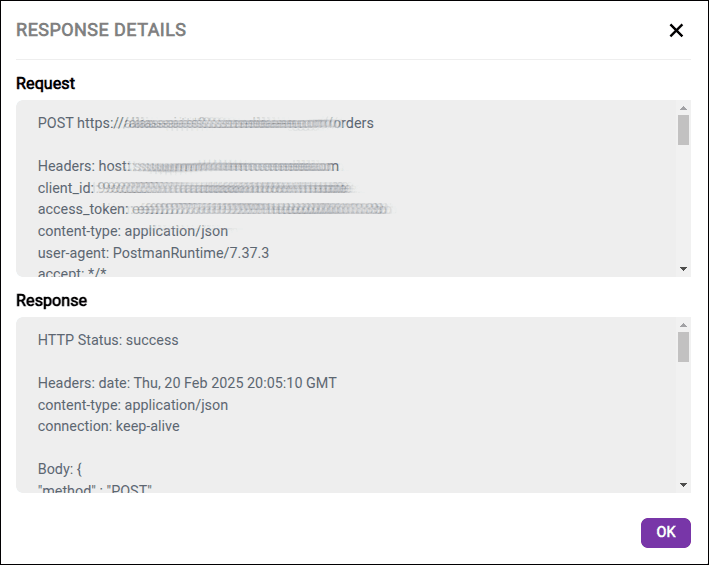
## Call Details
You can inspect each call to get more details by clicking the  in the **Actions** column.
For a greater level of detail, add [interceptors](/docs/api-management/interceptors), such as [_Tracing_](/docs/api-management/tracing-interceptors) ones, to your API's flow.