---
title: Catalog
description: Understand how to access the Catalog to view API documentation organized by product.
documentId: developer-portal-catalog
locale: en-US
---
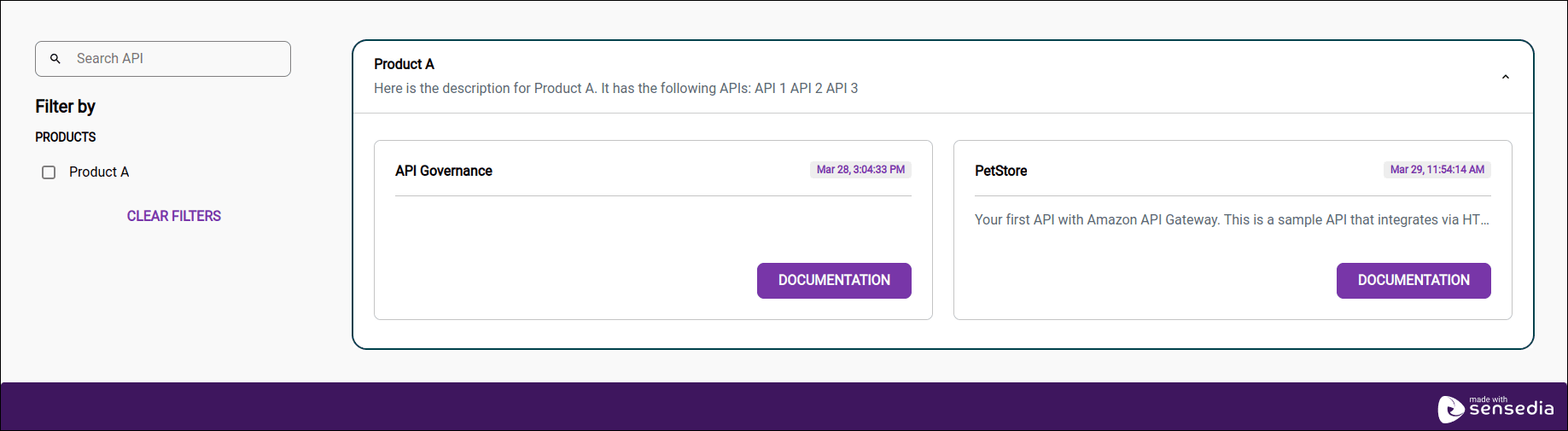
The Catalog page displays the documentation for your APIs, organized by product.
The [upload of API documentation](/docs/developer-portal/api-docs) and the [organization of APIs into products](/docs/developer-portal/products) are done through the [Portal Manager](/docs/developer-portal/portal-manager).
Follow the steps below to **download a _swagger_ file**.
### Step 1
Access your Developer Portal. Go directly to the link or access the Portal Manager and click **Portal** to get the link.
### Step 2
Click **APIs** in the top right corner of the screen. You must be logged in.

### Step 3
Select the desired product. If necessary, use the search field by API or the product filter.
### Step 4
Click the API's **DOCUMENTATION** button. The images below are for illustrative purposes only. Colors, logos, and other elements may vary depending on the customization made in [Portal > Appearance](/docs/developer-portal/appearance) of the [Portal Manager](/docs/developer-portal/portal-manager).
### Step 5
In the top right section, select the document revision and click **DOWNLOAD SWAGGER**.

## Accesses
To view the documentation for an API in the catalog, it is necessary:
### Step 1
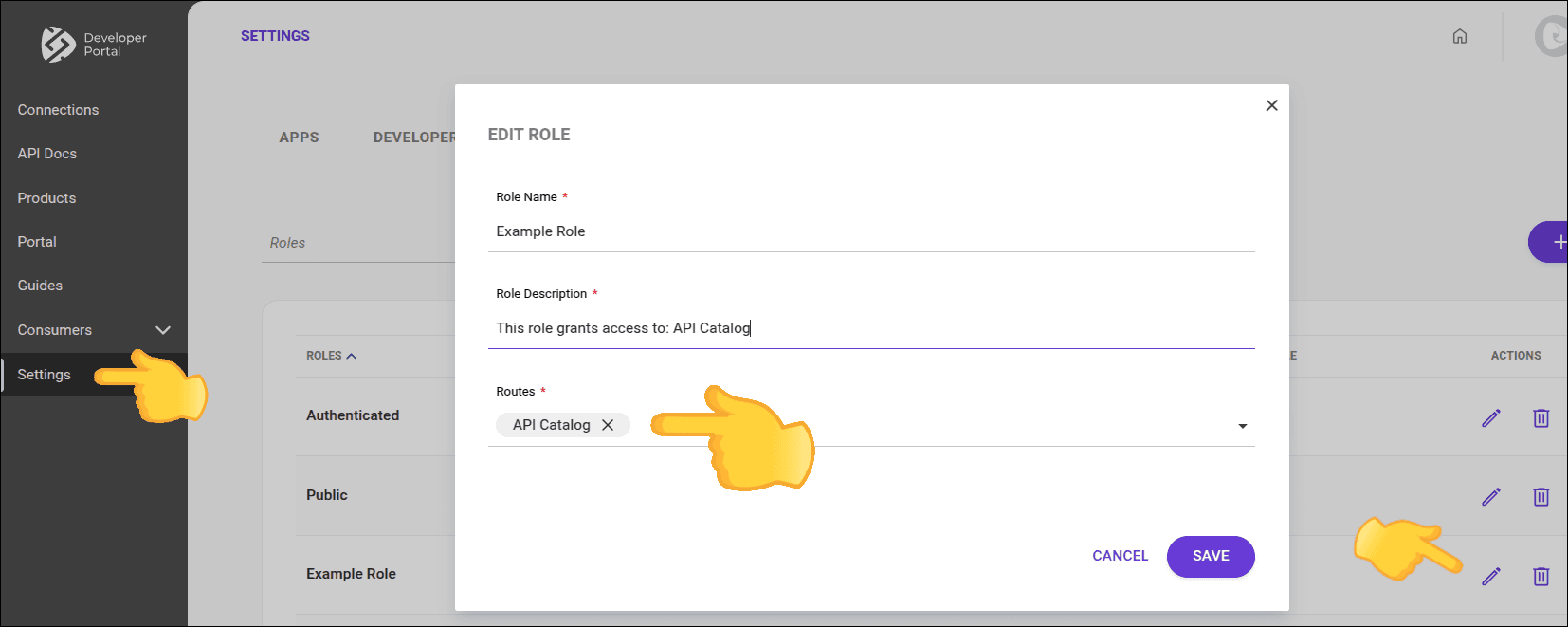
that the _API Catalog_ route is defined in at least one role;
### Step 2
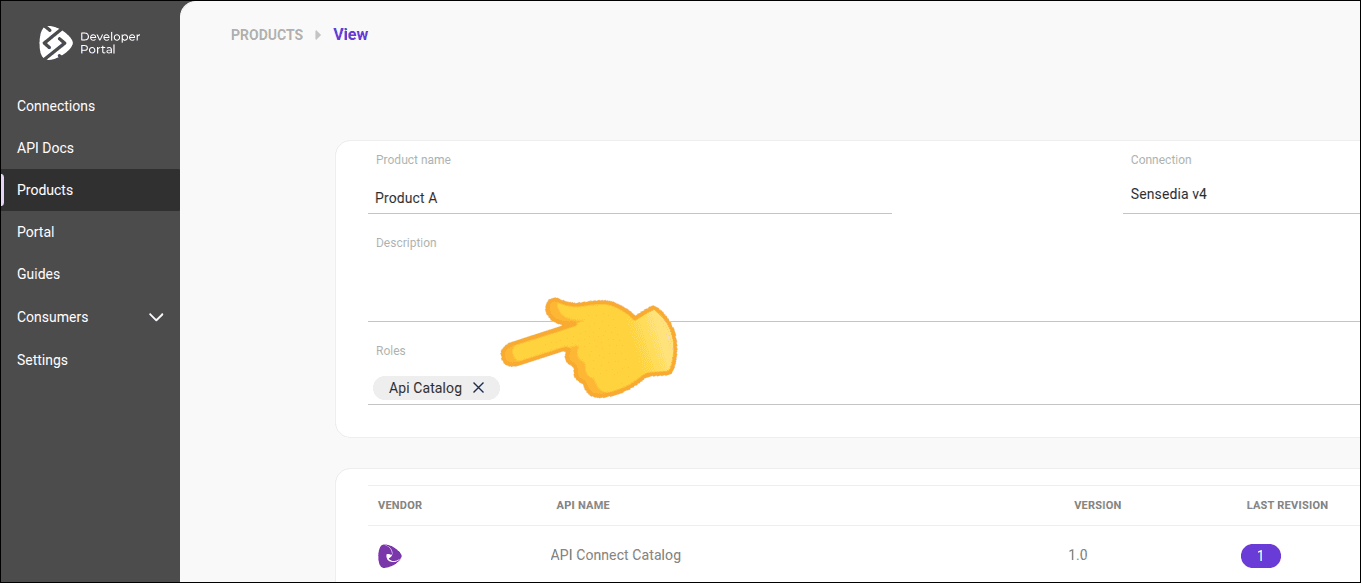
that the product and the API are defined with this role;
### Step 3
that the user has a role with characteristics 1 and 2.
Administrator, if a user does not see a product or API in the API catalog, verify:
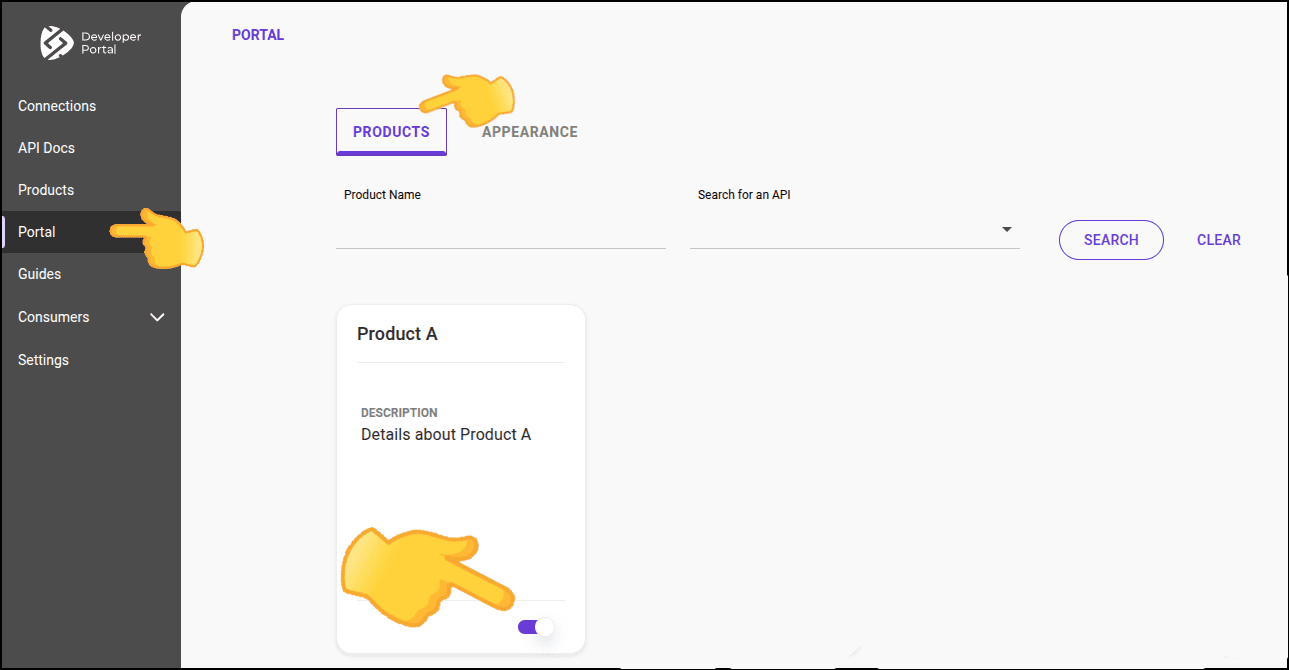
- If the [**product is published** in the catalog](/docs/developer-portal/products#publish-product).
- If at least one role has [**_API Catalog_** defined as one of its routes](/docs/developer-portal/roles#new-role).
- If the [**product** is defined with this role](/docs/developer-portal/products#new-role).
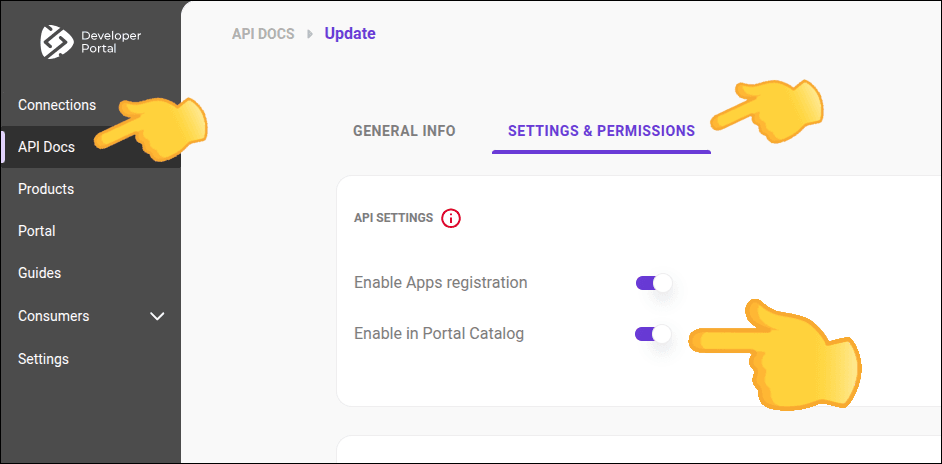
- If the **API**:
- [is defined with this role](/docs/developer-portal/api-docs).
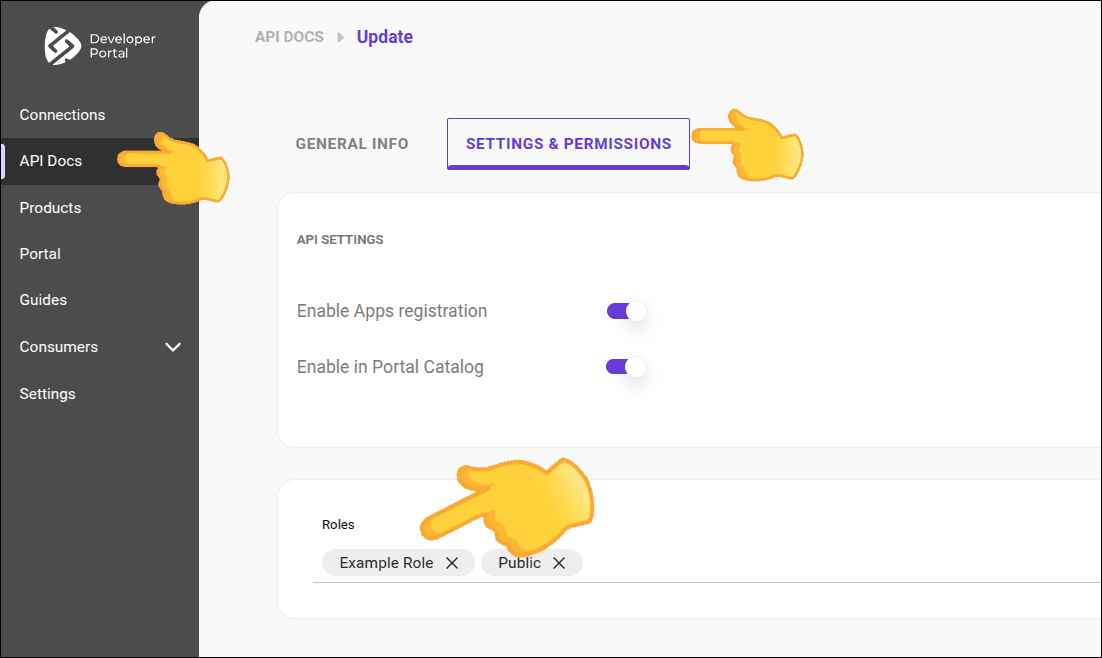
- [is enabled to be displayed in _API Catalog_](/docs/developer-portal/settings-permissions#enable-list)
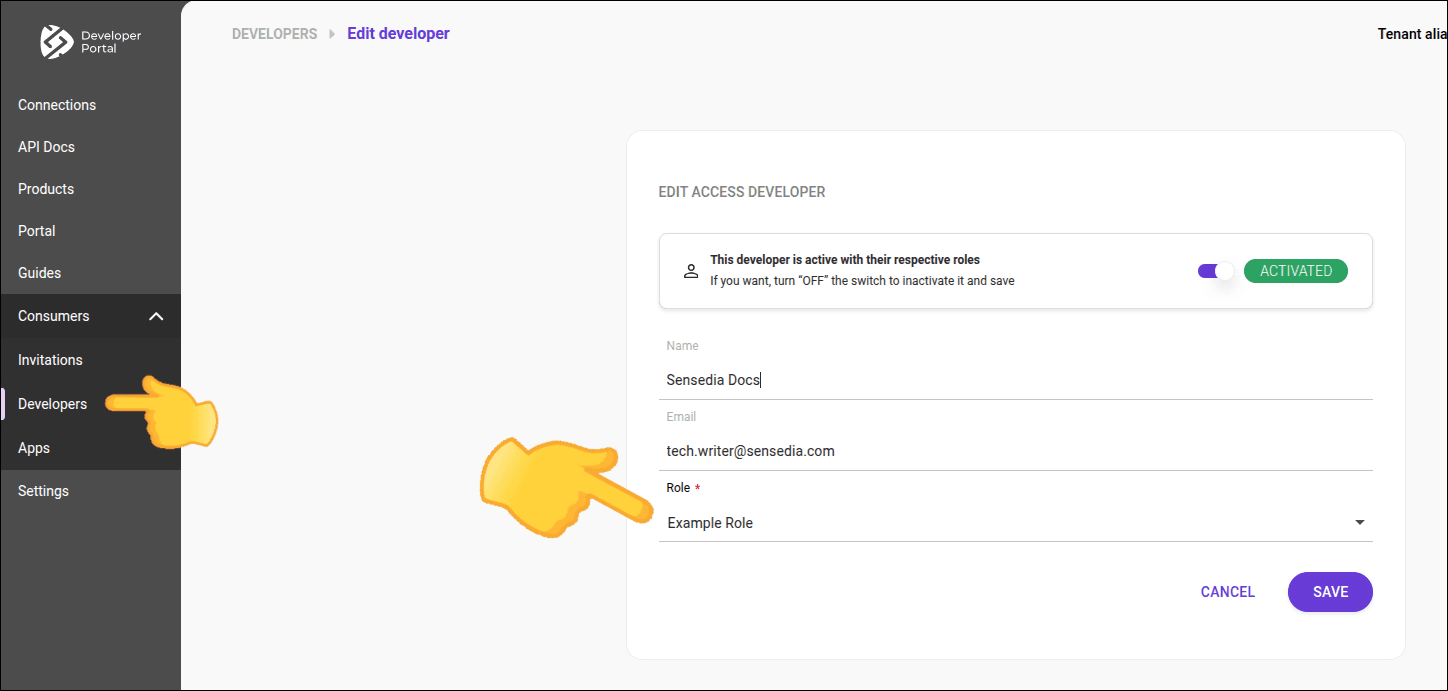
- If the [user has this role](/docs/developer-portal/developers).
### Registering and editing roles for a product
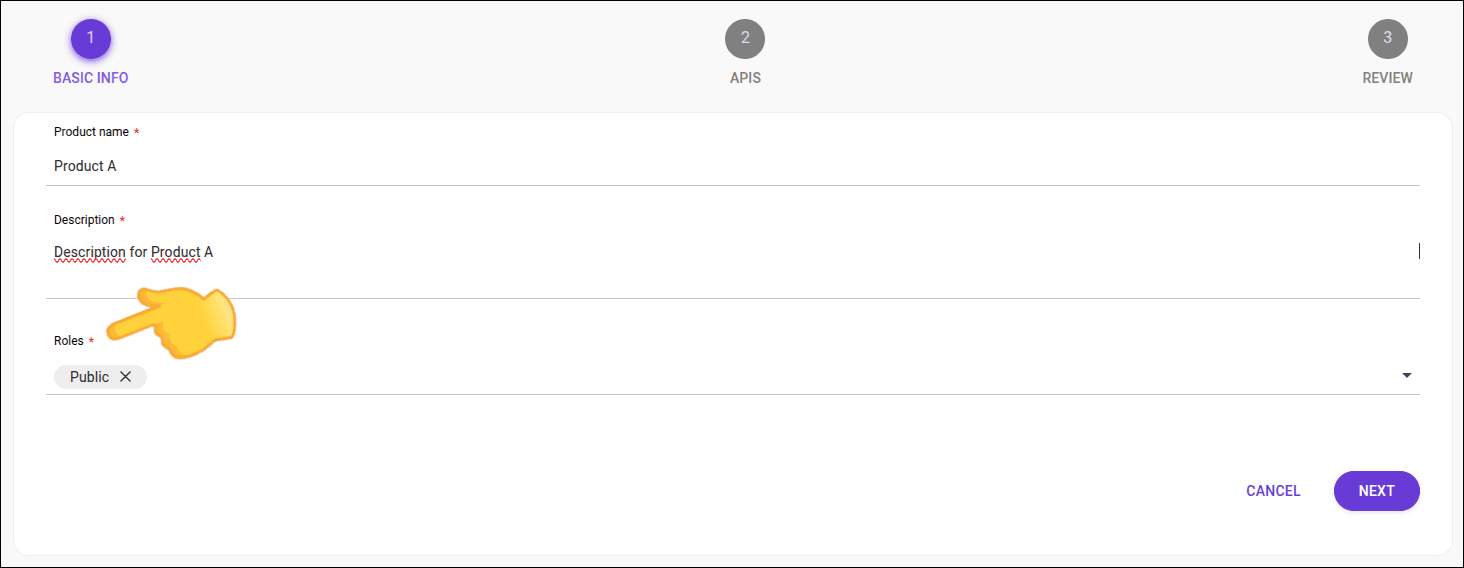
Administrator, follow these steps to define which roles can access the API Catalog:
### Step 1
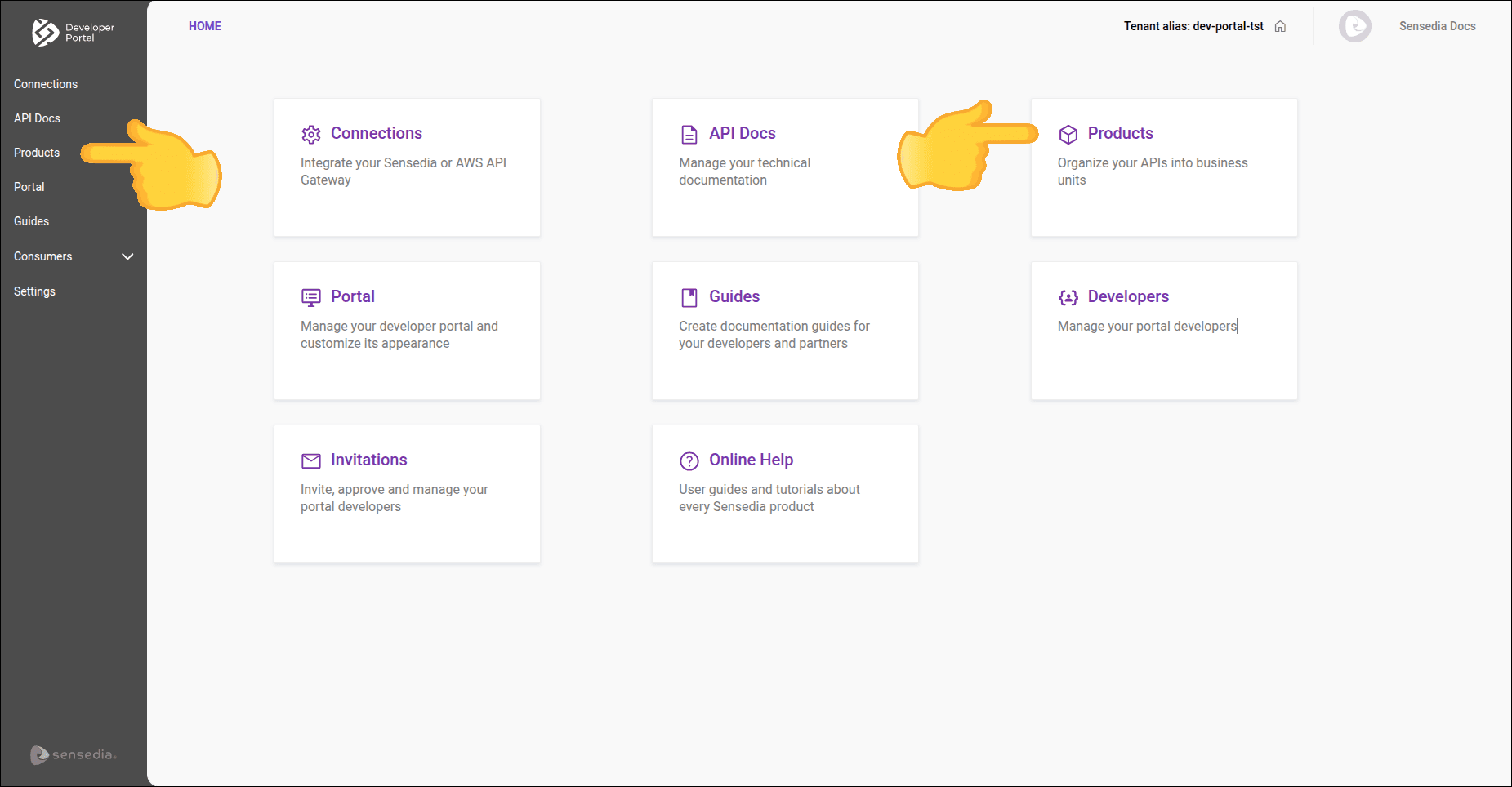
In the Portal Manager, click **Products**, located in the left side menu or on the home screen.
### Step 2
Click the  for the product you want to edit.
### Step 3
In **Roles**, select the roles that will have access to the API catalog products.
- [See how to assign roles to a user](/docs/developer-portal/developers#roles).
- [Publish a product](/docs/developer-portal/products#publish-product) so that it appears in the API catalog.
- [Create a new product](/docs/developer-portal/products).