---
title: API Settings
description: The documentation available in API Catalog can be configured in API Settings:
documentId: developer-portal-api-settings
locale: en-US
---
The documentation available in [API Catalog](/docs/developer-portal/api-docs) can be configured in **API Settings**:
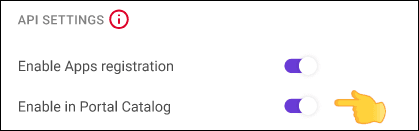
On the **API Settings** page you can configure the API to allow developers to make API calls directly from the documentation ([tryout](#try-out)), enable App registration, and allow the API to be displayed in the Catalog.

This configuration is only available for APIs that have been automatically imported with the [connection](/docs/catalogs).
See more about:
- How to [get to the **API Settings** page](#api-settings) .
- Making [test calls to the API (_tryout_)](#try-out).
- [Allowing APP registration](#enable-registration) for the API.
- [Allowing the API to be displayed in the Catalog](#enable-list).
## API Settings
To access the **API Settings** screen, follow these steps:
### Step 1
Access [API Catalog](/docs/developer-portal/api-docs).
### Step 2
Locate the API you want to test. If necessary, use the search tool.
### Step 3
In the ACTIONS column of the API list, click on the  of the desired API.
The AVAILABILITY column indicates if:
-  the API is **available** for app creation and to be displayed in the catalog;
-  the API is **not available** for display in the catalog **or** (exclusive) for app creation.
-  the API is **not available** for display in the catalog **and** (conjunction) for app creation.
## Tryout
This feature allows you to make calls to the API directly from the documentation.
With _tryout_, you can understand the formats of requests and responses and the parameters for each endpoint.
Follow these steps to use the _tryout_ feature:
### Step 1
Follow the [steps above](#api-settings) to get to the **API Settings** screen.
### Step 2
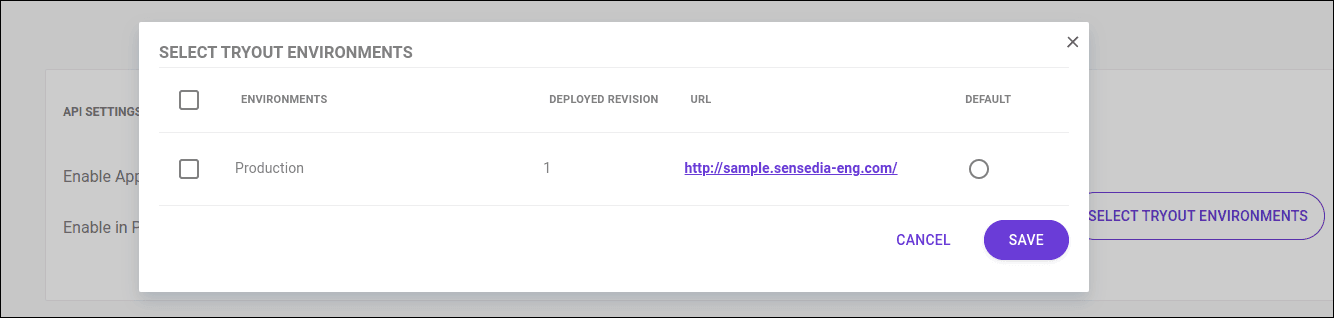
On the next page, in **API Settings**, click **SELECT TRYOUT ENVIRONMENT**.

### Step 3
On the screen that opens, select the environment of the API you want to test.
### Step 4
Navigate through the API documentation and click **Tryout** to make the test call to the endpoint. 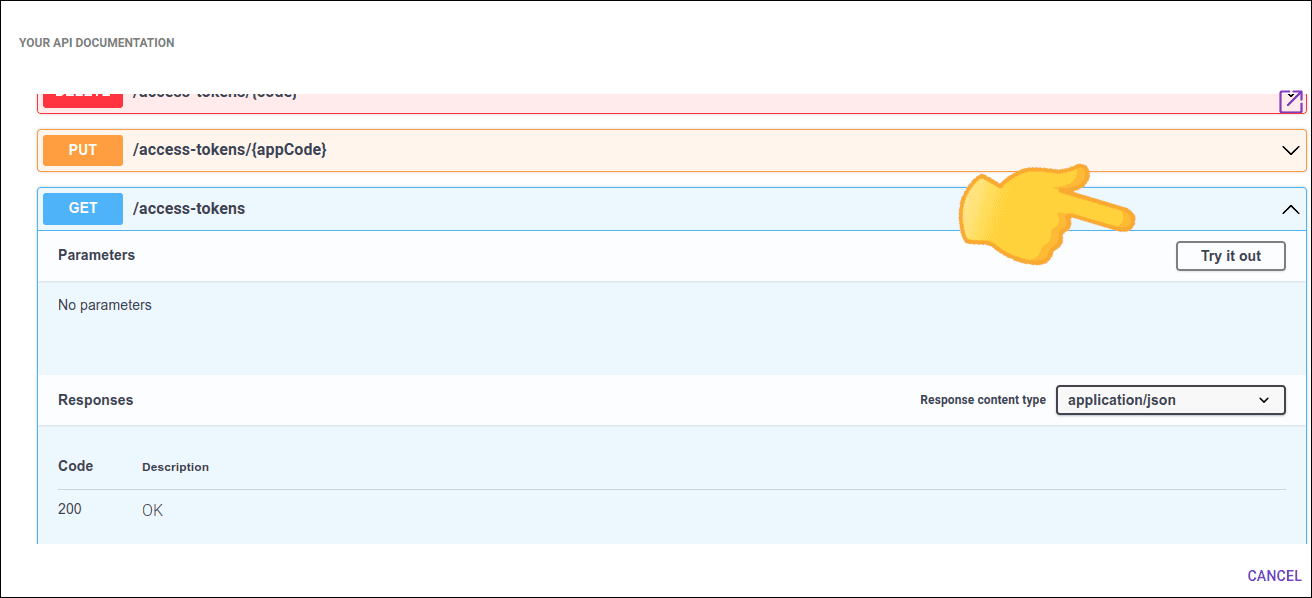
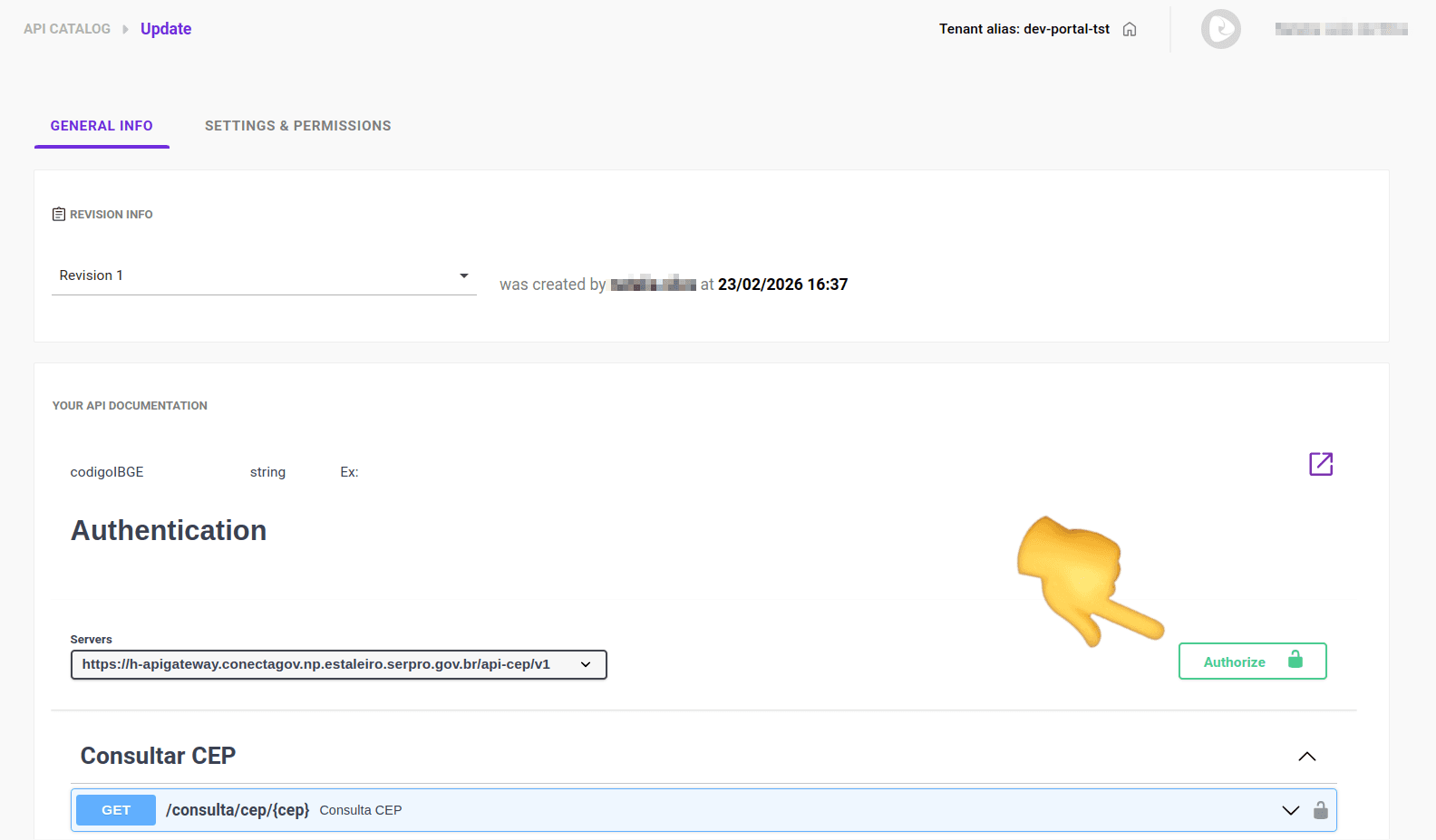
If needed, click **Authorize** and enter the credentials to access the API.
### Step 5
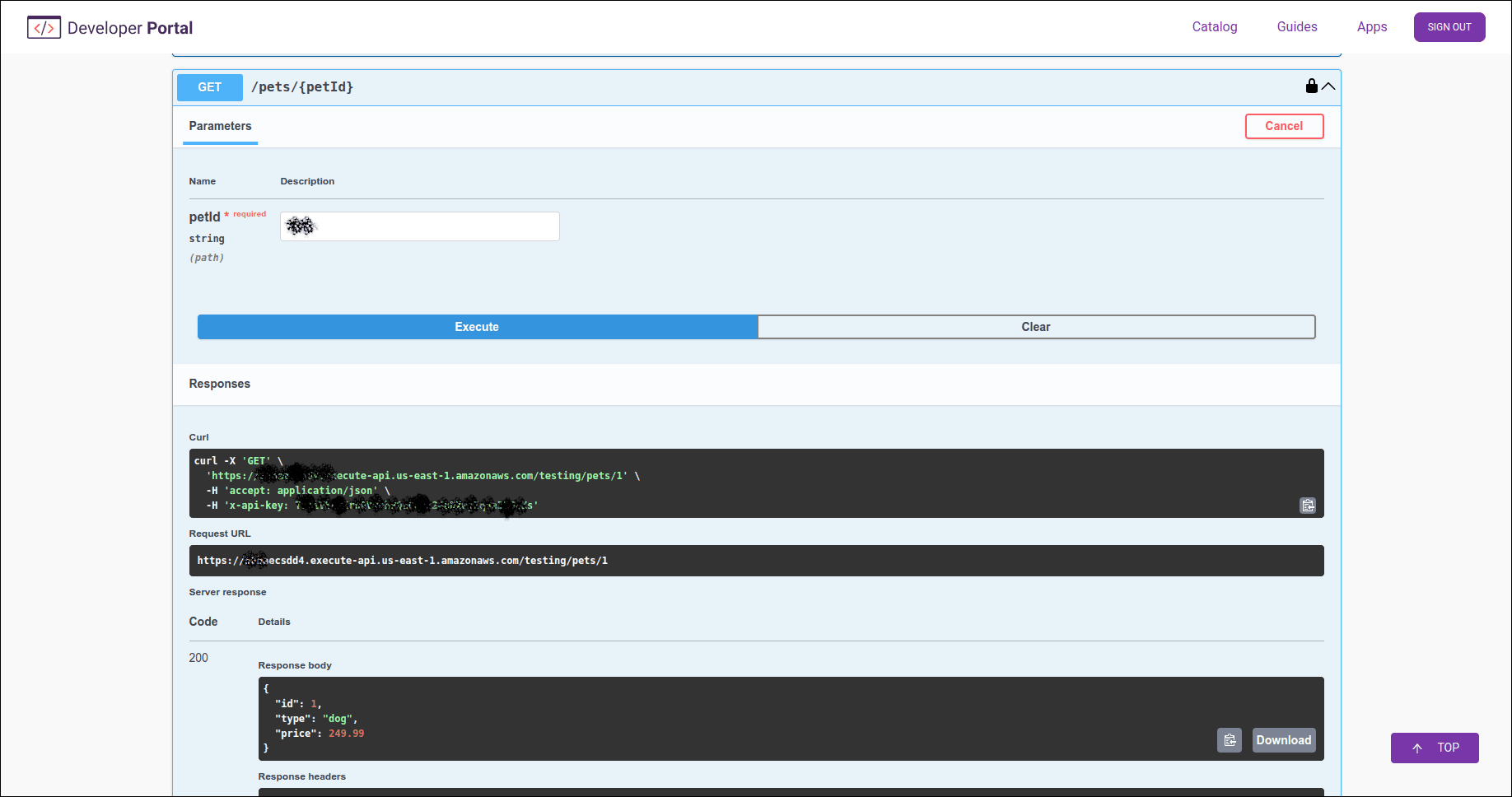
Results are shown below the endpoint. See an example below.
## Enable APP Registration
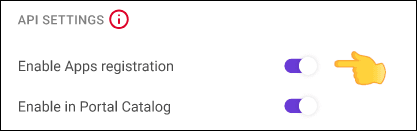
To allow developers to register their applications in the Developer Portal, simply select the **Enable Apps Registration** option.
Keep the toggle disabled if you do not want to allow App registration.
This option is only available for native connections APIs.
## Allow API to be displayed in **Catalog**
To allow the API to be displayed in **Catalog**, simply select the **Enable in Portal Catalog** option.
If you keep the toggle disabled, the API will not be displayed in the Catalog.