---
title: General Info
description: Understand how to manage credentials, edit documentation, and perform API request testing (tryout).
documentId: developer-portal-general-info
locale: en-US
---
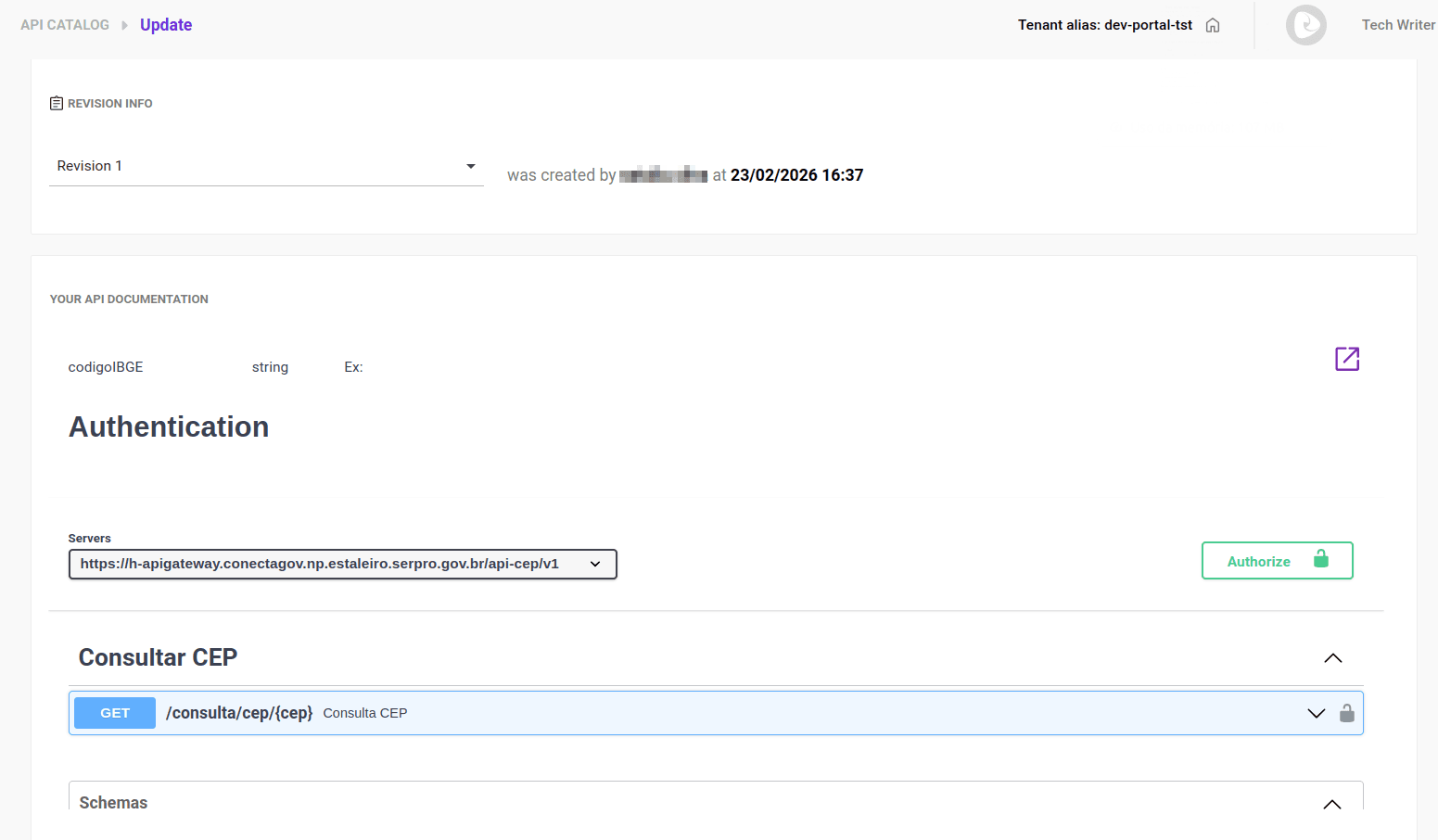
On the **General Info** tab, you can:
- Configure [credentials](#authorize-) to access the API.
- [Replace (edit) a documentation](/docs/developer-portal/api-docs#edit-doc) (available only for manually created documentations).
- Make a [test call to the API (_tryout_)](#try-out).
## Accessing the General Info tab
Follow these steps to access the **General Info** tab:
### Step 1
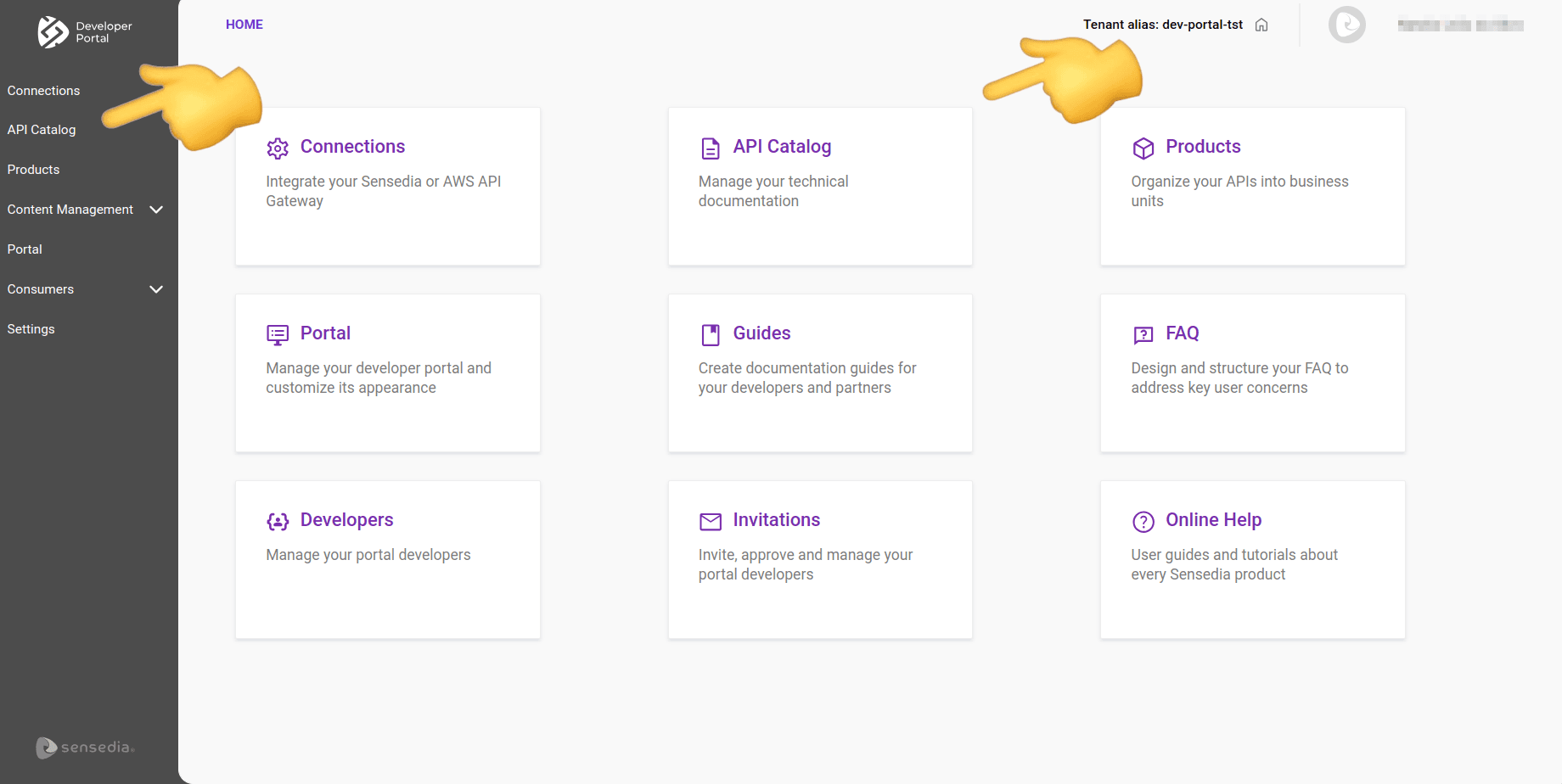
Access the [API Catalog](/docs/developer-portal/api-docs) page by clicking the left side menu or the corresponding card on the Developer Portal home screen.
### Step 2
Locate the API you want to test. If necessary, use the search tool.
### Step 3
In the ACTIONS column of the API list, click the  for the desired API.
## Configuring credentials
To enter access credentials for the API:
### Step 1
[Access the **General Info** tab](#general-info) in **API Catalog**.
### Step 2
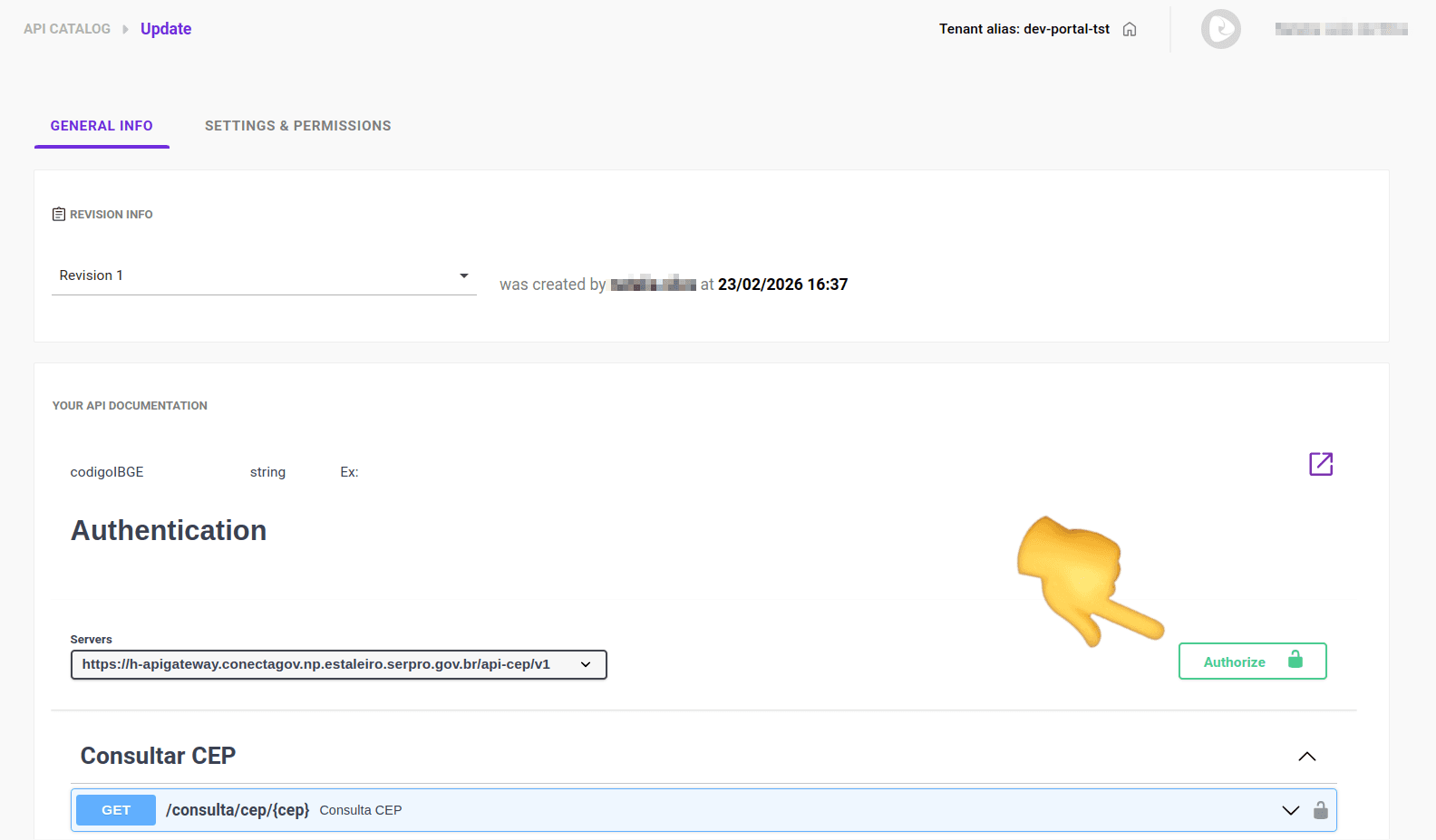
Click **AUTHORIZE** (in green).
### Step 3
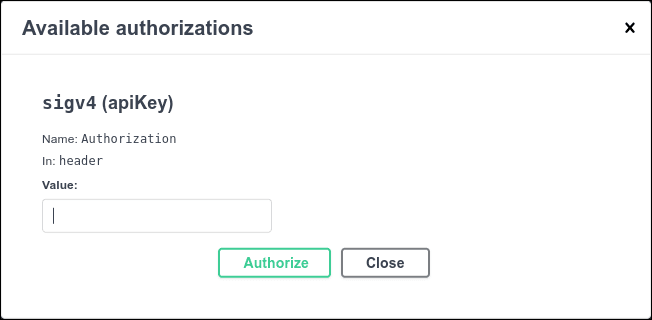
Enter the key value in the **Value** field, as shown in the image below.
## Tryout
This feature allows you to make calls to the API directly from the documentation.
With _tryout_, you can understand the format of requests and responses and what parameters are required by each endpoint.
See how to [choose the environment](/docs/developer-portal/settings-permissions#select-tryout) for _tryout_.
Follow these steps to use _tryout_:
### Step 1
Follow the [steps](#general-info) to reach the **Settings and Permissions** tab.
### Step 2
In **Settings and Permissions**, click **SELECT TRYOUT ENVIRONMENT**.

### Step 3
On the screen that opens, choose the API environment you want to test.
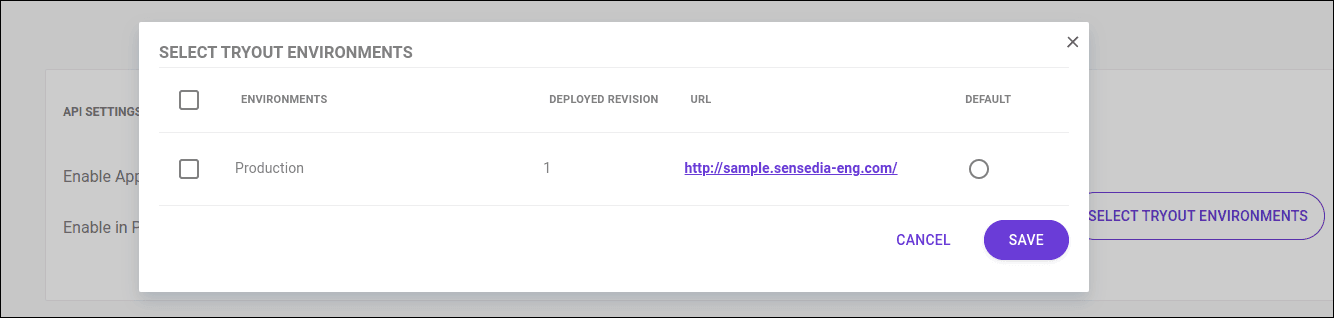
The environments available for tryout are named in a standardized way, regardless of the provider, based on the API contract's technical specifications:
- For **OpenAPI 3.x**: the information is obtained from the `servers.url` (address) and `servers.description` (environment name) fields.
- For **Swagger 2.0**: the URL is formed by combining the `scheme`, `host`, and `basePath` fields.
If the contract does not provide an explicit description for the environment, the system uses the URL host as the identifier or automatically searches for keywords (such as prod, dev, or test) to name the environment.
### Step 4
Navigate the API documentation and click **Try it out** to make calls to the endpoints. 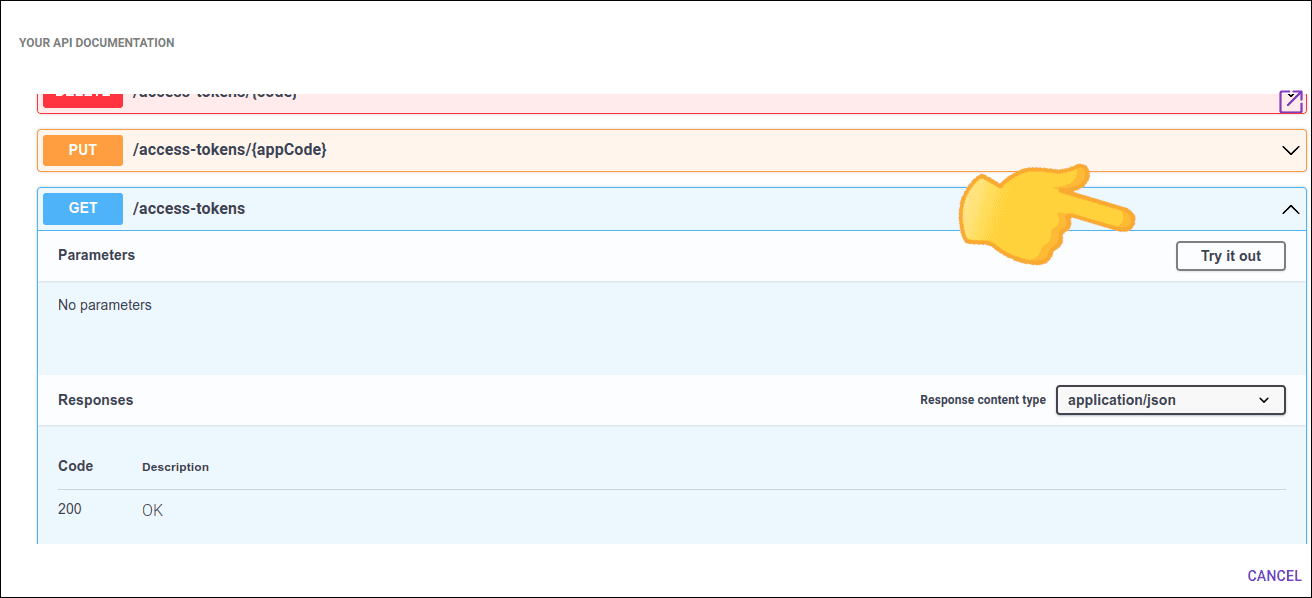
If necessary, click **Authorize** and [insert the credentials](#authorize-) to access the API.
### Step 5
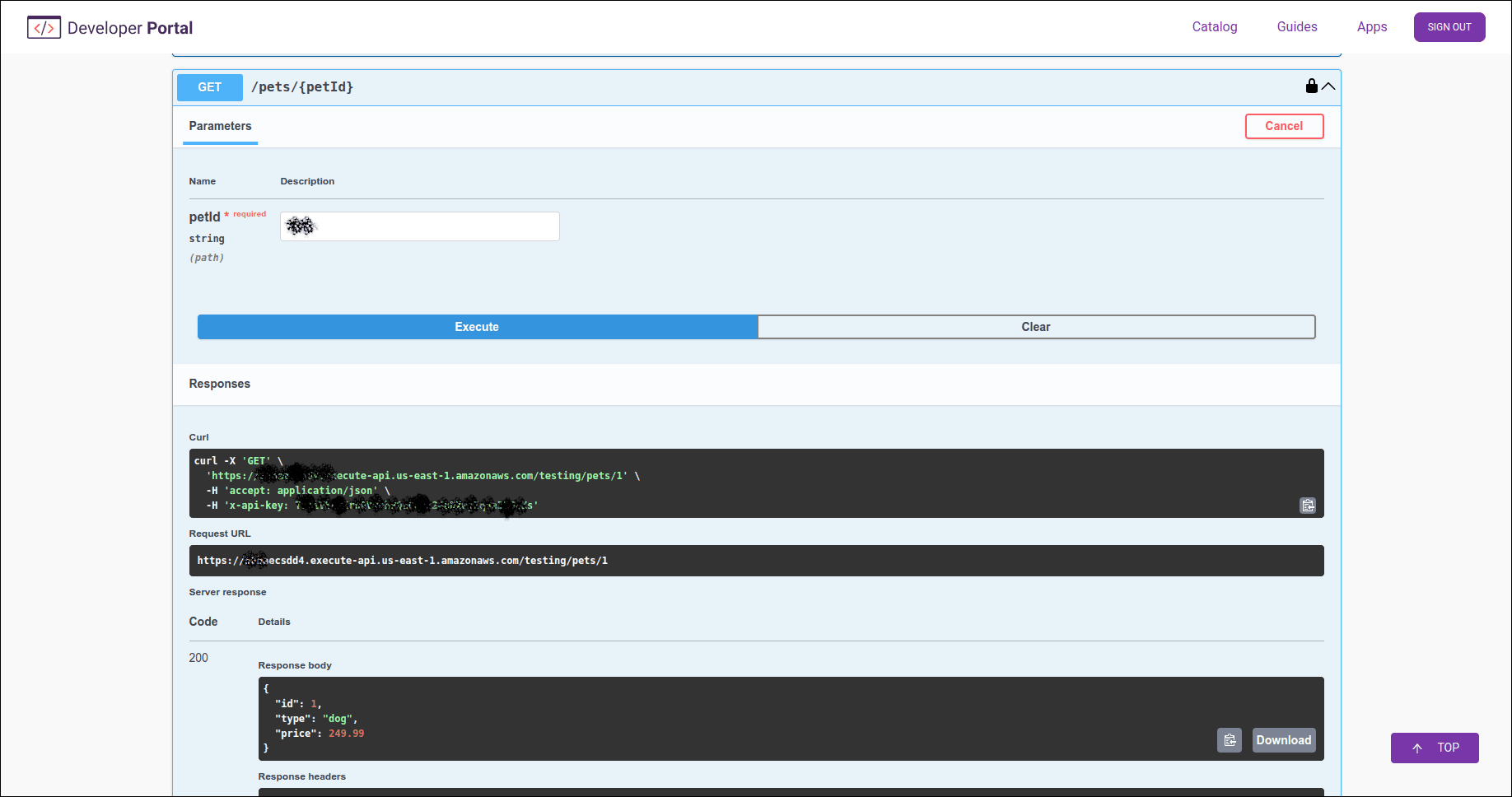
The results will be displayed right below the endpoint. See an example below.