---
title: Consumers - Apps
description: The page Consumers is exclusive for managing Sensedia and AWS Apps.
documentId: developer-portal-consumers-apps
locale: en-US
---
The page **Consumers** is exclusive for managing **Sensedia** and **AWS** Apps.
After you create an AWS App in the [Apps page of your Developer Portal](/docs/developer-portal/apps), the App will be listed in the **Portal Manager** under **Consumers**.
On this screen, you can perform the following actions related to an **AWS App**:
- [Approve](#approve-app) the registration and [configure the authentication settings](#app-authentication).
- [Reject](#reject-app) the registration.
- [View](#view-app-details) details.
- [Search](#search-apps) Apps.
- See the [description of each column](#app-list-columns) in the AWS Apps list.
- [Delete](#delete-app) the App.
- [Cancel](#cancel-app) the registration.
See how to edit an AWS App in [Developer Portal > Apps](/docs/developer-portal/apps#editing-app-aws).
The actions that can be performed depend on the status of the App:
| Status | Possible actions |
| --- | --- |
|  PENDING | approve, reject, and view |
|  APPROVED | cancel, edit, and view |
|  REJECTED | approve, delete, and view |
|  CANCELED | approve, delete, and view |
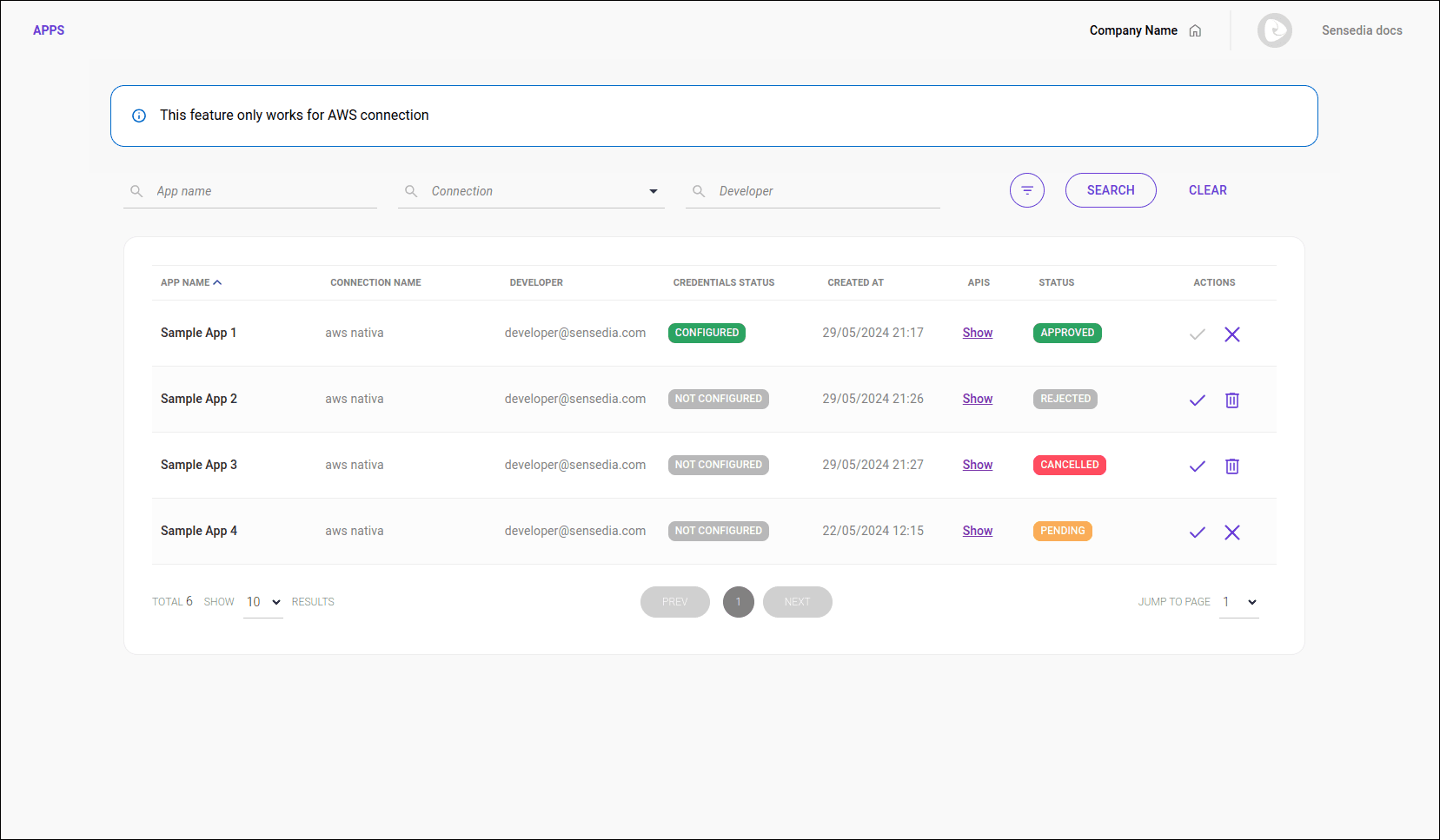
## Approving the registration of an AWS App
As soon as an AWS App is registered, it becomes available in the [AWS Apps list](#app-list-columns) with the status PENDING.
If you agree and want to approve the registration, follow the steps below:
### Step 1
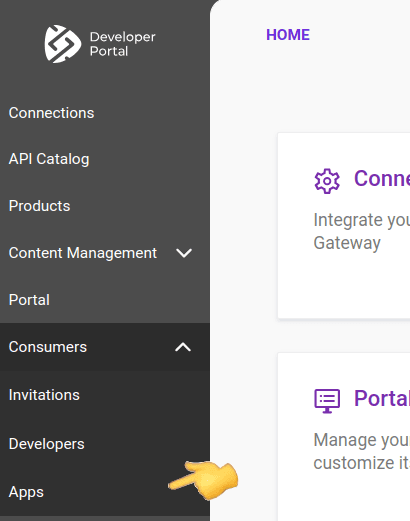
Go to **Consumers**.
### Step 2
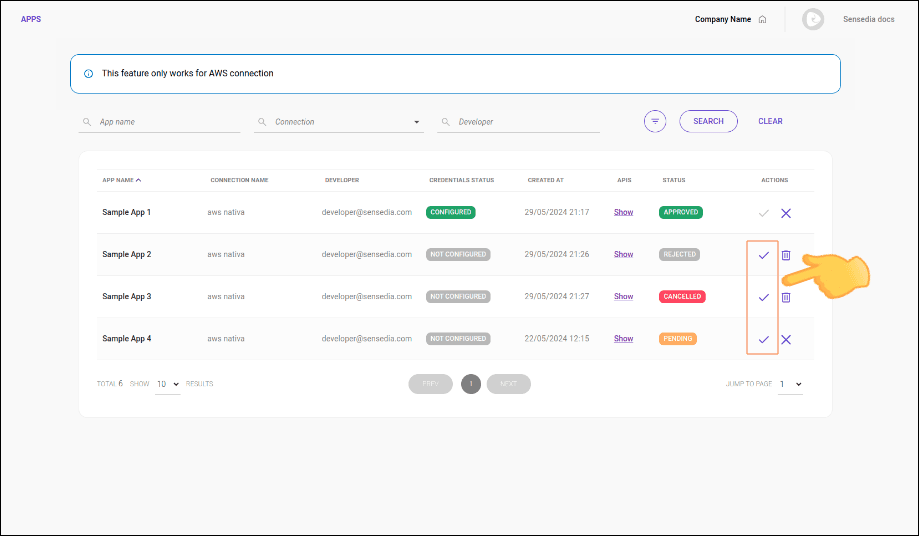
Locate the AWS App you want to approve.
### Step 3
Click  in the **Actions** column.
### Step 4
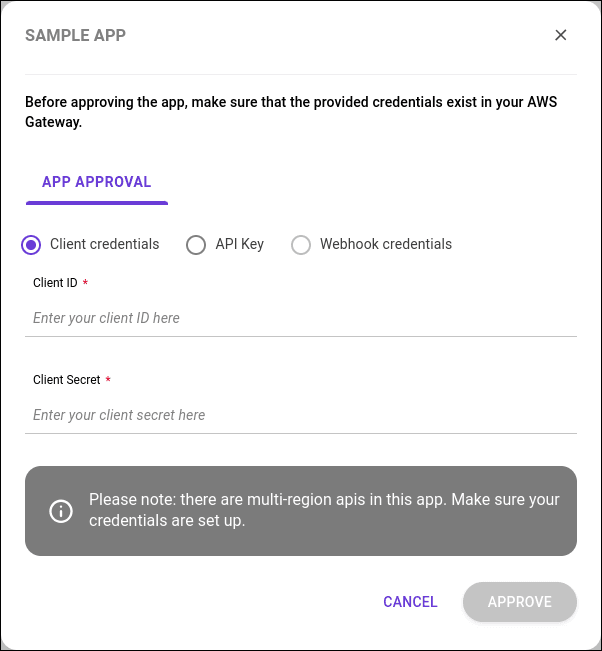
A confirmation window will open. In the APP APPROVAL tab, select the type of [credential for authentication](#app-authentication) and fill in the required fields.
### Step 5
Click **APPROVE** to confirm the action.

### Authentication
Select the authentication method (credential type), which can be:
- Client Credentials:
- **Client ID**: enter your Client ID.
- **Client Secret**: enter your Client Secret.
- API Key:
- AWS **API Key**: enter your API Key.
- **Webhook credentials**:
- The [webhook credentials must be configured](/docs/developer-portal/webhook) in your system.
For Apps with multi-region APIs, ensure the credentials are properly configured in AWS.
## Rejecting the registration of an AWS App
To reject the registration of an AWS App, follow the steps below:
### Step 1
Go to **Consumers**.

### Step 2
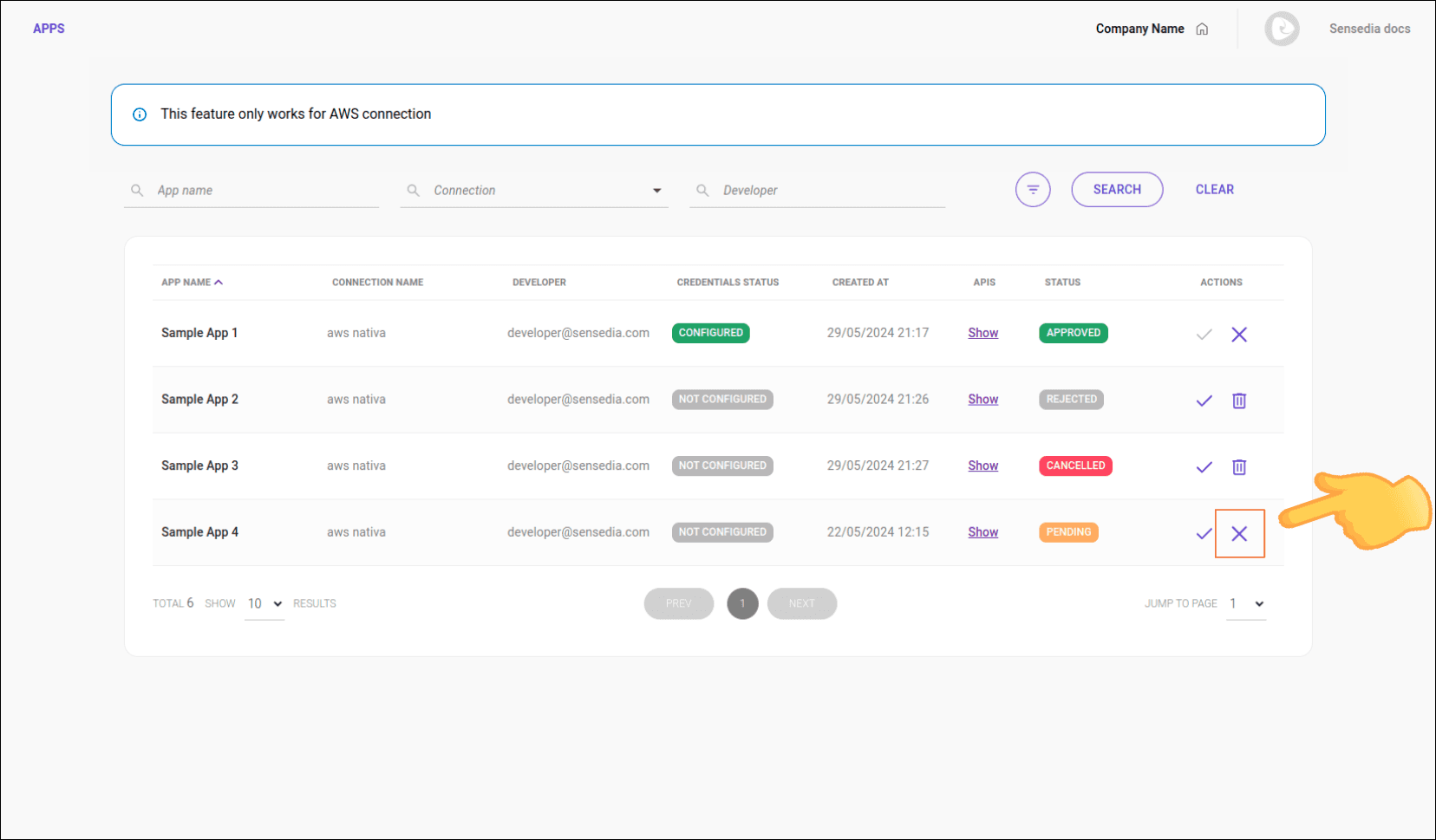
Locate the AWS App you want to reject.
### Step 3
Click on the **X** in the Actions column.
### Step 4
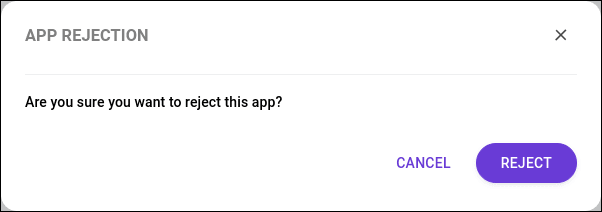
A confirmation window will open. Click **REJECT** to confirm the action.
Only Apps with `PENDING` status can be rejected. An App that has been rejected can be approved again or deleted.
## Viewing details of an AWS App
The AWS Apps list displays basic information about each App:
- **App Name**: name of the App.
- **Integration**: name of the AWS connection.
- **Developer**: name of the responsible developer.
- **Credential Status**: current status of the App.
- **Created At**: creation date of the App.
- **APIs**: APIs that make up the App.
- **API Name**: name of the API.
- **Description**: description of the API.
- **Plans**: plans associated with the API.
- **Actions**: actions available for the App.
### Searching AWS Apps
Use the search tool to find a specific Apps.
Available search fields:
- **App Name**: name of the App.
- **Connection**: name of the AWS connection.
- **Developer**: name of the responsible developer.
- **Status**: current status of the App.
To see the Status search field, click the filter icon: .
## Deleting an AWS App
To delete an AWS App, follow the steps below:
### Step 1
Go to **Consumers**.

### Step 2
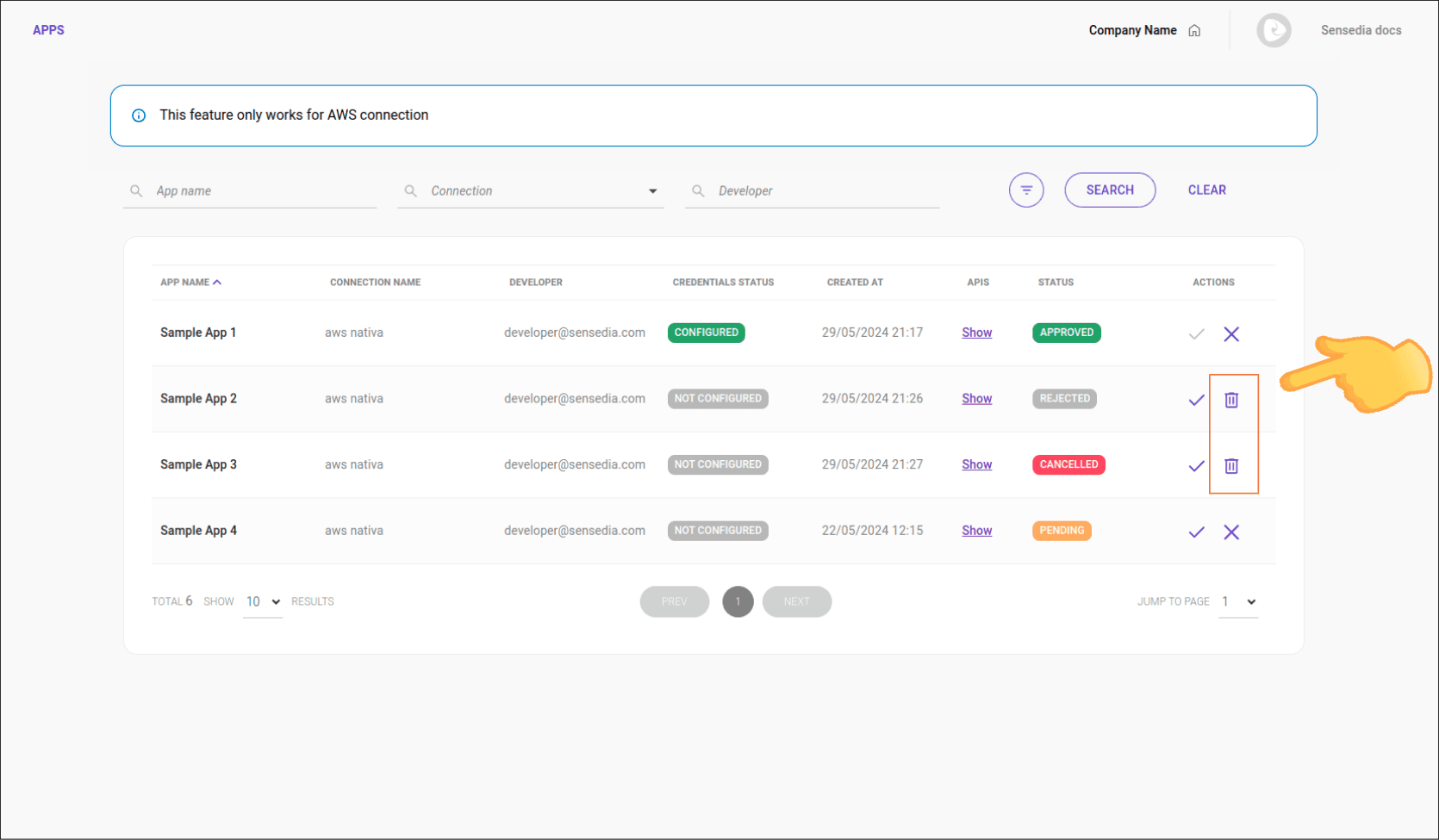
Locate the AWS App you want to delete.
### Step 3
Click  in the **Actions** column.
### Step 4
A confirmation window will appear. Click **DELETE** to confirm the action.
Only Apps with the status `REJECTED` or `CANCELED` can be deleted.
## Canceling the registration of an AWS App
An approved AWS registration can be canceled. Follow the steps below:
### Step 1
Go to **Consumers**.

### Step 2
Locate the AWS App you want to cancel.
### Step 3
Click the **X** in the **Actions** column.
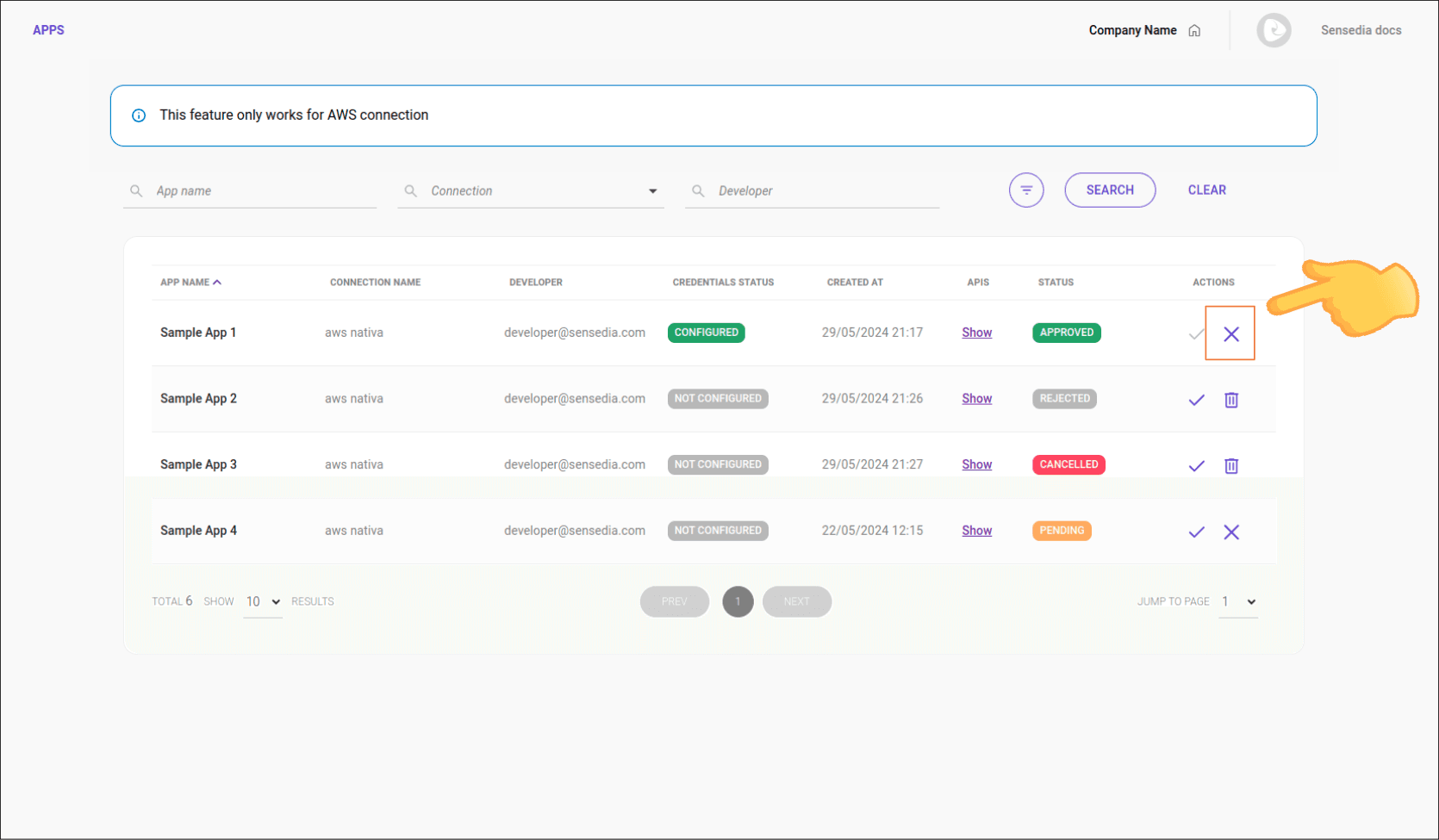
Only Apps with the `APPROVED` status can be canceled.
## App status synchronization
The Developer Portal and API Management maintain bidirectional synchronization of app statuses, ensuring that any changes made by administrators are automatically reflected in both systems. For example, when an app is deleted in the source gateway, it will also be removed from the Portal Manager and Developer Portal, and the consumer will be notified about the access revocation.
### Status updates via Portal Manager
- **Approval (APPROVED)**: when an app is approved in the Portal Manager, the status is immediately updated in API Management.
- **Rejection (REJECTED)**: when an app is rejected, the status is reflected in API Management and the app is not created.
- **Cancellation (CANCELED)**: when an app is canceled, the status is updated in API Management, which then manages this status.
- **Pending (PENDING)**: this status is never sent to API Management; it only updates the app's scope locally.
If the consumer changes the scope of an already approved app, this modification will not impact the app's status in API Management.
### Status updates via API Management
- If an app is marked as APPROVED, REJECTED, or CANCELED in API Management, the corresponding status will be updated in the Portal Manager.
These changes also affect credential access permissions in the Developer Portal.
Bidirectional status synchronization is mandatory for API Management (Sensedia Platform).
### Automatic app deletion
When an app is deleted in the source Manager (Sensedia, AWS, or others), it will be automatically removed from the Developer Portal. Possible scenarios include:
- **Automatic synchronization**: upon receiving a deletion event from the source API Management, the removal is automatically performed in the portal database.
- **Administrator deletion**: if the administrator tries to delete the app in the Portal Manager and it is not found in the source Manager, the system understands it has already been deleted and completes the local removal, displaying an informational message.
- **Consumer deletion**: if the developer tries to view the credentials of an app in the Developer Portal and the reference is not found in the source Manager, the system understands it has already been deleted and completes the local removal, displaying an informational message.
### Deletion notification for the consumer
In all the scenarios above, the **DeleteApp** email event will be sent to the app owner, informing them about the deletion and loss of access.