---
title: Creating FAQ Pages for Your Developer Portal
description: Understand how to create, organize, and publish FAQ pages in Portal Manager.
documentId: developer-portal-portal-manager-faq
locale: en-US
---
The **FAQ** tab is now located within the **Content Management** aggregator in the left sidebar menu of the Portal Manager.
For frequently asked questions about the Portal Manager or the Developer Portal, visit the [FAQ](/docs/developer-portal/faqs) page.
A Frequently Asked Questions (FAQ) page is essential for a developer portal.
It helps users find quick answers to common questions, reducing the need for support contact and improving the overall experience.
-> Pages are created and managed using the **Portal Manager** and are displayed in the **Developer Portal**.
-> FAQs are organized into topics. You can create up to 9 topics.
-> Each topic can contain up to 9 questions and answers.

## Reading FAQ pages in the Developer Portal
To read FAQ pages in the Developer Portal:
- Click "FAQ" in the top right corner of the Developer Portal.
- Choose a topic or use the search bar to find a specific question.
Read more in [FAQ -- Developer Portal](/docs/developer-portal/faq).
## Creating a Topic and Questions via Portal Manager
To create your FAQ pages, follow the steps below:
### Step 1
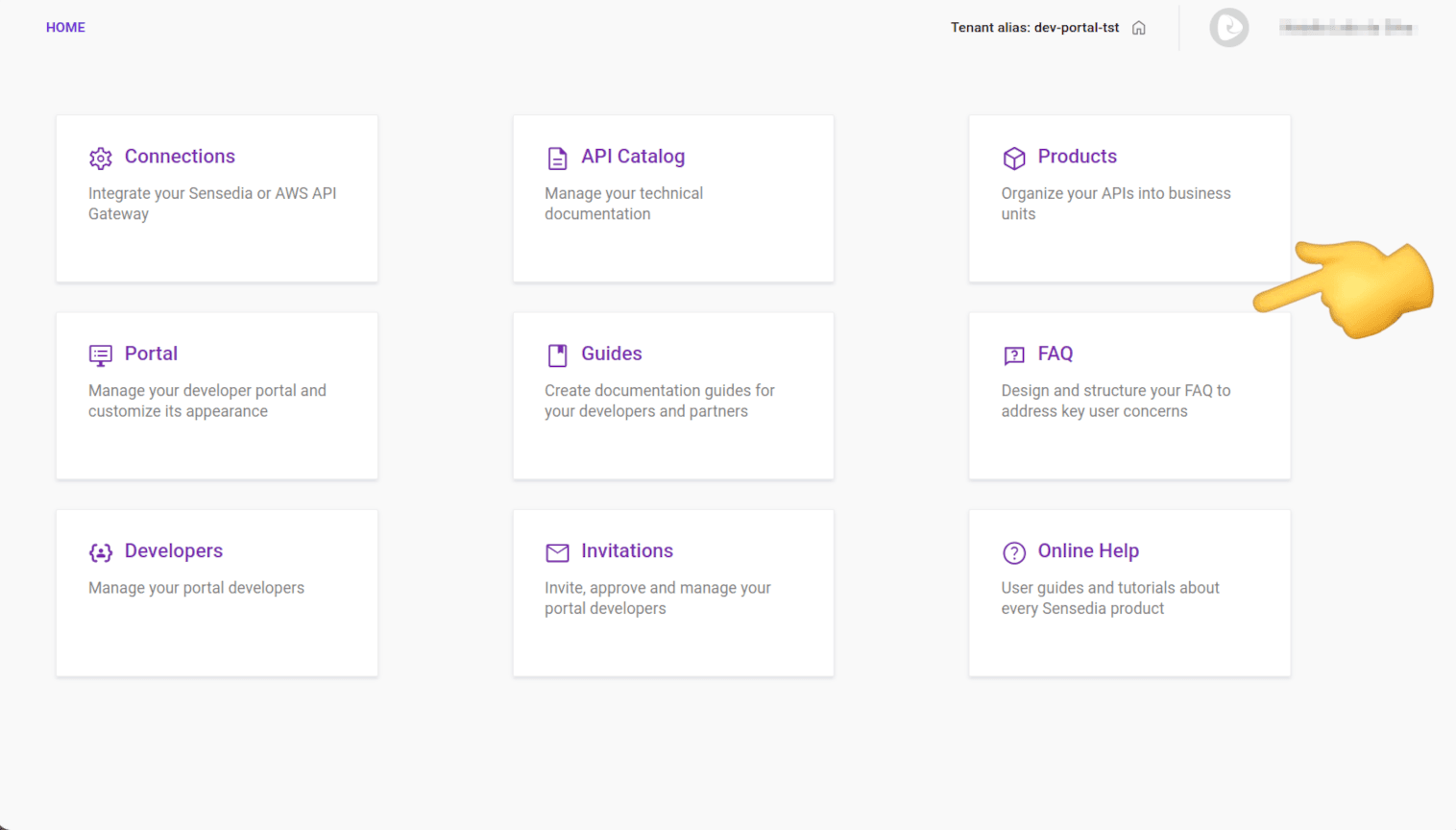
Access the **Portal Manager** and click "FAQ" in the side menu or on the card on the home page.
### Step 2
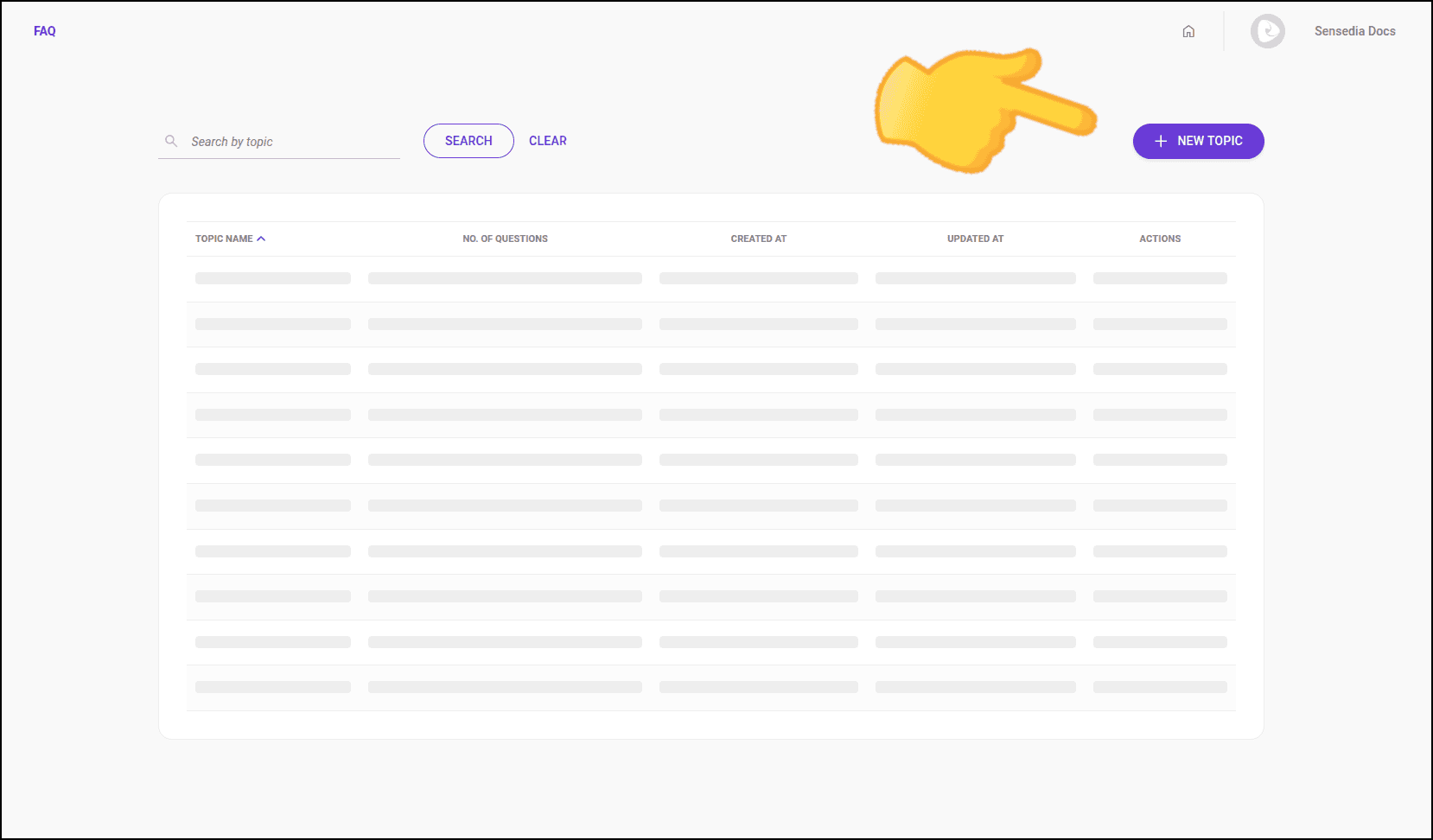
Click **+ New topic**.
### Step 3
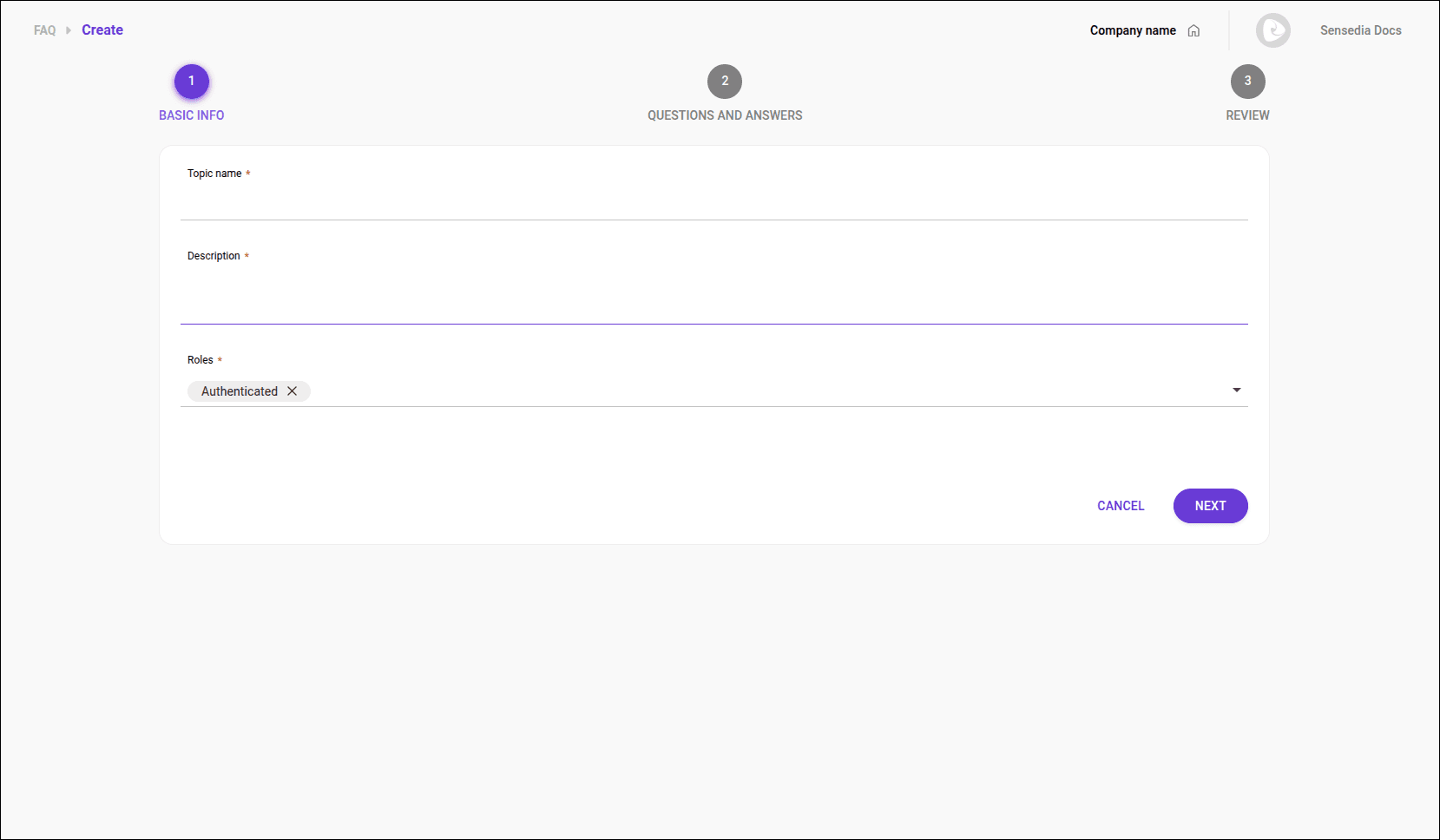
Provide the following information:
- **Topic name**: the topic's name,
- **Description**: a brief description of the topic,
- **Roles**: select the roles that can view this topic
and click **NEXT**.
### Step 4
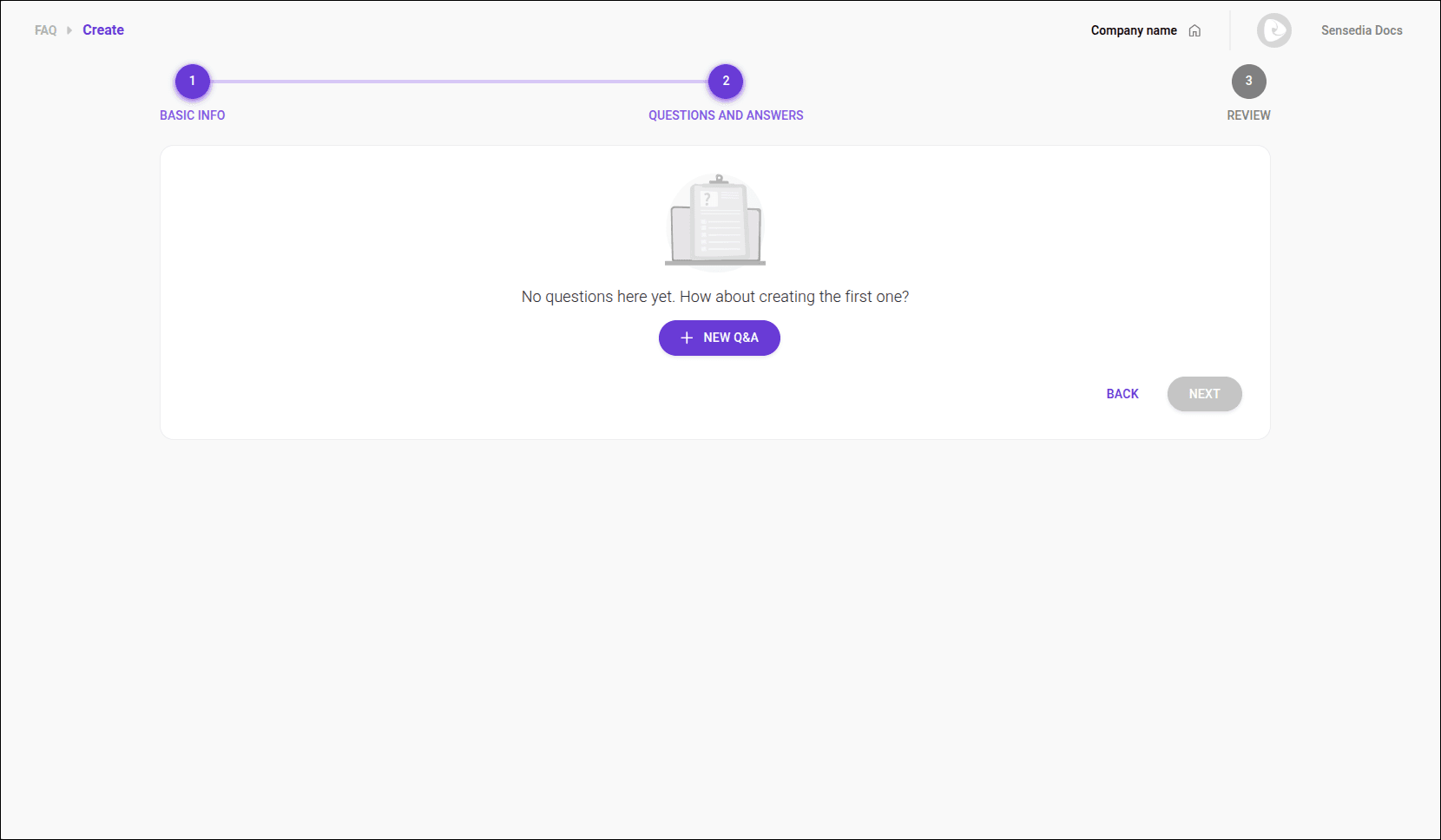
Click **+ NEW Q&A** to add questions and answers.
### Step 5
Provide the following information:
- **Question**: the question.
- **Answer**: the answer, which must contain a maximum of 2000 characters.
and click **SAVE**. 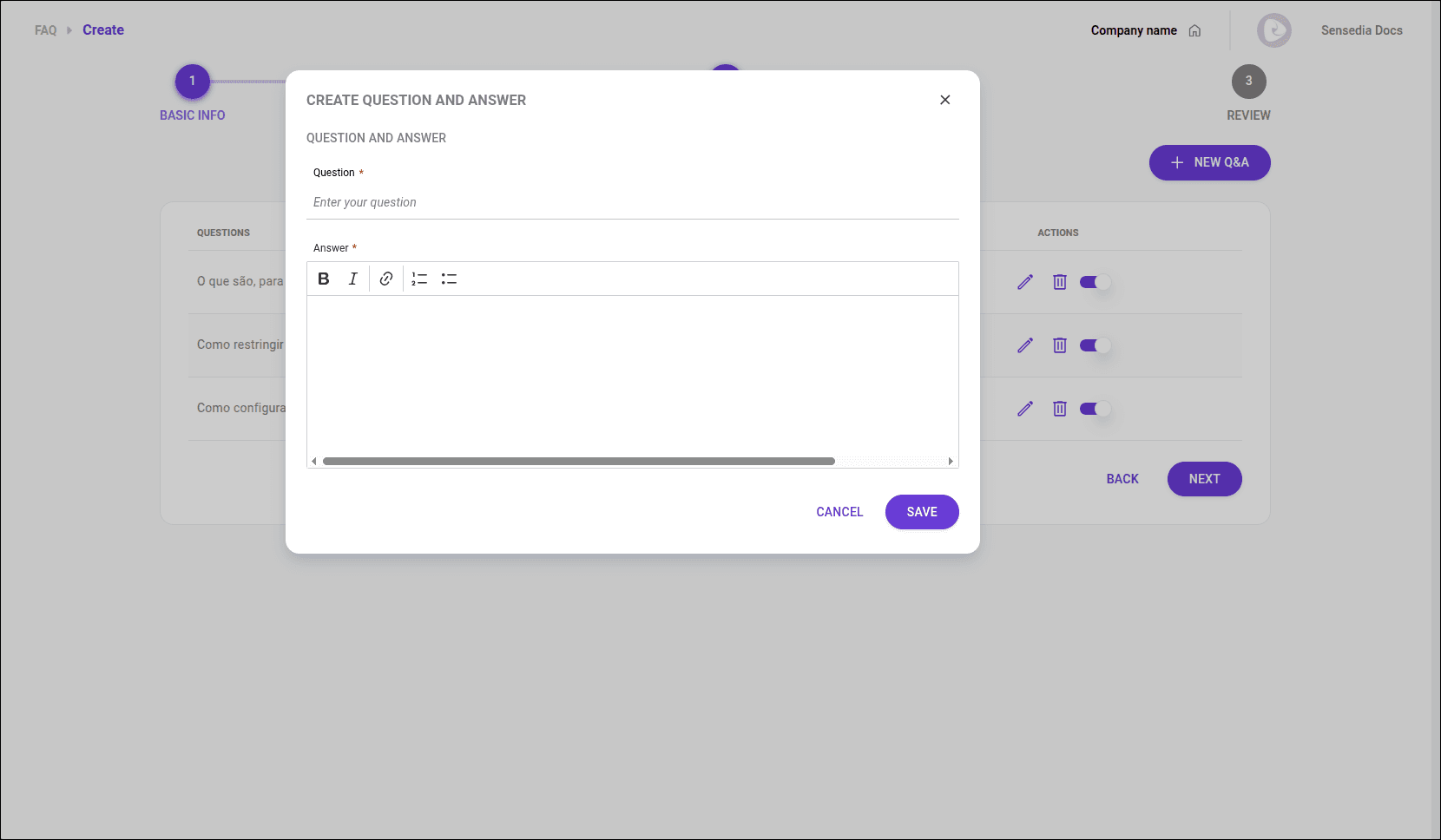
You can come back and add other questions and answers later. You don't need to add them all at once right now.
### Step 6
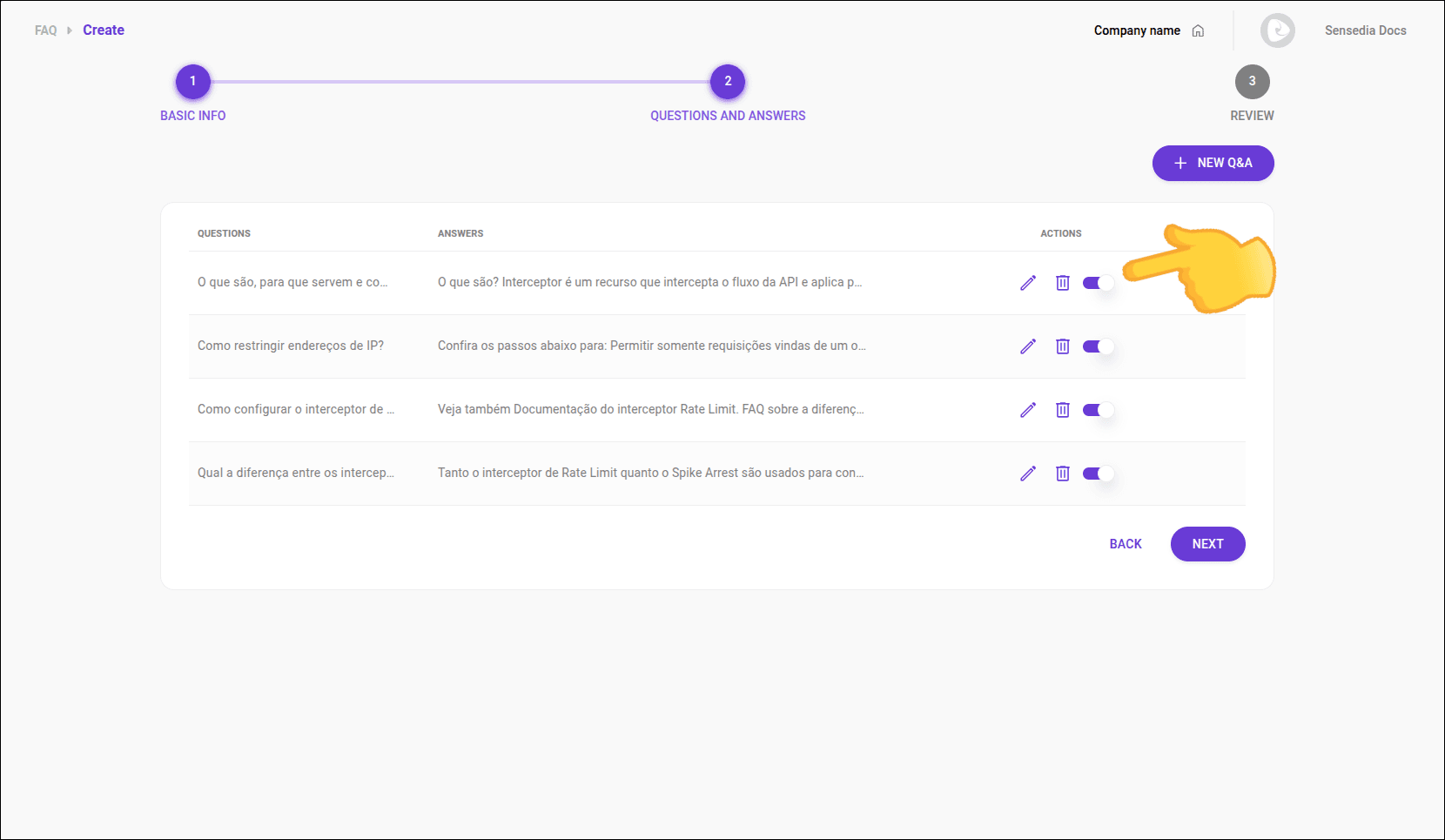
The question will be listed under the topic. To display it in the Developer Portal, activate the button in the **ACTIONS** column — you can also do this later if you prefer.
### Step 7
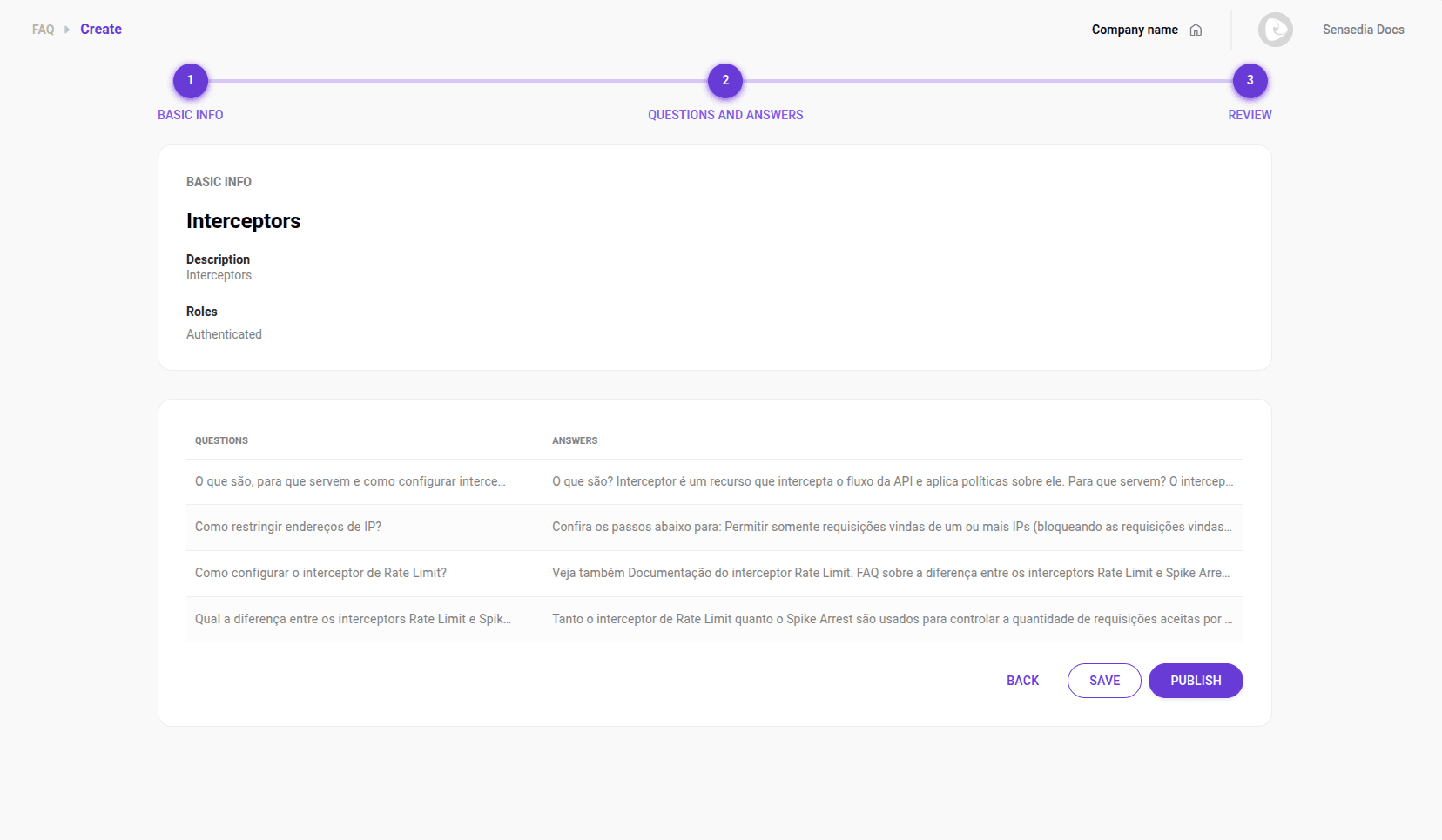
Review the topic information and click **SAVE** to save the topic settings and **PUBLISH** to publish. Reload the Developer Portal page to see the changes.