---
title: Language Settings
description: Language configuration in the Developer Portal.
documentId: developer-portal-language-settings
locale: en-US
---
Configure the language options for your Developer Portal and ensure a multilingual experience.
The language options available in the **Developer Portal** interface are defined in **Portal Manager** and can be changed at any time. You can choose which languages will be available to portal users, as well as set the default language.
- The **default language** defines the language of elements from the Developer Portal's interface such as menus, buttons, and fixed texts.
- Content from the FAQ, Guides, Products, and other items registered via Portal Manager are not translated.
## Accessing language settings
### Step 1
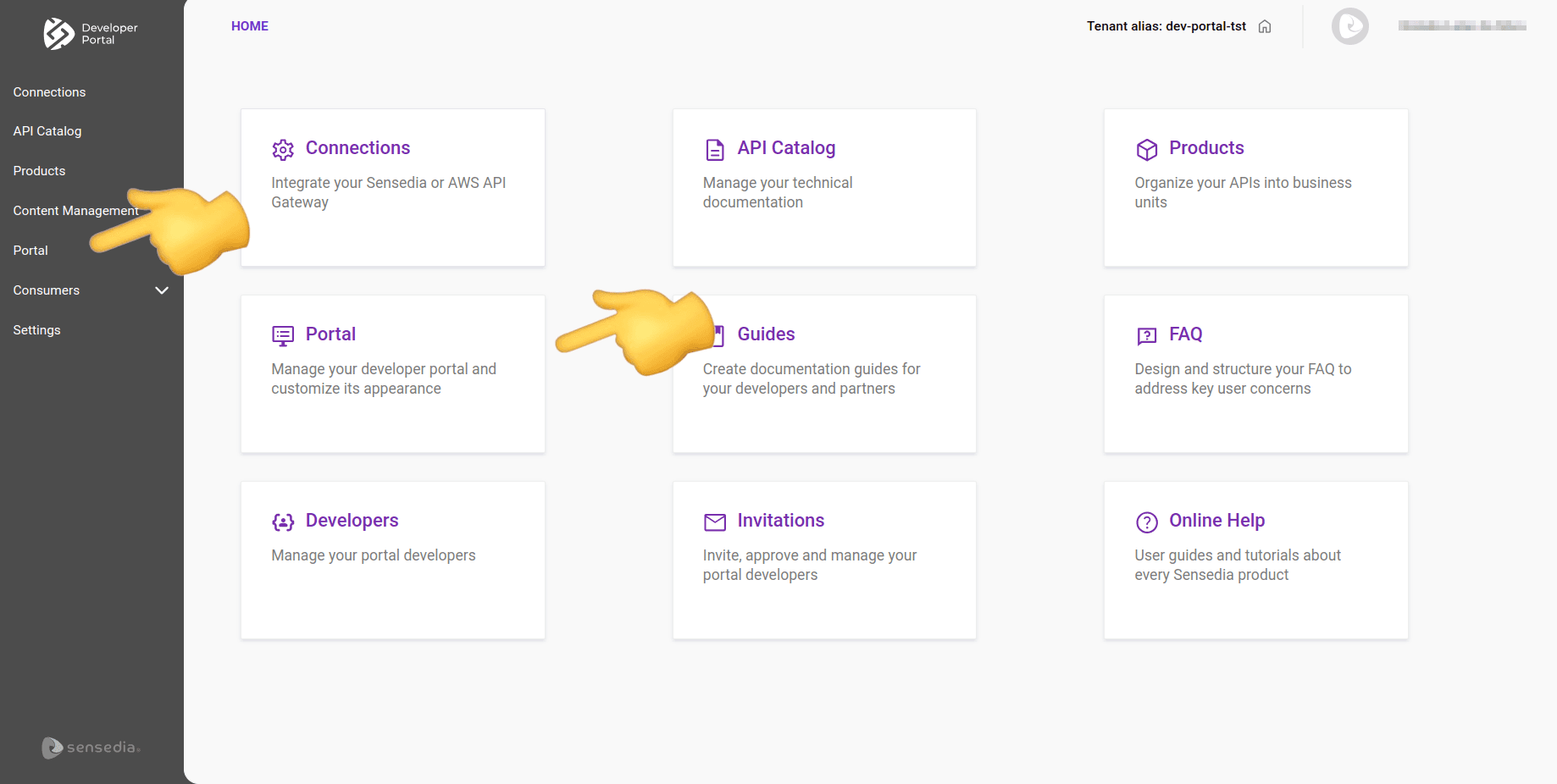
In the [**Portal Manager**](/docs/developer-portal/portal-manager), navigate to "**Portal**" by clicking the corresponding card on the **Home** page or in the left sidebar menu.
### Step 2
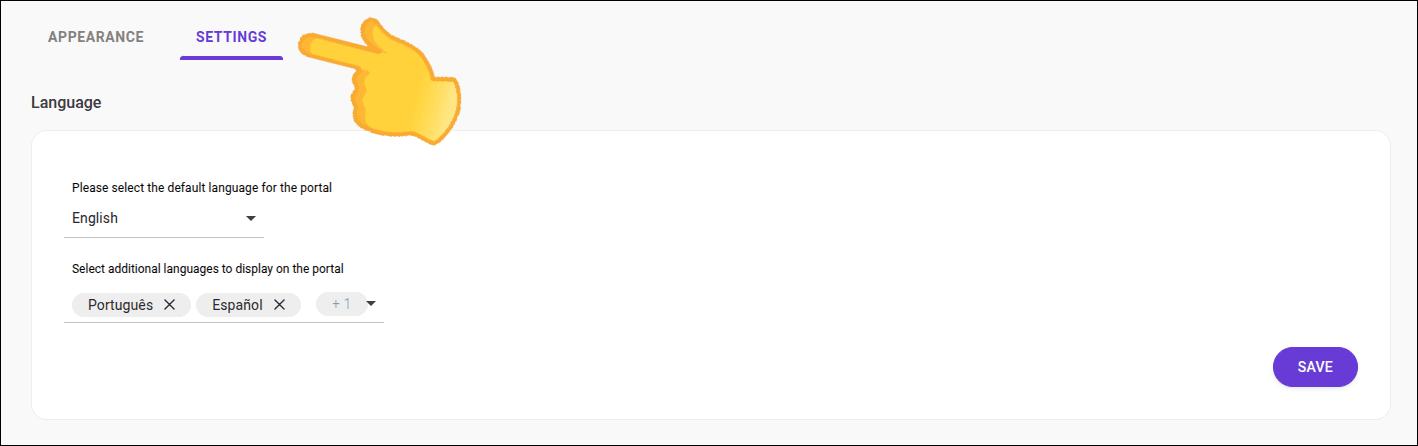
In **Portal**, select the **Settings** tab.
## Changing the default language
### Step 1
Access the **Portal** screen.
### Step 2
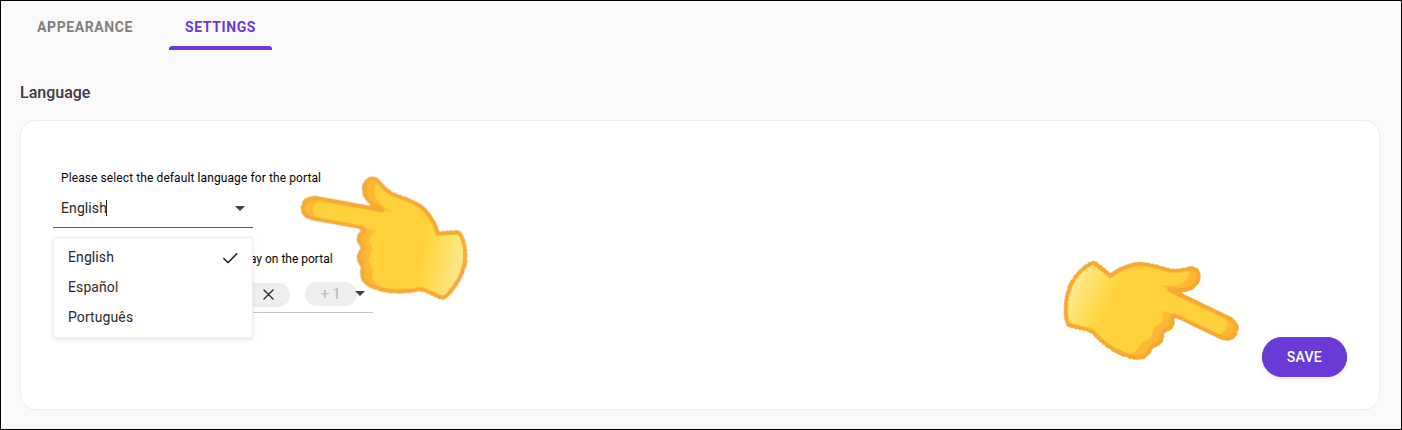
Select the desired language in the "_Please select the default language for the portal_" field.
### Step 3
Click **Save**.
- The default language is **English**, and can be changed at any time.
- The default language is a required field.
- You can configure up to two additional languages (optional).
## Configuring additional languages
### Step 1
Access the **Portal** screen.
### Step 2
Select one or two additional languages in the "_Select additional languages to display on the portal_" field.
### Step 3
Click **Save**.
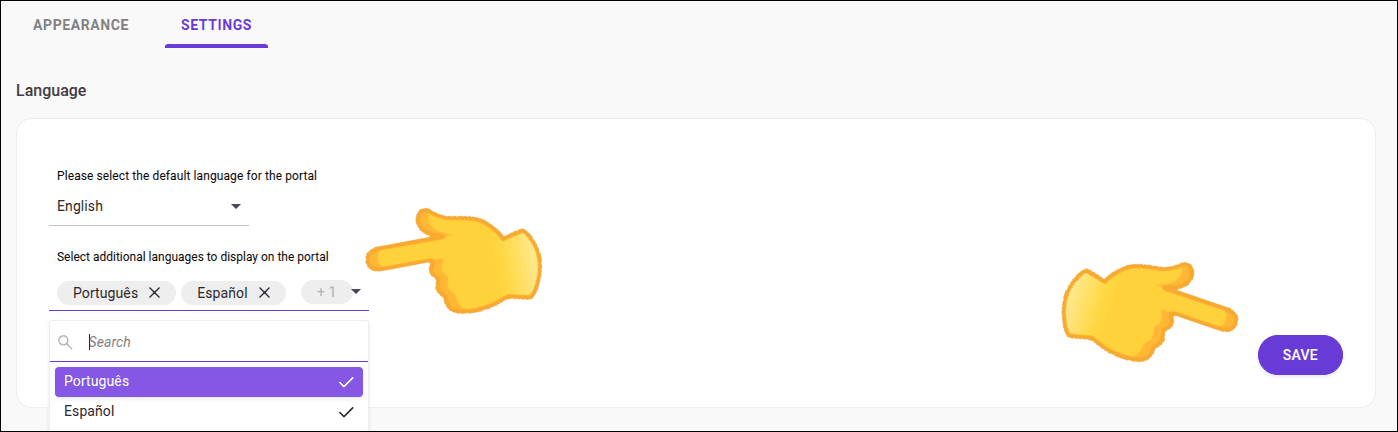
After defining the default language and additional languages, be sure to **save the settings**. Changes will be reflected **immediately** in the Developer Portal.
## Access Permissions
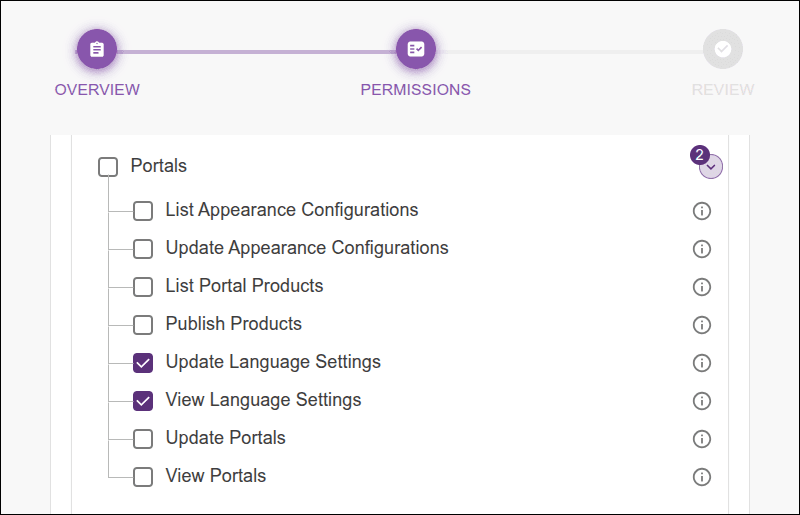
Administrator: the role associated with your user must have the necessary permissions to manage language settings, which are:
- Portals
- Update Language Settings
- View Language Settings
See more about permissions in the [Access Control user guide -- permissions](/docs/access-control/permissions).
To choose the language in the Developer Portal, simply click the language icon located in the top right corner of the screen.