---
title: Products - Portal Manager
description: Understand how to organize your API documentation according to the specific features of each product.
documentId: developer-portal-products-dev-portal
locale: en-US
---
In **Products**, you can organize the [documentation for your APIs](/docs/developer-portal/api-docs) according to each product's own functionalities.
When you import an API, its documentation is automatically loaded. You can also add documentation manually. To learn more details, see [API Catalog](/docs/developer-portal/api-docs).
## List of registered products
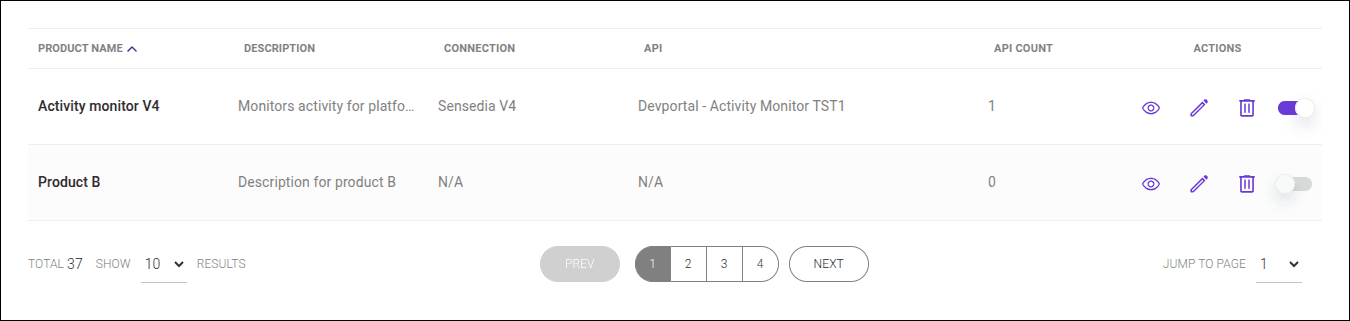
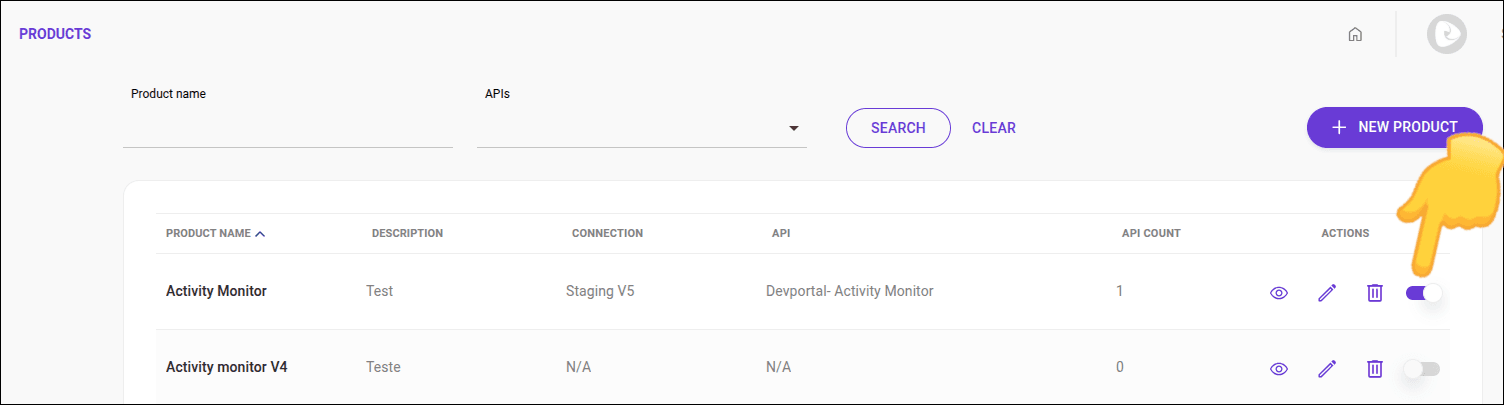
In the list of registered products, you will find the following columns:
- **Product Name**: name given to the product;
- **Description**: descriptive text for the product;
- **Integration**: informs which of the integrations is used for the product;
- **API**: APIs associated with the product;
- **API Count**: number of APIs associated with the product;
- **Actions**: click the respective icon to edit, delete, or view a product.
### Locating a product
The search field is located just above the product list.
You can search for the product by name or by API(s).

## Viewing products
To check your product and ensure the corresponding APIs are properly listed, follow the steps below:
### Step 1
Access the **Menu Principal** screen or click the **Products** card on your **Dev Portal** home screen.
### Step 2
Locate the product you want to view and click the . The next screen will display the product's main information, description, and its APIs. When finished, click **CANCEL**.
## Registering a product
Follow the steps below to register a product:
- Access the **Menu Principal** screen or click the **Products** card on your **Dev Portal** home screen.
- Click the **+ NEW PRODUCT** button.
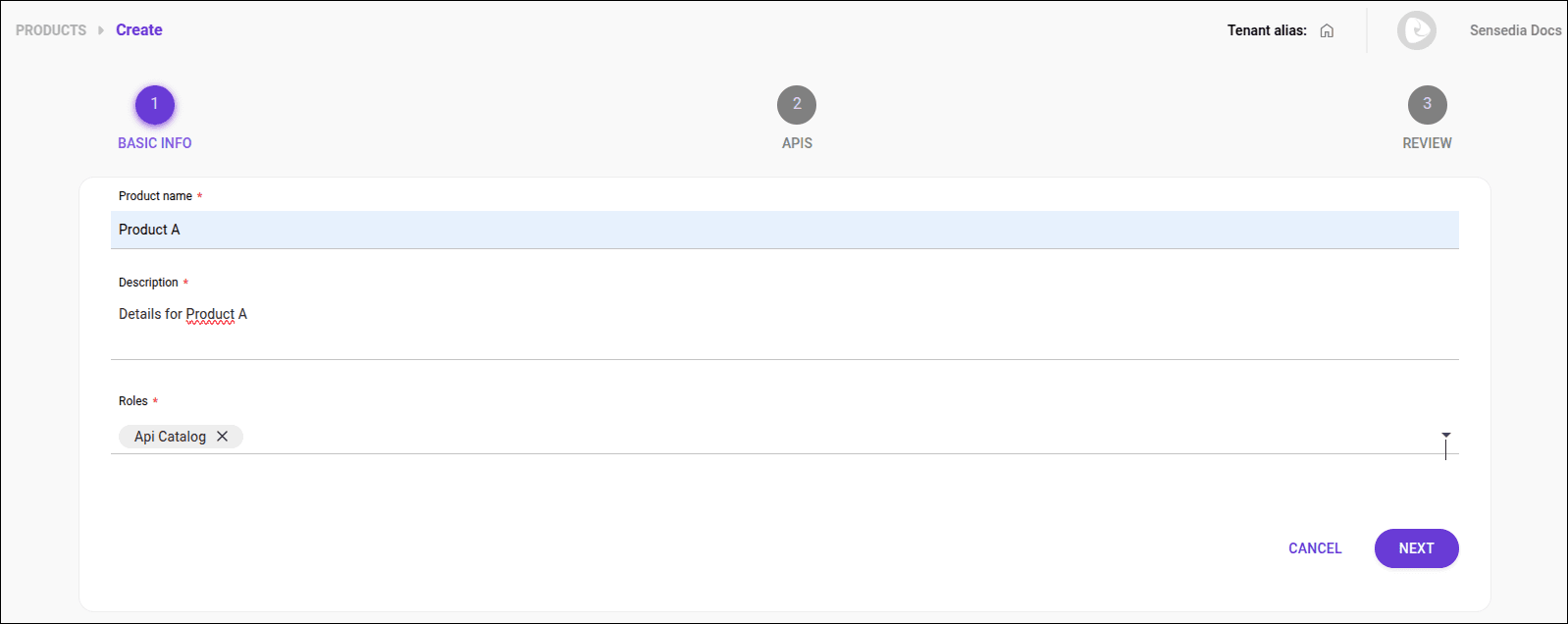
- In **1 BASIC INFO**, fill in the fields:
- **Product name**: define a name for the product.
- **Description**: write a description.
- **Roles**: establish one or more roles.
- Click **NEXT**.
To have access to the product, the user will need to have one of the roles listed in this field. A user who has a role that is not listed in the _roles_ field will not be able to access the API.
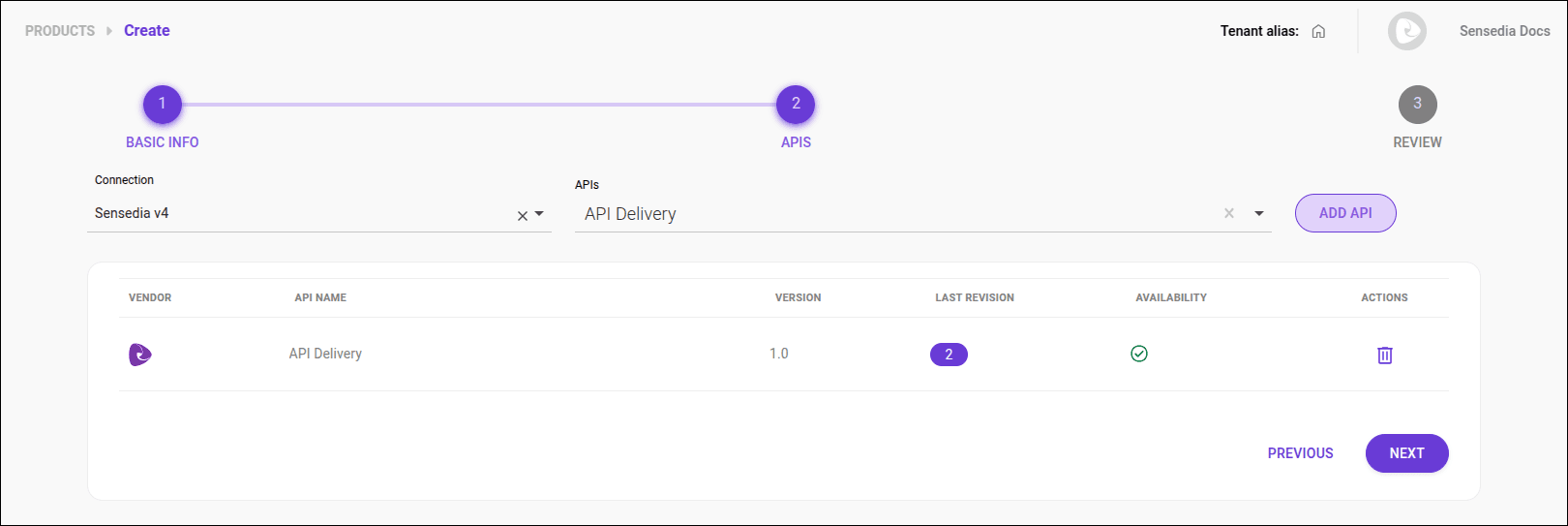
- In step **2 APIS**, choose an integration and add one or more APIs.
To choose the integration, select one from the available list. Select the desired API and click **ADD API**. Repeat until all APIs for the product have been added and click **NEXT**.
Start typing the API name to see the available options.
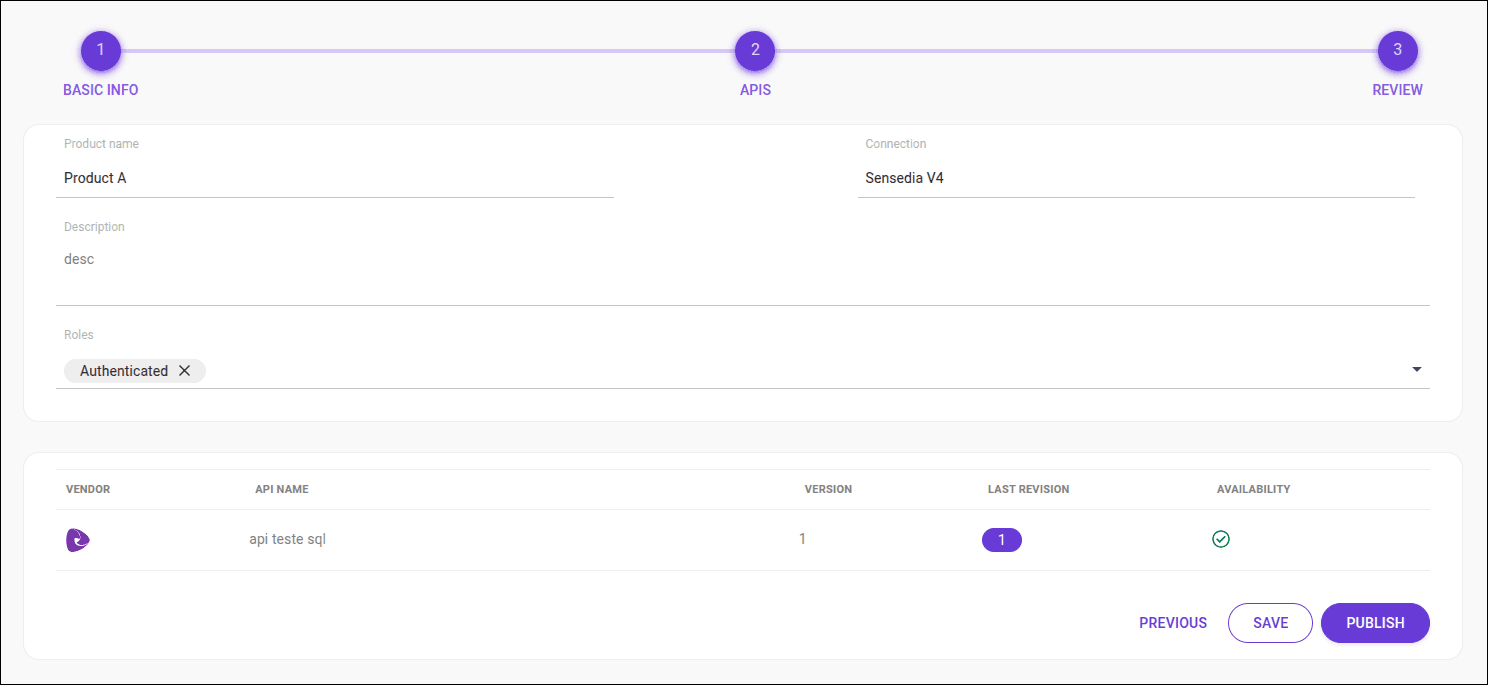
- Step **3 REVIEW**: confirm the information and click **SAVE**.
If you need to edit something, click **PREVIOUS**.
- [See how to edit a role](/docs/developer-portal/roles).
- [Assign roles to a user](/docs/developer-portal/developers#roles).
## Publishing or unpublishing a product
To publish or unpublish a product, simply:
- Access the **Menu Principal** screen or click the **Products** card on your **Dev Portal** home screen.
- Locate the product you want to publish or unpublish.
- If the toggle button in the **ACTIONS** column is on, the product is published.
Click the button to turn it off and unpublish it.
## Editing a product
To change a product, follow the steps below:
- In **Products**, locate the product you want to edit and click the .
- In **1 BASIC INFO**, you can (but are not required to) edit the product's name and description and the roles that can access it.
- Click **NEXT** to continue.
- Step **2 APIS**: here you can change the integration and add or delete one or more APIs.
To add an API, start typing its name, select it, and click **ADD API**. To delete, locate the API in the table and click the . Click **REMOVE** to confirm. Click **NEXT**.
- Step **3 REVIEW**: review the information and click the **SAVE** button to save or **PREVIOUS** to go back to editing.