---
title: Roles
description: Understand how to create, edit, and manage roles and access permissions in the Developer Portal.
documentId: developer-portal-roles
locale: en-US
---
With Roles, you can define user permissions and manage access according to your Developer Portal's rules. This allows for greater control, restricting pages as needed.
In **Roles** you control access to your Developer Portal pages. User roles for accessing Portal Manager are managed by [Access Control](/docs/access-control).
## Accessing the Roles tab
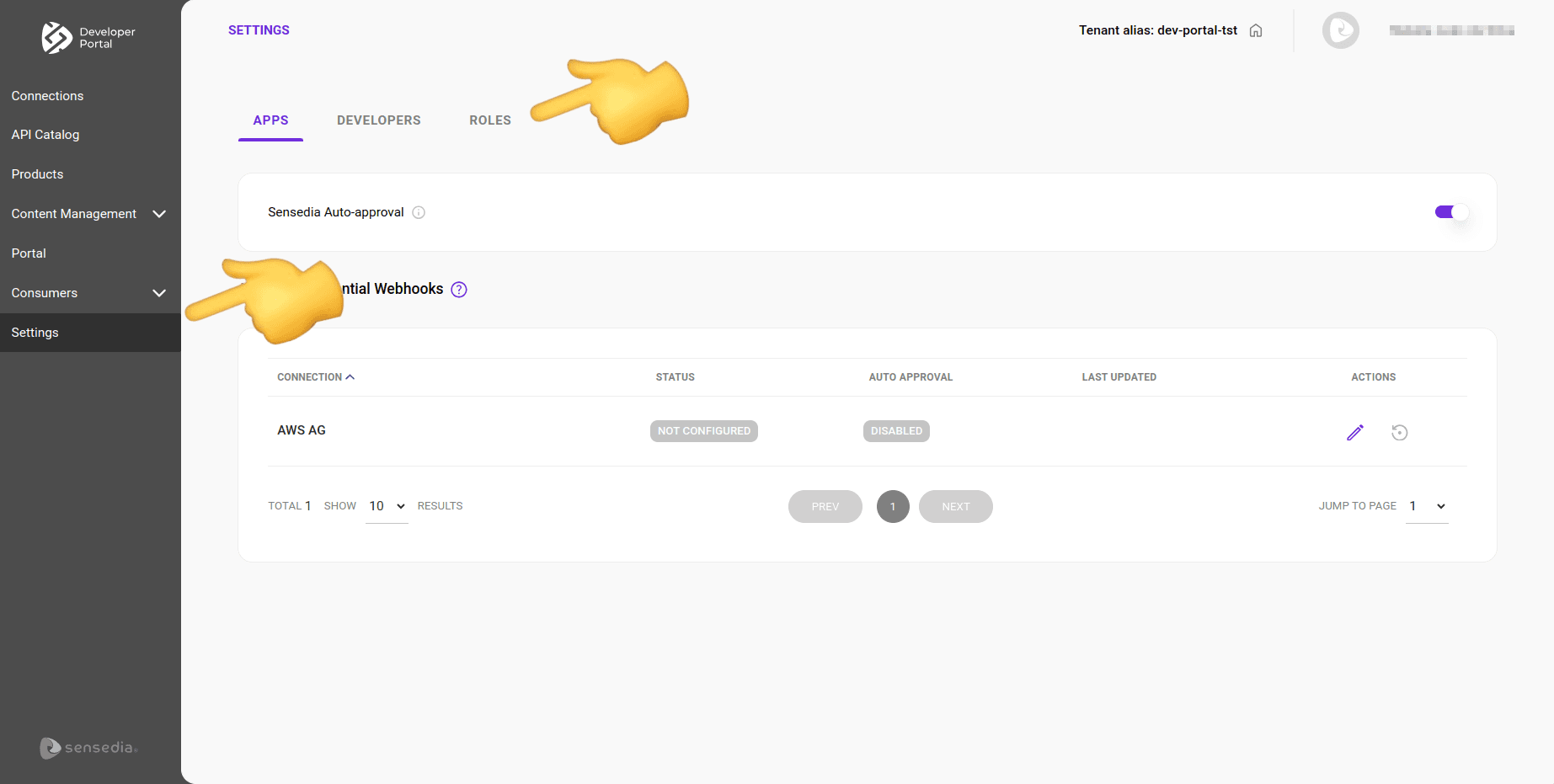
To go to the Roles tab:
### Step 1
In the left side menu, click Settings.
### Step 2
On the screen that opens, click the Roles tab.
## Creating a new role
Follow the steps below to add a role:
### Step 1
[Access **Settings > Roles**](#roles-tab).
### Step 2
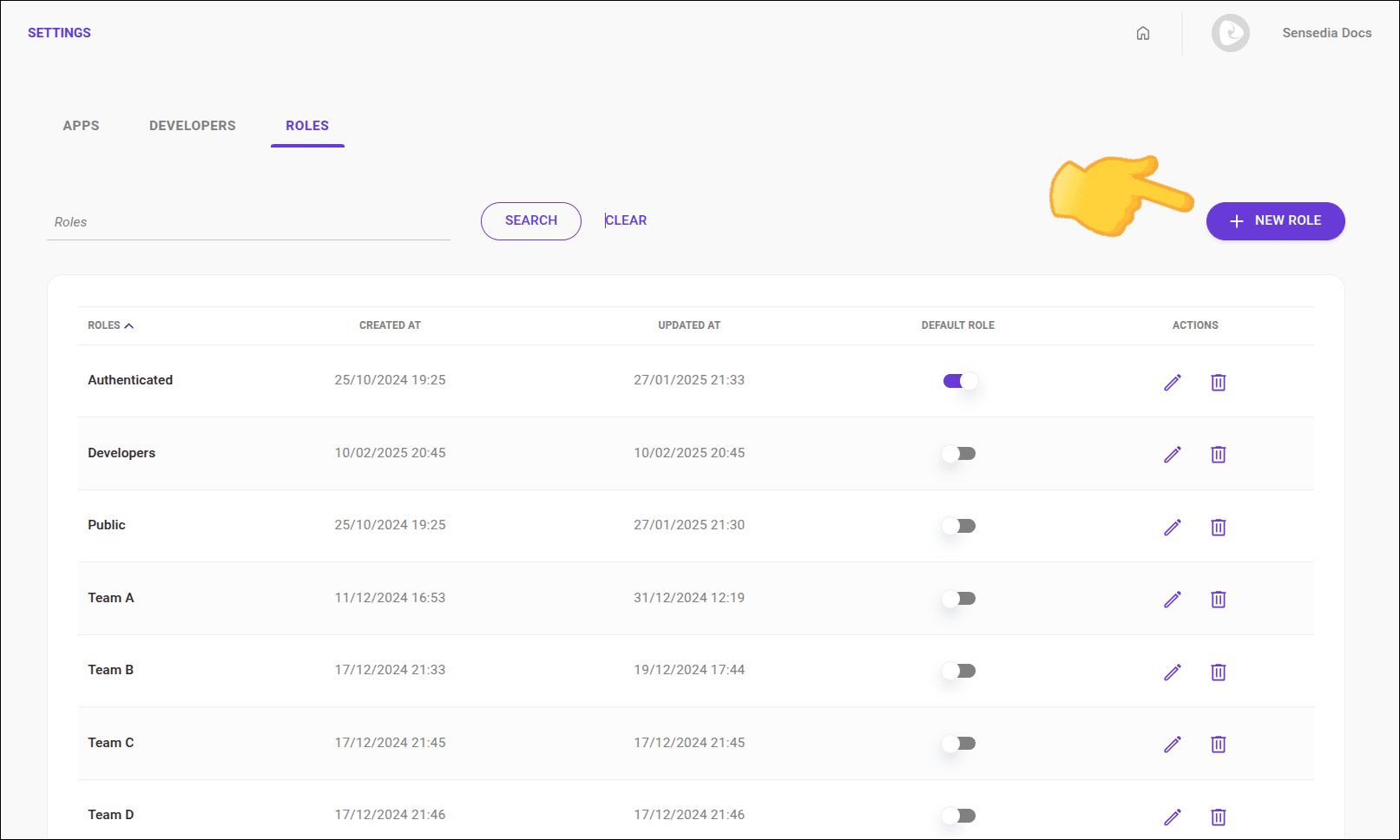
Click the **+ NEW ROLE** button, located on the right side of the screen.
### Step 3
Fill in the fields and click **SAVE**. All fields are mandatory.
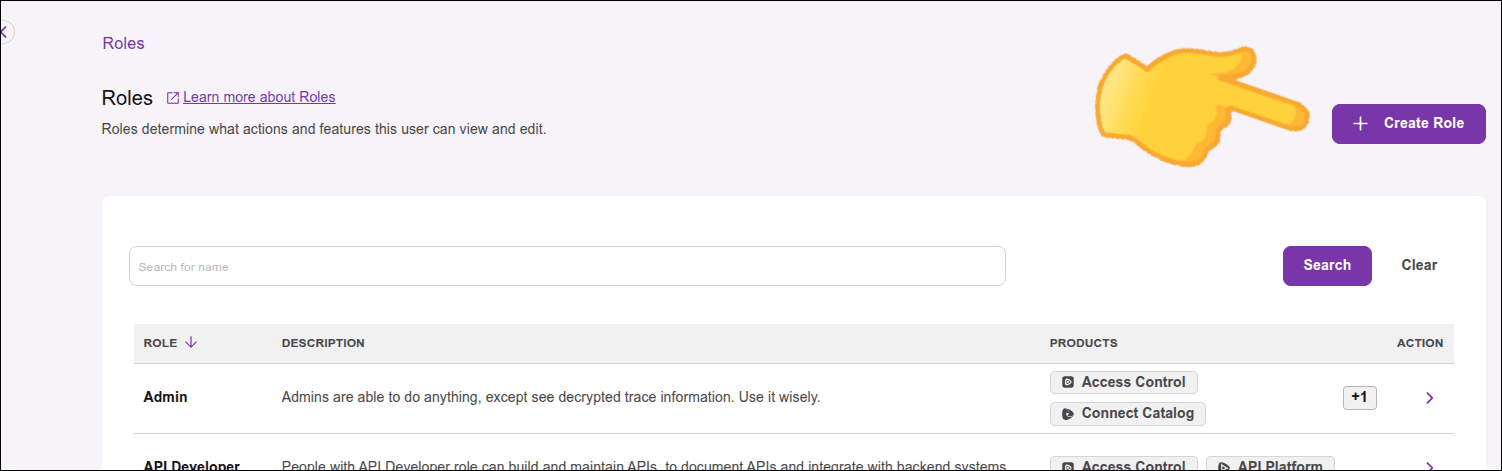
- **Role name**: Define a name for the role with at least 3 characters.
- **Role description**: Describe the role's restrictions.
- **Routes**: choose one or more routes to define which areas the user can access.
It is necessary to choose at least one of these routes:
| **Route** | **Access** |
|----------------------|----------------------------------------------------------------------------|
| API Catalog | Management of [products](/docs/developer-portal/products) |
| Apps | Creation and editing of [Apps](/docs/developer-portal/apps) via Developer Portal |
| Guides | [Guides](/docs/developer-portal/guides) screens |
| FAQ | FAQ section |
| API Status | Listing of the API status screen |
| API Activity Monitor | Call records |
## Default role
The **default role** is assigned to new users who register in your Developer Portal when the [automatic approval](/docs/developer-portal/settings-developers#activate-inactivate) option is enabled in [**Settings > Developers**](/docs/developer-portal/settings-developers) of your Portal Manager.
When you create the first role, it is automatically set as the default.
### Step 1
To change the default:
### Step 2
In the **Default role** column of the [Roles](#roles-tab) tab, click the _toggle_ for the role you want to set as default.

- A default role cannot be deleted.
To delete, first select another role as default.
## Deleting a role
To delete a role:
### Step 1
[Access **Settings > Roles**](#roles-tab).
### Step 2
In the **ACTIONS** column, click the  for the role you want to delete.
### Step 3
Confirm the action by clicking **DELETE**.
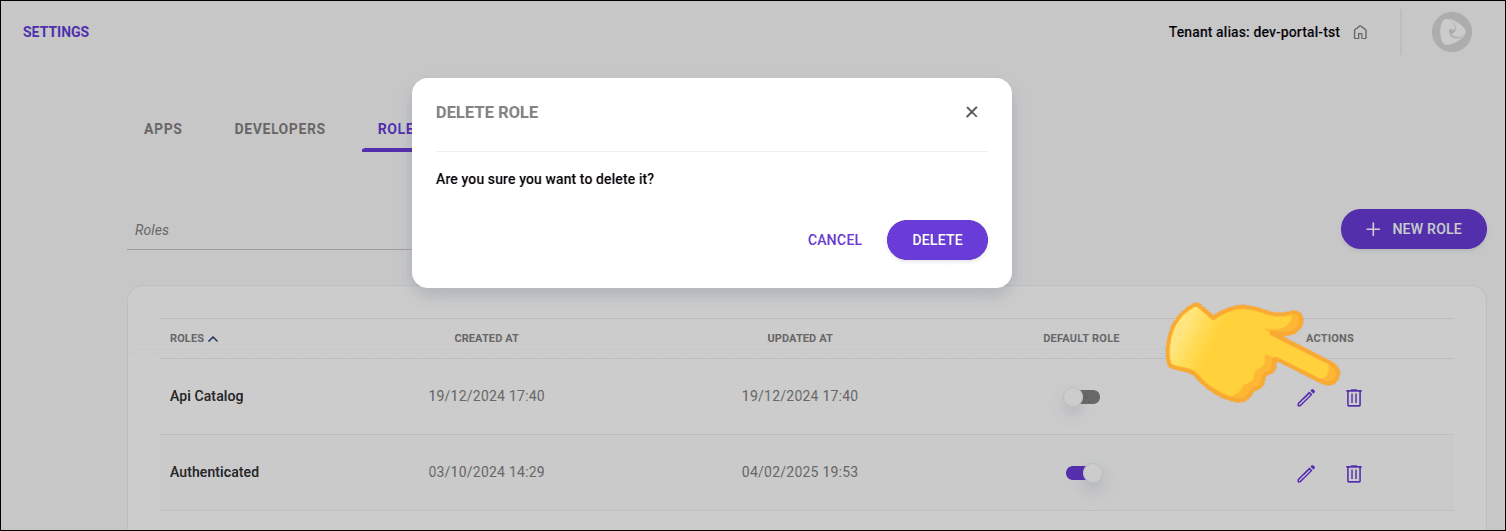
- The _Authenticated_ and _Public_ roles cannot be deleted.
- When a role is deleted, users who had the deleted role will be assigned the default role.
## Editing a role
Follow the steps below to edit a role:
### Step 1
In the **ACTIONS** column of the [Roles](#roles-tab) tab, click the  icon.
### Step 2
Make the necessary changes. All fields are mandatory.
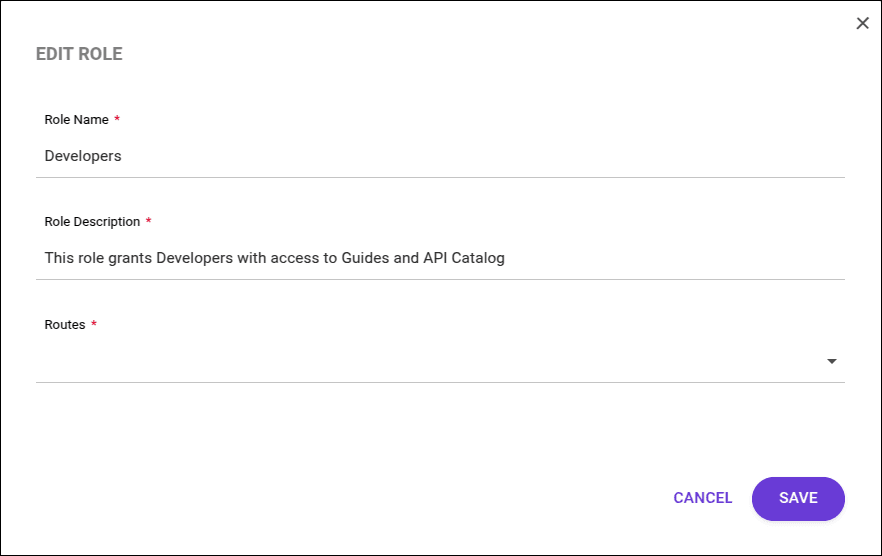
- **Role name**: Name for the role using at least 3 characters.
- **Role description**: Description with the role's restrictions.
- **Routes**: Routes that define which areas the user can access.
It is necessary to choose at least one of these routes:
| **Route** | **Access** |
|----------------------|----------------------------------------------------------------------------|
| API Catalog | Management of [products](/docs/developer-portal/catalog) |
| Apps | Creation and editing of [Apps](/docs/developer-portal/apps) via Developer Portal |
| Guides | [Guides](/docs/developer-portal/guides) screens |
| FAQ | FAQ section |
| API Status | Listing of the API status screen |
| API Activity Monitor | Call records |
## Assigning a role to an existing user
To assign a role to an existing user:
### Step 1
Access the [**Consumers > Developers**](/docs/developer-portal/developers) page by clicking the card on your Portal Manager home page or in the left side menu:

### Step 2
Locate the desired user.
### Step 3
In the **ACTIONS** column, click the  icon.
### Step 4
Choose one or more roles for the user and click **SAVE** to save.
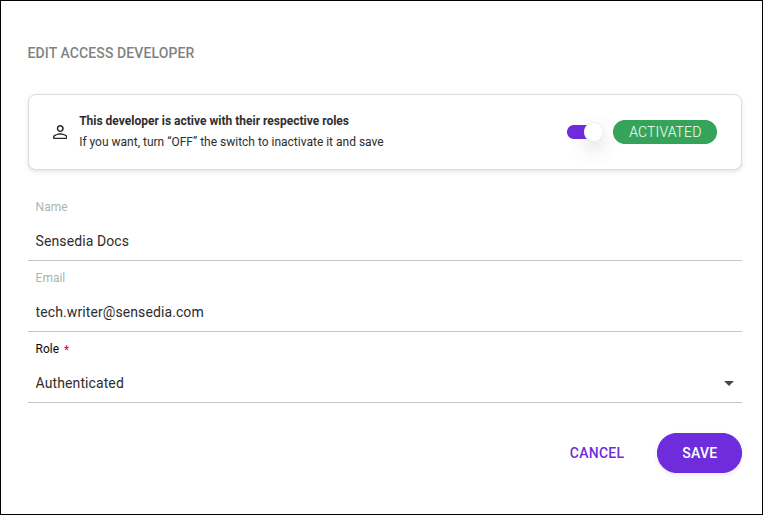
- [See how to assign roles to a user](/docs/developer-portal/developers#roles).
- [Publish a product](/docs/developer-portal/products#publish-product) so that it appears in the API catalog.
- [Create a new product](/docs/developer-portal/products).