---
title: Developer Registration auto approval
description: Understand how to configure developer registration, including auto-approval and notifications in the portal.
documentId: developer-portal-settings-developers
locale: en-US
---
A developer can [create an account](/docs/developer-portal/registration-login#create-account) in your Developer Portal to access its content.
The administrator can configure these options:
- **Auto Approval**: By default, the auto approval option is disabled.
-  **Enabled**: when the auto approval option is enabled, accounts are created automatically without requiring administrator approval.
-  **Disabled**: when the option is disabled, the portal administrator must manually approve each account registration made by a developer.

See details about the difference in the account creation process with [auto approval enabled or not](/docs/developer-portal/registration-login#account-approval).
- Auto approval is available only for developers who created their accounts from Developer Portal (your instance) and with standard authentication¹.
- It **does not** change the settings of Access and Identity Management (AIM) for _Single Sign-On_ (SSO), such as [GSuite, OpenID Connect, and SAML 2.0](/docs/access-control/integrations).
¹ Standard authentication: when the developer uses their email and password to access the product.
- **Admin Notification**: click **CONFIGURE** to [add the emails](#email-notification) that will be notified for each account created.
This configuration is optional.
## Enabling and disabling auto approval
Follow the steps below to enable or disable auto approval:
### Step 1
Access **Portal Manager**.
### Step 2
In the side menu, click on **Settings**.
### Step 3
Click on the **Developers** tab. 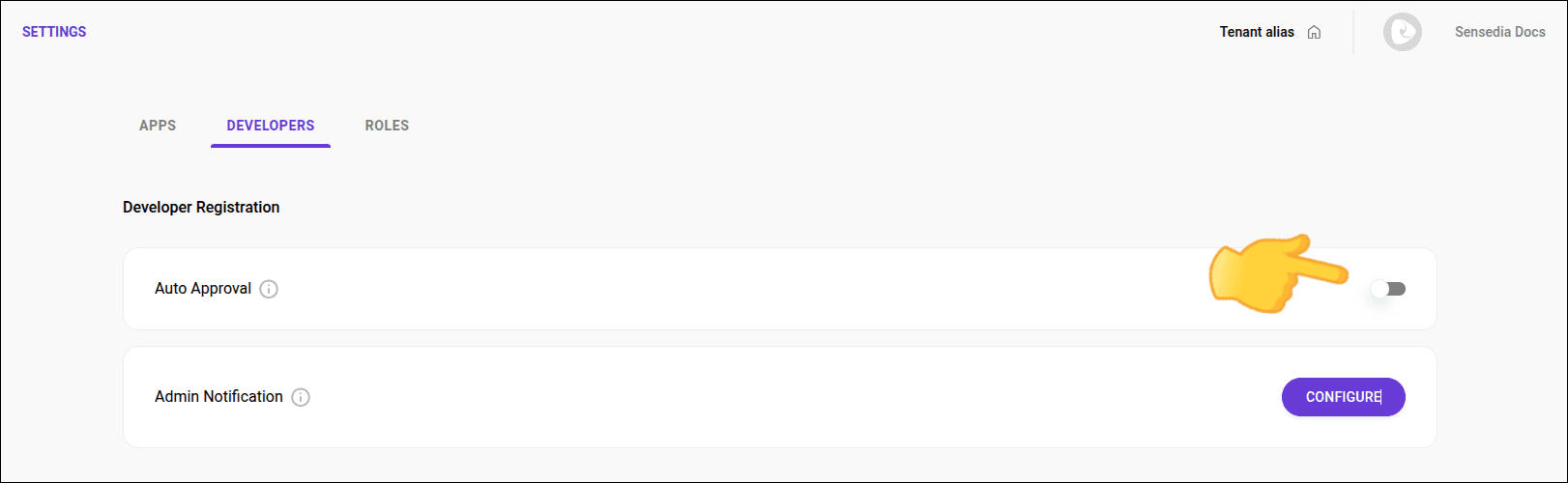
### Step 4
Activate the "Auto approval" option by sliding the toggle to the right.
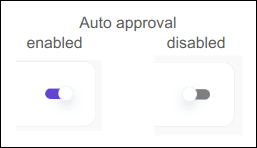
- The purple toggle set to the right indicates that auto approval is enabled, allowing any developer to create an account and access your portal content.
- The gray toggle set to the left indicates that auto approval is disabled, requiring the portal administrator to manually approve each account created.
See [how to approve or reject](/docs/developer-portal/invitations#approve-reject) a developer registration.
## Adding emails for notifications
You can configure one or more emails to be notified when a new user is created in your Developer Portal instance.
This notification allows you to remember to manage registrations by [approving or rejecting](#activate-inactivate) the new user.
### Step 1
Access **Portal Manager**.
### Step 2
In the side menu, click on **Settings**.
### Step 3
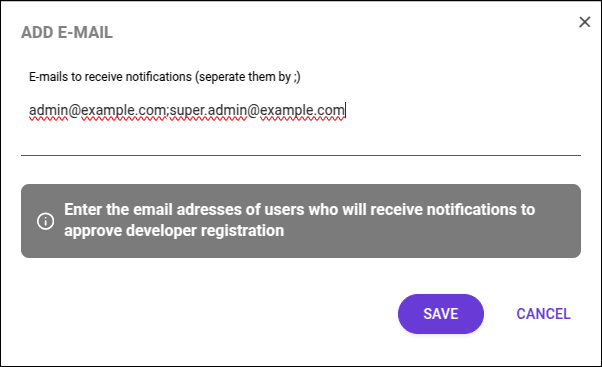
Click on the **Developers** tab, **CONFIGURE**, and add one or more emails. When a user is created, a message will be sent to the emails registered here.
Use ";" (without spaces) to separate the emails.