---
title: Authorizations
description: Understand how authorizations work and how to configure them.
documentId: authorizations
locale: en-US
---
On the **Authorizations** screen, you can configure endpoints to validate client IDs and/or access tokens for [event publishers](/docs/events-hub/publishers), allowing them to send requests to the Events Hub.
To define requests with authorization, you can add security interceptors to the [policies](/docs/events-hub/policies) applied to [handlers](/docs/events-hub/handlers). Here are some examples of interceptors:
* **OAuth Validation**
* **JWT Validation**
* **Client ID Validation**
* **Access Token Validation**
When at least one of these interceptors is used, the Events Hub will send requests to the authorization URLs defined on the screen to validate publishers and accept their requests.
Using security interceptors is optional. However, if you add policies to your handler, you need to configure the authorization URL linked to the interceptor.
Except for "IP Filtering Validation," all depend on this configuration to function.
If you plan to use the **Sensedia API Platform** for this, see how to [obtain the authorization URL](/docs/events-hub/authorizations#obtain-the-authorization-url-using-the-sensedia-api-platform).
**Sensedia API Management v5 clients**: to obtain the authorization URL, you must [import the Events Hub authorization API](/docs/events-hub/evh-api-authorization).
## How it works
Authorization URL configuration is done by [context](/docs/events-hub/contexts), which is one of the markers of the event publishing URL, formed by: `Base URL` + `context` + `handler` + `topic`.
This context-based configuration simplifies sending events from different scenarios to the same topic, such as production and testing events.
>**Usage example**
>
>Suppose you want to test topics already used by partner publishers and subscribers, but prefer to use an authorization mock for testing instead of real authorization endpoints. In this case, you can:
>
>1. Create a context for your tests and enable it for the desired topics.
>1. Link publishers and subscribers to send and receive events for the topics corresponding to the context.
>1. Configure an OAuth and/or JWT authorization mock for the context on the **Authorizations** screen.
>
>With this setup, publishers sending requests to topics in the context you created will be validated by the configured mock. Publishers sending events to the same topics in the default context will be validated by the URL configured for that context.
Contexts are logical divisions that simplify the creation and maintenance of topics, allowing them to be reused in different scenarios. They are not physically separated environments.
This means that if you use the "Default" context for production events and the "Testing" context for test events, you can control publishers, subscribers, and authorization endpoints for each context. However, all events received and distributed in the Events Hub share the same infrastructure.
Tests that overload the infrastructure, even in the testing context, may affect the receipt and distribution of events in other contexts.
Access more information about [how contexts work](docs/events-hub/contexts#how-it-works).
## Configuration
The **Authorizations** screen has two sections: **OAUTH** and **JWT**. Both display all contexts registered in the Events Hub, indicating the authorization URL defined for each.
* If no authorization endpoint is registered for the context, the  icon will appear in the **ACTIONS** column to add a URL.
* If a URL is already registered, click the pencil icon to edit it or the trash icon to delete it.
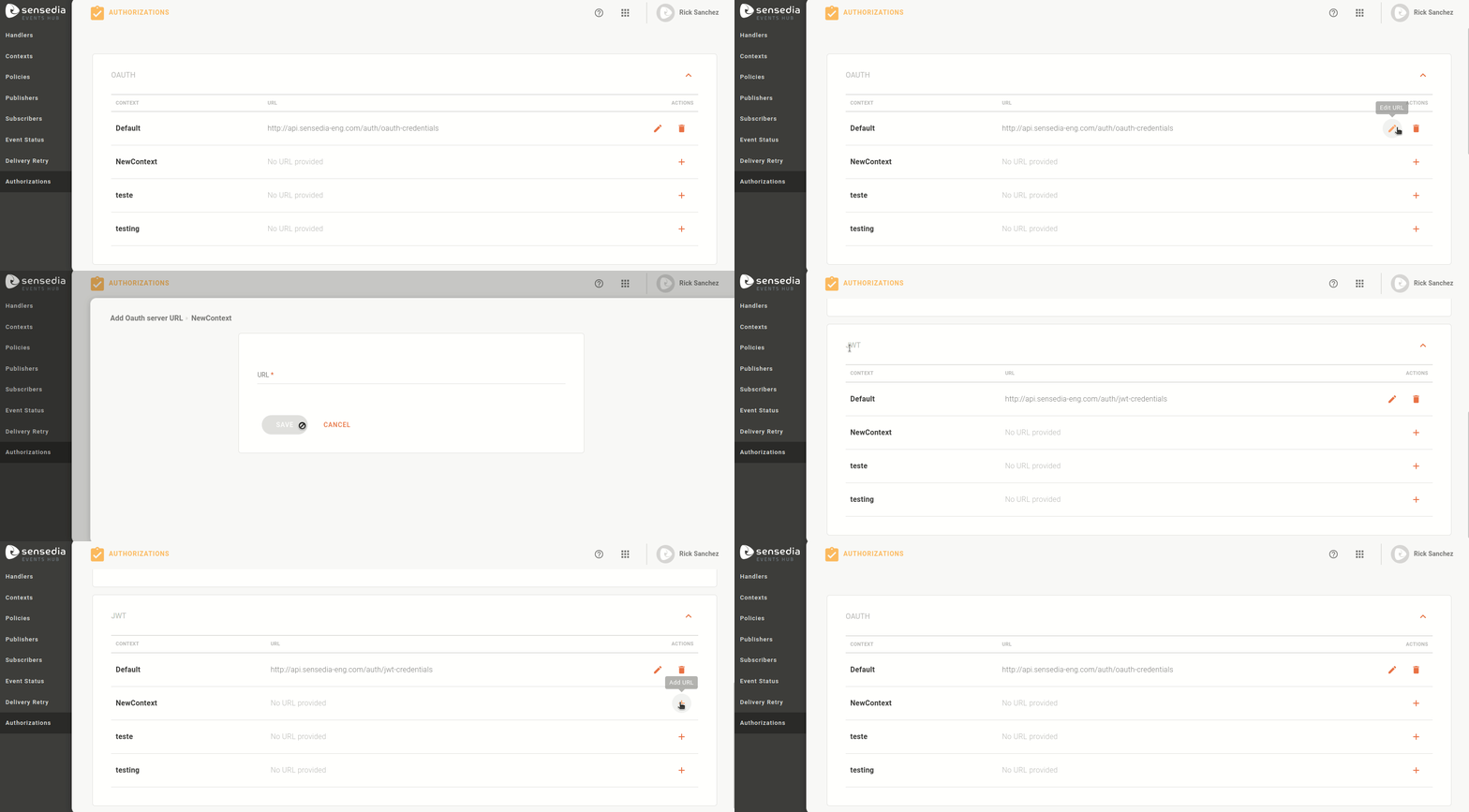
- If you do not register or remove the authorization URL for a context, publications sent to it using security interceptors will not be accepted. You will receive an error message with status code 401, indicating that you are not authorized.
- In this case, publications for topics intercepted by **OAuth** or **JWT** will be blocked.
## Obtaining the authorization URL using the Sensedia API Platform
To use the **Sensedia API Platform** as the validation server for policies, you must perform the following configurations:
Access the **Sensedia API Platform** in **API Design > API Catalog** and search for **API Events Hub Authorization**.
In the **API Events Hub Authorization**, go to the **Environments** section. Choose the environment you want to configure, click the  icon, and copy the URL. You will need to complement it with the interceptor information, so paste it into a file.
Go to the **Resources and Operations** section and copy the `POST` path of the interceptor type you will use.
Append the interceptor path to the end of the environment URL. This will be your authorization URL.
With the complete URL copied, access **Events Hub > Authorizations** and find the context to be validated by this authorization.
Click the  icon, paste the authorization URL, and save.
If you register a test context for authorization, in the **Environments** section, copy the link for your test environment.
The **Resources and Operations** section is divided into **OAuth** and **JWT**.
When copying the path for your URL, ensure that:
* The authorization URL must be generated according to the policies applied to the context.
* If you added OAuth Validation interceptors, copy the OAuth path.
* If you added JWT Validation interceptors, copy the JWT path.
Interceptors are configured in [policies](/docs/events-hub/policies), which are applied to [handlers](/docs/events-hub/handlers) during their creation or editing. All topics grouped in a handler use the interceptors configured in the policy applied to the handler.
See how to use the [Sensedia API Platform for publisher authorization](/docs/events-hub/tutorial-auth).