---
title: Event Status
description: Understand how to view sent events and check the distribution attempt status of events.
documentId: event-status
locale: en-US
---
On the **Event Status** screen, you can view the list of events sent by publishers to the Events Hub and check the distribution attempt status of these events to subscribers.
The list can display up to 10,000 events at a time, divided into pages of up to 50 results each.
If you cannot find the event you are looking for among the 10,000 results, use more filters to refine your search.
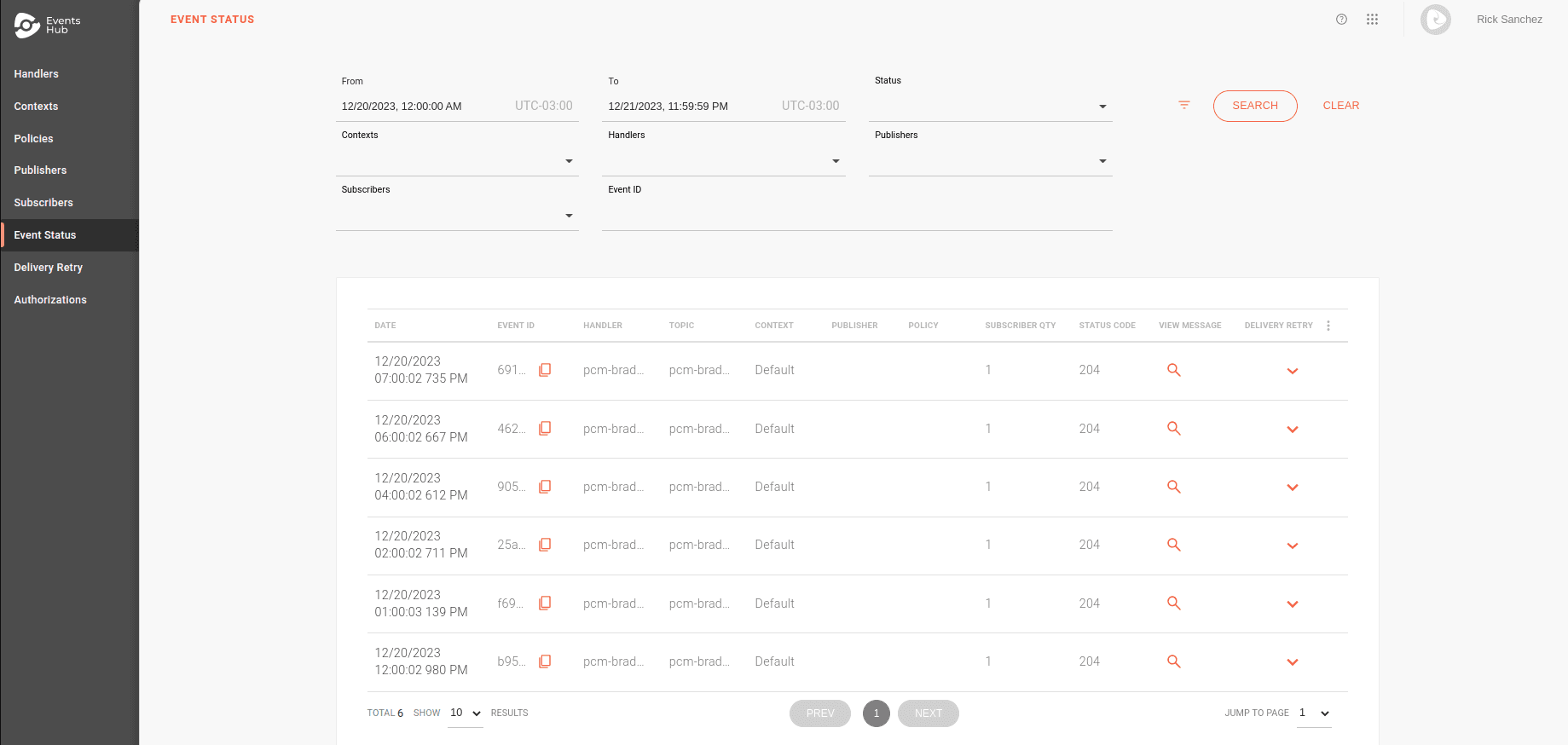
## Filters
By default, the list shows events from the current day, and you can use the filters to customize your search.
When you access the **Event Status** page, you will see the **From**, **To**, and **Status** filters.
To load more options, click on the  icon.

* **From** and **To**: start and end date of event receipt. The interval must be up to 31 days.
* **Status**: event receipt status. Can be Success or Error.
The error can be classified as Client Error or Server Error.
The display of events with errors depends on Events Hub receiving requests from publishers.
* **Contexts**: filters by contexts, allowing more than one to be selected at the same time.
* **Handlers**: filters by handler, allowing more than one to be selected at the same time.
When selecting handlers, the publishers and subscribers fields will only show options related to them.
* **Publishers**: filters by publisher, allowing more than one to be selected at the same time.
* **Subscribers**: filters by subscriber, allowing more than one to be selected at the same time.
* **Event ID**: filters by event identifier, generated by Events Hub when a request is received from a publisher.
> **Additional information**
>
> - Use the  button to customize the columns of the **Event Status** list.
> - Copy the Event ID to the clipboard through the  icon.
> - This ID can be used on the [Delivery Retry](/docs/events-hub/delivery-retry) screen to find the event and send it manually to subscribers who did not receive it during the automatic delivery attempt.
> - If the event is sent to Events Hub with incorrect URL markers, some cells in the **HANDLER**, **TOPIC**, and **CONTEXT** columns may be empty.
> - This makes it impossible to identify the event's subscription path, resulting in a 404 error for the publisher and no delivery to subscribers.
> - In the **PUBLISHER** column, you see who sent the event.
> - This identification only happens if there is an interceptor that validates the client ID in the policy applied to the handler. This can be Client ID Validation or OAuth Validation.
> - **SUBSCRIBER QTY** displays the quantity of subscribers for the event, based on the subscribers registered to the topic used, who have the context for which the event was sent enabled.
> - The **STATUS CODE** column shows the HTTP code that Events Hub returned to the publisher.
> - A success code indicates that Events Hub received the event and will attempt to deliver it to subscribers, but does not confirm successful delivery.
> - The **VIEW MESSAGE** column contains the  icon, which shows the headers and body of the request sent by the publisher.
### Delivery retry
The  icon in the **DELIVERY RETRY** column shows details about event delivery attempts to subscribers:
* If there is no subscriber registered for the event, the icon will be disabled.
* If the **STATUS** column shows an error code, it means the event was not successfully sent to Events Hub.
In this case, Event Hub will not attempt to distribute the event to subscribers, and there will be no data.
* If the event is successfully received by Events Hub, the  icon will open a tab showing the last attempt to send the event to each subscriber.
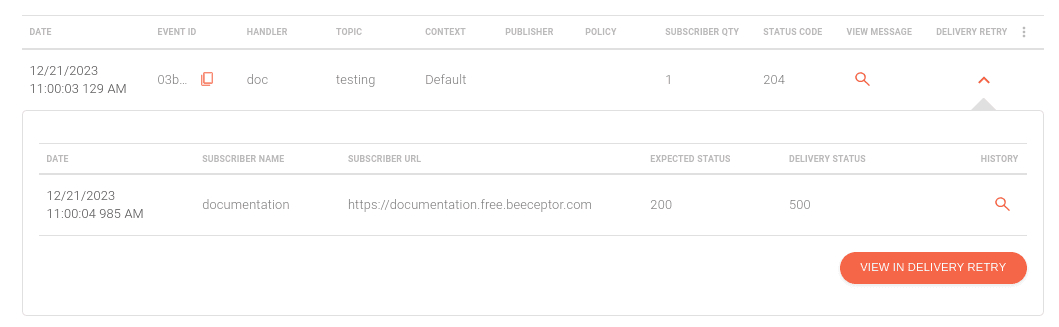
* The **HISTORY** column contains the  icon, which displays all delivery attempts for the selected subscriber.
You will see:
* Date and time of the event delivery attempt.
* Subscriber's name and address.
* Delivery type, which can be: first attempt (Initial Delivery), automatic retry due to a policy applied to the handler (Policy Retry), or a manual attempt (Manual Retry).
* And the return code received.
The subscriber URL and expected return code are configured during the [creation or editing of a subscriber](/docs/events-hub/subscribers#topics).
If the last delivery attempt to the subscriber fails, you can access the [Delivery Retry](/docs/events-hub/delivery-retry) screen to manually attempt to send the event to the subscriber.
To do this, click the **VIEW IN DELIVERY RETRY** button. The ID of the event in question will already be filtered.
After a successful manual attempt, the event will be updated on the Event Status page.