---
title: Subscribers
description: Learn what subscribers are and how to create them.
documentId: subscribers
locale: en-US
---
Subscribers are the applications or partners that receive events distributed by the Events Hub.
To receive events, subscribers must be connected to topics, which are grouped within [handlers](/docs/events-hub/handlers).
Each topic can have different contexts available for the subscriber.
Thus, when events are sent to a topic with a defined context, only the subscribers of that topic with the enabled context will receive the events.
The Events Hub ensures security, providing subscribers with a reliable source of messages.
- Read more about topics on the [handlers](/docs/events-hub/handlers) page.
- Understand [contexts](/docs/events-hub/contexts).
- Access the [security documentation](/docs/events-hub/subscribers-security-keys) to learn how it works.
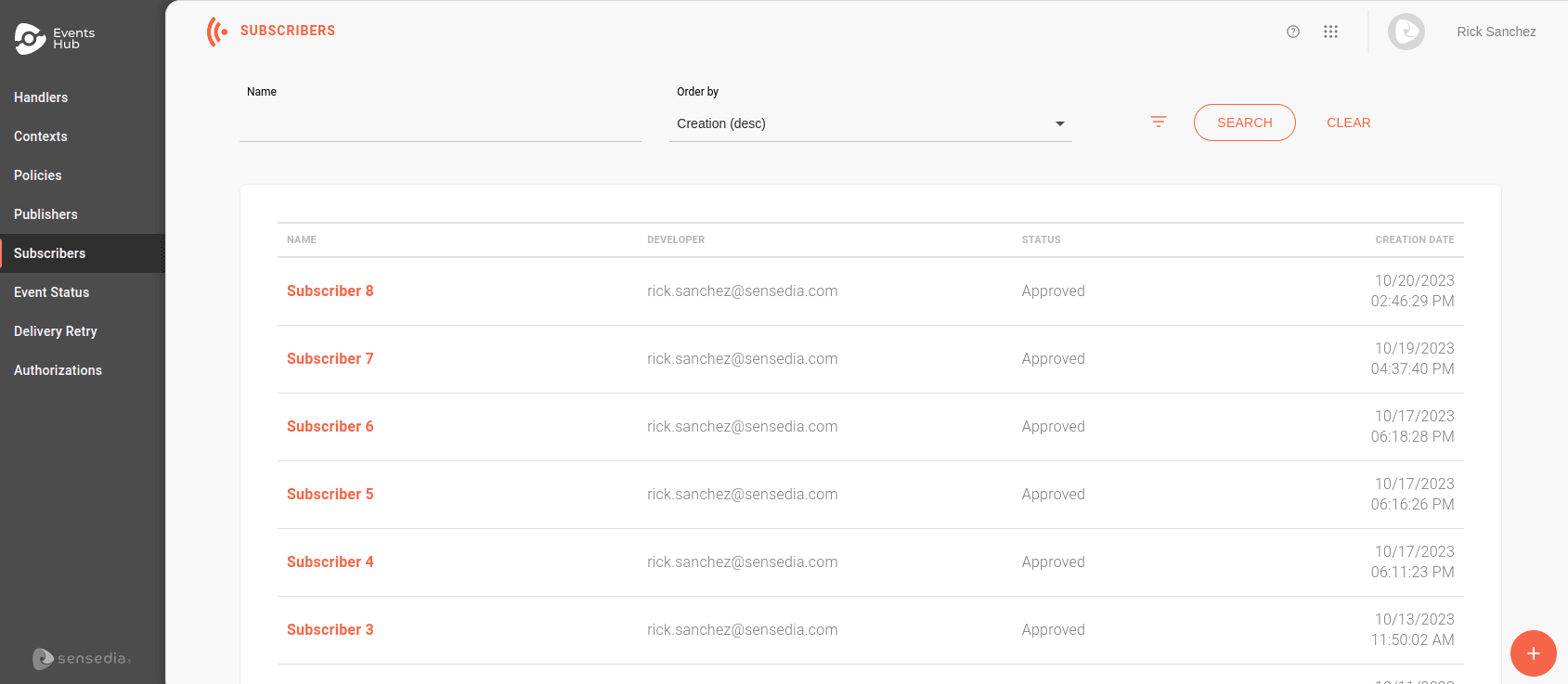
The **Subscribers** screen lists all registered subscribers and allows you to create new ones:
>**Filters**
>
>You can search for a specific subscriber using the filters at the top of the page. They allow you to search by:
>
>- Subscriber name.
>
>- Developer's email.
>
>- Handler name.
>
>- Creation start and end dates.
>
>- Status.
>
>Use the **Order by** field to define the list order. You can choose to view by the most recent or oldest creation date, or alphabetically.
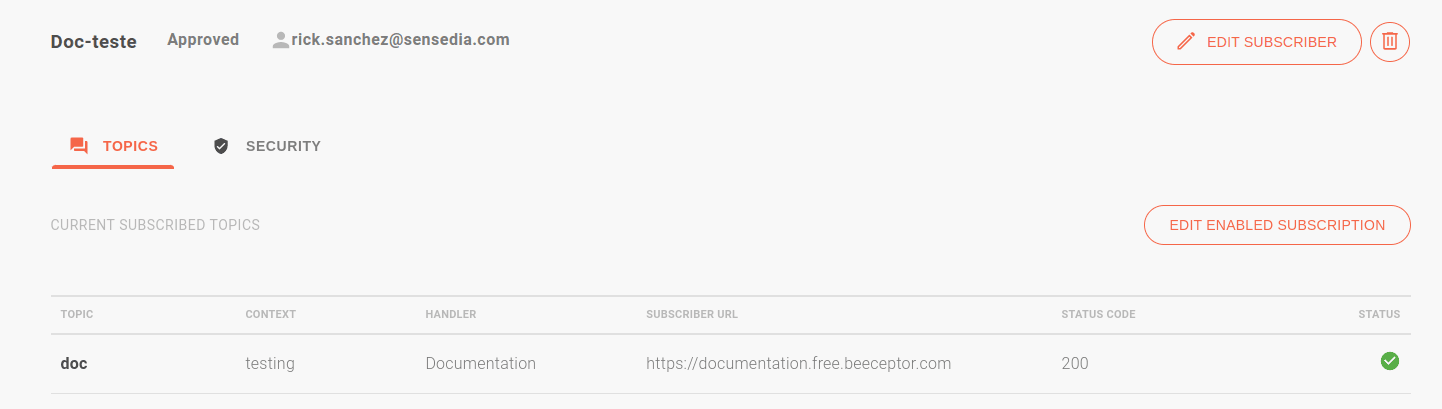
To view the details of a specific subscriber, click on the name in the list.
You will be directed to the **Topics** screen, where you can edit the subscriber's information and enable or disable the topics they receive events from.
## Creating subscribers
To create a subscriber, click the **+** button in the bottom-right corner of the screen.
The registration process consists of four steps:

### Overview
To start the registration, fill in the fields:
- **Name**: the subscriber's name, which must be unique.
- **Status**: state, which can be approved, pending, rejected, or cancelled.
- **Description**: optional field to include a description.
- **Developer**: email of the developer responsible for the subscriber.
### Security
In this step, you ensure the security of the connection between subscribers and the Events Hub.
Access the [Security and Keys documentation](/docs/events-hub/subscribers-security-keys) to understand how it works.
Below are the two layers of security implemented:
- **Digital signature**
- **Static or dynamic token**
Digital signature
Static or dynamic token
#### Digital signature
When distributing events to subscribers, we include a digital signature that allows the subscriber to validate the request's origin.
To generate this signature, you need to validate a shared key between the Events Hub and the subscriber.
Follow these steps:
Enter a key of your choice (between 32 and 255 characters) in the **Key** field.
- If the validation time expires, click the  icon to restart the timer.
To validate the key, click **VALIDATE KEY**.
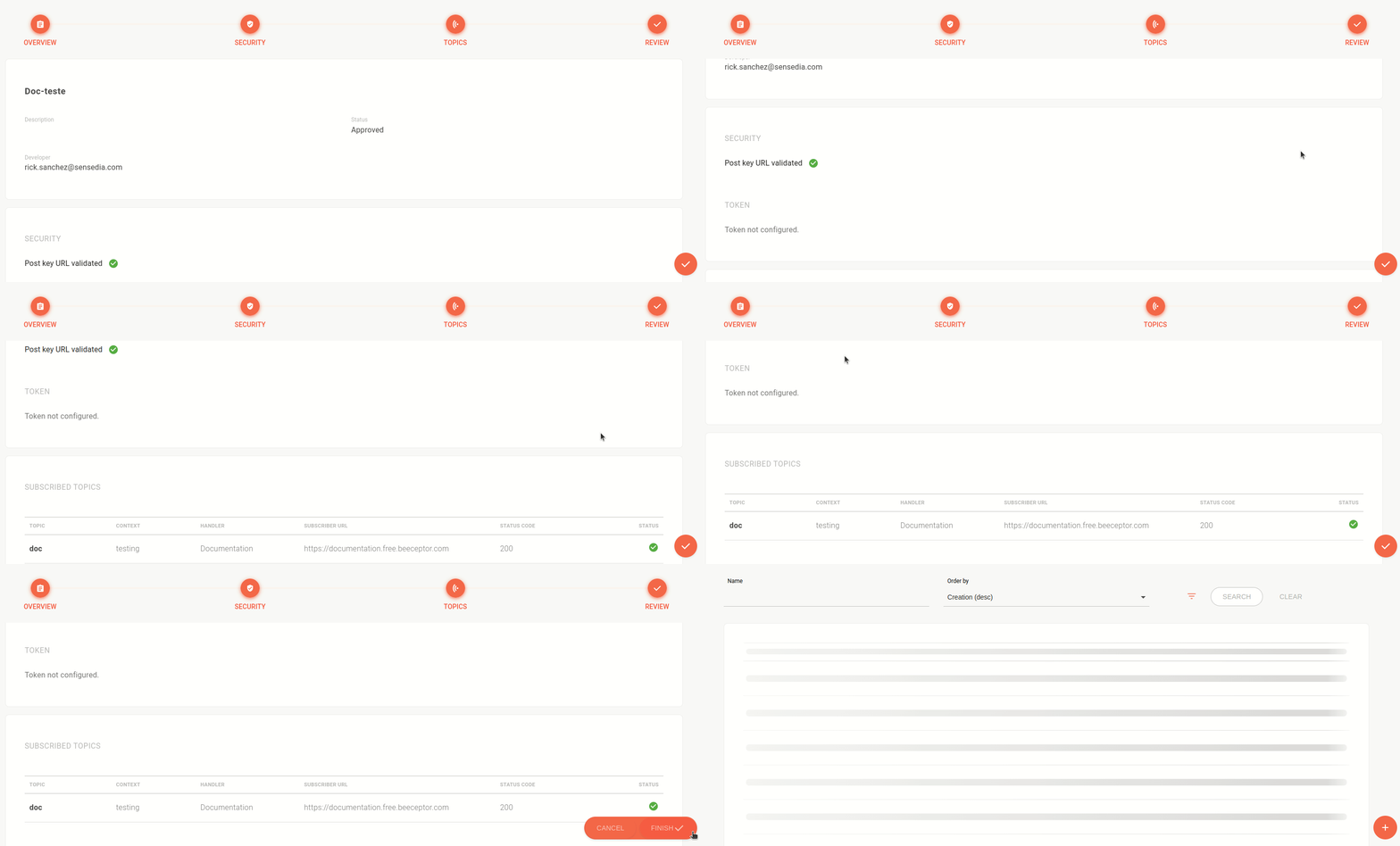
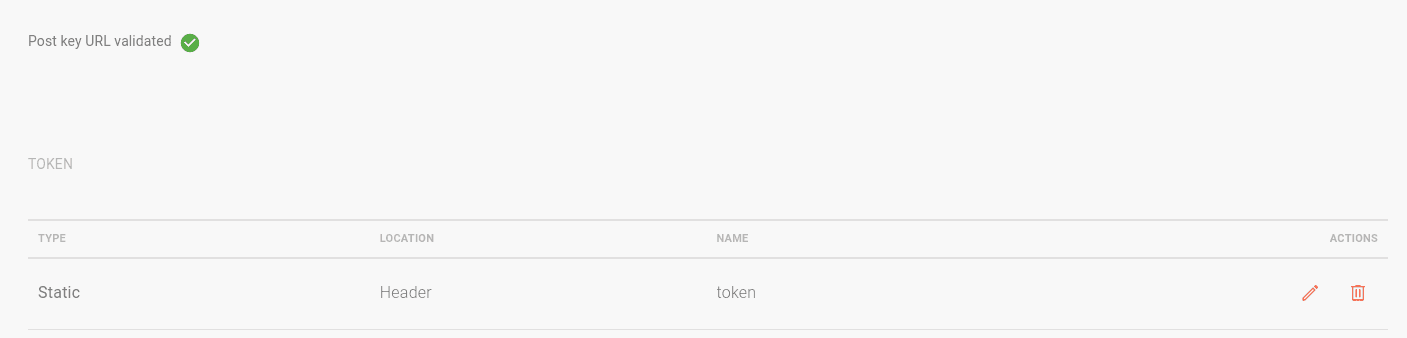
If successful, you will see the message **Post key URL validated**  on the Security screen.
If you register a subscriber without validating the shared key, it will not be possible to link it to any topic.
A subscriber can only be linked to a topic after key validation.
#### Static or dynamic token
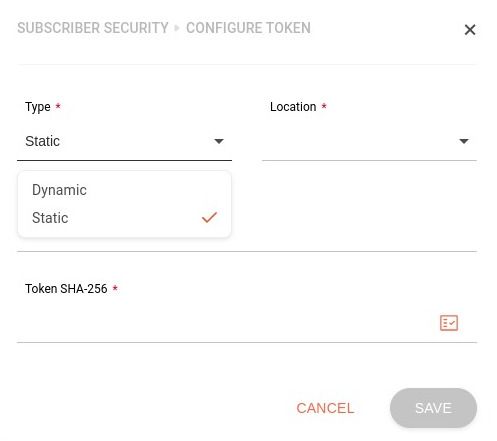
After sending the shared key, you can also include a **static or dynamic token** to be used in requests to subscribers.
Token configuration is optional.
Learn how they work and the differences between static and dynamic tokens in the [Tokens documentation](/docs/events-hub/subscribers-security-keys#security-token-options).
To configure a token, follow these steps:
Click the **CONFIGURE TOKEN** button.
Select the token type: Static or Dynamic.
In the **Location** field, select where the token should be passed in the request.
Options are header or query param.
In the **Name** field, specify the name under which the token value will be passed.
Depending on the token type selected, configure:
- **Token SHA-256**: token value. You can generate a random token using the  icon.
After saving, the token will be displayed only once in a modal window. Copy and save it to a file on your computer.
- **OAuth URL**: URL for generating the token value.
After saving, a request will be sent to the subscriber's URL to generate the token and validate the configuration.
You can configure only one token per subscriber.
If a token is configured, the screen will display its details:
### Topics
In the **TOPICS** tab, you link the subscriber to the topics they will receive events from.
Registered topics are displayed through the handlers.
* You can search for specific handlers using the **Keywords** field, which searches for terms used in the handler's name or description.
Additionally, you can reorder the list by name or creation date using the **Order by** field.
To link topics to your subscriber, follow these steps:
Select a handler and click the  icon in the **View Topics** column.
In the screen that opens, click the  icon and also enable the context for the subscriber.
In the **Subscriber URL** field, enter the URL that will receive the events.
In the **Status Code** field, specify the success status code that should be returned.
This field only allows codes from `200` to `299`. You can enter `2xx` to cover the entire range.
The Events Hub will make a request to validate the URL, expecting the specified code.
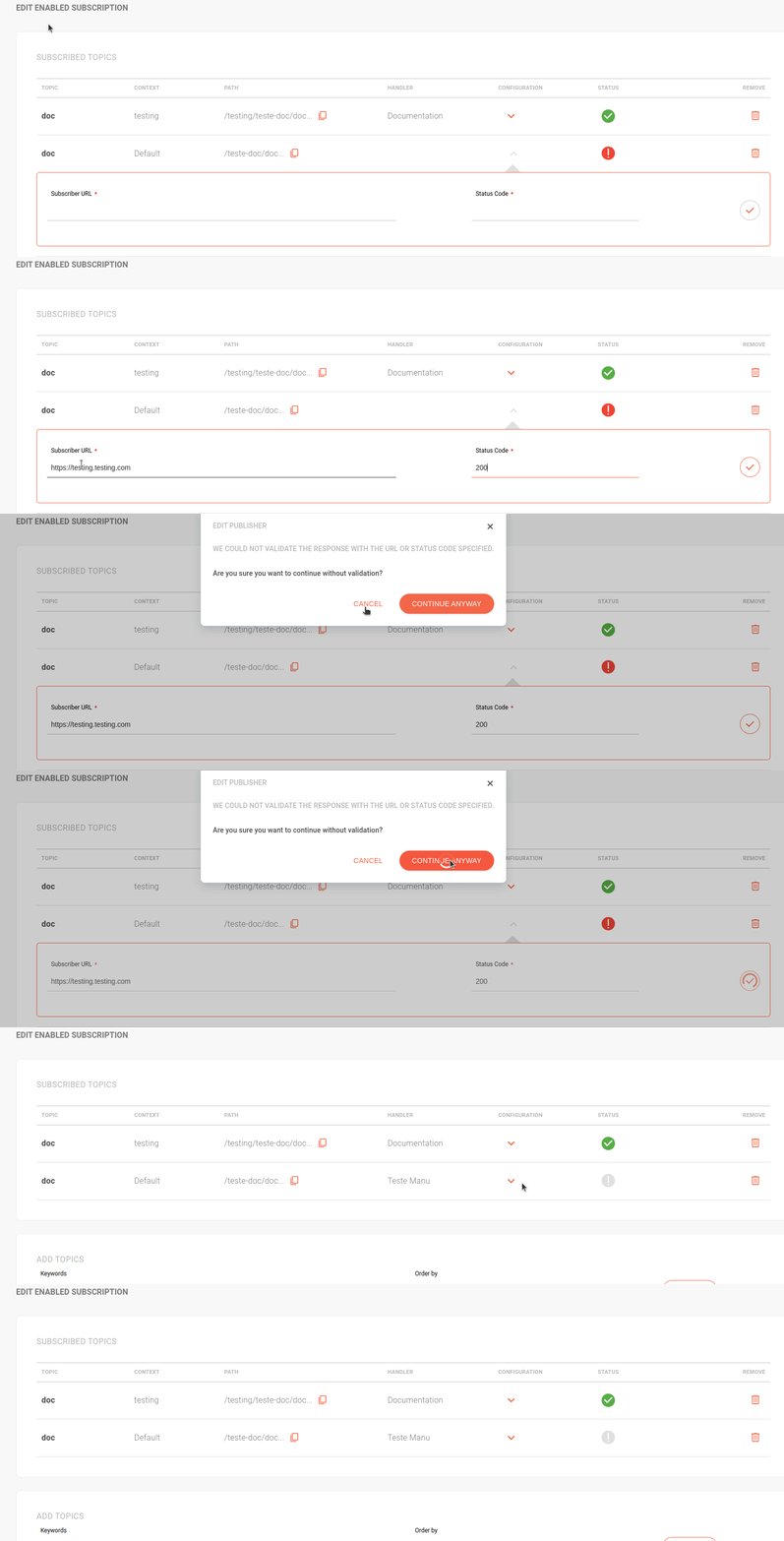
If the URL is not validated, the subscriber will be registered but will not receive events.
When sending events to the subscriber, the Events Hub will consider the code you defined as success in the Status Code field.
If you specify code 204 and return 200, the system will interpret it as a delivery failure and send the event to the Delivery Retry queue.
To avoid this, specify 2xx in the Status Code field.
This way, any code in the 200 family will be interpreted as success.
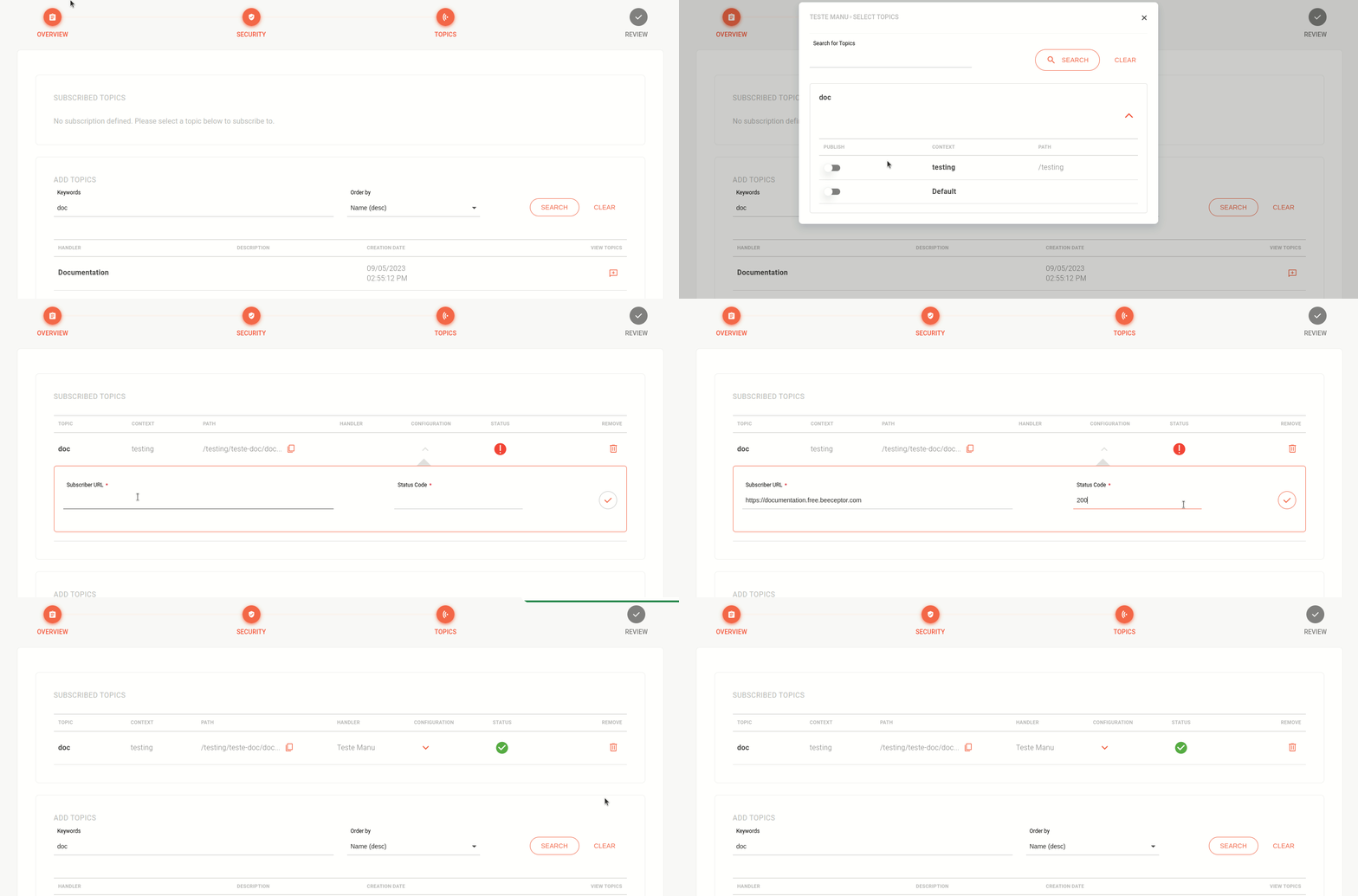
Each selected topic will be listed in the **SUBSCRIBED TOPICS** section. To remove the link, click the trash icon.
The **STATUS** column indicates whether the URL was successfully validated or not.
The green icon represents success. The gray icon means the URL was registered but validation failed.
### Review
The final step of registering a subscriber displays the registered data: