---
title: Phone Catalog (WhatsApp)
description: WhatsApp contact list to receive Flexible Actions notifications
documentId: phone-catalog
locale: en-US
---
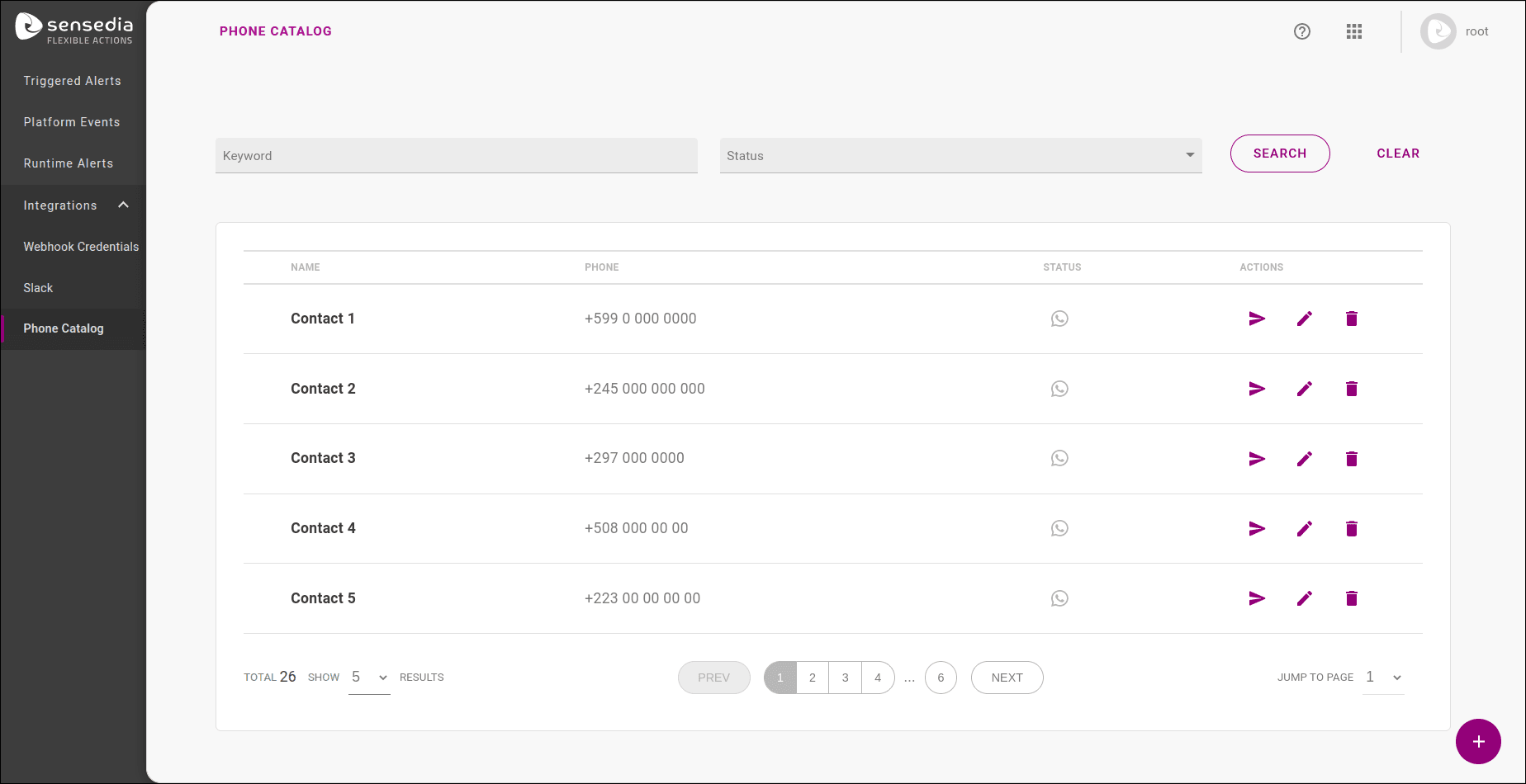
The **PHONE CATALOG** submenu shows a list of **WhatsApp** contacts that have been added to receive notifications from **Flexible Actions**. It also allows you to add new contacts. Through this integration, **Flexible Actions** can send notifications to registered contacts when an alert is triggered.
Selected contacts can choose whether or not they want to receive notifications on their **WhatsApp** number when a **Flexible Actions** user sends them an activation message.
## Filters and sorting
In the filter row, there are two columns you can search by:
| **Keyword** | **Status** |
|-------------|------------|
| Search for the contact's name or identification keyword | Choose to view active, inactive, or pending contacts. |
After entering the data you want to filter, just click the **SEARCH** or **CLEAR** button to perform a new search.
## Phone Catalog table
There are four columns in the **Phone Catalog** table:
| Item | Meaning |
|--------|---------|
| **Name** | Contact's name. |
| **Phone** | Contact's phone number. |
| **Status** | The contact's **status**, which can be:
- **Active/green**  – when activation is complete.
- **Inactive/gray**  – when activation is canceled or rejected.
- **Pending/orange**  – waiting for activation/acceptance. |
| **Actions** | The actions that can be performed for a contact are:
- Send activation message .
- Inactivate number .
- Edit .
- Delete .
When a contact is **inactive** or **pending**, the  button will be enabled to send or resend an activation message.
If the contact's **status** is **active**, the  button will be enabled to inactivate the contact if desired. |
To send an activation message to an **inactive** number, click the () button and then click **SEND** to confirm.
The following confirmation question will be displayed:
"Would you like to send an activation message to the new configured number? +(XX) XXXXXXXX".
After confirming, you will be notified that the message was sent and the contact's **status** will change to **pending** and its icon will turn orange ().
When the contact confirms activation on the device, the contact's **status** icon will turn **active**, changing to green ().
You can only inactivate a contact that is already **active/green**.
To inactivate a contact, click the () button.
The following confirmation question will be displayed:
"Do you really want to inactivate this number?"
After confirmation, the contact's **status** will become **inactive** and its color will turn gray ().
## How to add a new phone number
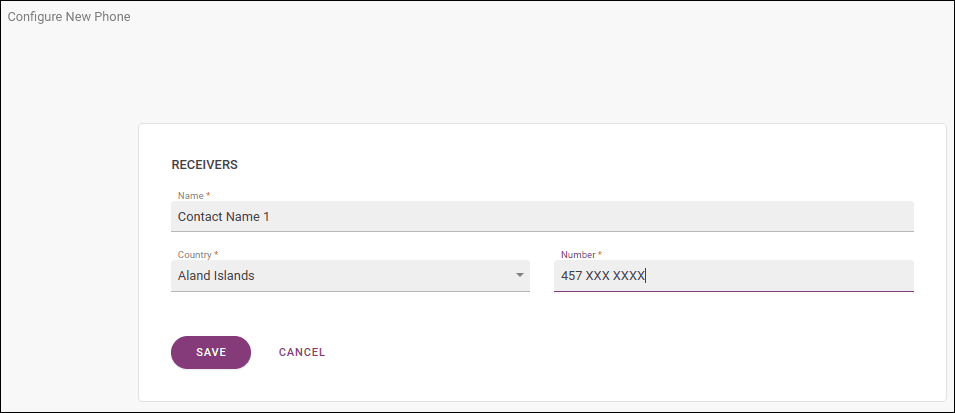
To set up a new phone number, click the () button.
A new window will appear, where you need to fill in the fields with the contact's name, country, and number.
When an activation message is sent, the contact's **status** will change to **pending** until the invitation to receive **Flexible Actions** notifications is accepted.
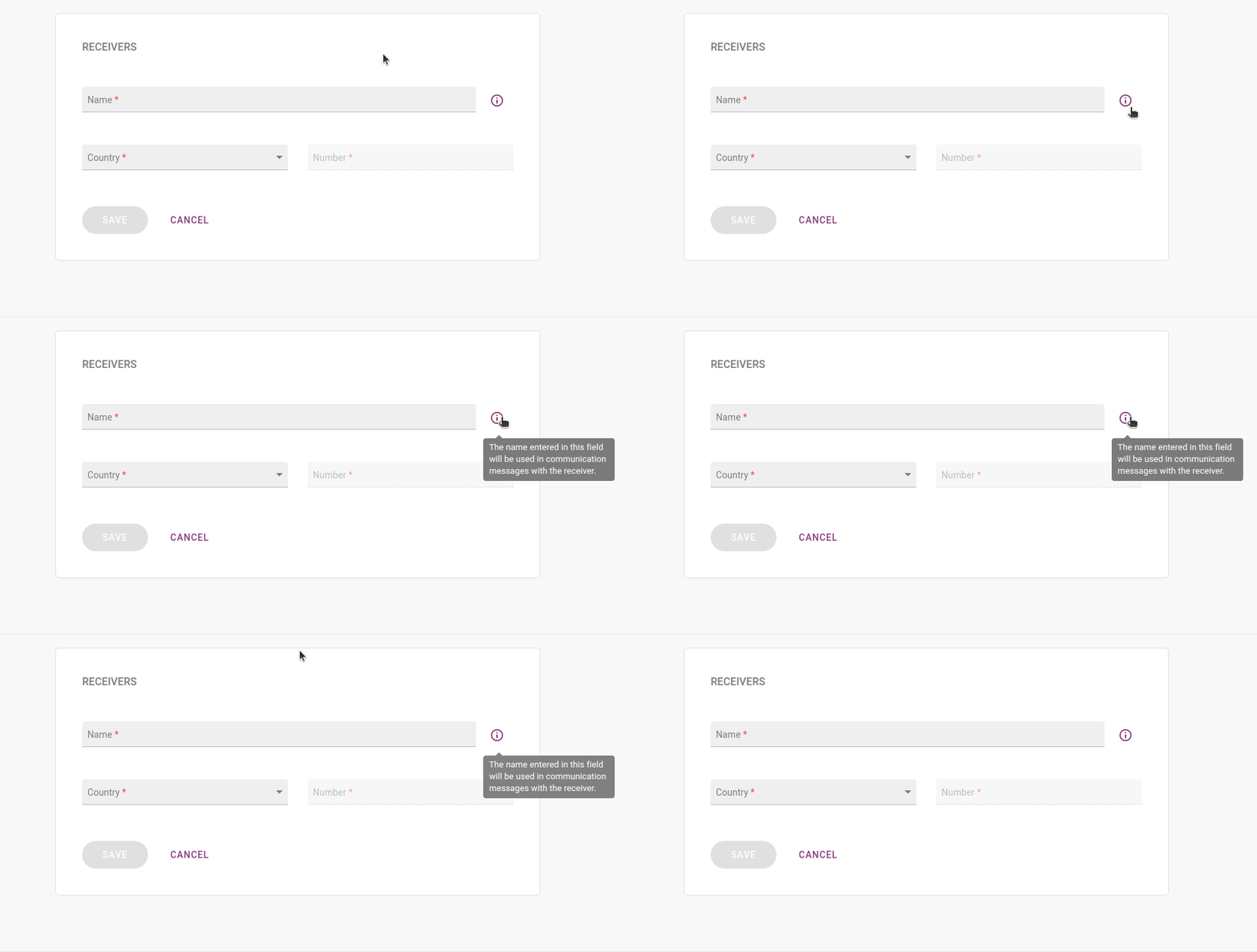
Next to the contact's name, **Flexible Actions** will display the following warning:
"The name entered in this field will be used in communication messages with the contact".
This way, we ensure clear end-to-end communication.
This is an example of the activation message the contact will receive on **WhatsApp**:
```
Hello, contact name!
Your number has been linked to a Sensedia Flexible Actions notification channel.
This is an automatic message to confirm the registration on the platform.
By confirming, you will accept to receive notifications of events registered on the platform linked to this number.
Type:
YES to confirm
NO to refuse
You can also stop receiving notifications at any time by sending CANCEL to this number.
```
If accepted, the **status** will change to **active**; if refused, it will become **inactive**.
After adding the contact, you can also click the edit button () to change it or the delete button () to remove it completely.