---
title: c Google Storage
description: Available connectors
documentId: ipaas-google-storage
locale: en-US
---
The [**Google Storage**](https://camel.apache.org/components/4.10.x/google-storage-component.html) component enables integration with the Google Cloud Storage service, facilitating the storage and retrieval of objects in Google Cloud buckets. As a connector, it can be configured to perform file uploads, list objects, and remove items from buckets. The integration supports sending different types of files, as well as allowing header customization, overwrite control, and error handling.
**URI syntax**: `google-storage:bucketName`
## Main fields
*Path parameters*
| **Name** | **Description** | **Default** | **Type** |
|----------|---------------|------------|----------|
|`bucketName` (common) |(required) Bucket name or ARN. | — |String |
*Query parameters*
| **Name** | **Description** | **Default** | **Type** |
|----------|---------------|------------|----------|
| `serviceAccountKey` (common) | The service account key that can be used as a credential for the Storage client. It can be loaded from classpath, file or URL. | — | String |
| `objectName` (producer) | Object name within the bucket. | — | String |
| `operation` (producer) | Defines the operation for the producer. Possible values: `copyObject`, `listObjects`, `deleteObject`, `deleteBucket`, `listBuckets`, `getObject`, `createDownloadLink`. | — | GoogleCloudStorageOperations |
## Example
Before executing the integration flow, import the Google Cloud service account key to a config map. This key will be used as a **resource** in the integration:
```
$ kubectl create configmap googlesa --from-file=key.json
configmap/googlesa created
```
The "key.json" file contains the service account credentials in JSON format. In Integrations, this key will be configured as a **Resource** file.
Read more about [Resources](/docs/integrations/ipaas-resources) files.
The flow below publishes a file to the `sensedia-test-bucket` bucket with the content sent in the integration payload. See the step-by-step:
The flow starts with a POST request on the `/google-storage` endpoint.
Then it logs the received content, showing the payload: `got body ${body}`.
Next, it uploads to Google Cloud Storage:
- Bucket: `sensedia-test-bucket`
- File name: `myfile.txt`
- Authentication: `key.json` (Google Cloud service account key)
- Body content is saved as a file in the bucket.
Finally, it sets the JSON response. The body is changed to `{"success": true}`.
```yaml
- from:
uri: rest:post:/google-storage
steps:
- log:
message: "got body ${body}"
- to:
uri: "google-storage:sensedia-test-bucket"
parameters:
serviceAccountKey: key.json
objectName: myfile.txt
- setBody:
constant: '{"success": true}'
```
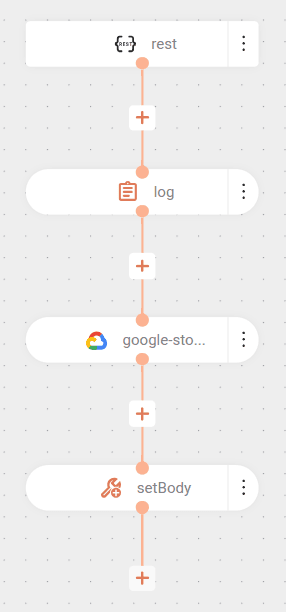
After upload, `setBody` is used to set the request response, as the body returned by the `google-storage` component is of type `com.google.cloud.storage.Blob`, which is not compatible with JSON serialization (not jackson-friendly).
Alternatively, you can extract specific properties from the Java object using simple language:.
In the example, only the file name is captured and returned in the response:
```yaml
- setBody:
simple: ${body.name}
```
### cURL
```
curl --location 'http://google-storage.a1b2c3d4e5.integrations-tst.sensedia-eng.com/google-storage' \
--header 'Content-Type: application/json' \
--data 'This is a Google Storage test'
```
### Result
As a result of the integration, the file `myfile.txt` is available:
