---
title: Test Mode
description: Run your integrations in test mode before deployment
documentId: ipaas-flow-test-mode
locale: en-US
---
## Console
The console is located at the bottom of the **Source** screen. To access it, click the up arrow icon (chevron) and expand the panel.
It contains the **Test Mode** and **Error Validation** tabs, which display:
* Complete details of the integration deployment and execution in test mode.
* Syntax and structure errors identified by the **Full Validation** feature (Source Code tab) or during saving of the `main.yaml` file. Read more about [error validation](/docs/integrations/ipaas-flow-error-validation).
### Test mode
* Test mode is available only for flows with [**Scheduling and Timing** triggers: Cron, Quartz, Scheduler, and Timer](/docs/integrations/ipaas-triggers-scheduling-timing). For other trigger types, the test mode execution button remains locked.
* Use test mode for quick validations and adjustments during flow development. For scenarios with large data volumes, deployment to a *staging* environment is recommended.
Test mode allows you to execute and validate an integration flow before final deployment, facilitating error identification, data validation, and performance optimization. You can test flows even while still under construction, enabling continuous adjustments.
#### Requirements
* Use a [**Scheduling and Timing** trigger: Cron, Quartz, Scheduler, or Timer](/docs/integrations/ipaas-triggers-scheduling-timing).
* **Save** the flow to enable the **Test Mode** button.
* If there are syntax errors or blank required fields, the test mode execution button will be locked. When saving, errors will be displayed in the error panel located below the code editor (Source Code tab).
* If the flow uses environment variables, the test will execute with values defined in [environment variables](/docs/integrations/ipaas-flow-variables) in staging.
#### Step-by-step guide to deploy and execute an integration in test mode
Save the integration flow and ensure there are no syntax errors or inconsistencies. The **Test Mode** button will only be enabled after errors are corrected.
With the flow saved and error-free, click the **Test Mode** button  in the top right corner to initiate temporary deployment.
Next, expand the [console](#console) (located at the bottom of the screen) to monitor deployment progress.
When the **deployed** status is displayed in the **Deployment** column, access the deployment logs in Analytics by clicking on the corresponding link, as shown in the image.
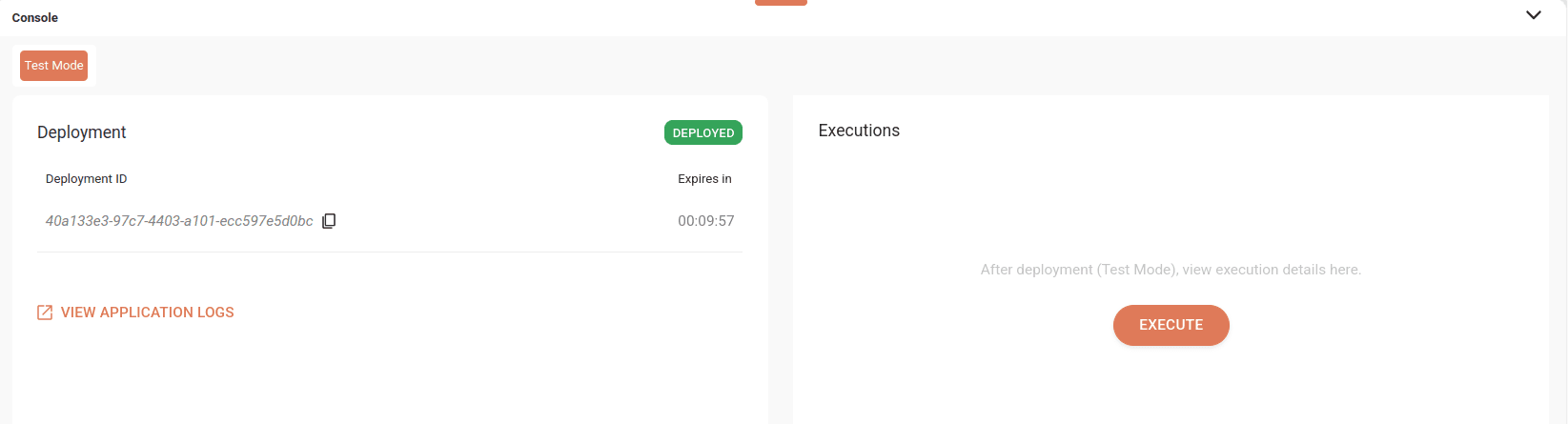
If the deployment presents an error status, consult the logs in Analytics for details.
The Error Validation tab displays only structure and syntax errors identified when running the "Full Validation" feature or when saving the integration.
With an active deployment (**deployed**), click the **Execute** button in the **Executions** column to start the test execution.
When execution completes, the **Success** status will be displayed and you can view logs in Analytics by clicking the link, as shown in the image.
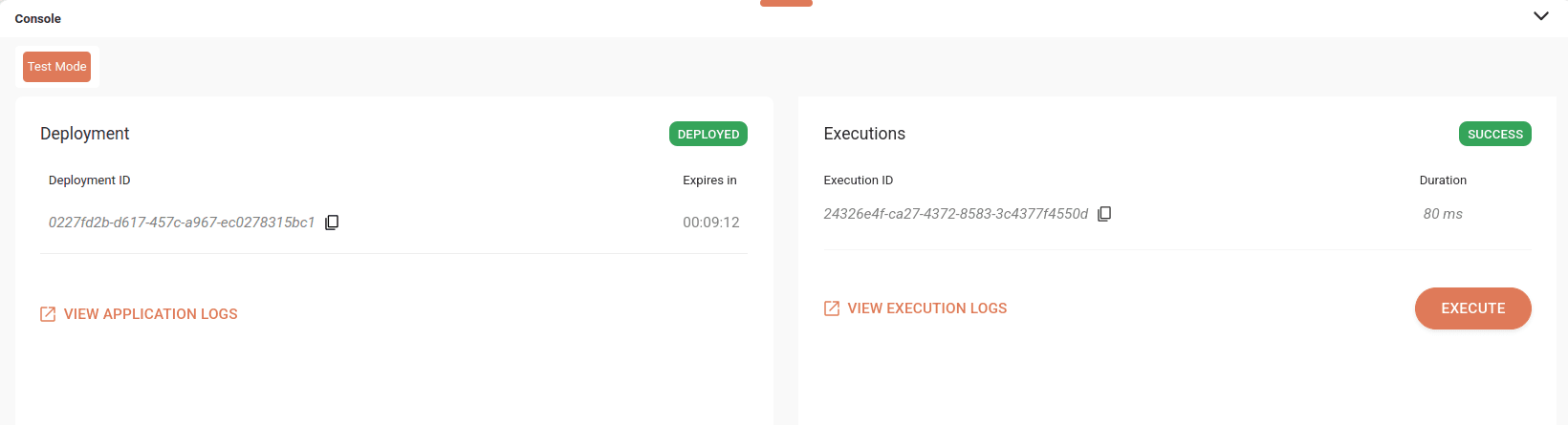
#### Deployment Tab
This tab displays real-time deployment progress, including status (deployed, error, or expired), Deployment ID, and remaining time until temporary deployment expiration.
The default expiration time is 10 minutes. The console displays a countdown timer showing remaining time; when this limit is reached, the deployment status automatically changes from **deployed** to **expired**.
You can also access deployment logs in Sensedia Analytics via the **VIEW APPLICATION LOGS** link.
#### Executions Tab
With an active deployment (deployed status), the **EXECUTE** button becomes available.
Clicking **EXECUTE** runs the integration in test mode. Upon completion, the **Executions** column shows the execution status (success or error).
You can also access execution logs in Sensedia Analytics via the **VIEW EXECUTION LOGS** link.
- After execution, the **EXECUTE** button remains available for new executions, as long as no changes are made to the integration and the deployment remains active (meaning it has not expired).
- The tab displays a list of the five most recent executions, with links to view the corresponding logs.
#### Smart version management (smart redeploy)
The system identifies differences between the saved version and the running version. Therefore:
* If the saved version is identical to the version running in test mode, logs remain accessible (respecting the expiration time limit).
* If you save a change while test mode is running, a visual notification appears on the **Test Mode** button indicating integration changes and that the deployment is outdated.
* Clicking the **Test Mode** button to update the deployment terminates the old version deployment and starts the new version deployment, restarting the lifecycle and expiration timer.
When the **Test Mode** button displays a notification, a new test is needed, either because the deployment expired or is outdated. See [Smart version management (smart redeploy)](#smart-version-management-smart-redeploy).