---
title: Quick Guide - Creating an Integration
description: See how to create an integration from start to finish
documentId: ipaas-legacy-create-flow
locale: en-US
---
Check out this quick guide and **create an integration flow from start to finish**:
## Create authorizations
Click on the **Authorizations** card.
Click on **+ AUTHORIZATIONS**.
Choose the authorization type.
Fill in the form.
Click on **SAVE**.
**Creating an authorization**
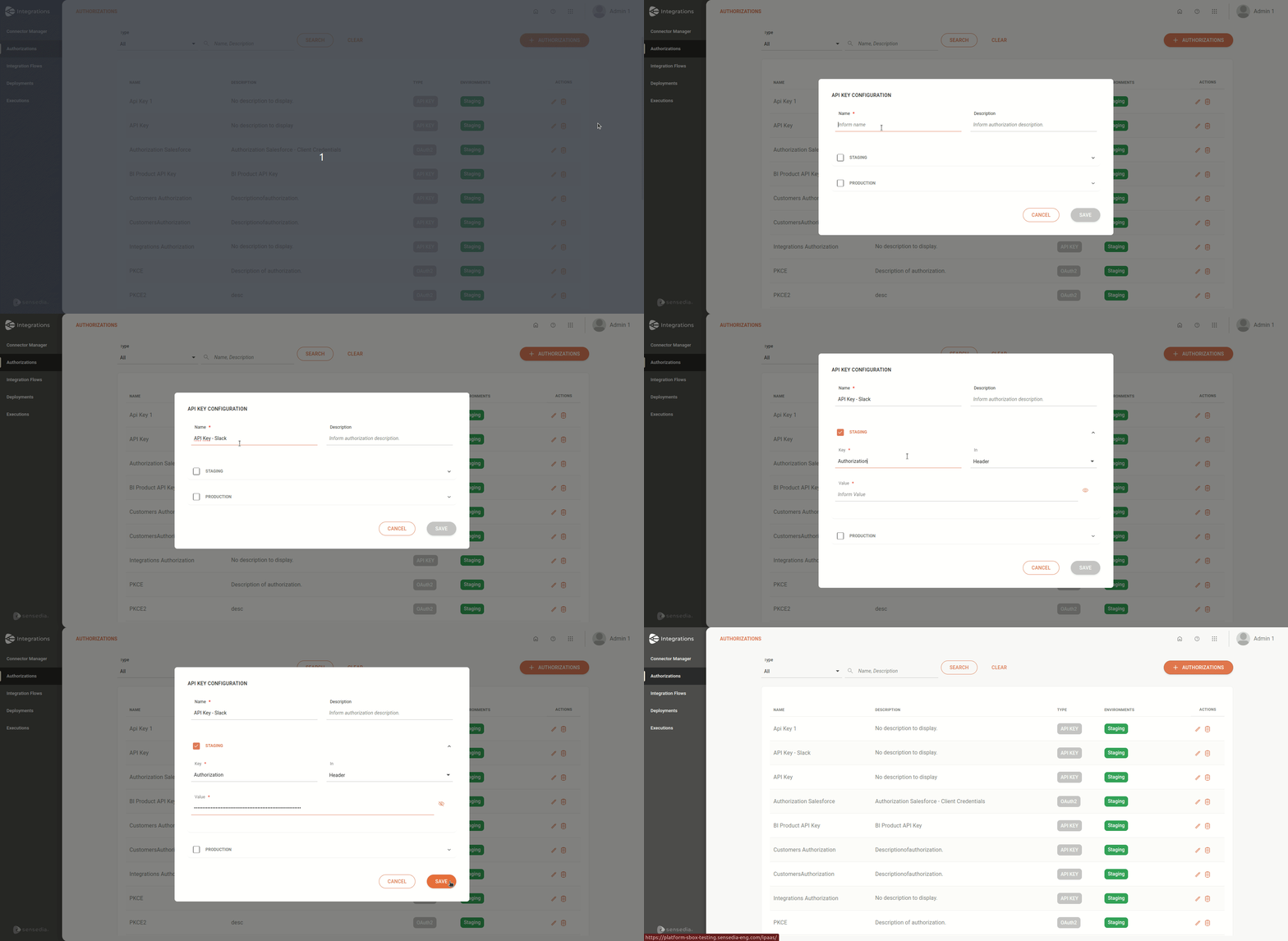
Learn more about creating and configuring authorizations in [Authorizations](/docs/integrations/ipaas-authorizations).
## Create an integration flow
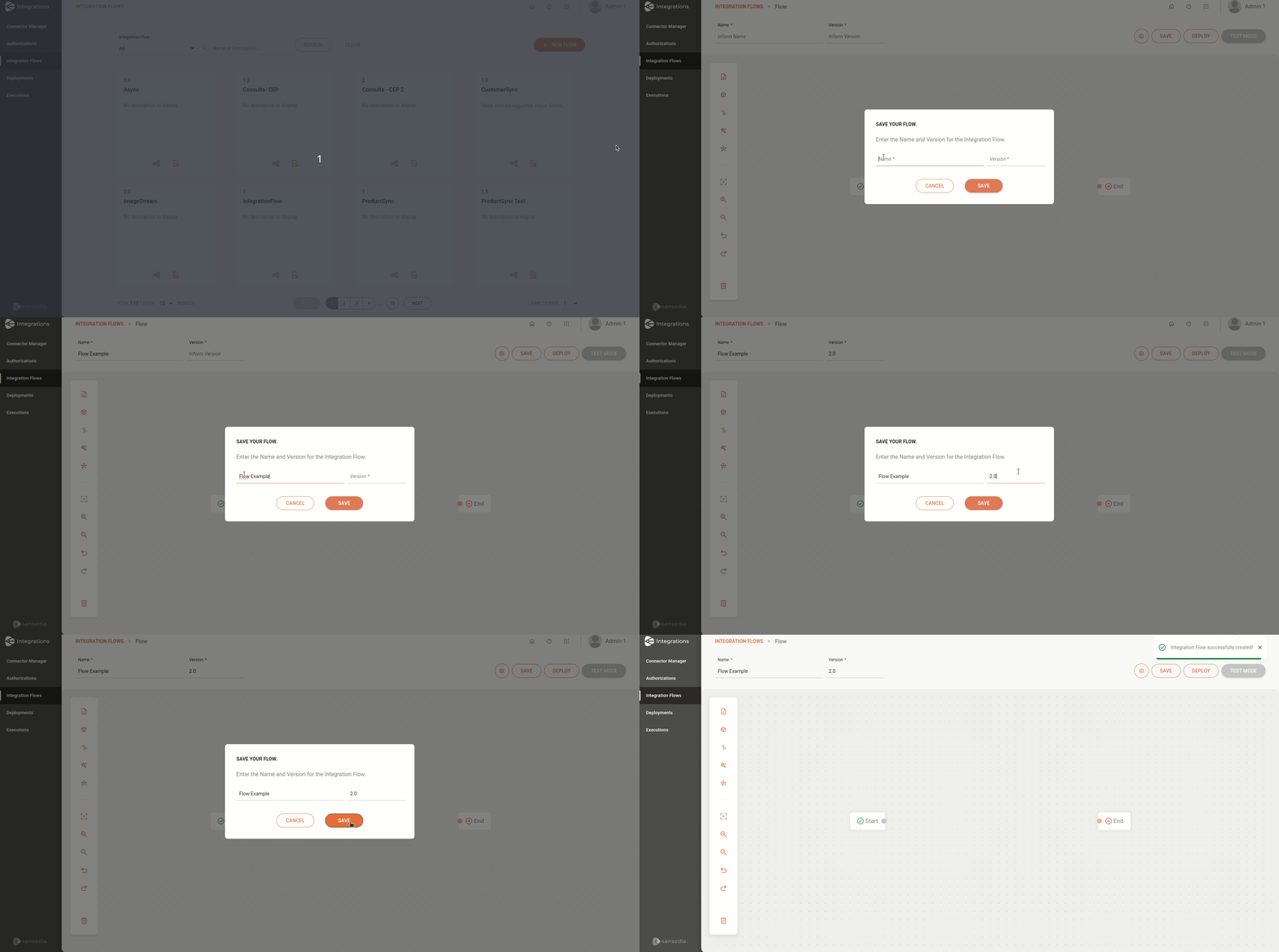
Click on the **Integration Flows** card.
Click on **+ NEW FLOW**.
The canvas is locked when opened.
To unlock it, enter a unique **name** and **version** for the integration flow.
Click on **SAVE**.
## Register environment variables
Click on the  button, in the editing menu on the left.
Fill in the **Name** and **Description** fields in the **INFORMATION** section.
Click on **+ ADD A NEW VARIABLE**, in the **ROOT** section.
Fill in the registration fields:
* **Type**: select the variable type.
* **Variable**: enter the variable name. It is not allowed to register the same variable more than once.
* **Value**: enter the variable value.
Click on **SAVE**.
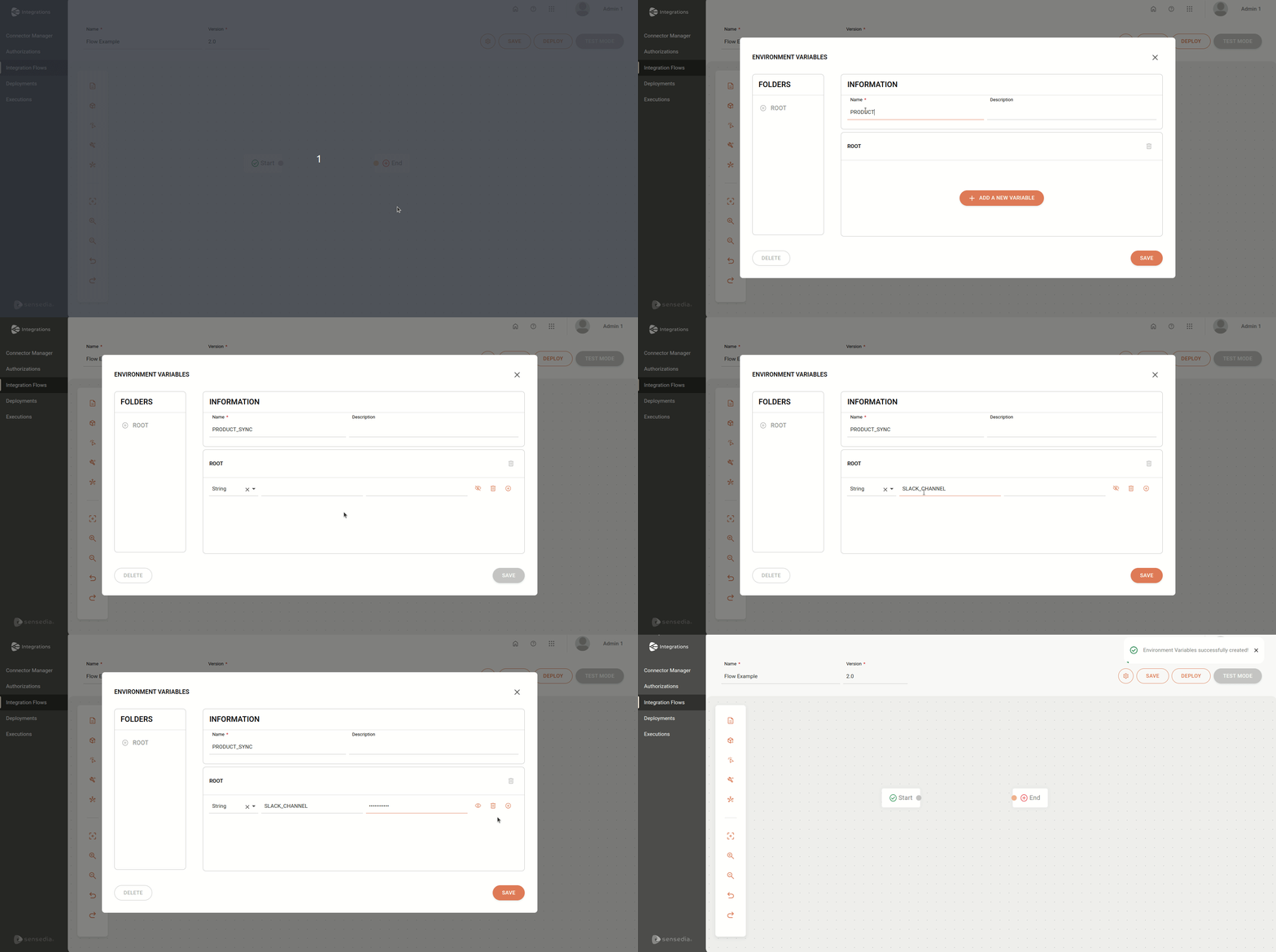
Learn more about creating and configuring [Environment Variables](/docs/integrations/ipaas-legacy-variables).
## Add and configure steps on the canvas
By default, you will see the  **Start** and  **End** steps on the canvas.
They mark the beginning and end of the integration flow, in that order.
### Triggers
To start the integration flow, add a *trigger* type step.
Click on the  icon, in the editing menu on the left.
Select a *trigger*.
The  **Start** is replaced by the *trigger* as soon as you add it to the canvas.
Fill in the form.
Click on **SAVE**.
The *trigger* allows only one connection to the subsequent step.
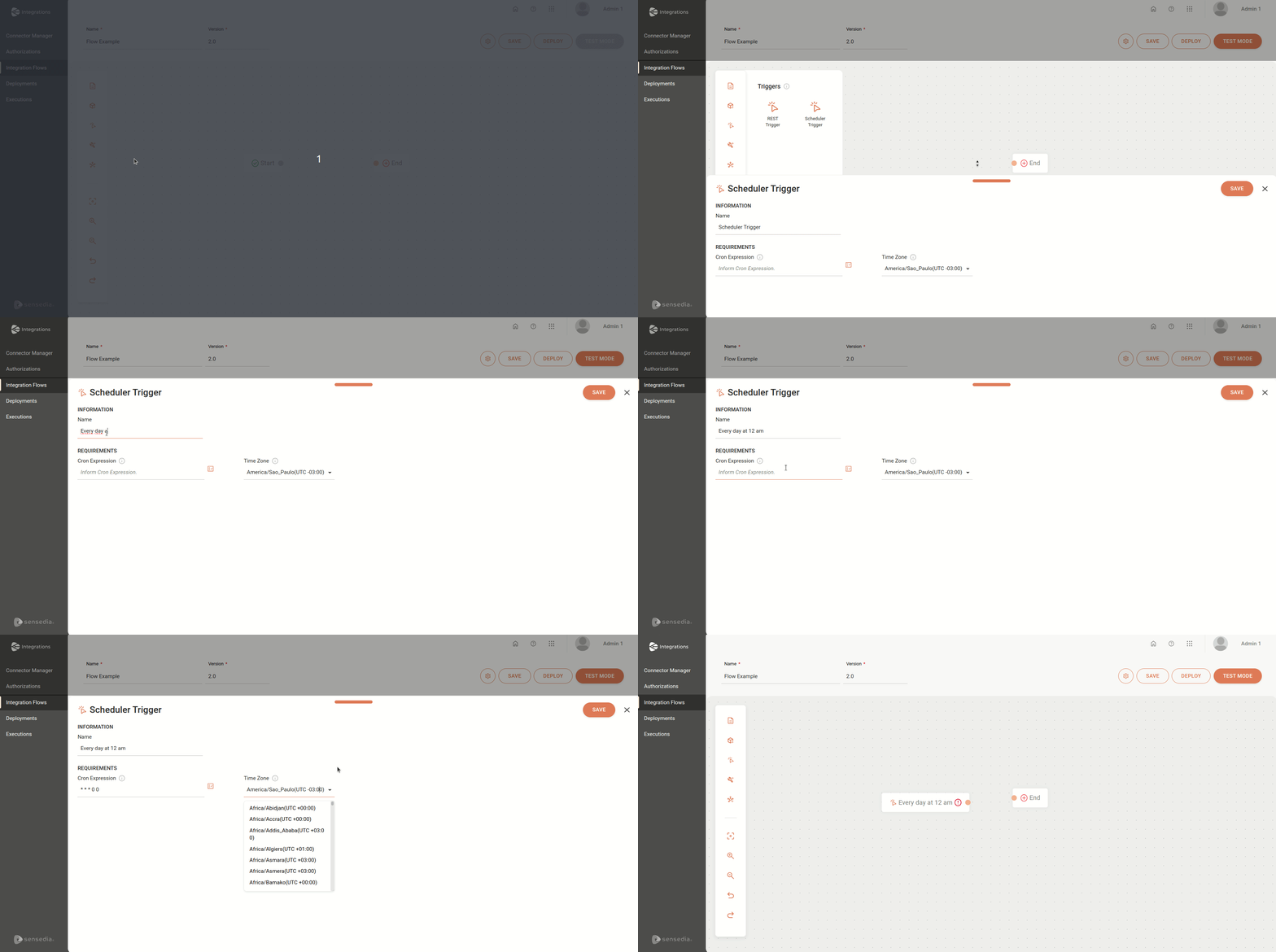
Learn more about configuring [Triggers](/docs/integrations/ipaas-legacy-triggers).
### Connectors
Next, add *connector* type steps to the integration flow.
Click on the  icon, in the editing menu on the left.
Select a *connector*.
Each *connector* allows only one connection to the previous step and one connection to the subsequent step.
Configure the *connector*.
Click on **SAVE**.
After configuring and connecting the *steps*, the  icon will disappear.
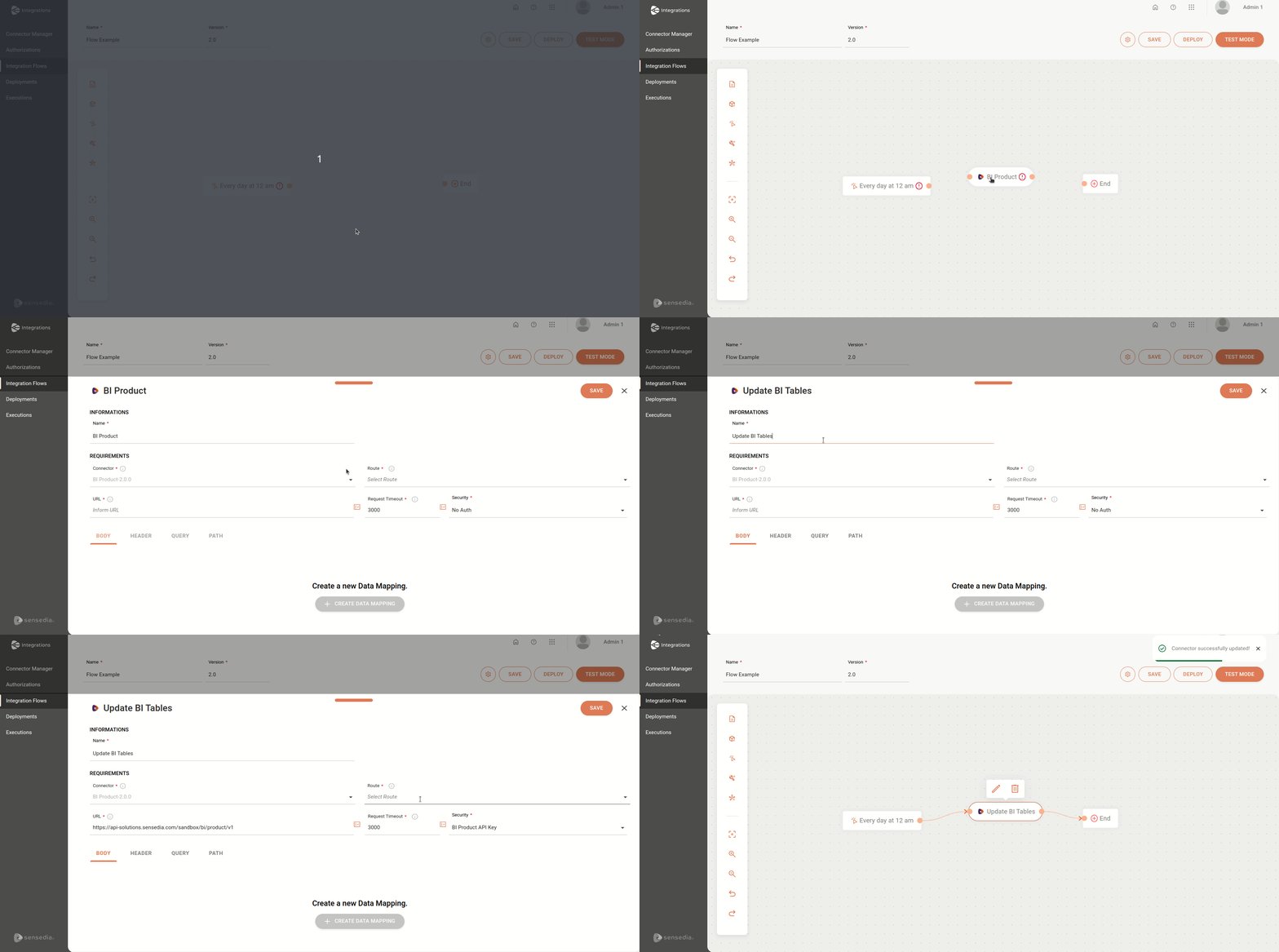
Learn more about configuring [Connectors](/docs/integrations/ipaas-legacy-connectors).
### General Tools
The *General Tools* perform operations with data within the integration flow.
This *step* is not mandatory.
Click on the  icon, in the editing menu on the left.
Select a tool.
Fill in the form.
Click on **SAVE**.
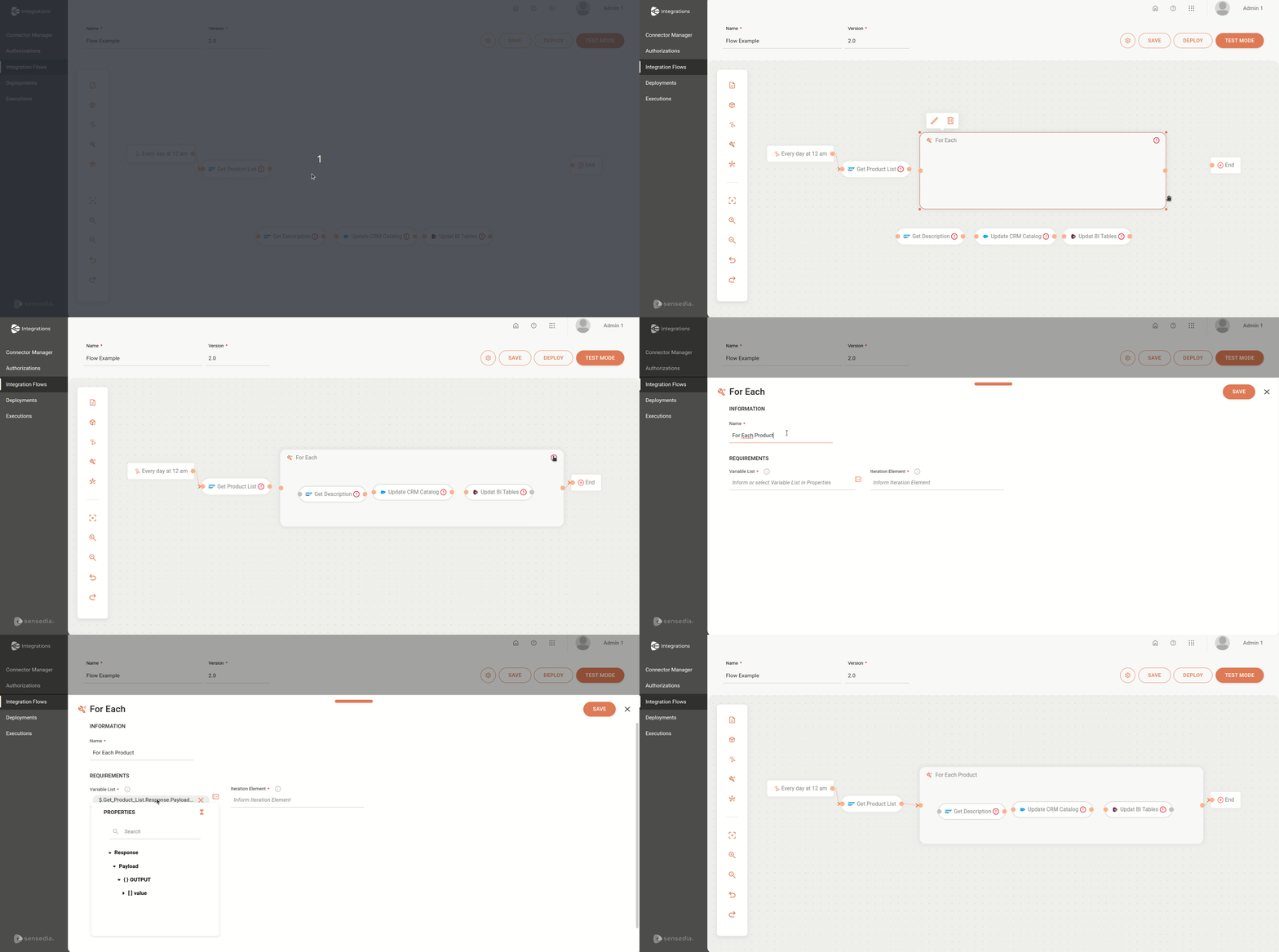
Learn more about the different [General Tools](/docs/integrations/ipaas-legacy-general-tools) and their configurations.
## Save the integration flow and run it in Test Mode
After saving your flow, run a test to check for any errors before deploying.
Click on the **TEST MODE** button, in the upper right corner of the canvas.
If you used the *Rest Trigger* in your flow, define the execution payload in the **Body** field and enter the values for **Headers** and **Query Params**.
Click on the **EXECUTE** button to run your integration flow.
Check the execution information in the **Execution Info** section.
Click on  **View Log** to check the detailed execution logs.
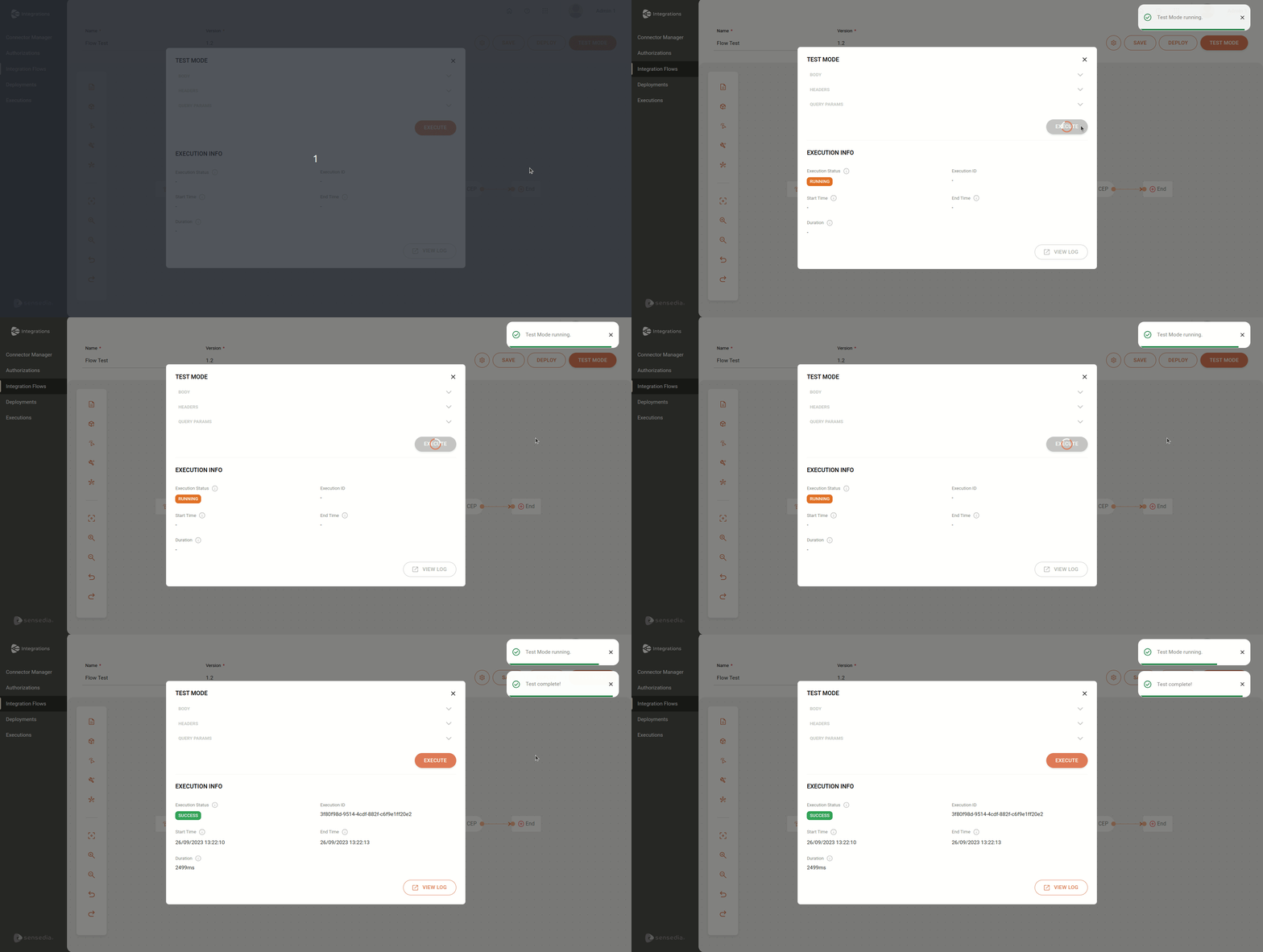
Learn more about the integration flow [Test Mode](/docs/integrations/ipaas-legacy-test-mode).
## Deploy the integration flow
Click on the **DEPLOY** button in the upper right corner of the canvas.
Fill in the fields:
* **Description** *(optional)*: the deployment description.
* **Environment**: selection field to choose the deployment environment. You must choose between:
* *Staging*: testing environment. It is enabled by default.
* *Production*: production environment.
* **Value** *(optional)*: the value of the environment variable registered in the flow. Editable field.
The other fields are read-only.
Click on **DEPLOY** in the lower right corner to deploy your flow.
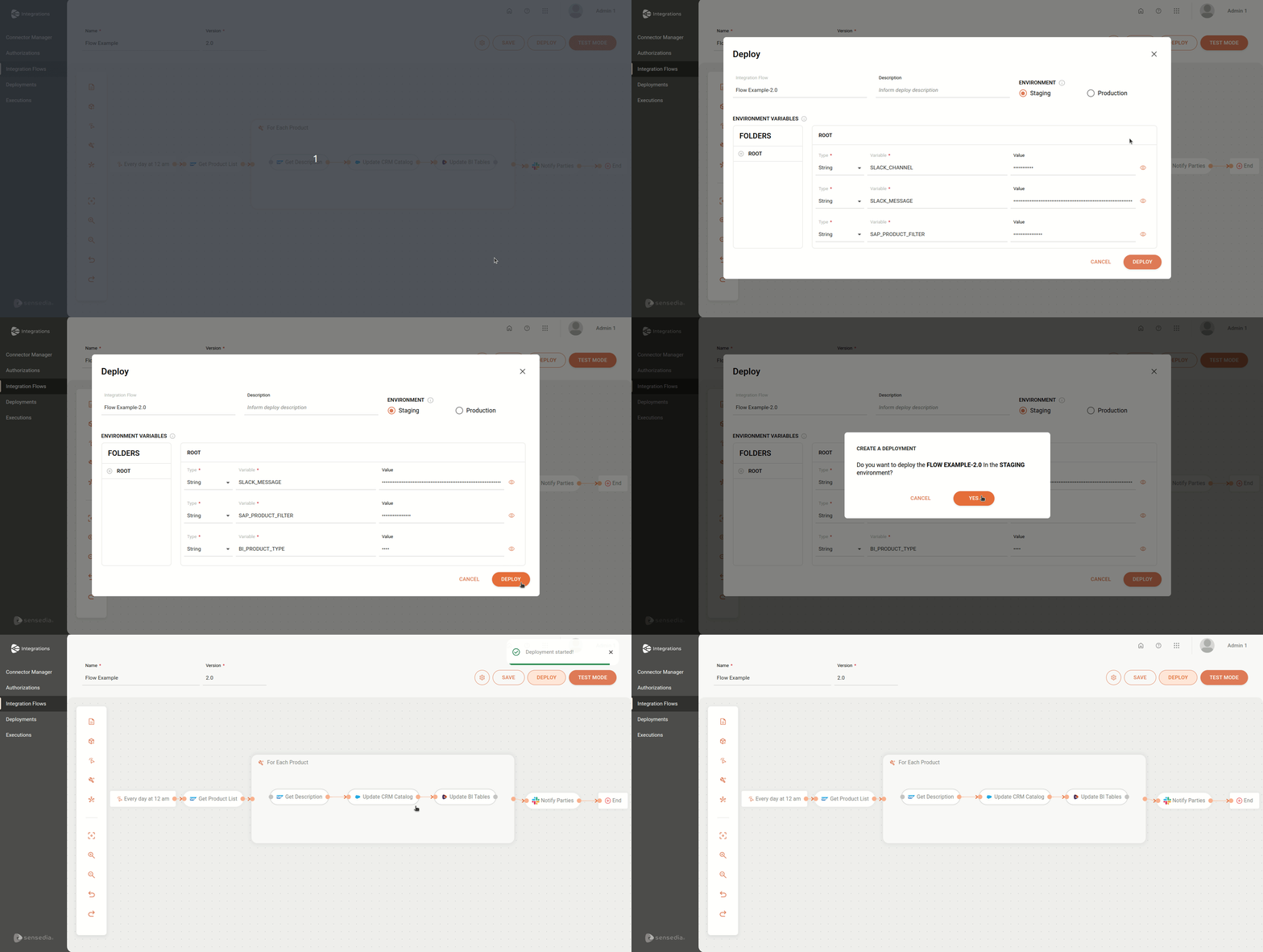
Learn more about the integration flow [Deploy](/docs/integrations/ipaas-legacy-deploy).