---
title: Choice v2
description: Learn about Choice v2
documentId: ipaas-legacy-choice-v2
locale: en-US
---
The **Choice v2** tool performs a flow diversion within an integration based on the *status code*, the *body*, or both.
This *step* is part of the general tools, which help organize integration flows.
Below, learn how to add it to the canvas, configure its form, and understand what configurations are required.
## Add Choice v2 to the canvas
Click the  icon in the left editing menu.
Select **Choice v2** to add it to the canvas.
You can use the search bar  to find it.
You can add **Choice v2** more than once.
In this case, each time the tool is added, a number is appended to the name (Choice v2 1, Choice v2 2, Choice v2 3).
Connect **Choice v2** to the flow *steps*.
This tool can connect with one previous *step* and one or more subsequent *steps*.
To delete **Choice v2** from the canvas, select it and click the  button.
## Configure the form
Select **Choice v2** on the canvas.
Click the edit icon .
When you connect **Choice v2** to the subsequent *step*, its configuration form will open automatically.
Fill in the following form fields:
In the **INFORMATION** section:
* **Name**: enter a unique name for the *step*.
By default, you will see "Choice v2".
Alphanumeric field with a limit of 20 characters.
* **Input Data**: select the *step* that will provide the input data to apply the condition.
You will see the *request* and *response* data from the previous *step*.
It is mandatory to select the input data in the **Input Data** field to enable editing of *steps* in the **CONFIGURATION** section.
The **CONFIGURATION** section will show all *steps* that have an output connection with **Choice v2** on the canvas.
---
To view the settings of a *step* in **Choice v2**, click the down arrow on the right side of the screen.
To edit the settings, click the edit icon next to the trash can.
To modify the order in which *steps* appear on the screen, click the  icon on the corresponding line and drag to the desired position.
To remove a *step* from the **CONFIGURATION** section, click the trash icon next to the *step* name on the right.
---
The alert icon next to the *steps* will disappear after configuring the required form fields.
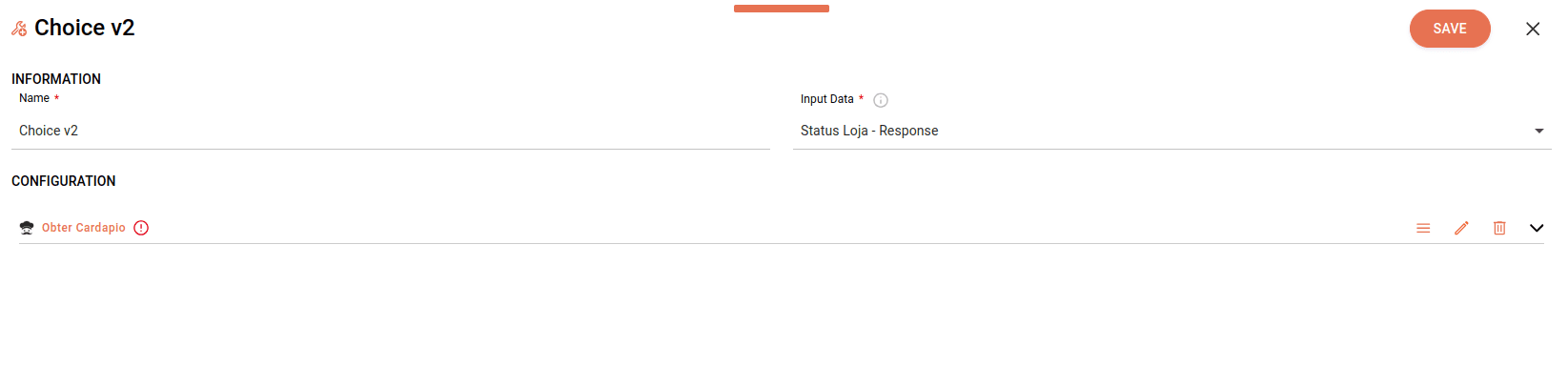
Open the form for each *step* individually by clicking the pencil icon to the right of the *step* name.
Fill in the following validation conditions:
* **Label**: enter a name that identifies the diversion.
Alphanumeric field with a limit of 50 characters.
* **Type**: select an option:
* **WHEN**: defines a condition that creates a diversion in your integration flow to a specific execution line.
If there is more than one *step* with the **WHEN** type, the conditions will be executed according to the order of the *steps* on the screen and you can define the execution order.
The **WHEN** option is already selected by default.
* **OTHERWISE**: is executed when none of the **WHEN** conditions are met.
This field does not allow conditions or *status code* validation.
The *step* with the **OTHERWISE** type will be the last on the list.
When choosing it, you should just click **CONFIRM**.
* **Field Condition**: select the condition that will determine the flow diversion.
You can choose between:
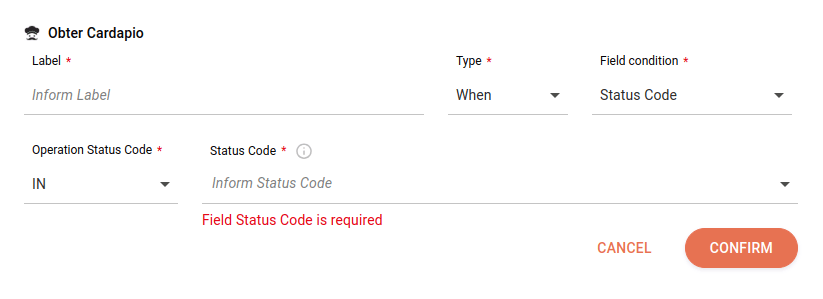
* **Status Code**: adds conditions based on HTTP status codes returned by external API calls.
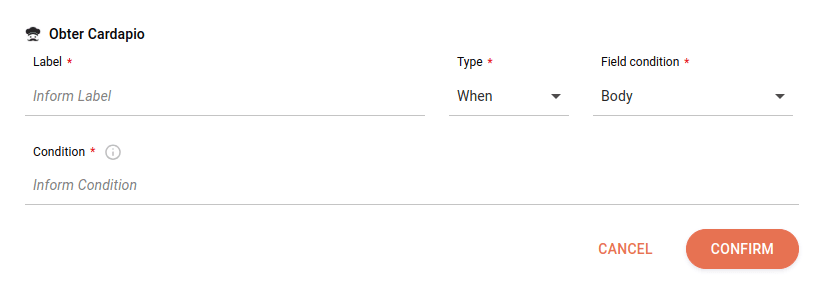
* **Body**: adds conditions based on the *body*.
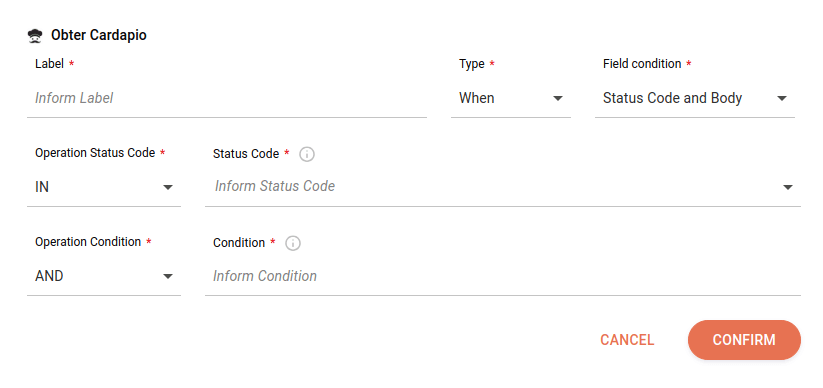
* **Status Code and Body**: combines the two previous options.
The **Status Code** and **Status Code and Body** options will only be enabled for selection if you select a *response* in the **Input Data** field.
Otherwise, the **Field Condition** field will only present the **Body** option.
Depending on the condition you choose in the **Field Condition** field, you must fill in the specific fields that follow:
**Status Code**
* **Operation Status Code**: select the **IN** or **NOT IN** option.
* **Status Code**: enter specific codes: `200`,`404`,`500` etc. or code families: `1XX`,`2XX`,`3XX`,`4XX` and `5XX`.
You can add more than one code or family and can add them alternately.
**Body**
* **Condition**: enter the condition to be applied in the *step*.
Use JSONPath format.
Alphanumeric field that allows special characters and empty spaces, with a limit of 1024 characters.
**Status Code and Body**
* **Operation Status Code**: select the **IN** or **NOT IN** option.
* **Status Code**: enter specific codes: `200`,`404`,`500` etc. or code families: `1XX`,`2XX`,`3XX`,`4XX` and `5XX`.
You can add more than one code or family and can add them alternately.
* **Operation Condition**: select the **AND** or **OR** option.
* **Condition**: enter the condition to be applied in the *step*.
Use JSONPath format.
Alphanumeric field that allows special characters and empty spaces, with a limit of 1024 characters.
To create a condition, visit the [Creating a condition in JSONPath](/docs/integrations/ipaas-legacy-jsonpath) page.
After finishing the form configuration, click **CONFIRM** and, to cancel, click **CANCEL**.
Return to the **Choice v2** screen and when you finish configuring all forms, click **SAVE**.
### Required configurations
---
The alert icon  on **Choice v2** only disappears if there is:
* The input connection on the left.
* At least one output connection on the right.
* A **WHEN** condition.
* An **OTHERWISE** condition.
---
When deleting a connection between **Choice v2** and a *step* on the canvas, the **Choice v2** configuration form will open automatically, allowing you to reconfigure or remove the disconnected condition.