---
title: JSON Transformation v2
description: Learn about JSON Transformation v2
documentId: ipaas-legacy-json-transformation-v2
locale: en-US
---
**JSON Transformation v2** is a *step* that facilitates the manipulation and transformation of JSON data between different systems and applications.
It is an essential resource for ensuring data consistency and compatibility between various APIs and data sources.
---
To transform JSON v2, you will use the JSONata language.
For support, the [JSONata Exerciser](https://try.jsonata.org/) can be accessed directly from the *step* form.
In it, you can:
* Define the structure of the input data.
* Create transformation expressions that generate the output data in the desired format.
* Check for errors in the expression.
To understand this language in detail, consult the [official JSONata documentation](https://docs.jsonata.org/overview.html).
---
We currently provide two versions of the **JSON Transformation** component.
In version 2 (v2), there is no option to select the input data (*input data*), since you can use the input and output data from previous *steps* in JSONata.
Below, learn how to add JSON Transformation v2 to the canvas and configure its form.
## Add JSON Transformation v2 to the canvas
Click the  icon in the left editing menu.
Select **JSON Transformation v2** to add it to the canvas.
You can use the search bar  to find it.
You can add it more than once.
In this case, each time the tool is added, a number is appended to the name (JSON Transformation v2 1, JSON Transformation v2 2, JSON Transformation v2 3).
Connect **JSON Transformation v2** to the flow *steps*.
This tool can connect with one previous *step* and one subsequent *step*.
To copy the *step*, click the  button.
If the *step* form is already configured, the settings will be copied as well.
To delete **JSON Transformation v2** from the canvas, select it and click the  button.
## Configure the form
Select **JSON Transformation v2** on the canvas.
Click the edit icon .
Fill in the **Name** field with a unique name for the *step*.
By default, you will see "JSON Transformation v2".
Add the transformation expression in the **JSONATA** box.
If there are any errors in the expression, you will see a red message in the lower right corner of the box.
You can access the [JSONata Exerciser](https://try.jsonata.org/) to create it by clicking **GO TO JSONATA**.
Then, copy and paste the expression from JSONata Exerciser into the box.
See an [example of how to use JSONata Exerciser to transform a JSON](/docs/integrations/ipaas-legacy-json-transformation#integrating-e-commerce-and-crm).
Click **SAVE**.
## Example
See an example of an integration flow with **JSON Transformation v2** in the GIF:
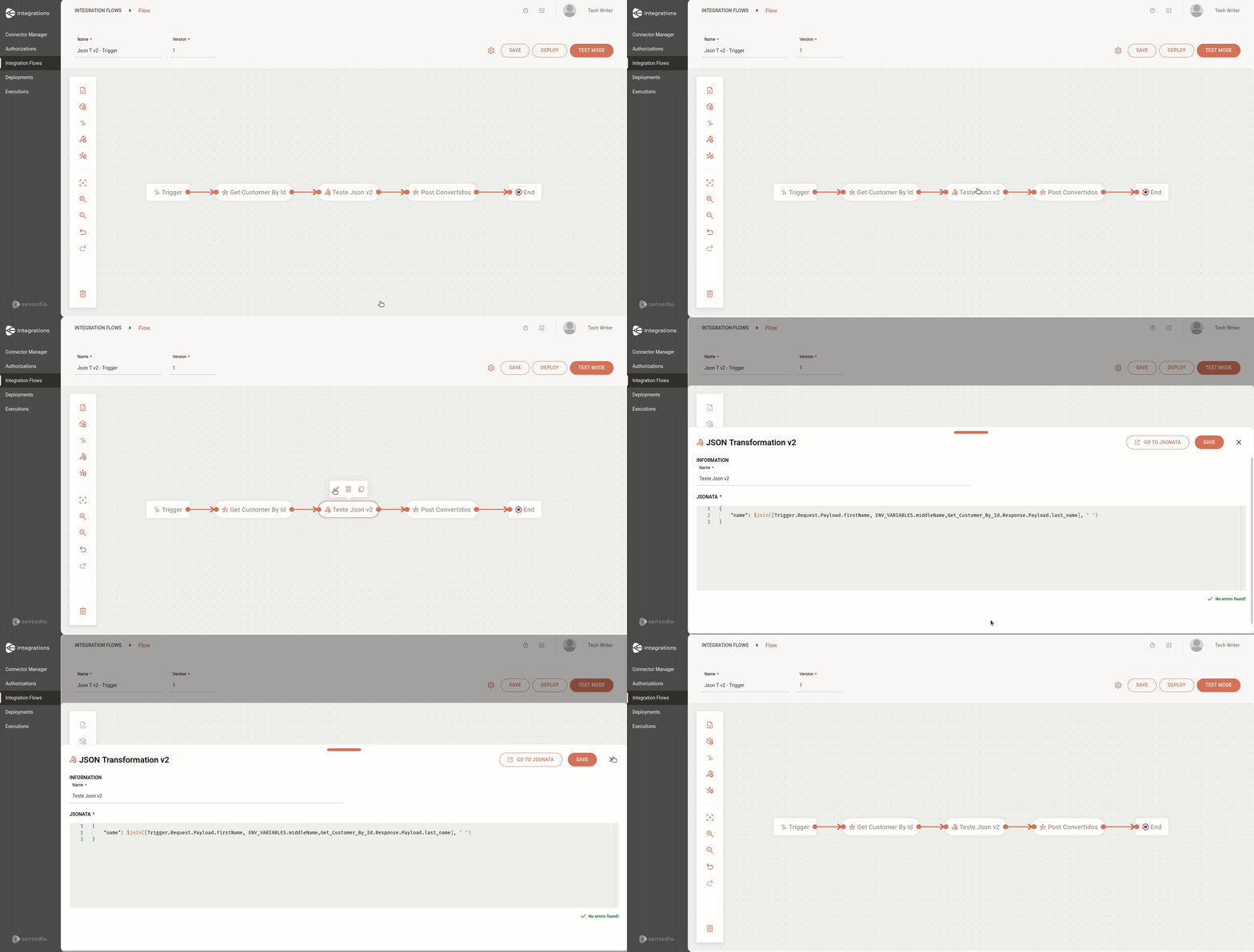
In the example, we have the following components that will be used in the transformation expression in the JSONATA box:
```json
{
"name": $join([Trigger.Request.Payload.firstName, ENV_VARIABLES.middleName,Get_Customer_By_Id.Response.Payload.last_name], ' ')
}
```
1. REST type trigger, whose request *payload* contains the `first name` field.
2. Environment variable `middleName`.
3. *Get Customer by Id* connector, whose response *payload* contains the `last name` field.
This way, the information from the `first name`, `middleName` (environment variable), and `last name` fields will be combined into a single field: `name`.