Thanks for your feedback!
EDIT
Configure the language options for your Developer Portal and ensure a multilingual experience.
The language options available in the Developer Portal interface are defined in Portal Manager and can be changed at any time. You can choose which languages will be available to portal users, as well as set the default language.
|
In the Portal Manager, navigate to "Portal" by clicking the corresponding card on the Home page or in the left sidebar menu.
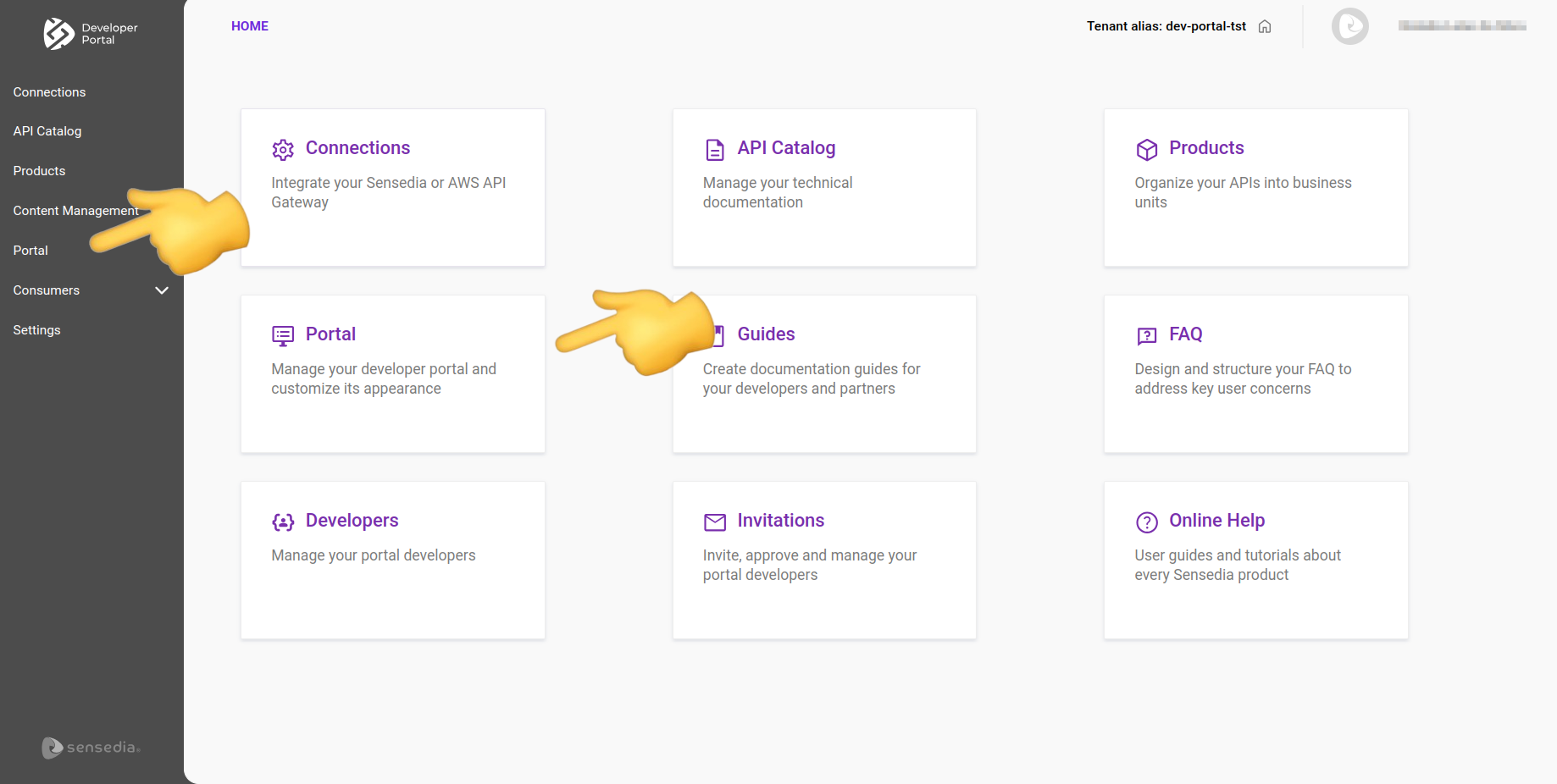
In Portal, select the Settings tab.

Access the screen.
Select the desired language in the "Please select the default language for the portal" field.
Click Save.

|
Access the screen.
Select one or two additional languages in the "Select additional languages to display on the portal" field.
Click Save.

|
After defining the default language and additional languages, be sure to save the settings. Changes will be reflected immediately in the Developer Portal. |
Administrator: the role associated with your user must have the necessary permissions to manage language settings, which are:
Portals
Update Language Settings
View Language Settings
See more about permissions in the Access Control user guide — permissions.

| To choose the language in the Developer Portal, simply click the language icon located in the top right corner of the screen. |
Share your suggestions with us!
Click here and then [+ Submit idea]