- Home
- ...
- Data Streaming
- Configuring your Delivery Stream
The Data Streaming screen lists your Delivery Streams in cards that display the following information:
- Delivery Stream name;
- Whether it is active or inactive;
- Destination: the destination of the delivery stream (Datadog, AWS S3, or Dynatrace);
- Creation Date: date you first configured the delivery stream.
IMPORTANT
- By enabling the export of traces, there may be an increase in the charges for these services, which is not related to Sensedia.
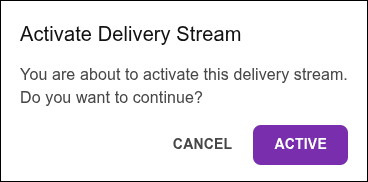
- Activation or deactivation of Data Streaming may take up to 15 minutes.
Configuring a new delivery stream
NOTEData Streaming activation and the creation of new delivery streams, for any destination, are performed by Sensedia. To request them, contact your account manager. The step-by-step instructions below are for reference only and indicate the fields required for the setup of each destination.
You have these destination options for the delivery stream:
- AWS S3 (OTLP)
- AWS S3 (JSON)
- Azure
- Datadog
- Datadog Agent (OTLP)
- Dynatrace
- Google Cloud
- Grafana (OTLP)
NOTE
- For AWS S3 (JSON): The traces will be exported as a compressed gzip object.
- Each exported object can contain multiple traces.
IMPORTANTDue to the encryption of the access keys for Data Streaming, they are not displayed on the screen and cannot be retrieved after they are saved.
TIPIf you cannot create, edit, or delete a Data Stream, please check your access permissions.
TIPSee also: Responsibility matrix of Data Streaming.
Datadog
Creation performed by Sensedia, upon request to your account manager.
To create a new delivery stream with Datadog as destination, follow the steps below:
IMPORTANTBefore activating the delivery stream, assess the impact on your Datadog plan:
- APM Host: exporting traces to Datadog requires the APM Host license.
- Infrastructure hosts: the Sensedia components that send the traces may appear as hosts in the Infrastructure List of your account and be included in the host count. The effect on billing from this count may vary depending on your contract with Datadog.
Step 1
Access Data Streaming from the left menu or click the card located on your Analytics home screen.

Step 3
Complete the fields:
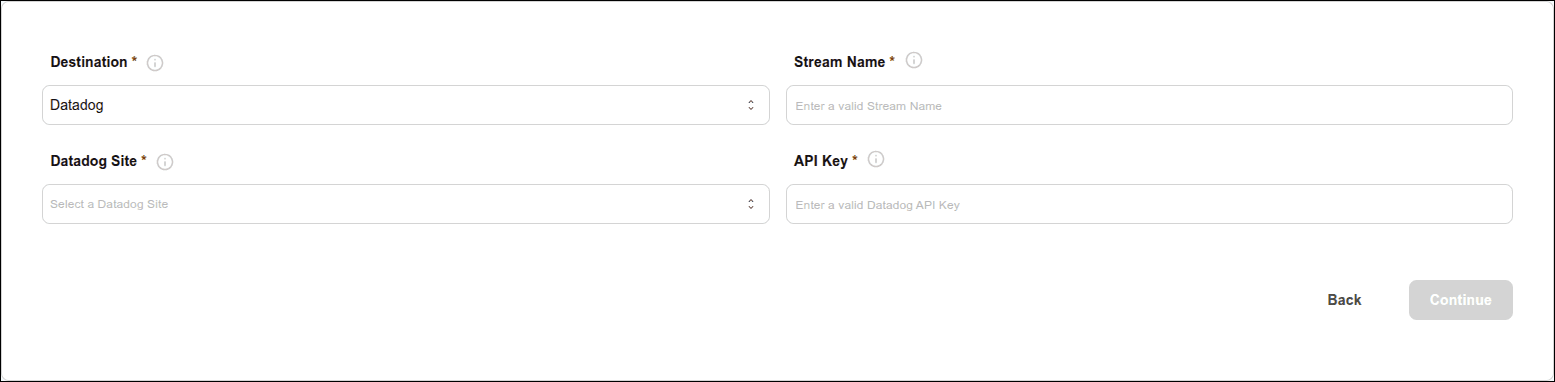
- Destination: Select Datadog;
- Stream Name: Define a name for the delivery stream. Do not use spaces or special characters;
- Site: Select the Datadog site to which your metrics and traces will be sent;
- API key: Enter your API key. This information can be found in Datadog under Organization Settings > API Keys.
AWS S3 (Open Telemetry)
Creation performed by Sensedia, upon request to your account manager.
To create a new delivery stream with AWS S3 as destination, follow the steps below:
Step 1
Access Data Streaming from the left menu or click the card located on your Analytics home screen.
Step 3
Complete the fields:
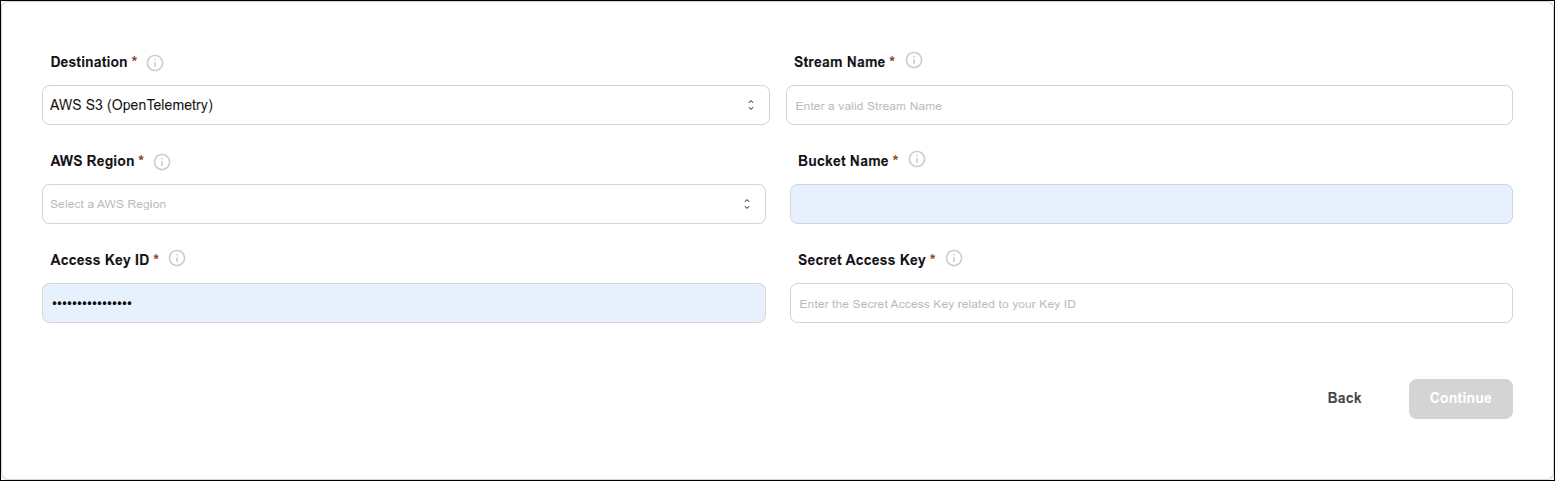
- Destination: Select AWS S3;
- Stream name: Define a name for the delivery stream. Do not use spaces or special characters;
- AWS Region: Select the region where your AWS S3 is hosted;
- Bucket name: Enter an AWS S3 bucket to which the data streams will be sent. You must be the owner of this bucket in order to have the required permissions to use it as destination;
- Access Key ID: Enter the access key ID for your resource;
IMPORTANTThe access key you provide must have the required permissions on the AWS S3 bucket — PutObject, GetObject, and AbortMultipartUpload — when creating the Data Streaming.
- Secret Access Key: Enter the secret access key.
Dynatrace
Creation performed by Sensedia, upon request to your account manager.
To create a new delivery stream with Dynatrace as the destination, follow the steps below:
Step 3
Fill in the fields:
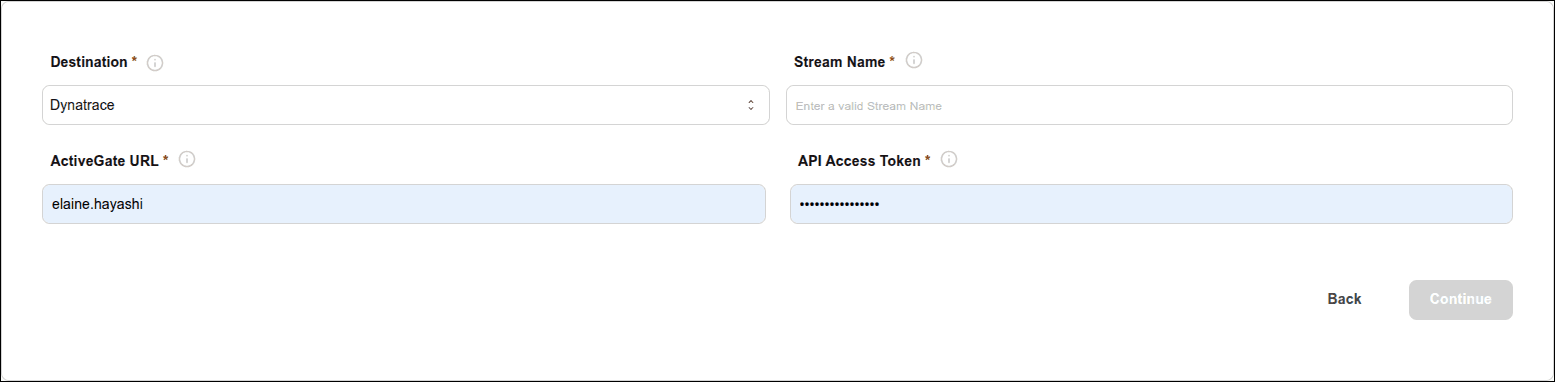
- Destination: select Dynatrace;
- Stream Name: define a name for the delivery stream. Avoid using spaces or special characters;
- Active Gate URL: Provide the URL for your Dynatrace ActiveGate instance. Ensure the URL is accessible and correctly configured to receive the exported data;
- API access token: Enter a valid API token for the Dynatrace destination. The token must have the necessary permissions to authenticate and send data to the specified destination.
NOTEEnsure that the token has permissions for ingesting OpenTelemetry traces, metrics, and logs.
OpenTelemetry Protocol (Datadog Agent)
Creation performed by Sensedia, upon request to your account manager.
To create a new delivery stream with OTLP (Datadog Agent) as the destination, follow the steps below:
IMPORTANTBefore activating the delivery stream, assess the impact on your Datadog plan:
- APM Host: exporting traces to Datadog requires the APM Host license.
- Infrastructure hosts: the Sensedia components that send the traces may appear as hosts in the Infrastructure List of your account and be included in the host count. The effect on billing from this count may vary depending on your contract with Datadog.
Step 3
Complete the fields:
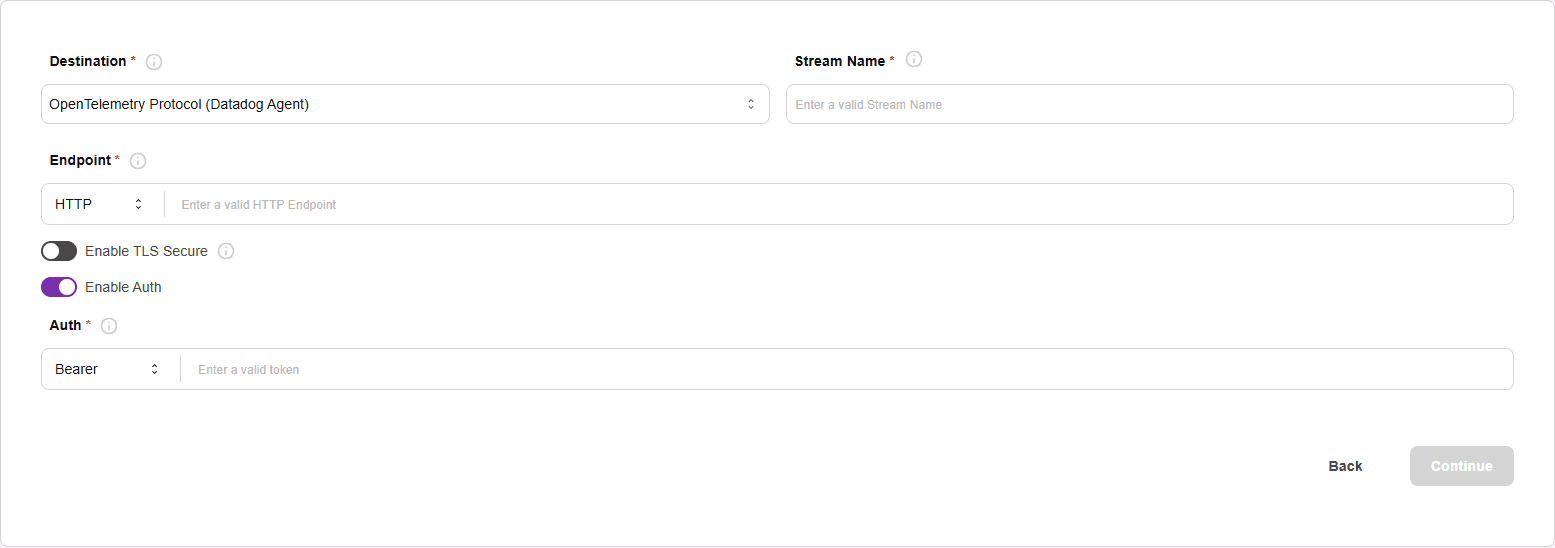
- Destination: Select OpenTelemetry Protocol (Datadog Agent);
- Stream Name: Define a name for the delivery stream. Avoid using spaces or special characters;
- Endpoint: Choose the protocol, HTTP or gRPC, and provide your Datadog Agent endpoint. It must be accessible and correctly configured to receive the exported data;
- Enable TLS Secure: Turn it on to send the data over a secure connection. When it is off, the data travels without TLS;
- Enable Auth: It comes on by default. Turn it off if your Datadog Agent does not require authentication;
- Auth: Choose the authentication type and provide the credential. With Bearer, provide the token; with Basic Auth, provide the credentials encoded in base64.
IMPORTANTWith Enable TLS Secure turned off, the data travels over an insecure connection. Keep the option on whenever the destination supports TLS.
Grafana (OpenTelemetry)
Creation performed by Sensedia, upon request to your account manager.
To create a new delivery stream with Grafana (OTLP) as the destination, follow the steps below:
Step 3
Complete the fields:
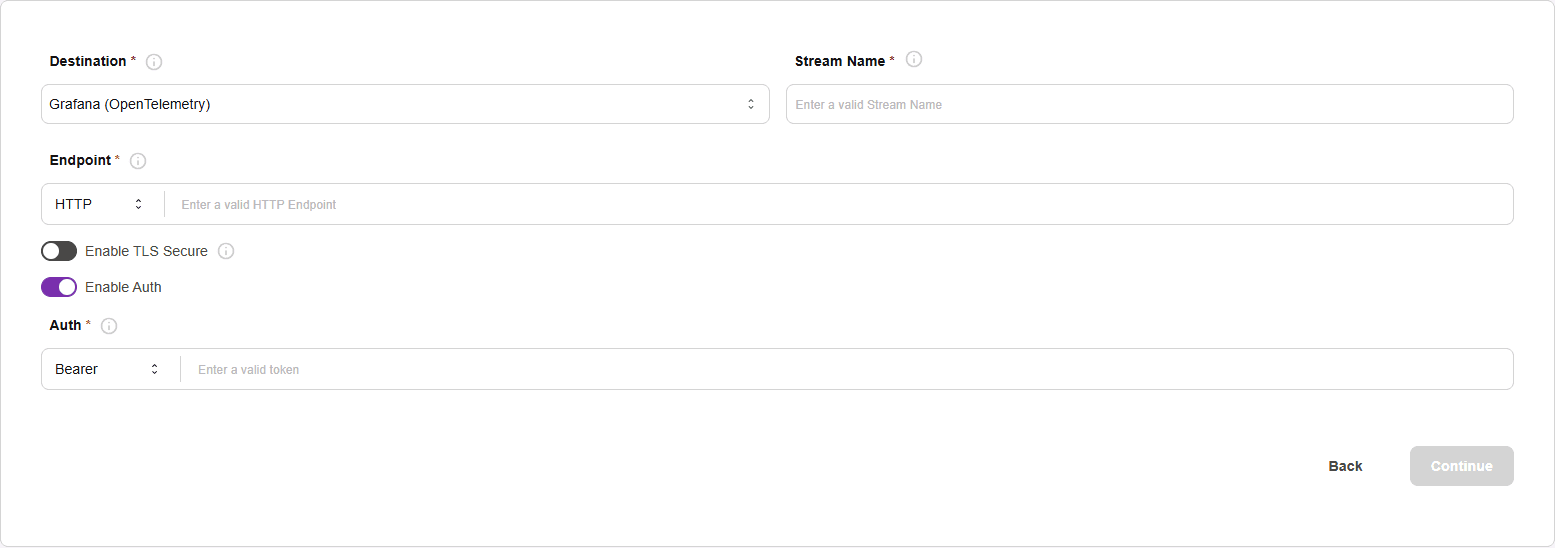
- Destination: Select Grafana (OpenTelemetry);
- Stream Name: Define a name for the delivery stream. Avoid using spaces or special characters;
- Endpoint: Choose the protocol, HTTP or gRPC, and provide your Grafana OTLP endpoint. It must be accessible and correctly configured to receive the exported data;
- Enable TLS Secure: Turn it on to send the data over a secure connection. When it is off, the data travels without TLS;
- Enable Auth: It comes on by default. Turn it off if your Grafana does not require authentication;
- Auth: Choose the authentication type and provide your Grafana credential. With Bearer, provide the token; with Basic Auth, provide the credentials encoded in base64.
IMPORTANTWith Enable TLS Secure turned off, the data travels over an insecure connection. Keep the option on whenever the destination supports TLS.
AWS S3 (JSON)
The configuration for sending data to AWS S3 in JSON is performed by support. Follow the steps below to open a ticket:
NOTEBefore opening the ticket, contact your account manager to align the activation.
Step 4
With the information listed below, click the CREATE TICKET button. You will be redirected to the Zendesk ticket creation screen.
- Delivery stream name: define a name for the delivery stream, without spaces or special characters;
- AWS region: the region where the bucket is hosted;
- Bucket name: name of the AWS S3 bucket to which the data streams will be sent. You must be the owner of this bucket to allow it to be used as a destination;
- Root path (optional): root path of the bucket where the data will be stored;
- Key/secret or role ARN:
- If you provide a key (access key ID), also provide the secret (secret access key) associated with it.
- If you provide a role ARN, you don't need to provide the key and secret. In this case, provide a External ID.
IMPORTANT
Both the access key ID and the role ARN (and the External ID, when applicable) that you provide must have the permissions configured on the AWS S3 bucket — PutObject, GetObject, AbortMultipartUpload — when creating the Data Streaming.
The External ID is mandatory in the Sensedia integration when a Role ARN is used to access the AWS S3 bucket. It adds an extra layer of security by preventing unauthorized entities from assuming the role. You may define any value for the External ID, as long as the same value configured when creating the Data Streaming is also present in the role trust policy in AWS.
When using a role ARN as the authentication method for Data Streaming with AWS S3 as the destination, it is mandatory to configure a trust policy in AWS that allows Sensedia to assume the role.
The ARN of the user that must be authorized is:
arn:aws:iam::996125204292:user/programmatic/datastream-s3
- Partition (partition): the AWS S3 partition where the data will be stored, which can be by year, month, day, and hour. The folders follow UTC-0.
NOTEInformation about Data Transfer has been removed from Data Streaming.
Azure
The configuration for sending data to Azure is handled by the support team. Follow the steps below to open a ticket:
NOTEBefore opening the ticket, contact your account manager to align the activation.
Step 1
Access the Data Streaming screen from the left menu or the card on the home screen of your Analytics.
Step 4
With the information listed below, click the CREATE TICKET button. You will be redirected to the Zendesk ticket opening screen.
- Delivery stream name: define a name for the delivery stream, without spaces or special characters;
- Azure container name: name of the Azure container where the data will be stored;
- Account name: name of the Azure account where the container is located;
- Credentials: provide one of the following credential options:
- Account Key: access key for the Azure account;
- SAS token: shared access signature token;
- Connection string: connection string to the Azure account.
Google Cloud
The configuration for sending data to Google Cloud is handled by the support team. Follow the steps below to open a ticket:
NOTEBefore opening the ticket, contact your account manager to align the activation.
Step 1
Access the Data Streaming screen from the left menu or the card on the home screen of your Analytics.
Step 4
With the information listed below, click the CREATE TICKET button. You will be redirected to the Zendesk ticket creation screen.
- Delivery stream name: define a name for the delivery stream, without spaces or special characters;
- Google Cloud Storage bucket name: name of the Google Cloud bucket where the data will be stored;
- Credentials (service account key from GCP): provide the service account key from GCP.
Editing delivery stream settings
You can change the settings of the delivery streams on the self-service destinations: AWS S3 (OTLP), Datadog, Datadog Agent (OTLP), Dynatrace, and Grafana (OTLP). Follow the steps below:
 .
NOTEOnce changed, the previous settings cannot be recovered.
Deleting a delivery stream
To delete a delivery stream, click  .
NOTE
- Deleted delivery streams cannot be recovered. It may take several minutes for the deletion to take place.
- Some delivery streams can only be deleted by the support team. If the delete button is disabled, please open a ticket.