- Home
- ...
- Connection with Sensedia gateways
- Connection with Sensedia API Management 5.x
Security Credentials
Access and security management for API Management 5.x is handled by Access Control.
A connection with Sensedia API Management 5.x supports two authentication methods:
- Client Apps (M2M): a dedicated machine credential, with its own App Client ID and App Client Secret, its own roles and its own lifecycle (activate, deactivate and delete). It does not depend on a user account and is the method selected by default when you create a new connection.
- User Credentials: authenticates as a platform user, with the client ID and client secret of a user with Super Admin access. It is flagged as LEGACY on the screen and remains available for connections created before.
To use Client Apps (M2M), create a Client App in Access Control and store the App Client ID and the App Client Secret. The Client App needs roles matching the actions the catalog performs on the gateway. See how to create one and assign roles in Client Apps.
To use User Credentials, provide the client ID and the client secret of the user. If you do not have your client secret, revoke your current credentials and create new ones. Whenever you create new credentials, edit the information in your connection.
IMPORTANTThe user needs Super Admin access to create security credentials.
NOTEBoth methods apply to native connections with version 5.x. On 4.x connections, the authentication model is different and does not change.
Creating a New Connection
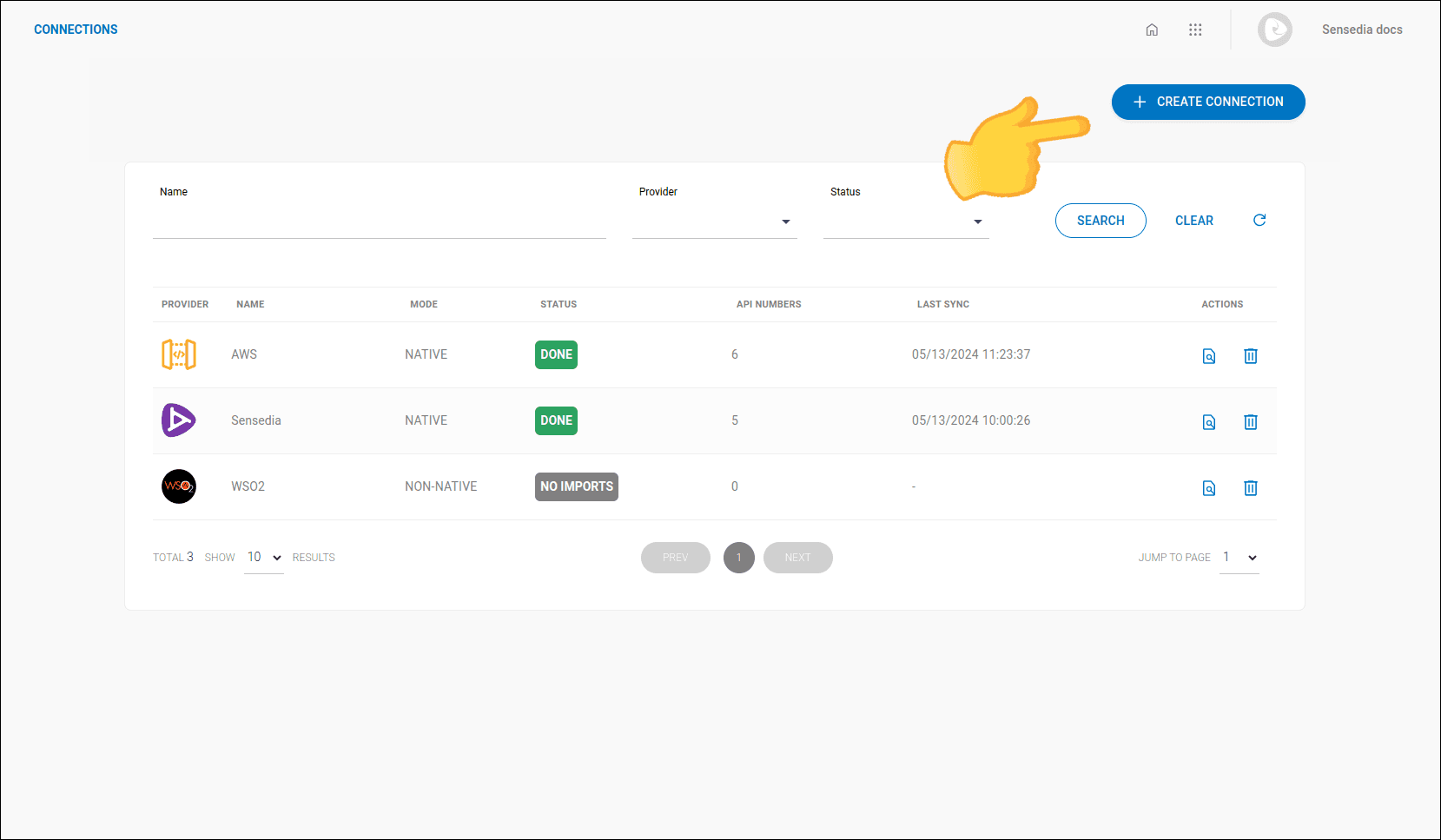
Step 3
Select the connection mode, native (data updated directly with the provider) or non-native (manual upload), and the connection provider.
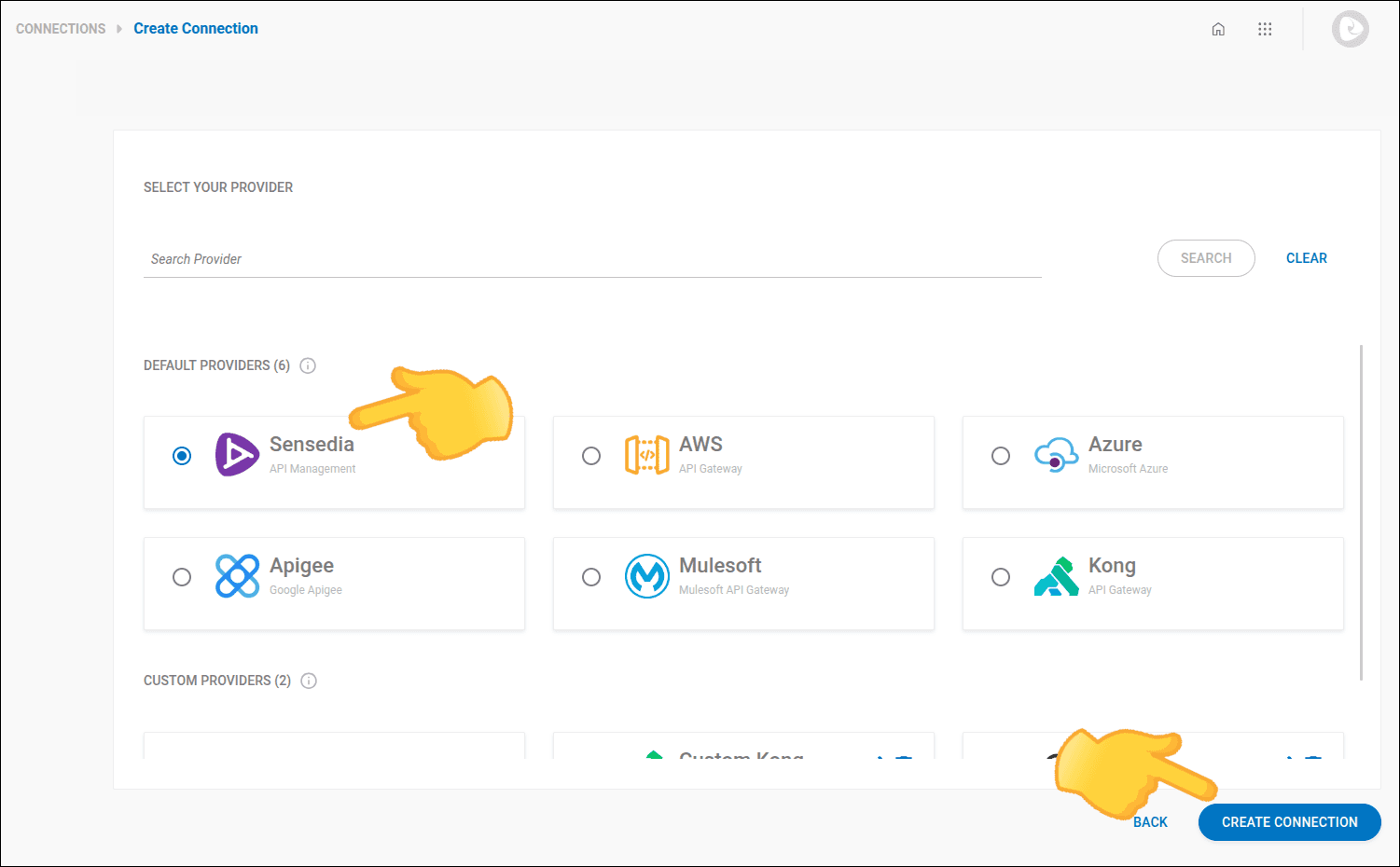
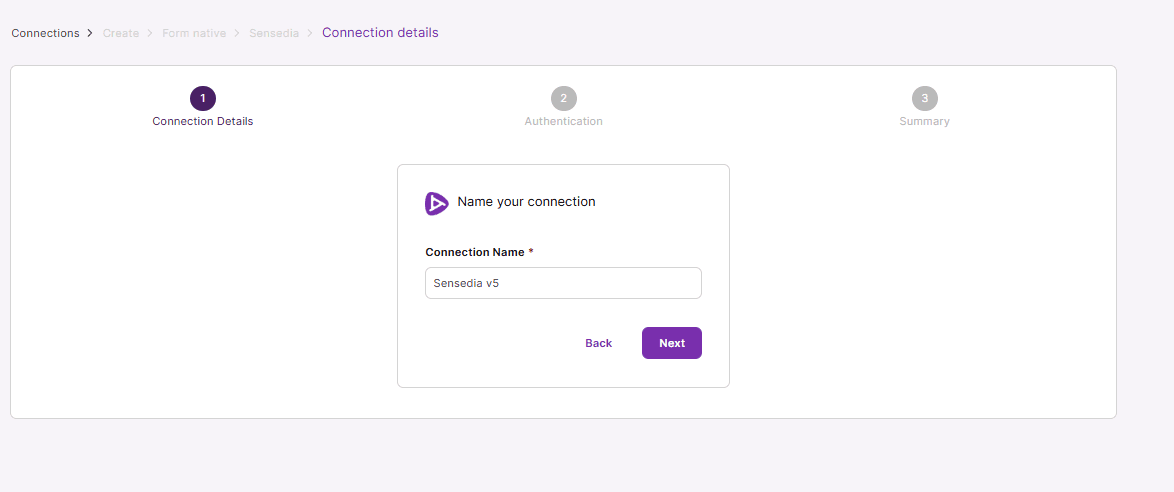
Step 6
In step 2 - Authentication, provide the following information:
- Manager Release: Select the manager version, for example API Management 5.
- Authentication method: Choose between Client Apps (M2M), a machine credential and the option selected by default, and User Credentials, flagged as LEGACY, which authenticates as a platform user.
- App Client ID and App Client Secret, with the Client Apps (M2M) method, or Client ID and Client Secret, with the User Credentials method: the credentials of the selected method.
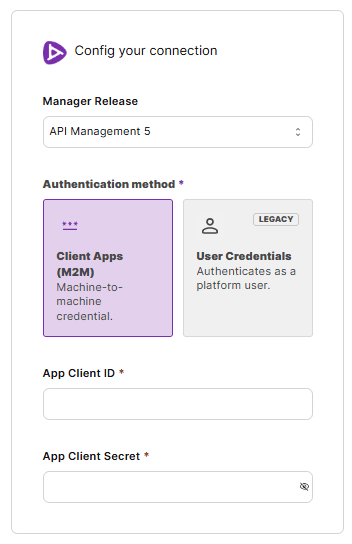
You can also change the authentication method later, when editing the connection, without recreating it.