- Home
- ...
- Portal Manager
- API Catalog
API Catalog
The documentation concerning your APIs that is exhibited in Products is also listed here in API Catalog.
Documentation is automatically loaded when your API is imported, but it is also possible to add it manually.
You may also edit and delete (only documentation that has been added manually) and visualize it.
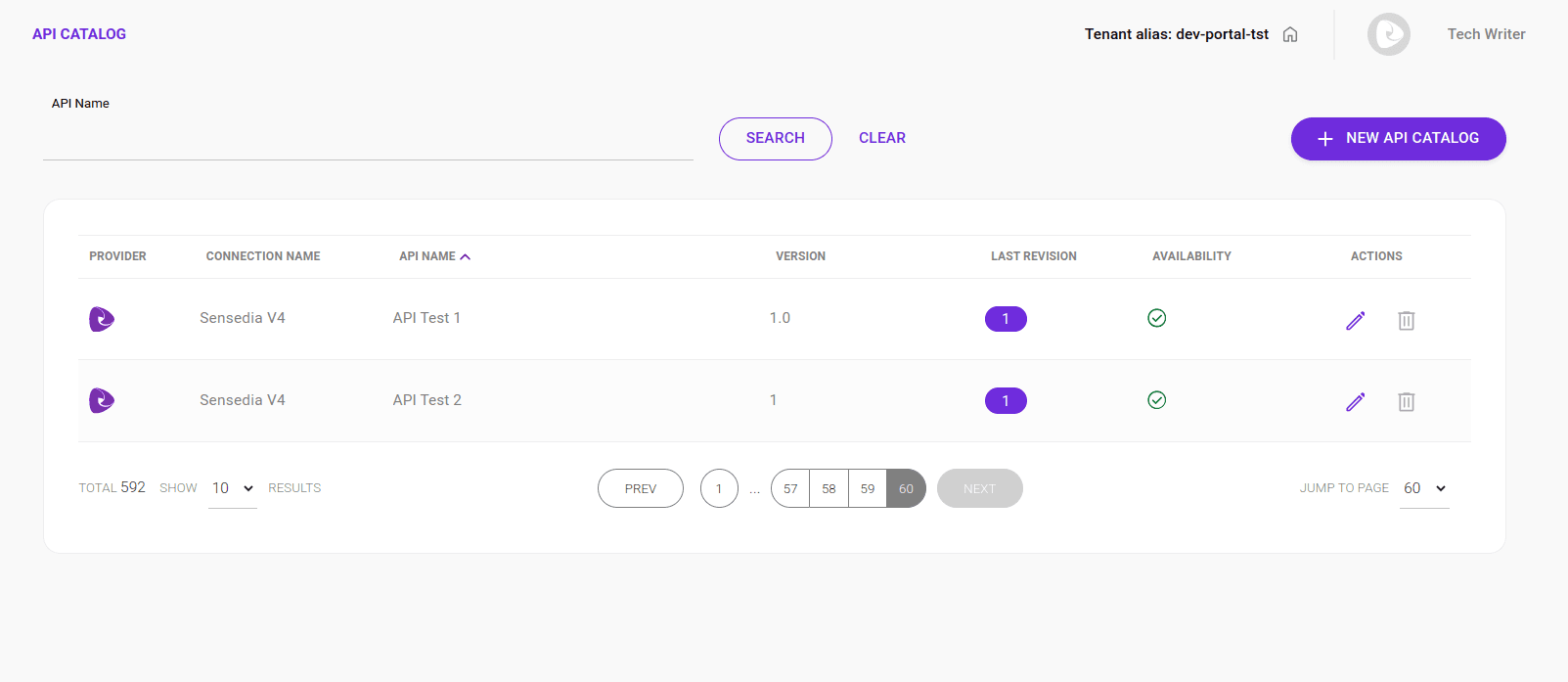
List of API Catalog
Under the list of API Catalog you will find the following columns:
- Vendor: indicated by the icons:
 (Sensedia) and
  (AWS);
 - API Name: the same name as registered on your API Platform;
- Version: API version;
- Last revision: "rev" number;
- Availability: informs whether the API is available for display and to be used by an APP;
- Actions: you can edit, delete and view the documentation by clicking on the respective icon.
NOTEThe action icons for editing (
) and deleting (
) are not available when the documentation has been automatically loaded with the API.
Search
The search field is located just above the list of API Catalog.
You can search the documentation by API name and sort the result in ascending or descending order.
Manual upload
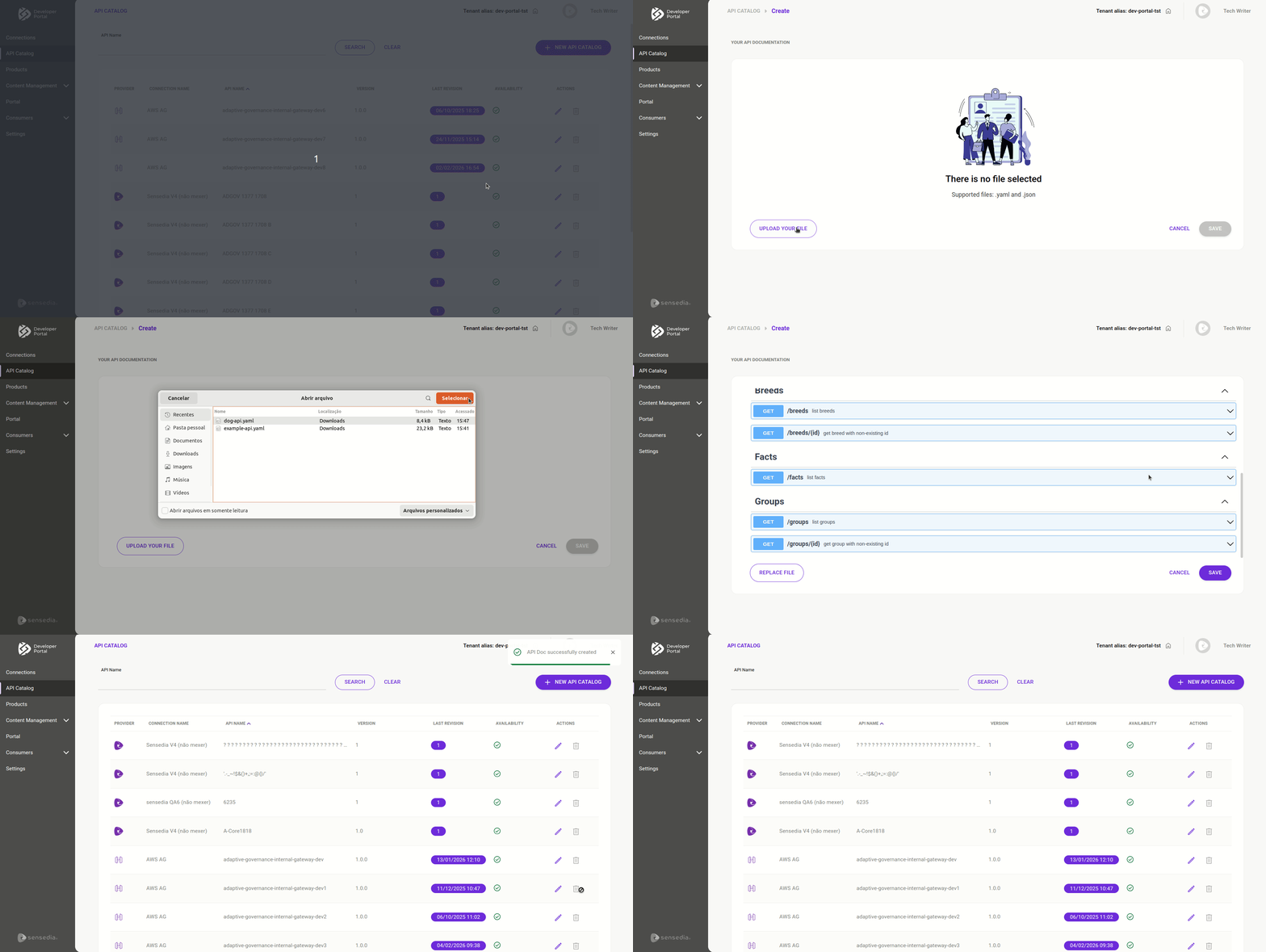
To add documentation manually, follow the steps below:
Step 2
On the next screen, click UPLOAD YOUR FILE, located towards the bottom left part of the screen.
Viewing
To check your documentation, follow the steps below:
 .
.As a result of these steps, the documentation will be loaded and displayed on the screen.
Editing a documentation
To change the documentation, follow the steps below: