Roles
With Roles, you can define user permissions and manage access according to your Developer Portal's rules. This allows for greater control, restricting pages as needed.
NOTEIn Roles you control access to your Developer Portal pages. User roles for accessing Portal Manager are managed by Access Control.
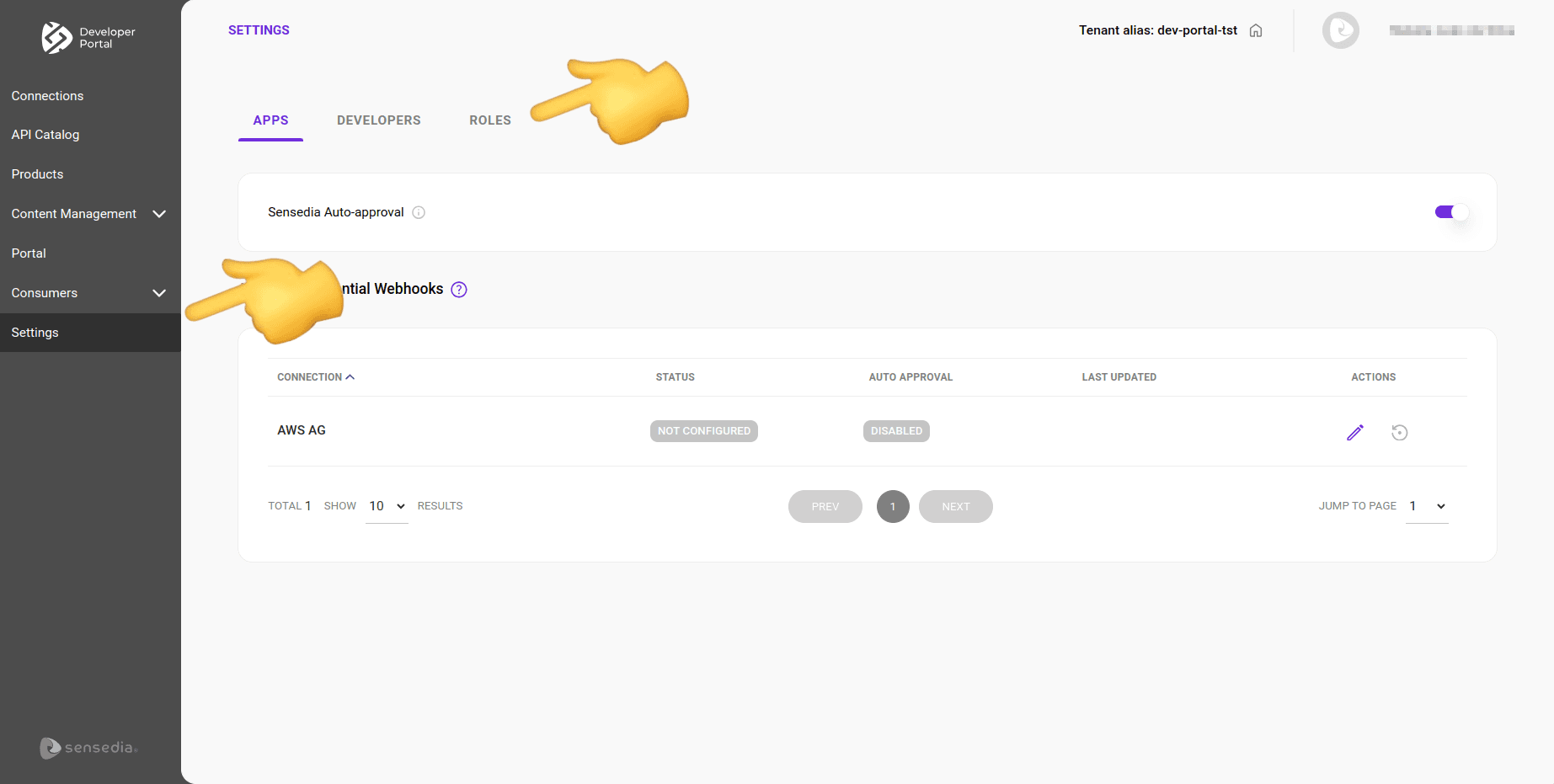
Accessing the Roles tab
To go to the Roles tab:
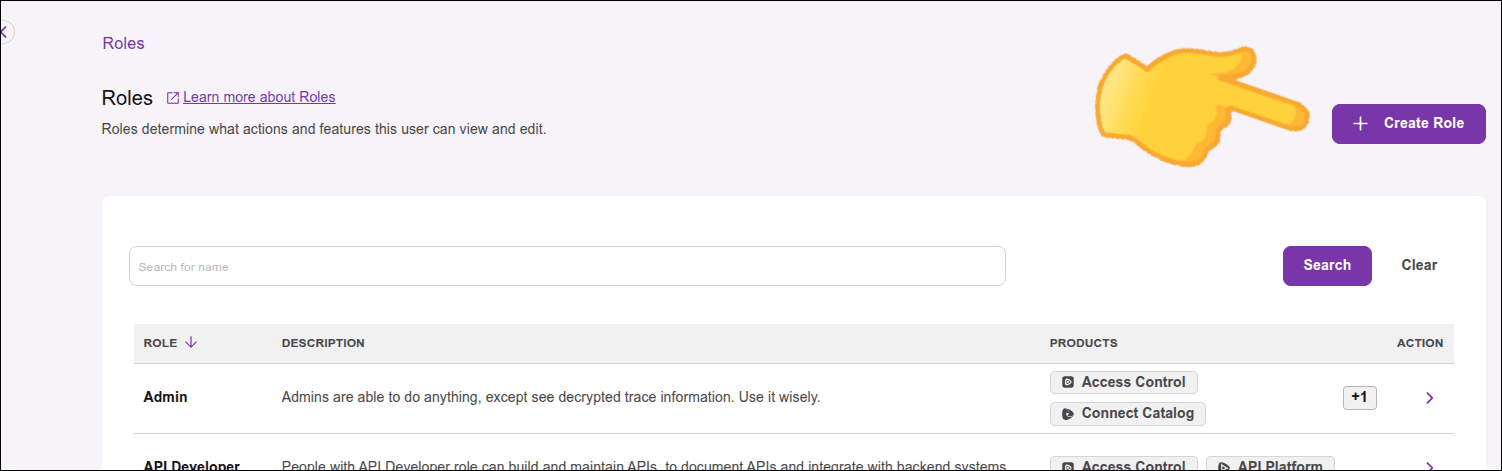
Creating a new role
Follow the steps below to add a role:
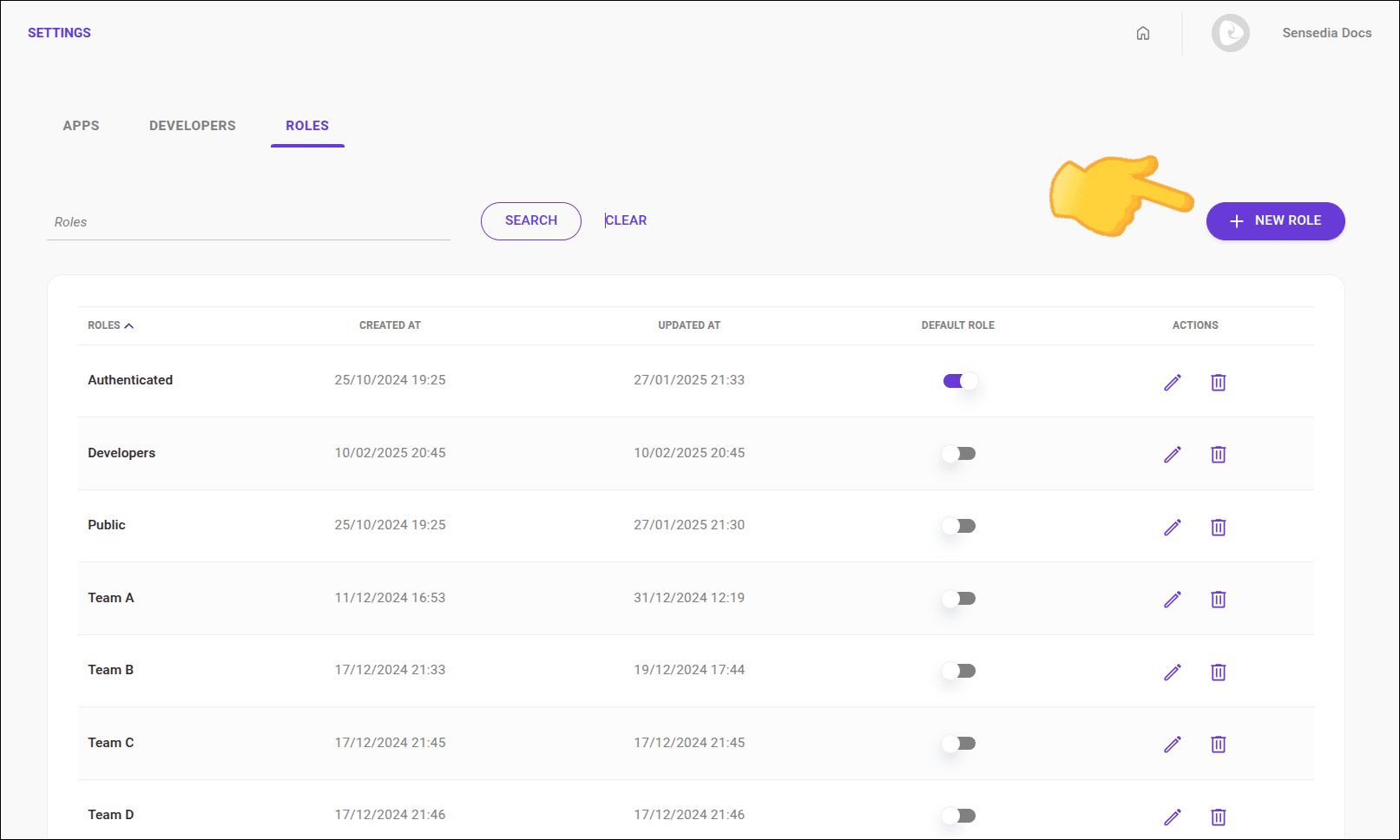
Step 3
Fill in the fields and click SAVE. All fields are mandatory.
- Role name: Define a name for the role with at least 3 characters.
- Role description: Describe the role's restrictions.
- Routes: choose one or more routes to define which areas the user can access.
It is necessary to choose at least one of these routes:
Default role
The default role is assigned to new users who register in your Developer Portal when the automatic approval option is enabled in Settings > Developers of your Portal Manager.
When you create the first role, it is automatically set as the default.
Step 2
In the Default role column of the Roles tab, click the toggle for the role you want to set as default.

NOTE
- A default role cannot be deleted.
To delete, first select another role as default.
Deleting a role
To delete a role:
 for the role you want to delete.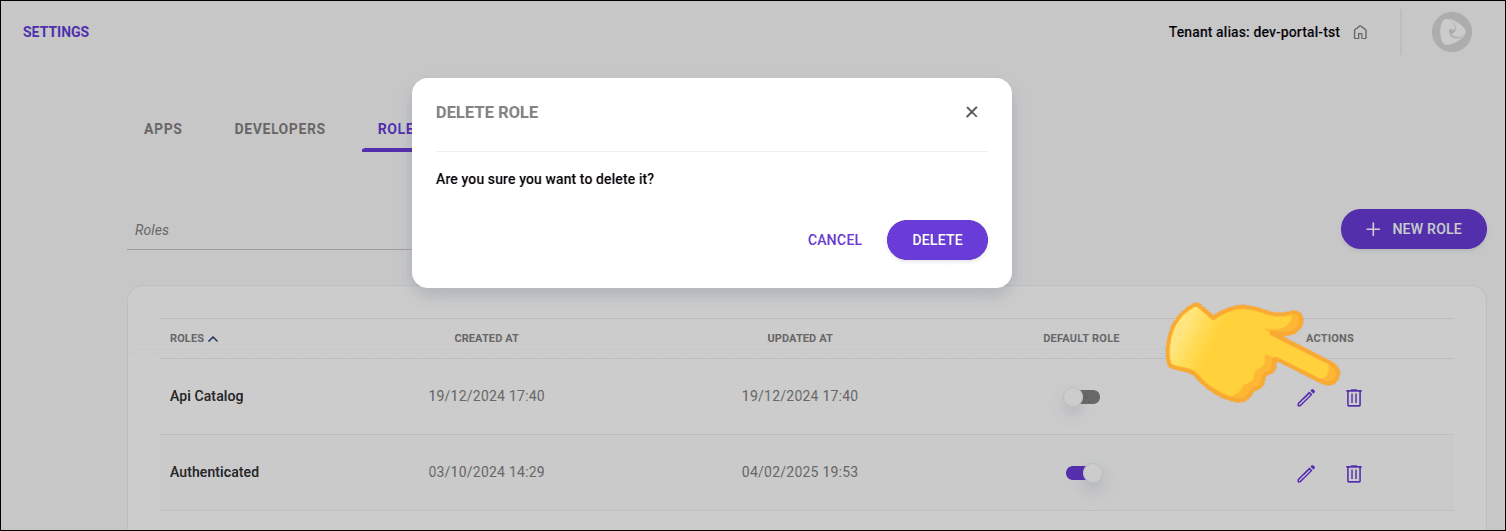
NOTE
- The Authenticated and Public roles cannot be deleted.
- When a role is deleted, users who had the deleted role will be assigned the default role.
Editing a role
Follow the steps below to edit a role:
Step 1
In the ACTIONS column of the Roles tab, click the  icon.
icon.
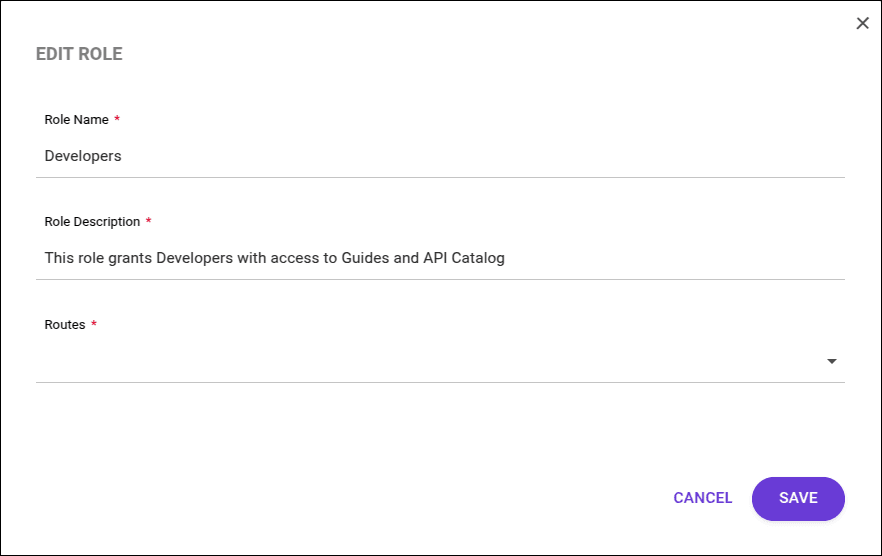
Assigning a role to an existing user
To assign a role to an existing user:
Step 1
Access the Consumers > Developers page by clicking the card on your Portal Manager home page or in the left side menu:
 icon.
icon.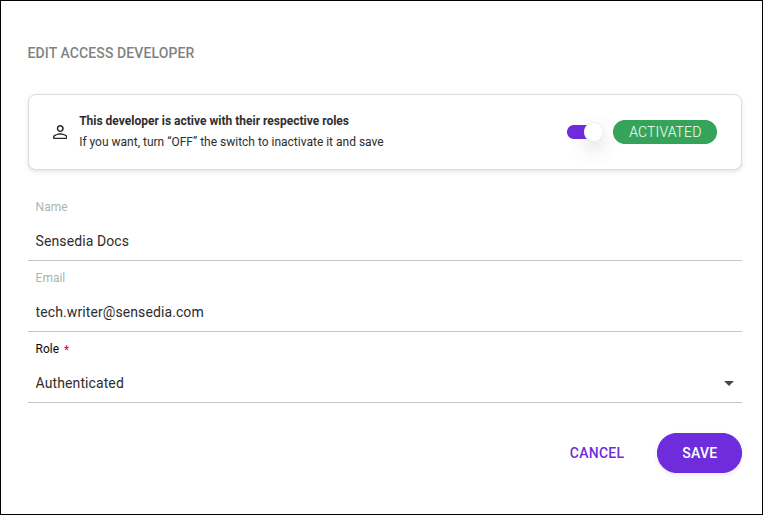
TIP
- See how to assign roles to a user.
- Publish a product so that it appears in the API catalog.
- Create a new product.