Data Quality Engine (Motor de Qualidade de Dados or MQD in Portuguese) is the open-source tool that assesses the quality of the data shared among Open Finance participants, ensuring the integrity of the information.
Sensedia provides tools to make the integration between the Sensedia API Platform, Events Hub, and MQD easier, allowing data to be processed efficiently.
The diagram illustrates this integration:
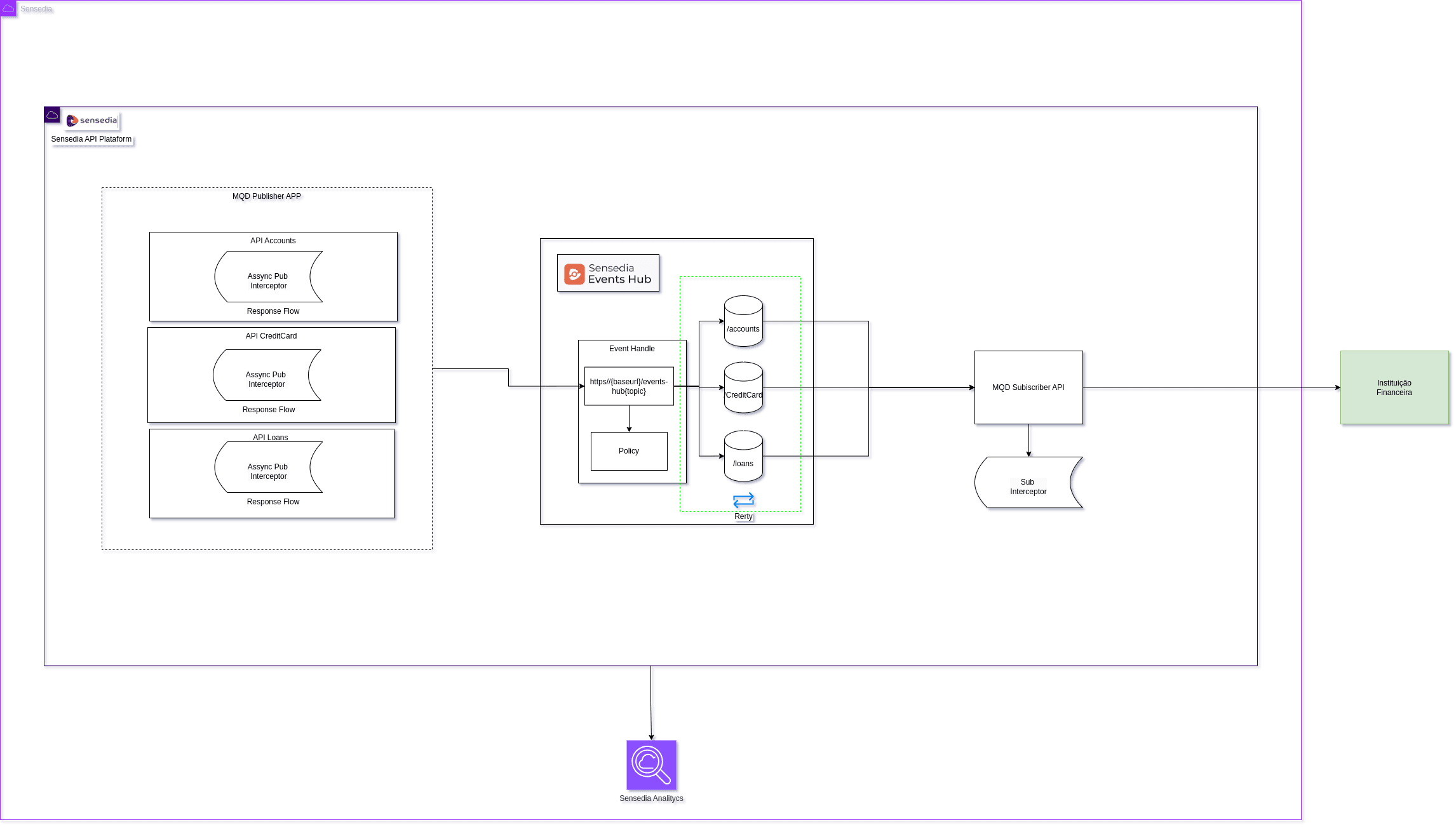
The diagram shows an Open Finance integration flow, in which the Sensedia API Platform acts as the publisher of APIs eligible for the MQD — such as accounts, cards, and loans.
The events generated by these APIs are published asynchronously to the Sensedia Events Hub, which consumes them, applies policies, classifies them, and forwards them, through the MQD Subscriber API, to the financial institution's proxy.
This process ensures efficient, secure, and controlled data delivery.
Check out the step-by-step guide to perform the integration below:
Step 1: Configuring the Events Hub
Context
Create a context, as shown in the following image:
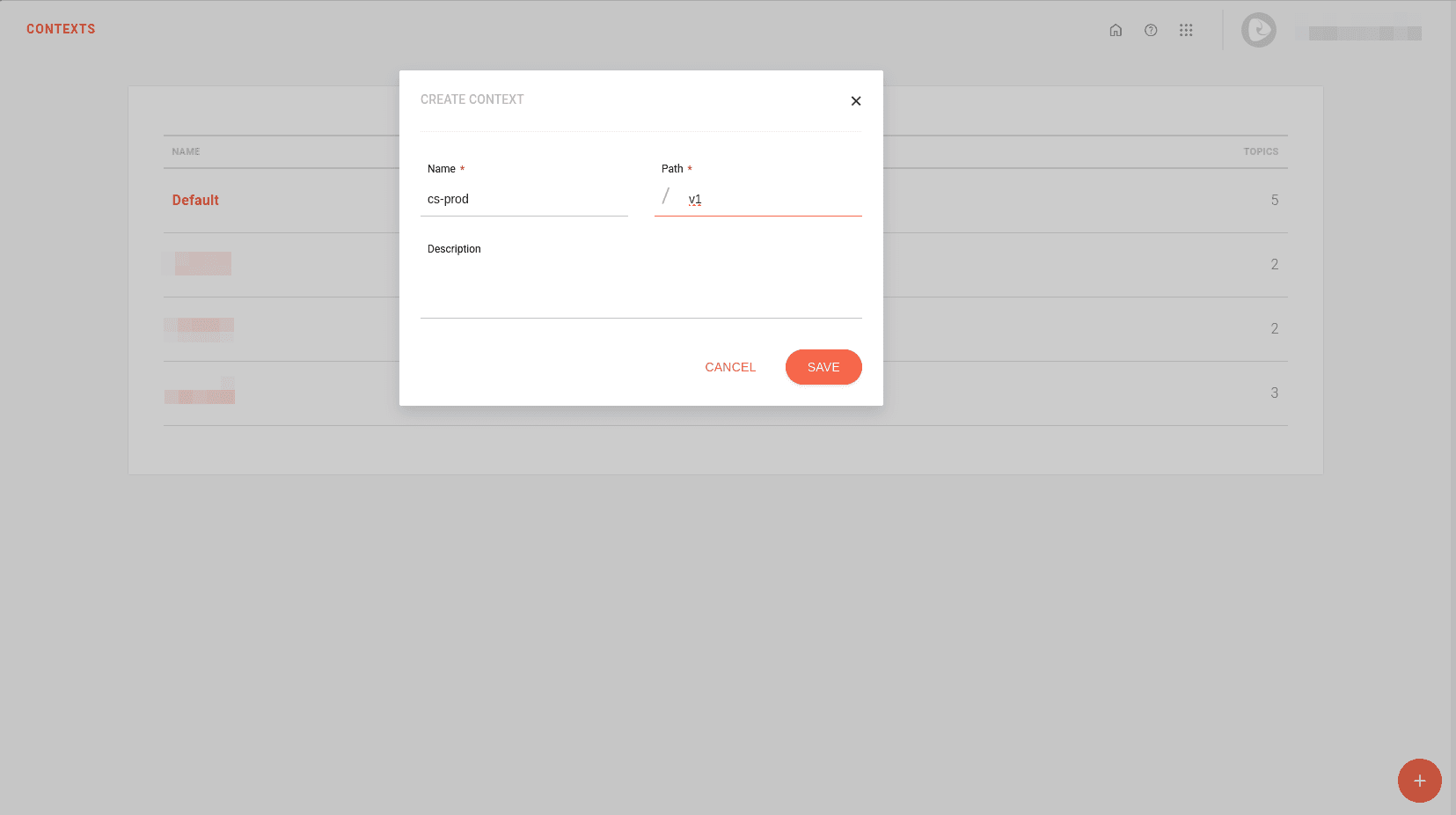
NOTEFind more information about configuring contexts in the Events Hub.
Handler
Create a handler, for example: MQD Handler.
On the Topics step:
Add the client topics:
accounts,consents,creditCardAccounts, etc. You must configure one topic for each data API eligible for the MQD.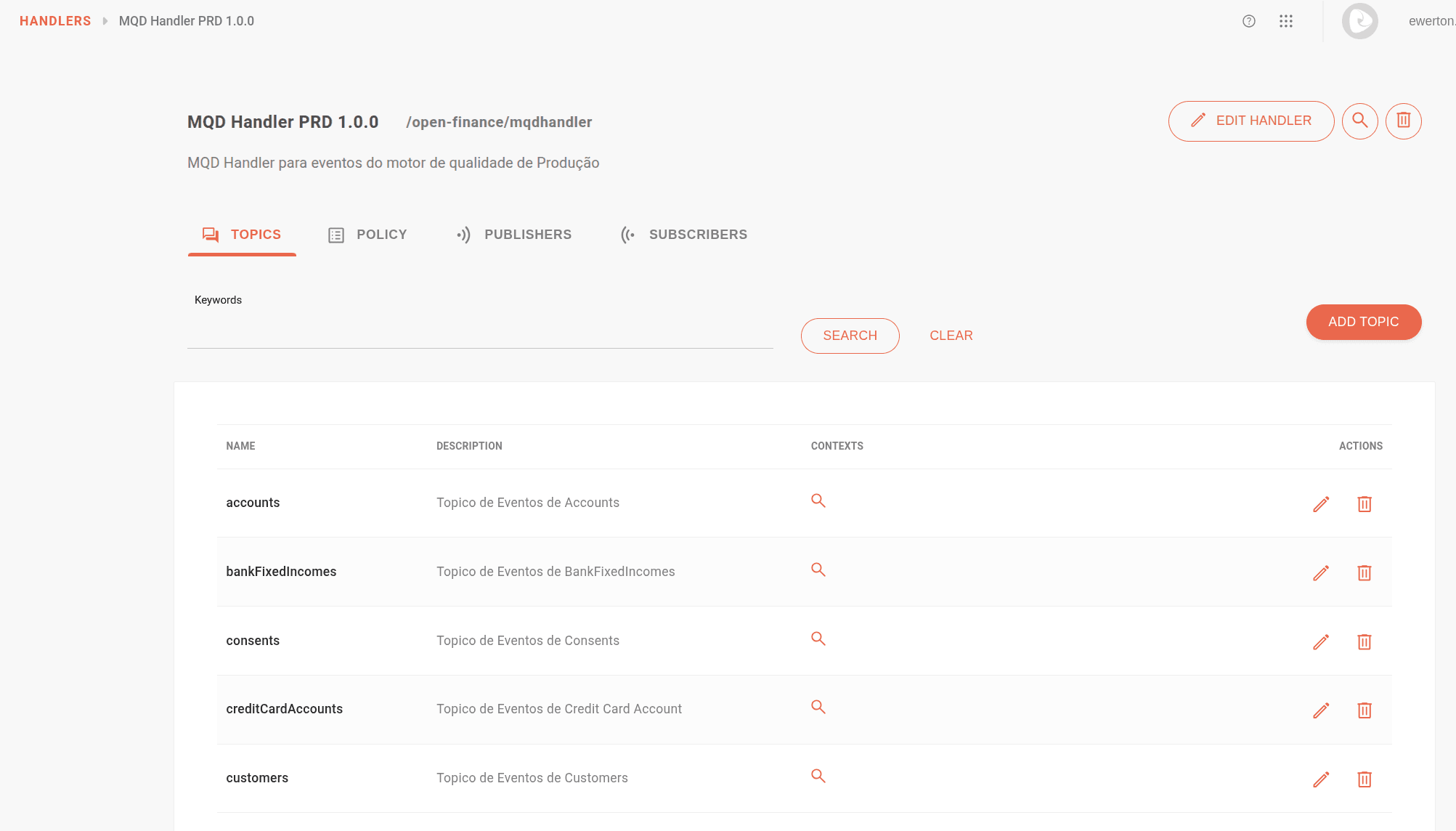
Enable the context on each topic by clicking the magnifying glass.
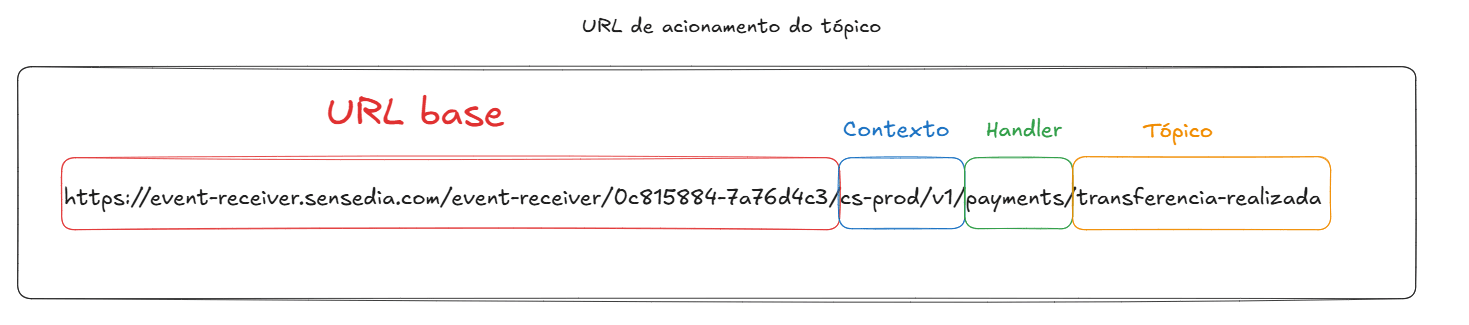
Each topic creates a publishing URL, which must be configured in the Custom JS interceptor of the data APIs.
See an example of a URL created by the Events Hub:
On the Policy step:
Create an IP Filtering Validation policy, which is specific to the Sensedia API Platform's outbound IPs.
IMPORTANTTo check the Sensedia API Platform IPs, access the Infrastructure Manager:
-
Once logged in to the platform, add /info directly to the end of the URL, as in the following example:
-
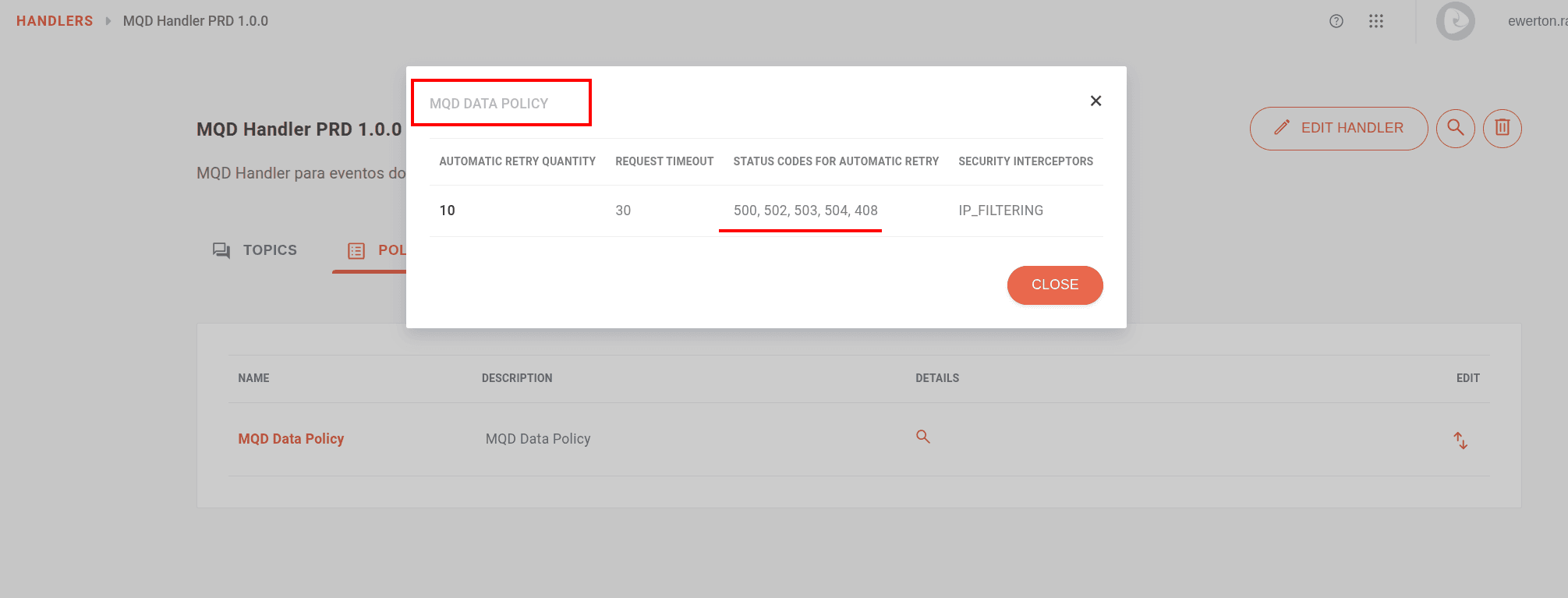
Fill in the delivery settings fields:
- Number of retries,
- Codes for automatic retries:
500,502,503,504,408, and - Request timeout.
After being registered, the information should appear like this:
NOTEFind more information about configuring handlers in the Events Hub.
Subscriber
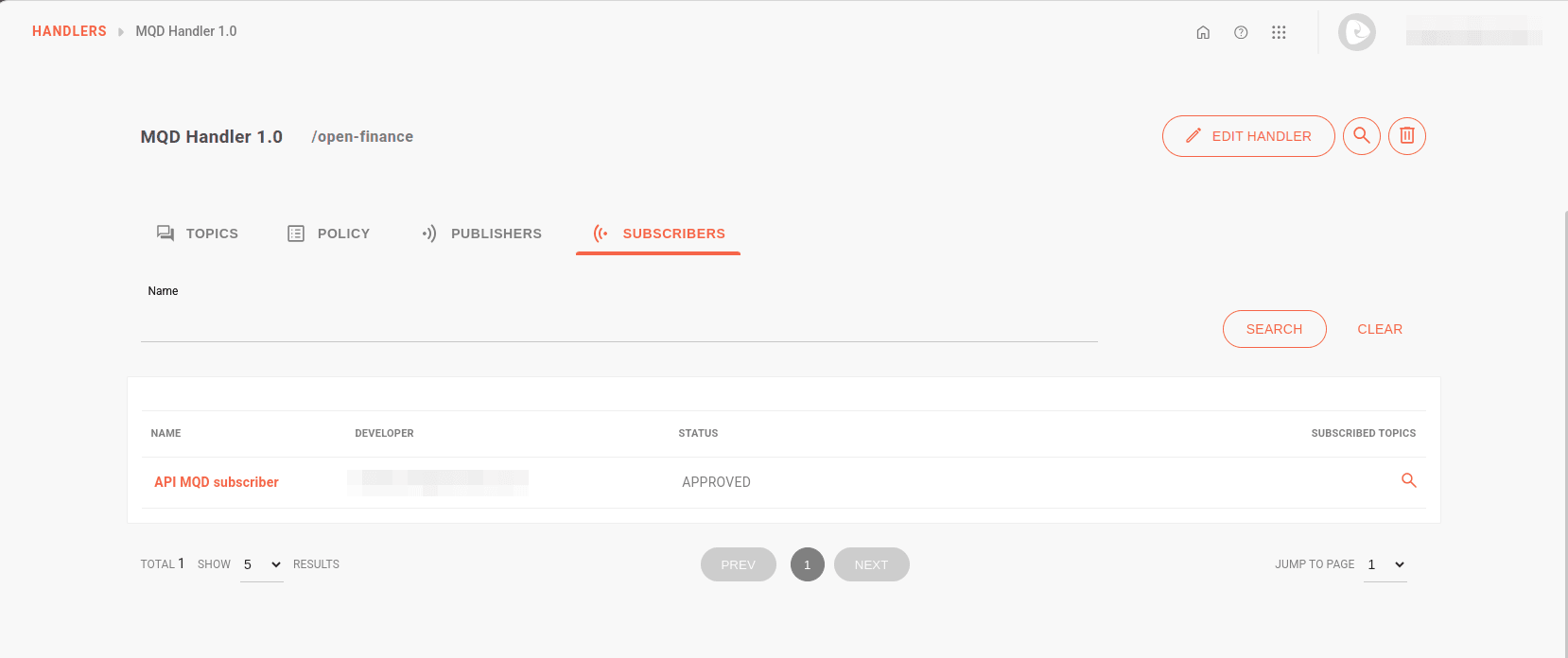
Create a subscriber for the MQD, which will be the MQD subscriber API.
On the Security step:
Validate the key and create a static token for the subscriber (optional).
On the Topics step:
Select the MQD Handler and then select the client topics. Enable the Publish option.
Fill in the Subscriber URL field with the endpoint of the MQD subscriber API.
Add the status code
200in the corresponding field.
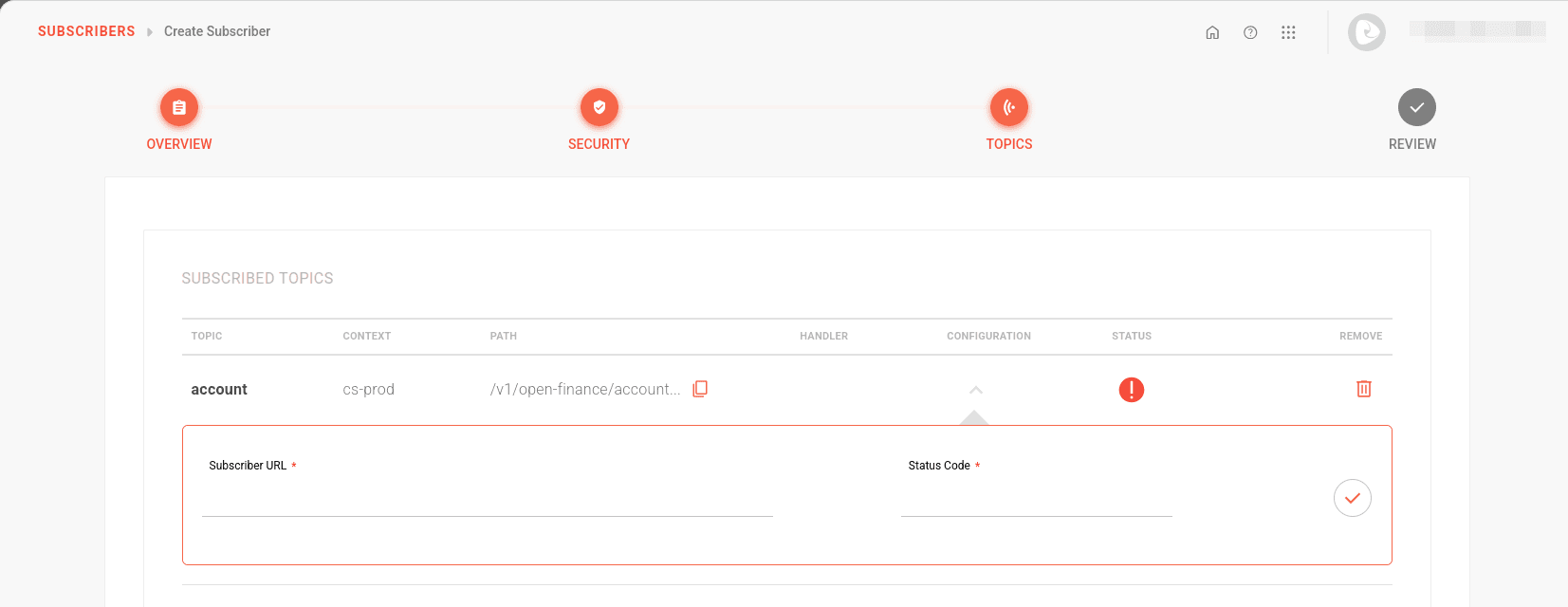
NOTEIf the API is inactive at the time of registration, the subscriber status will appear in gray, but this does not mean it will be inactive.
NOTEFind more information about configuring subscribers in the Events Hub.
Step 2: Configuring the MQD subscriber API
Configure an MQD subscriber API that will proxy the financial institution's environment. This API will be responsible for receiving the data from the Events Hub and forwarding it to the MQD.
When configuring this API:
On the Resources step:
Add a resource, for example:
v1/report-data.
On the Flows step:
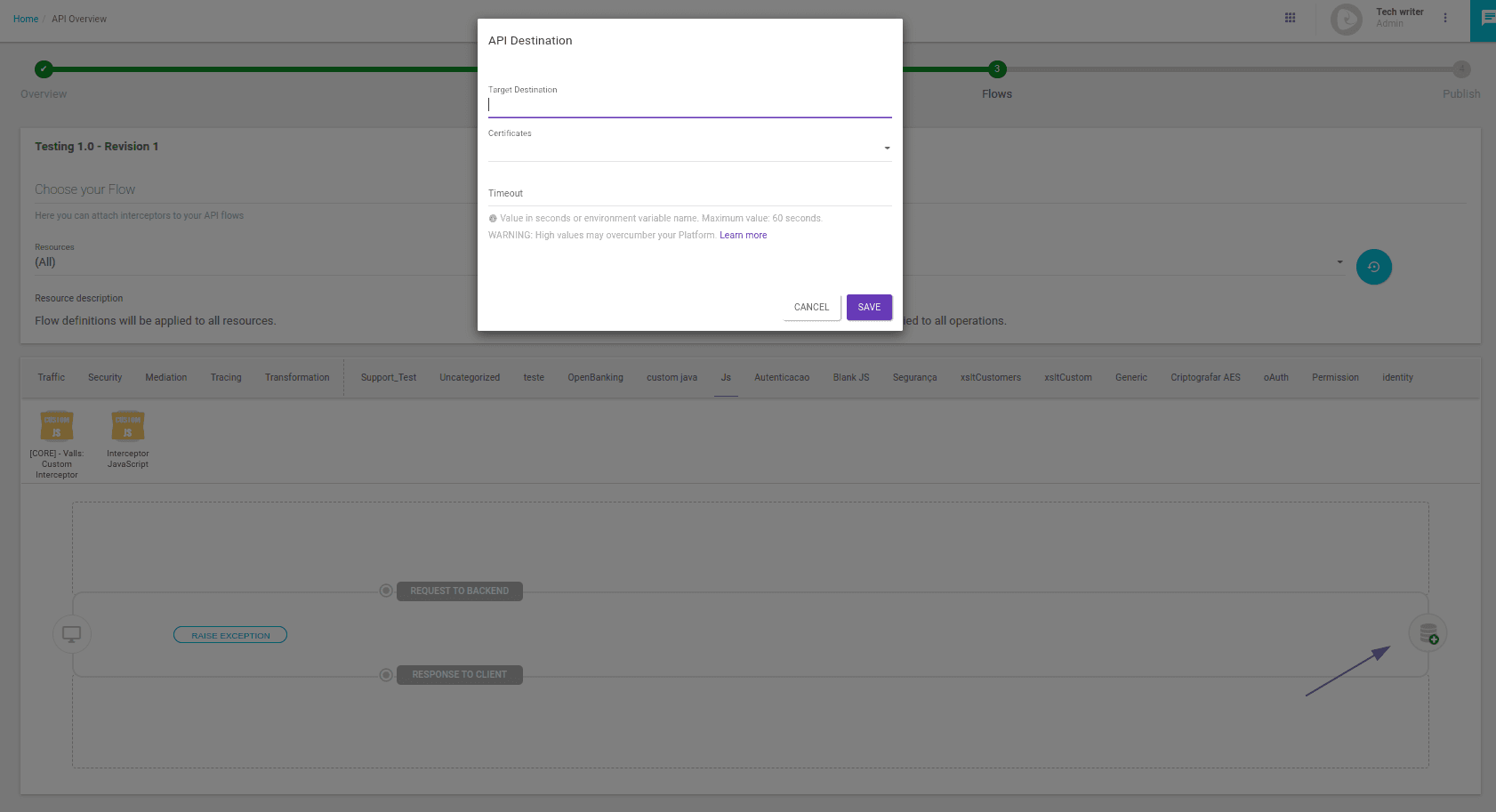
Enter the URL that will be the API destination, which varies according to the API you want to expose.
Add the following interceptors:
- IP Filtering: with the Events Hub outbound IPs (check the IPs with the support team).
- Access Token Validation: the same one entered in the Events Hub.
- Custom JS: it will handle the header into the MQD format. You can customize it for the client by removing some headers that will not be needed.
Check the Custom JS interceptor in the API flow:
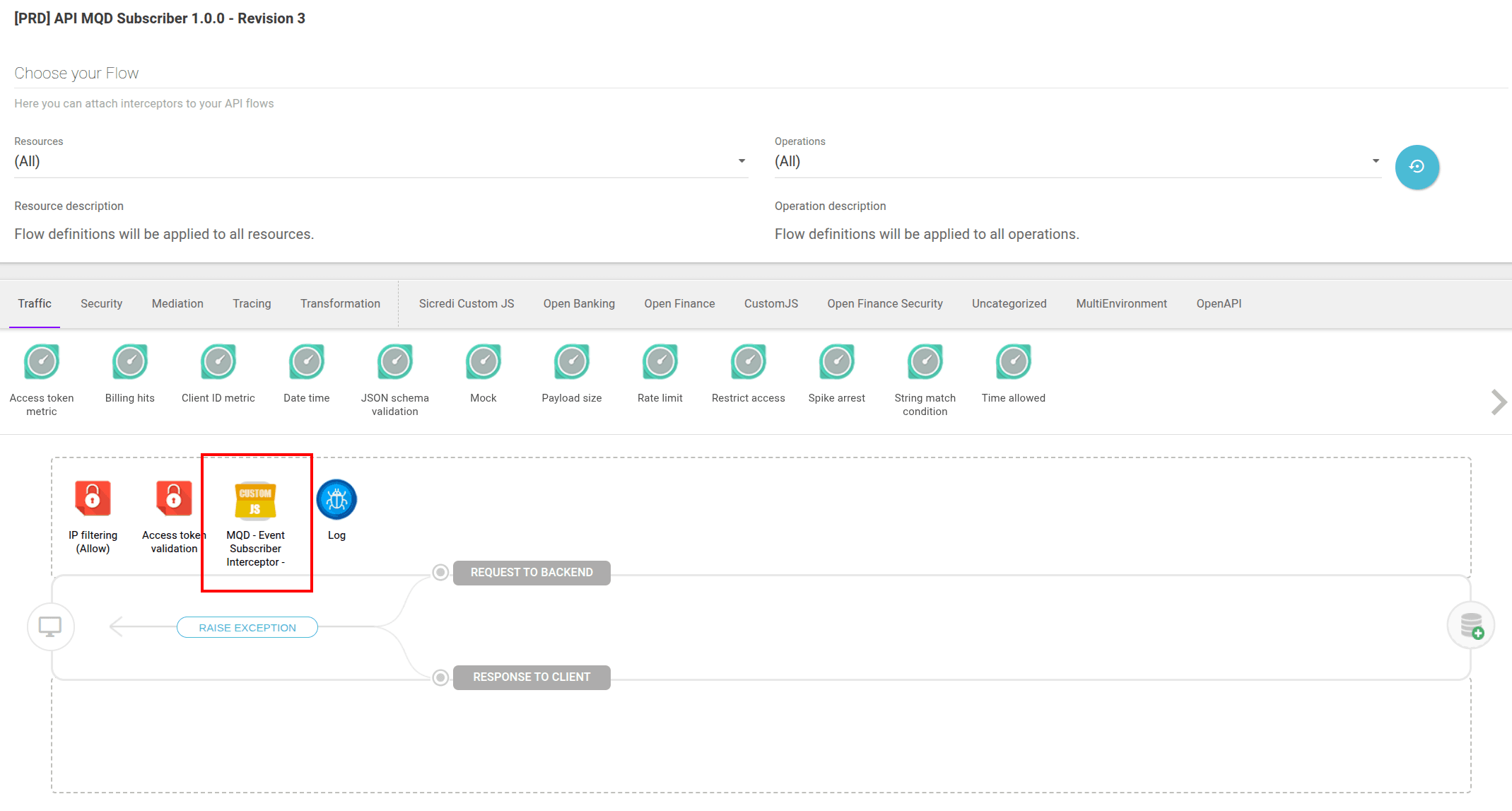
You can configure the JS interceptor as follows:
NOTEFind more information about creating APIs in the Sensedia API Platform.
Step 3: Configuring the Custom JS interceptor in the data APIs flow
In the Sensedia API Platform, select the data APIs eligible for the MQD:
Add the Custom JS interceptor on the Flows step. If there is more than one API, place the interceptor once in each existing API.
In the Resources field, keep the "All" option.
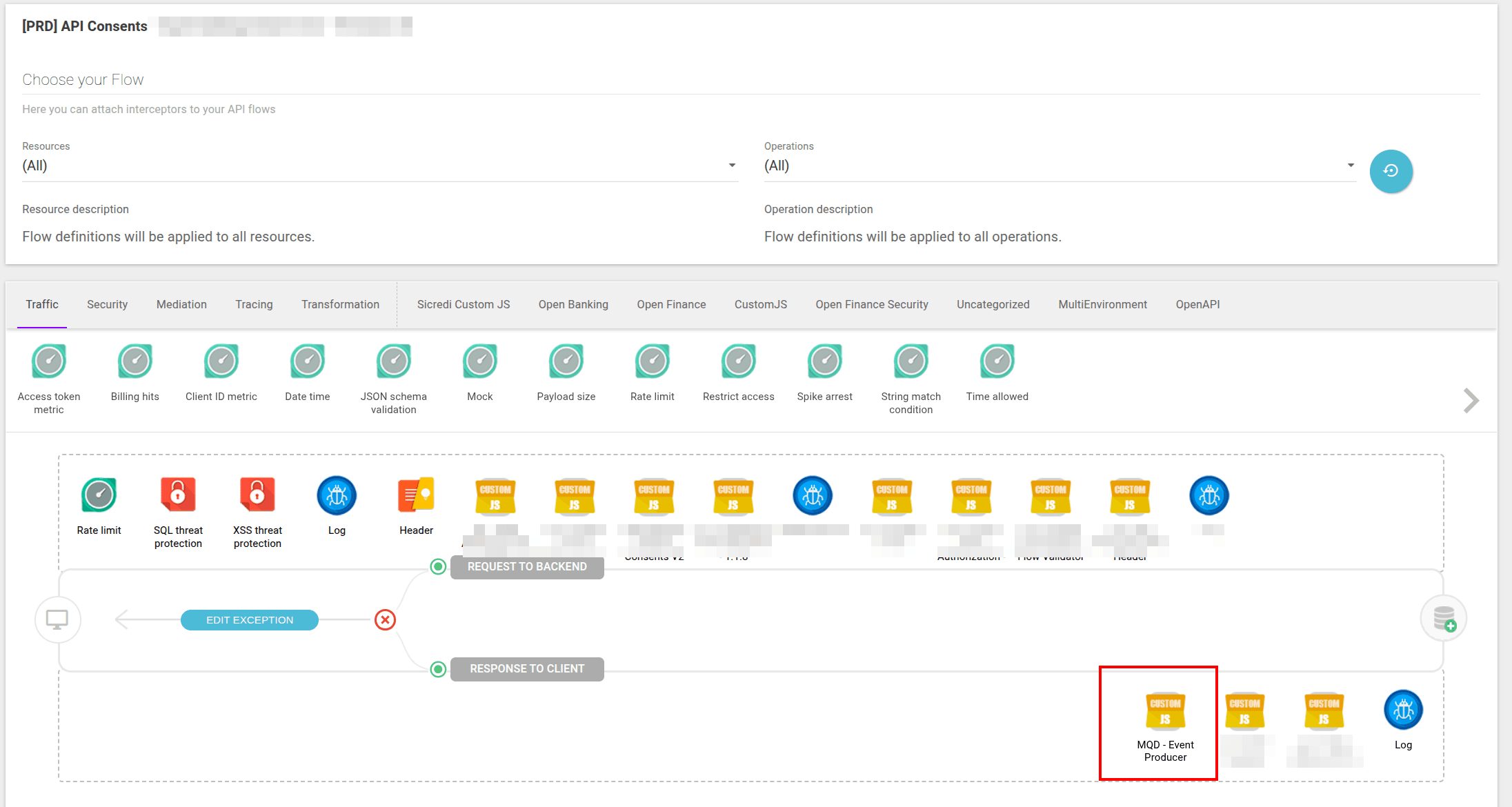
You can configure the Custom JS interceptor as follows:
IMPORTANTIn the Custom JS interceptor:
- The method used will always be
GET, and the response will be200, since the JS interceptor is triggered when the data API receives a successful response.- Configure environment variables with the Events Hub topic URL. The topics create publishing URLs for each of them (the number of URLs varies according to the number of APIs).
With this configuration, the interceptors capture the responses eligible for the MQD and publish them to an Events Hub topic.
NOTEFind more information about configuring interceptors and about the JS interceptor in the Sensedia API Platform.