- Home
- ...
- Authorizations - Canvas
- API Key
To register an authorization of type API Key, access the Authorizations screen through the left side menu or the corresponding card on the Home screen.
NOTETo understand the differences between Sensedia Integrations authorization types, visit our Glossary.
On the Authorizations screen, click New Authorization in the upper right corner. The registration screen has three sections: Basic Info, Authorization Configuration and Environment Configuration.
In Basic Info, fill in the following fields:
- Name: authorization name, displayed when you select it in the integration flow. Accepts only alphanumeric characters, - or _, without spaces, with a limit of 100 characters.
- Description (optional): authorization description. Limit of 1024 characters.
In Authorization Configuration, select API Key in the Authorization Type field:
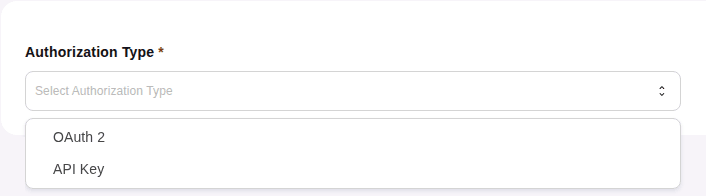
After the authorization is saved, its name and type cannot be changed.
In Environment Configuration, configure the environments where the authorization will be used:
- Staging
- Production
TIPData registered in the Staging environment will be used when executing Test Mode.
You can configure one or both environments. To configure an environment, click the pencil icon in the Actions column of its row and fill in the following fields:
- Key: enter the key name. Limit of 250 characters.
- In: select where the key and value will be sent:
- Header;
- Query Params;
- Cookie.
- Value: enter your API Key value. To view the value, click the
 icon on the right.
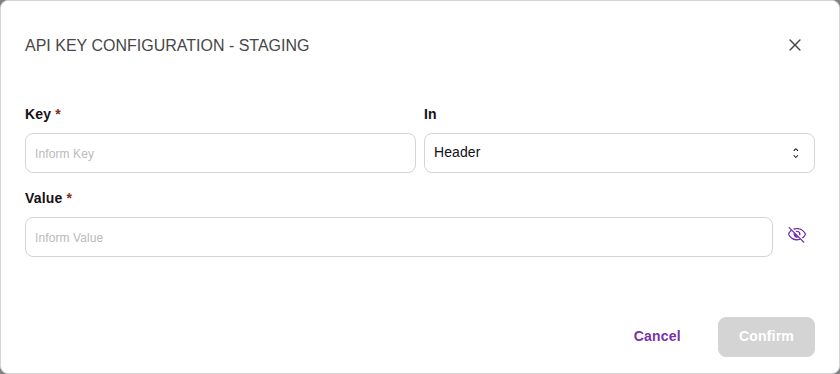
Click Confirm. The environment status changes from Not Configured to Configured.
To erase an environment's configuration, click the clear icon next to the pencil and confirm. The configuration is only removed when you save the authorization.
To save the authorization, click Save.
NOTEThe Save button is enabled when the Name field is filled in and at least one environment is configured.
To exit without saving your changes, click Cancel and confirm the action.