- Home
- ...
- Developer Portal
- Authentication
NOTEThis page refers to the authentication process for your Developer Portal. For Portal Manager authentication, please refer to the Access Control user guide. Check the difference between Developer Portal and Portal Manager.
The authentication screen has three tabs:
Accessing your account
If you are not already logged in, click the LOGIN button on the top right corner of your Developer Portal screen to access its content.
Authentication Methods
- Authentication using email and password. Enter your email and password, complete the reCAPTCHA, and click LOGIN.
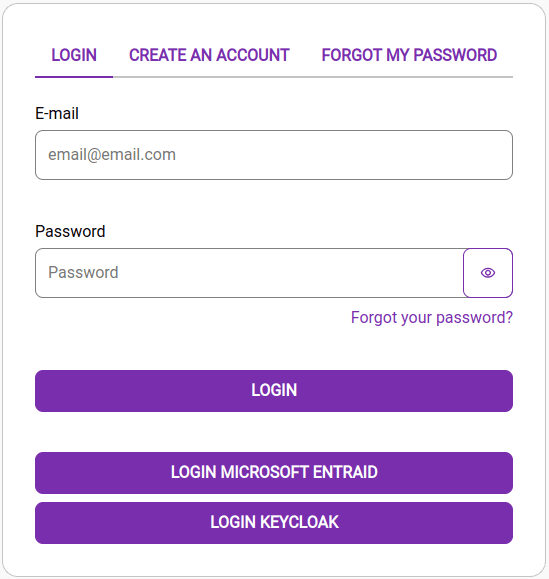
- Authentication using Microsoft Entra ID
Click LOGIN MICROSOFT ENTRA ID. You will be redirected to the Microsoft login screen. Follow the instructions on that screen to authenticate.
- Authentication using Keycloak
Click LOGIN KEYCLOAK. You will be redirected to the Keycloak login screen. Follow the instructions on that screen to authenticate.
NOTEThe available authentication methods — email login or SSO (Microsoft Entra ID and Keycloak) — are automatically shown or hidden according to the client's security policies.
Creating an account
To create an account to access the content of your Developer Portal -- which includes the published documentation, guides and Apps -- simply:
Approval process for the account created
By default, the automatic approval option is disabled.
To enable it, go to Settings > Developers and click the Auto approval toggle.
Step 1
While Auto approval is enabled, the process of registering an account will take place as follows:
Step 2
The person who will be consuming Developer Portal content must follow steps 1 to 3 to create an account.
While Auto approval is disabled, the approval process will take place as follows:
Step 1
The person who will be consuming your Developer Portal content must follow steps 1 to 3 to create an account.
Step 2
An email will be sent to this person. They have up to 72 hours to click the CONFIRM YOUR ACCOUNT.
Step 3
By clicking CONFIRM YOUR ACCOUNT, the person will be directed to a page to enter the details of the account they are registering.
Step 4
Because Auto approval is disabled, the account/user created will remain with status Pending in Consumers > Invitations.
Step 5
When the user/developer completes registration, the status will change to Waiting. The Portal Manager administrator must decide whether to approve the account creation (or password reset). To approve, go to Consumers > Invitations, click the icon showing a clock and select an option (DENY or ACCEPT).
NOTEAdministrator: it is possible to configure email notifications to be received whenever a new user registers on the Developer Portal. If no email is configured for notifications, it will be necessary to access the Portal Manager and check for new users with Waiting status in order to approve or reject the registration.
Password reset
Follow the steps below to recover your password:
NOTENote that the password recovery process follows the same steps as the approval for the account created and changes depending on your auto-approval setting.