IMPORTANTThe page Consumers is exclusive for managing Sensedia and AWS Apps.
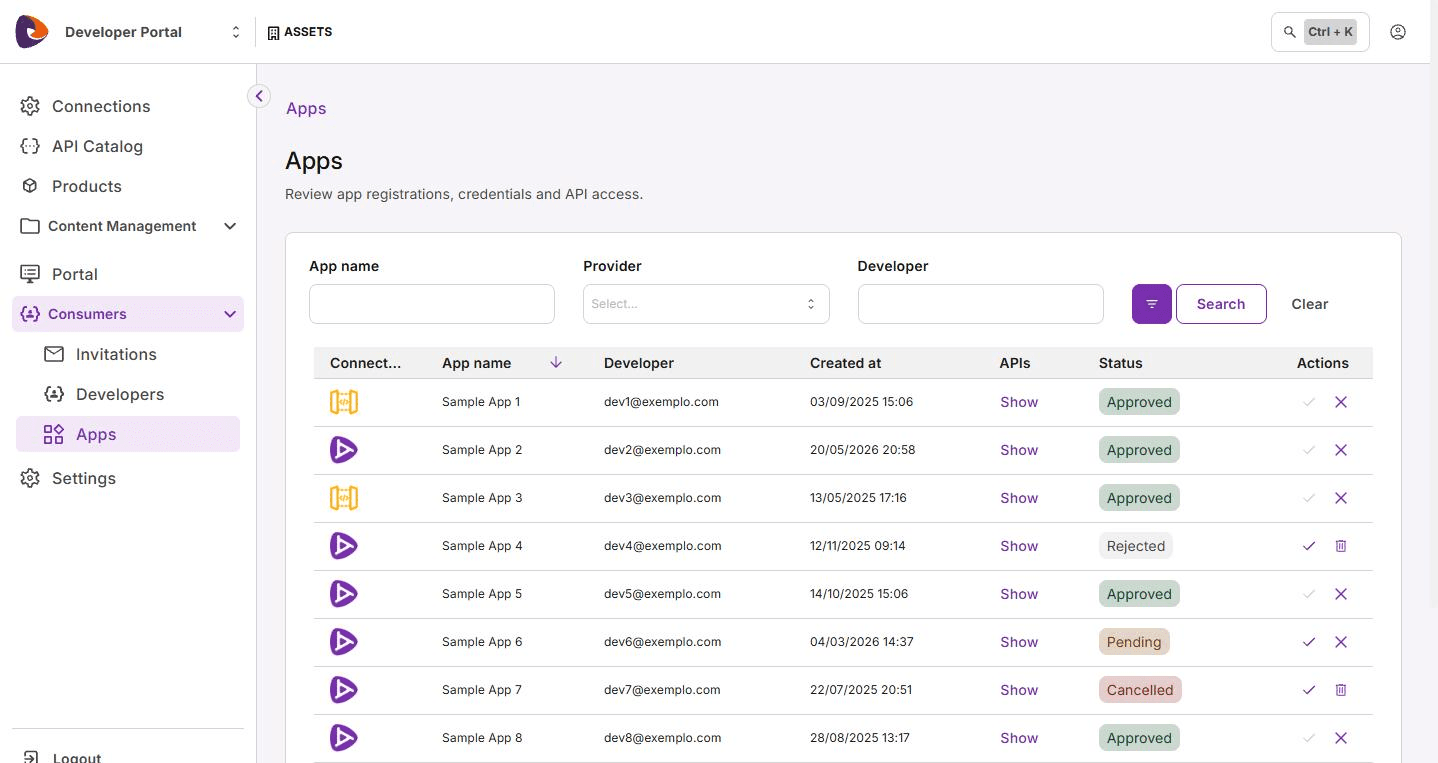
After you create an AWS App in the Apps page of your Developer Portal, the App will be listed in the Portal Manager under Consumers.
On this screen, you can perform the following actions related to an AWS App:
- Approve the registration and configure the authentication settings.
- Reject the registration.
- View details.
- Search Apps.
- See the description of each column in the AWS Apps list.
- Delete the App.
- Cancel the registration.
For a Sensedia App, see Approving a Sensedia App.
See how to edit an AWS App in Developer Portal > Apps.
The actions that can be performed depend on the status of the App:
Status | Possible actions |
|---|---|
 PENDING | approve, reject, and view |
 APPROVED | cancel, edit, and view |
 REJECTED | approve, delete, and view |
 CANCELED | approve, delete, and view |
Approving the registration of an AWS App
As soon as an AWS App is registered, it becomes available in the AWS Apps list with the status PENDING.
If you agree and want to approve the registration, follow the steps below:
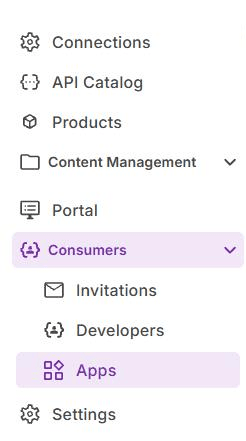
 in the Actions column.
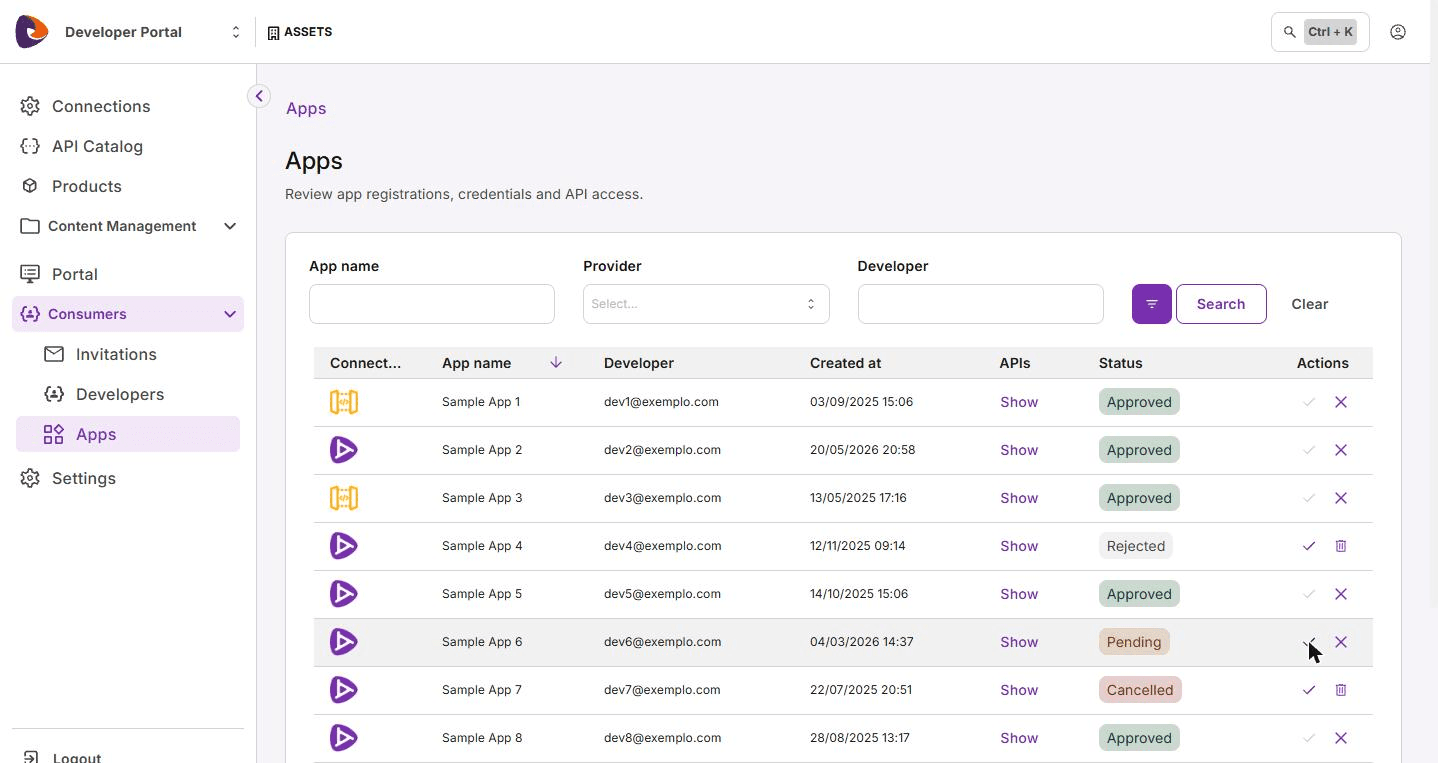
Step 4
A confirmation window will open. In the APP APPROVAL tab, select the type of credential for authentication and fill in the required fields.
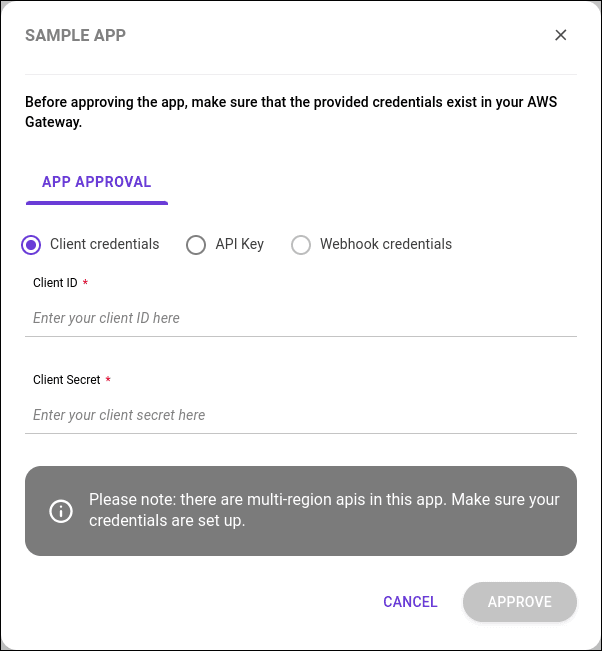
Authentication
Select the authentication method (credential type), which can be:
- Client Credentials:
- Client ID: enter your Client ID.
- Client Secret: enter your Client Secret.
- API Key:
- AWS API Key: enter your API Key.
- Webhook credentials:
- The webhook credentials must be configured in your system.
NOTEFor Apps with multi-region APIs, ensure the credentials are properly configured in AWS.
Rejecting the registration of an AWS App
To reject the registration of an AWS App, follow the steps below:
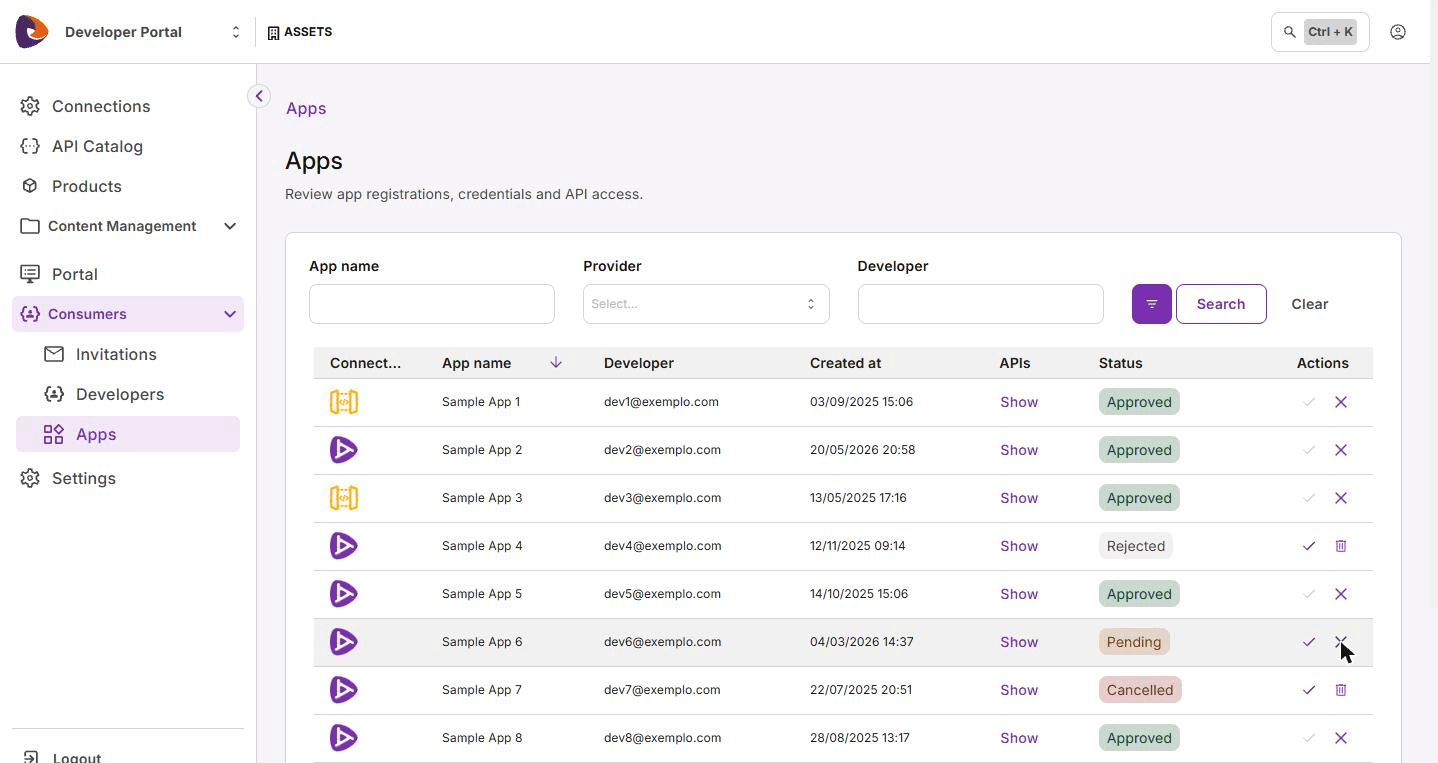
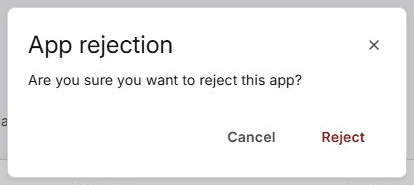
Viewing details of an AWS App
The AWS Apps list displays basic information about each App:
- App Name: name of the App.
- Integration: name of the AWS connection.
- Developer: name of the responsible developer.
- Credential Status: current status of the App.
- Created At: creation date of the App.
- APIs: APIs that make up the App.
- API Name: name of the API.
- Description: description of the API.
- Plans: plans associated with the API.
- Actions: actions available for the App.
Searching AWS Apps
Use the search tool to find a specific Apps.
Available search fields:
- App Name: name of the App.
- Connection: name of the AWS connection.
- Developer: name of the responsible developer.
- Status: current status of the App.
To see the Status search field, click the filter icon:
 .
Deleting an AWS App
To delete an AWS App, follow the steps below:
 in the Actions column.
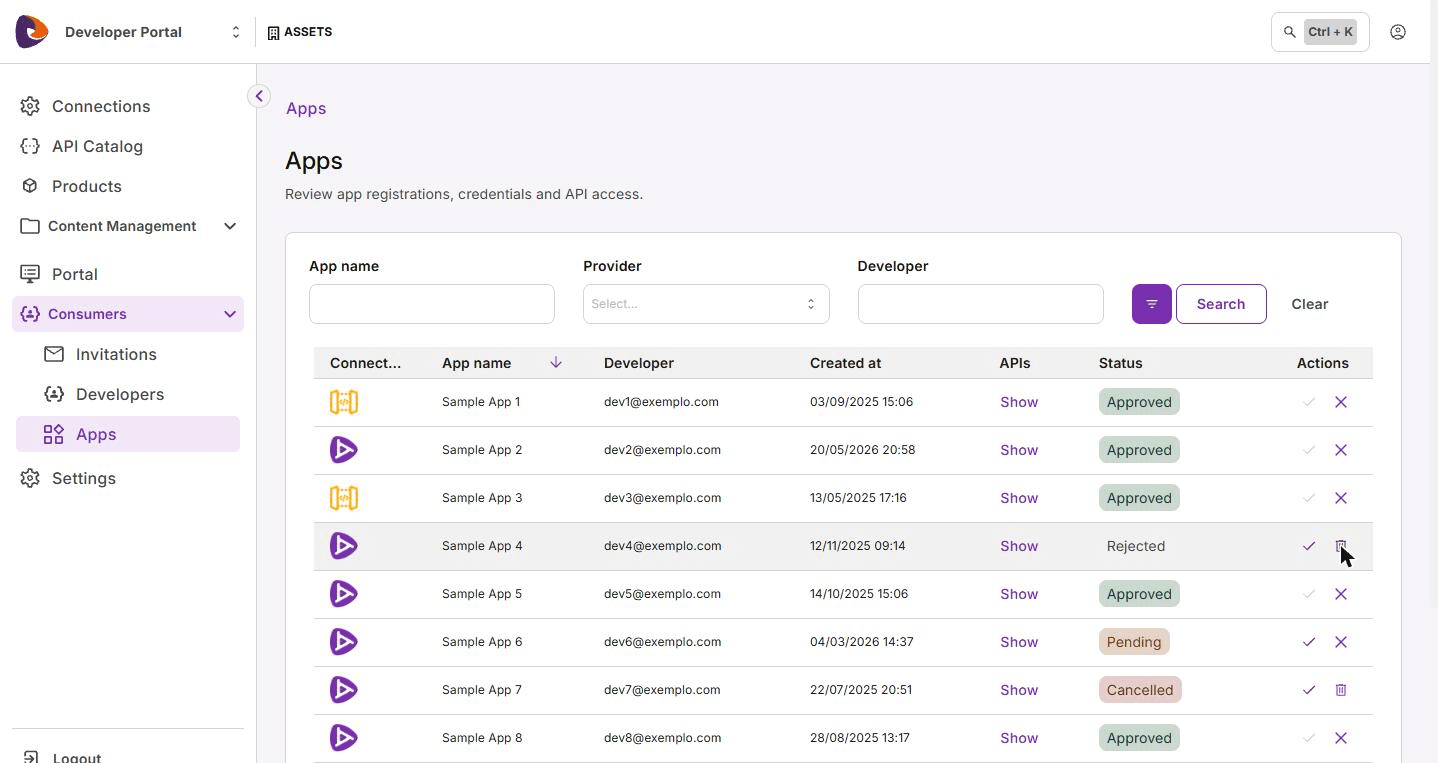
Canceling the registration of an AWS App
An approved AWS registration can be canceled. Follow the steps below:
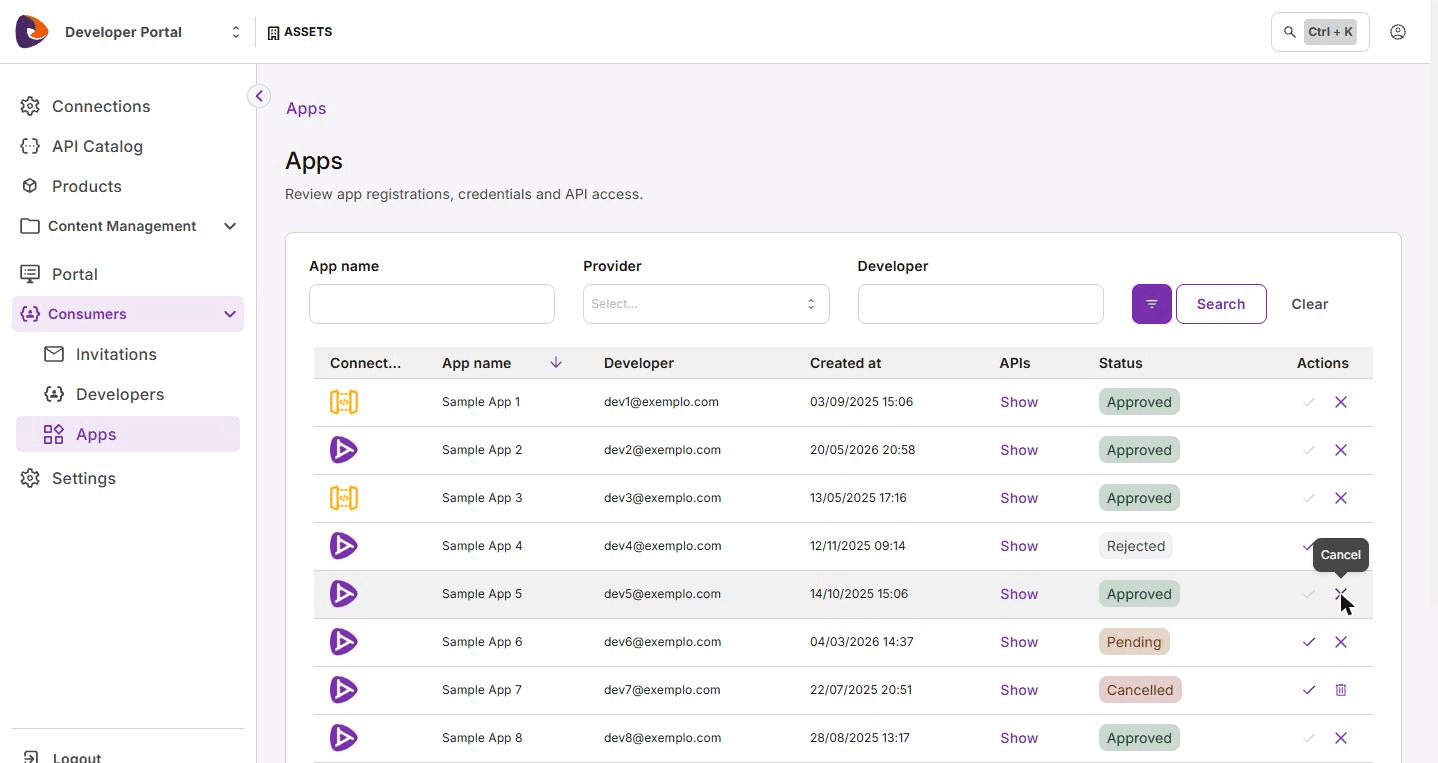
Approving a Sensedia App
Apps of Sensedia connections are also managed in Consumers > Apps. A Sensedia App reaches the list with the PENDING status in three situations, when manual approval is on in Settings > Apps:
- the developer created the App;
- the developer edited an approved App and changed the value of at least one of the additional information fields. The other edited data, such as name and description, is applied immediately, but the change to the additional information only takes effect after your approval;
- the developer edited an approved App and changed only the APIs or plans.
With automatic approval on, these changes are applied without going through this screen.
Follow the steps below to approve or reject:
Checking the additional information
When there is additional information, the window shows the Extra fields block, with one row per field and these columns:
- Technical key: identifier of the field.
- Current value: the value the App has today. — appears when the App has no value for the field, for example in a new App or in a field that had not been filled in yet.
- Requested value: the value the developer asked for. Removed appears when the developer emptied the field, that is, asked to remove the value. For a new App, Not provided appears when the developer left the field empty.
For a new App, the table lists every active field of the portal, including the ones the developer left empty, plus any field the App was created with that was deactivated later. For an edit, the table lists only the fields whose value the developer changed; fields left as they were do not appear. If the same request also brings changes to APIs or plans, the window shows both blocks and the decision applies to everything together.
- Approve: the requested values take effect in the App and in the gateway. If the gateway refuses the update, the request stays pending and the App remains in
PENDING. - Reject: the request is discarded. If it was an edit of an approved App, the App goes back to
APPROVEDand the previous values stay in place. If it was a new App, the App ends with theREJECTEDstatus. The rejection window shows the same Extra fields block, so you know what is being refused.
While the request is pending, the developer cannot edit the App again. The developer follows the request in the App overview in the Developer Portal.
NOTEThe Portal Manager approval window is displayed in English in all documentation languages.
App status synchronization
The Developer Portal and API Management maintain bidirectional synchronization of app statuses, ensuring that any changes made by administrators are automatically reflected in both systems. For example, when an app is deleted in the source gateway, it will also be removed from the Portal Manager and Developer Portal, and the consumer will be notified about the access revocation.
Status updates via Portal Manager
- Approval (APPROVED): when an app is approved in the Portal Manager, the status is immediately updated in API Management.
- Rejection (REJECTED): when an app is rejected, the status is reflected in API Management and the app is not created.
- Cancellation (CANCELED): when an app is canceled, the status is updated in API Management, which then manages this status.
- Pending (PENDING): this status is never sent to API Management; it only updates the app's scope locally.
NOTEIf the consumer changes the scope of an already approved app, this modification will not impact the app's status in API Management.
Status updates via API Management
- If an app is marked as APPROVED, REJECTED, or CANCELED in API Management, the corresponding status will be updated in the Portal Manager.
NOTEThese changes also affect credential access permissions in the Developer Portal.
IMPORTANTBidirectional status synchronization is mandatory for API Management (Sensedia Platform).
Automatic app deletion
When an app is deleted in the source Manager (Sensedia, AWS, or others), it will be automatically removed from the Developer Portal. Possible scenarios include:
- Automatic synchronization: upon receiving a deletion event from the source API Management, the removal is automatically performed in the portal database.
- Administrator deletion: if the administrator tries to delete the app in the Portal Manager and it is not found in the source Manager, the system understands it has already been deleted and completes the local removal, displaying an informational message.
- Consumer deletion: if the developer tries to view the credentials of an app in the Developer Portal and the reference is not found in the source Manager, the system understands it has already been deleted and completes the local removal, displaying an informational message.
Deletion notification for the consumer
In all the scenarios above, the DeleteApp email event will be sent to the app owner, informing them about the deletion and loss of access.