- Home
- Documentation
- Access Control
- Audit Logs
The Audit Logs feature acts as an auditing tool, listing all events that occurred in the system.
The log is generated whenever an object is created, updated, or deleted from the system.
When finishing the registration of a new API in the Manager, for example, the record with this creation is saved in the Audit Logs listing.
NOTELogs stored in the Audit Logs feature are retained for a period of 1 year from the date the event is generated. After this period, records are automatically deleted from the system.
Accessing the Audit Logs screen
Access Audit Logs from one of these options:
In the right sidebar menu of Sensedia Platform, click Audit Logs.
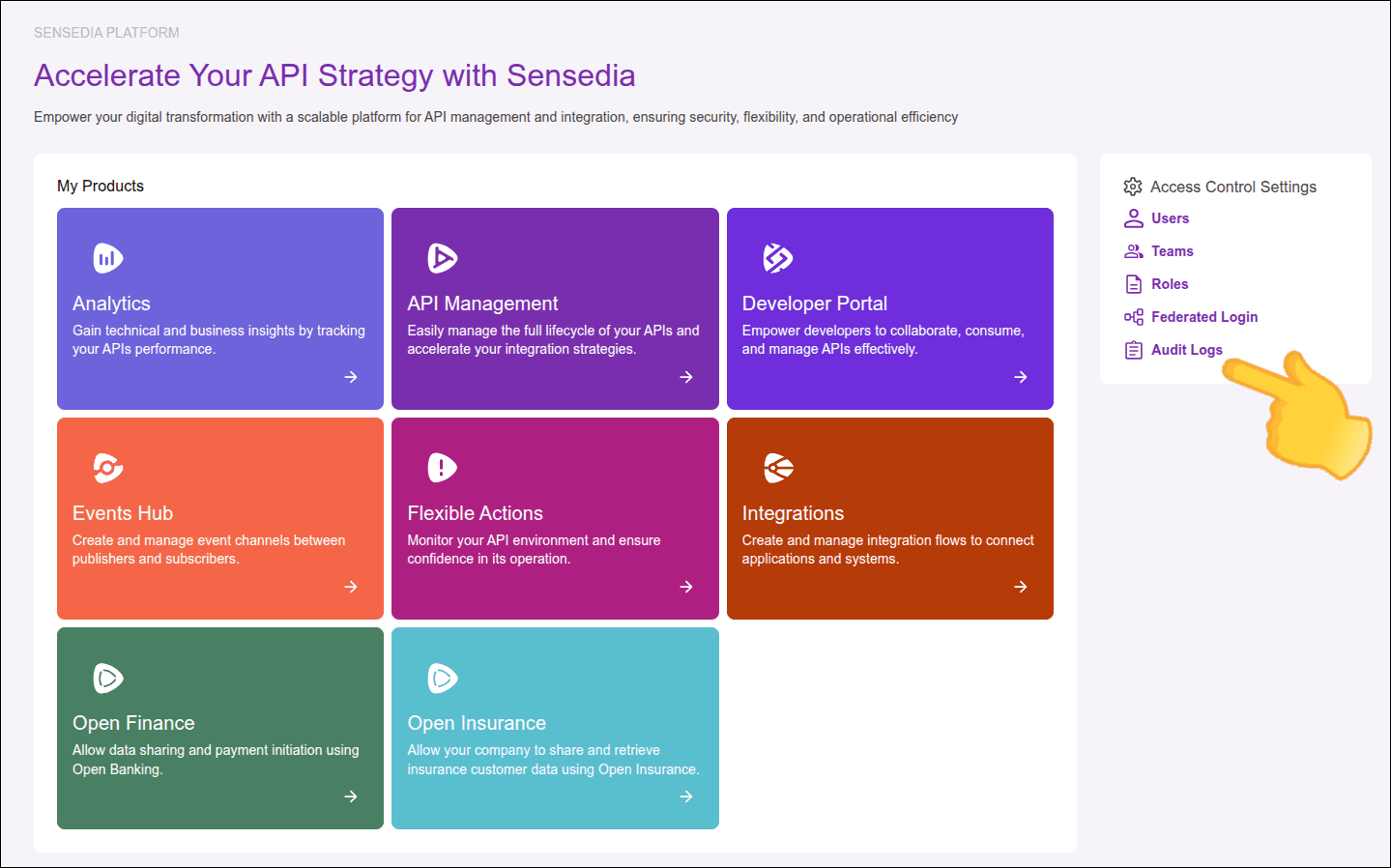
or
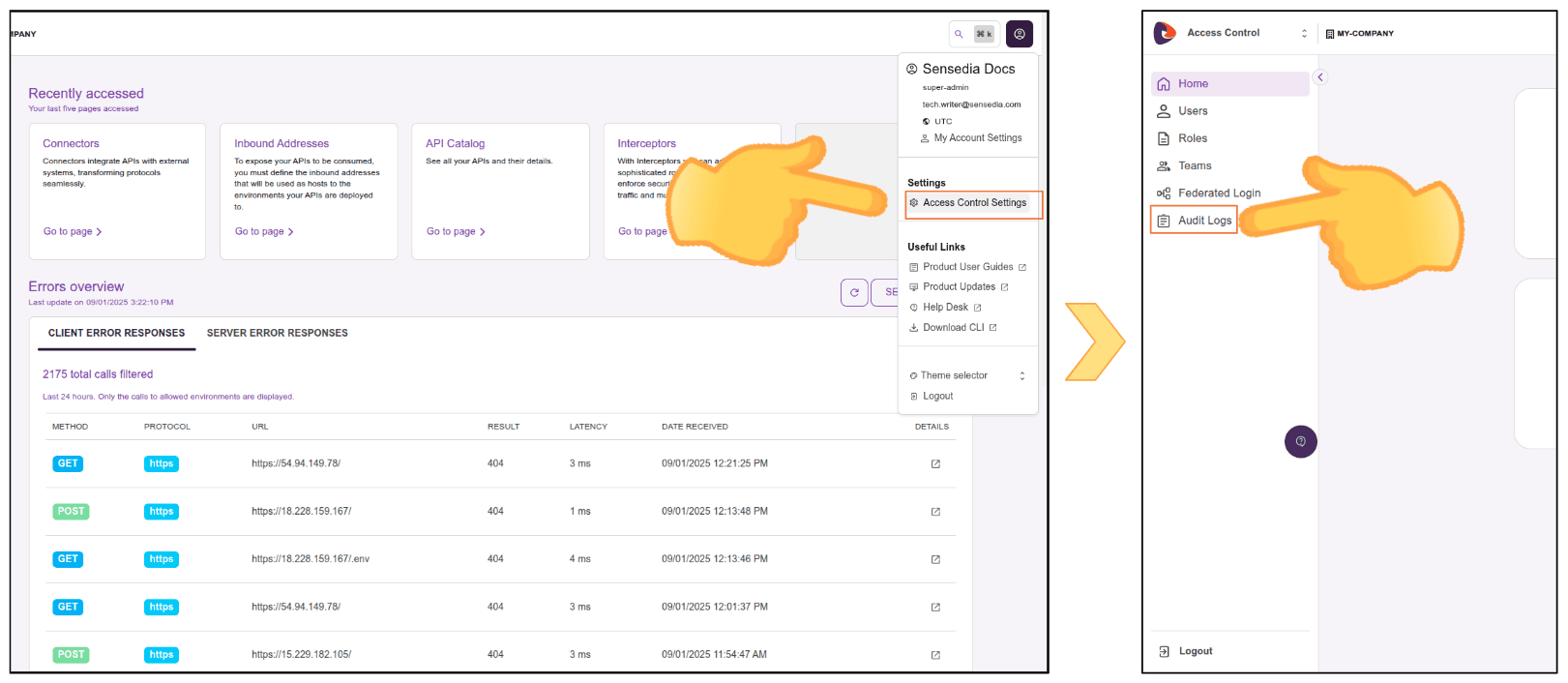
In the upper right corner of any Sensedia product screen, click the user menu icon and Access Control Settings.
Then click Audit Logs.
Record listing
You can configure the record listing to display the fields you prefer.
To do this:
Click the three dots in the title row of the record listing and select the columns you want to view.
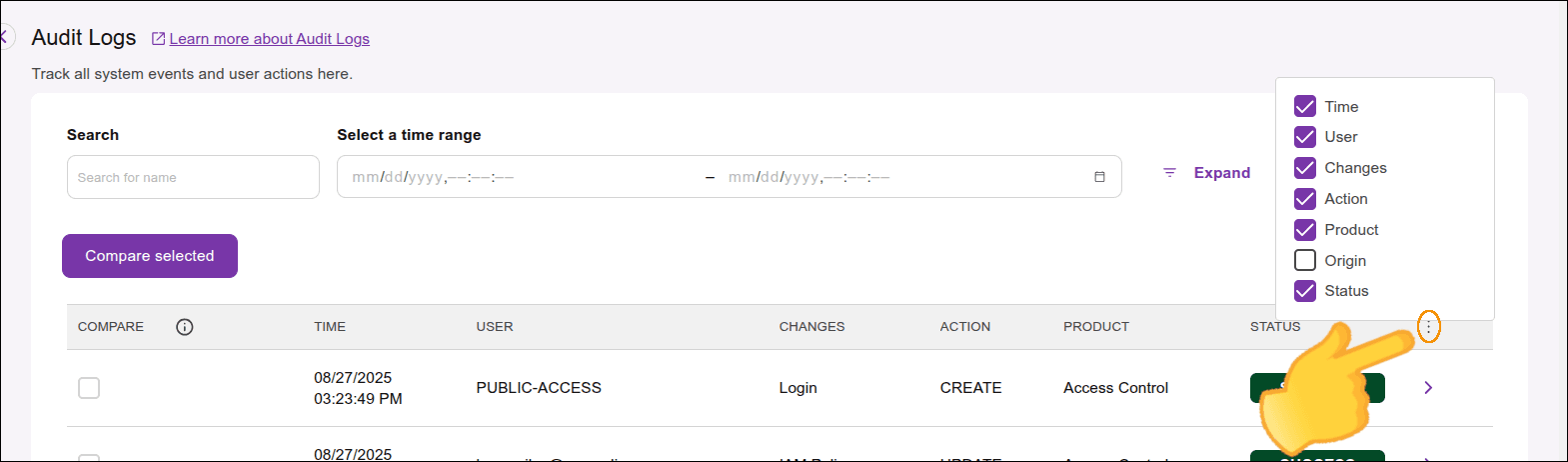
The available fields for display are:
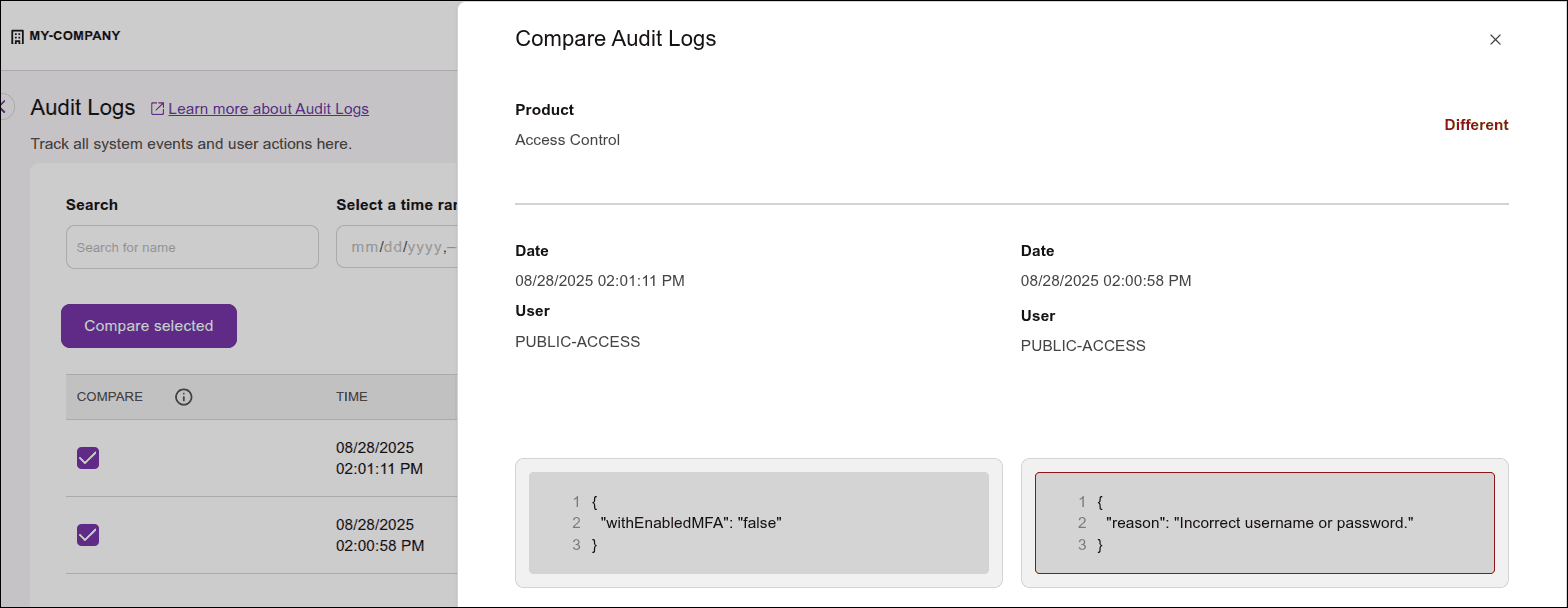
- COMPARE: displays selectable checkboxes to compare two different records based on each one's JSON.
- TIME: shows the time when the event occurred.
- USER: indicates the user who performed (or intended to perform) the action on the object.
- CHANGES: displays the type of object that was changed or intended to be changed.
The change can occur in any accepted object, from API data to a modification in any user's record, for example. - ACTION: shows the action executed or intended by the user — creation (create), deletion (delete), or update (update).
- PRODUCT: displays the Sensedia products that have audit logs.
- ORIGIN: displays the method used by the application to perform the action, e.g., API Manager or the product API.
- STATUS: the status of the action intended by the user; that is, whether it was successful or failed.
Search filters
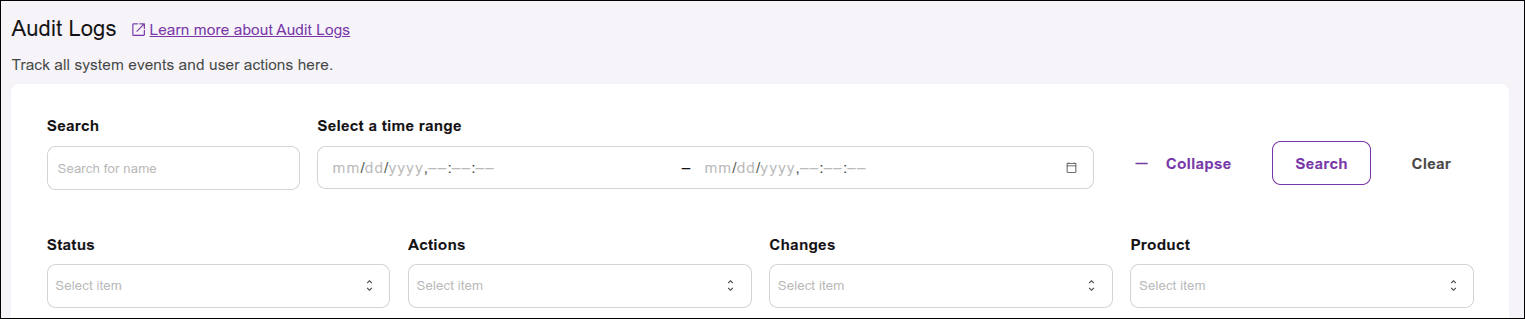
The listing screen also has a search area with filters.
To see all fields, click Expand — or click Collapse to see fewer.
Record viewing and comparison
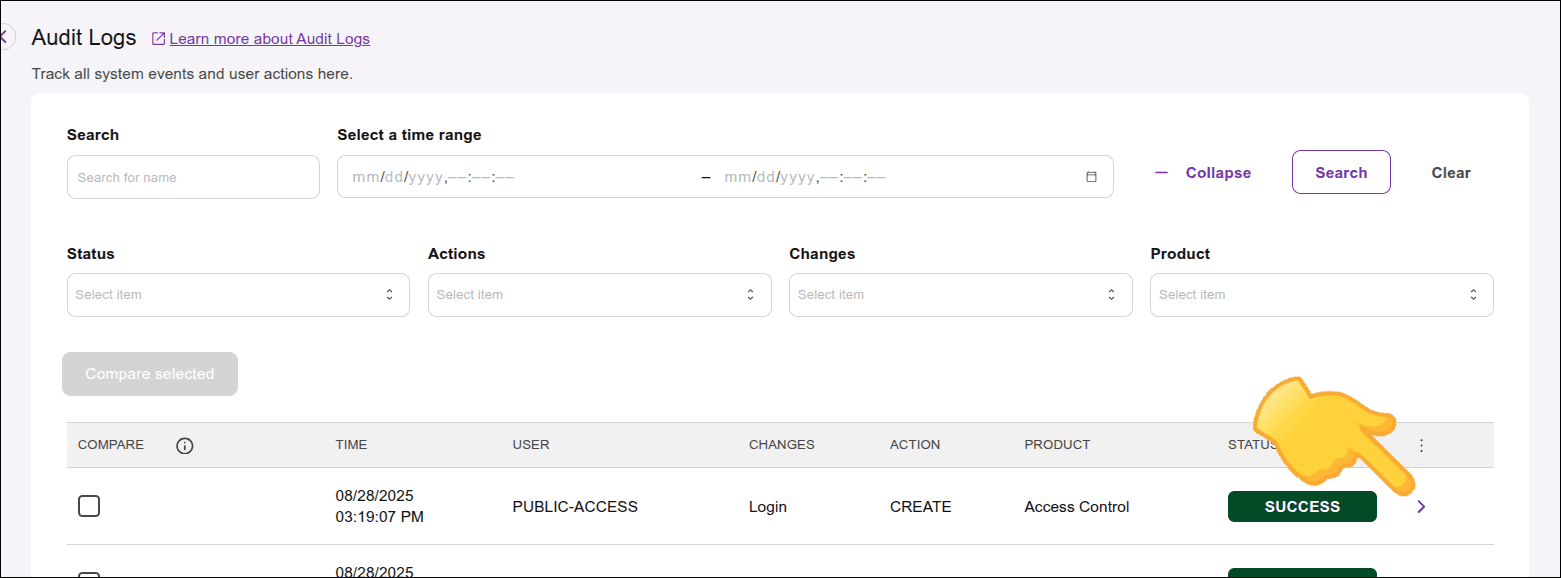
To view the JSON of a specific record:
Click > in the desired record's row.
Large audit records
Some audit records may contain large amounts of data, depending on the audited object and the operation performed.
When this happens, the Audit Logs listing preserves the main information required to identify the event, such as:
- Date
- Tags
- Product
- Username
- Action Type
- Point of Action
In some cases, the detailed audited content may be reduced or unavailable to keep the screen responsive and avoid loading excessive data.
When the detailed content of an audit record is too large to be displayed, the View Audit Log screen shows a controlled message instead of the full JSON content. This message indicates that the audit content is too large to display and provides a reason for the limitation.
NOTEIf an audit record cannot be fully displayed because of its size, try narrowing the search filters or reducing the number of records displayed per page.
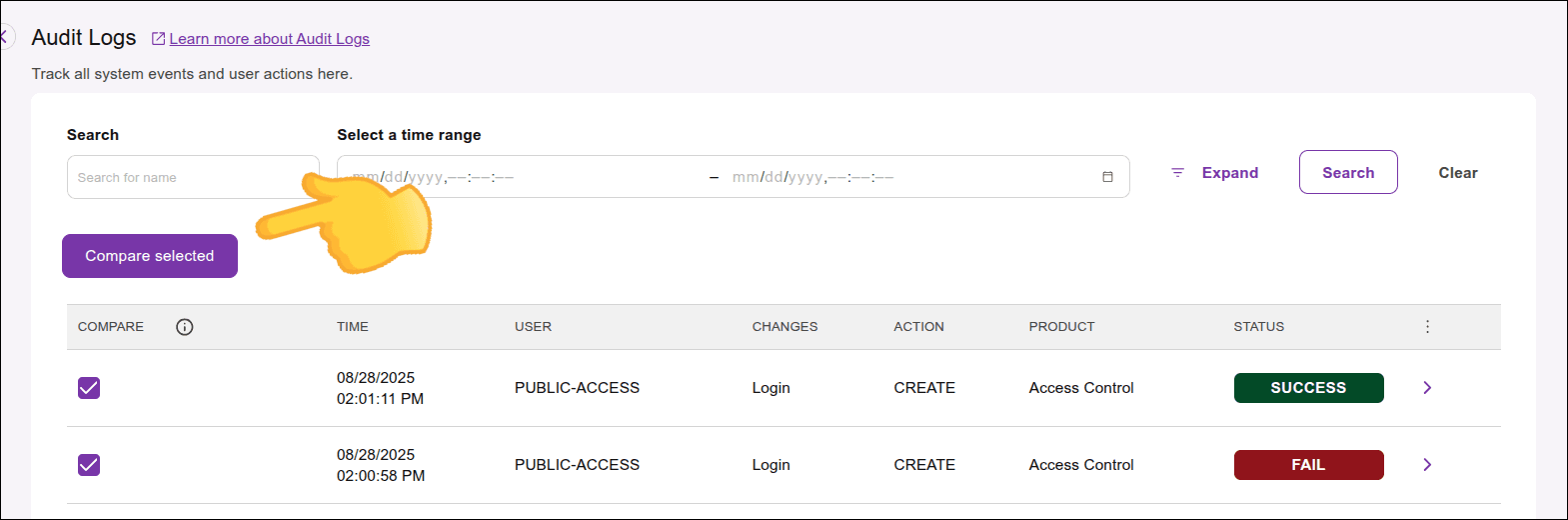
To compare two different records:
Select the records you want to compare by checking the boxes in the Compare column.
Click Compare selected.
NOTEYou can only compare records that share the same object type.