- Home
- Documentation
- Connections
IMPORTANTYou are viewing the documentation for the Connections module of Sensedia products. To return to the previous documentation, use your browser's navigation controls.
To perform the governance of your APIs, you first need to import them by connecting to an API Gateway -- which can be either Sensedia or third-party.
This connection (or integration) allows the synchronization of your API data.
The Connections screen, accessible from the left sidebar, allows you to configure new connections. You can also view, edit, or delete existing connections.
See how to:
- Create a new gateway connection:
- View details of an existing connection.
- Edit a connection.
- Import APIs.
See also the detailed description of each field for the following screens:
- connection listing;
- connection details:
- import details:
Viewing connection details
To view the general information of a specific connection:
Step 1
Go to the Connections screen by clicking the left sidebar menu or the card on the home screen.
Step 2
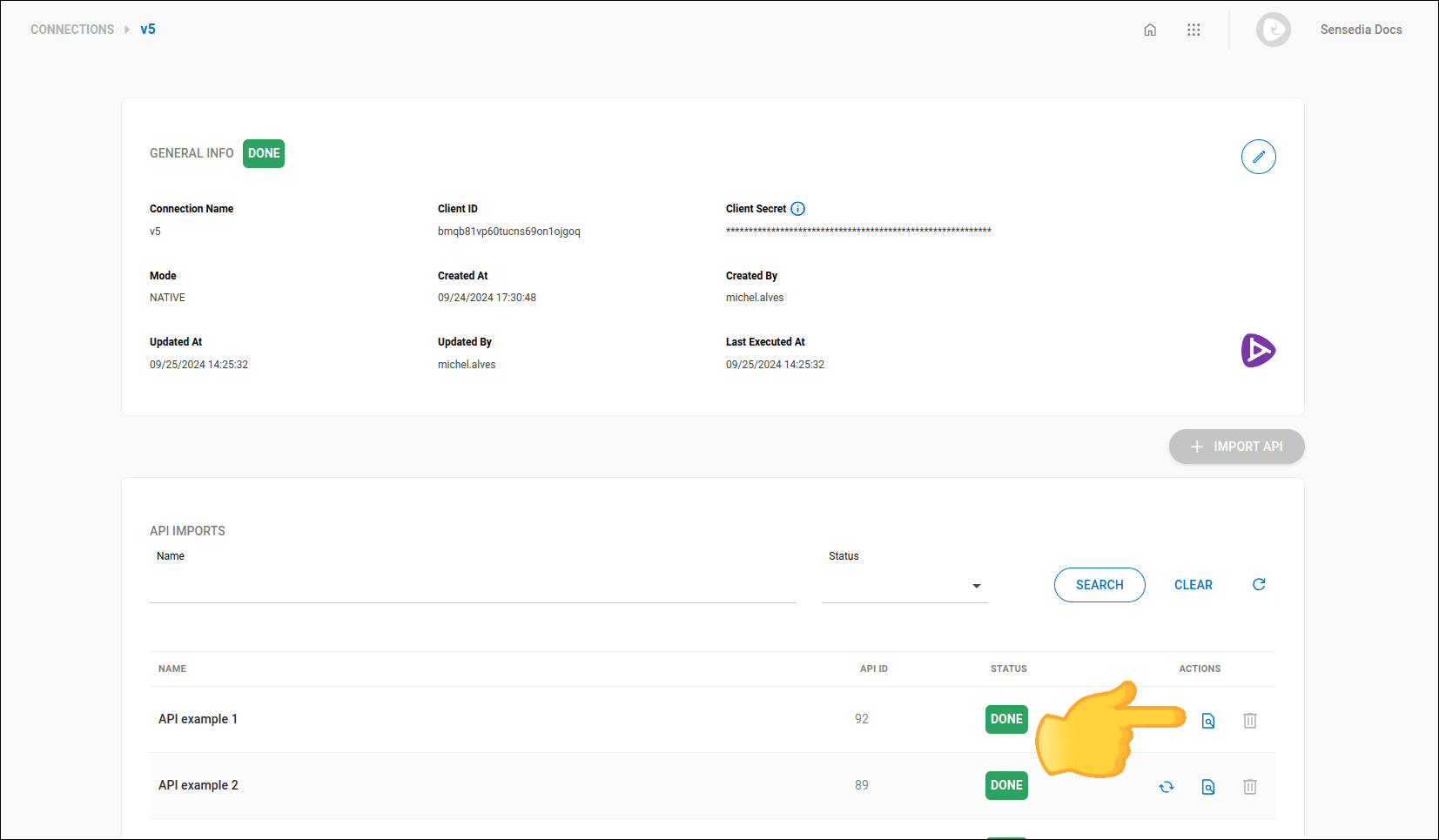
On the Connections screen, click the  of the desired connection.
Step 3
The next screen will display:
- general connection information (see the description of each field on this screen);
- list of imported APIs (see the description of each field on this screen).
Editing a connection
Follow the steps below to edit a connection:
Step 1
Go to the Connections screen by clicking the left sidebar menu or the card on the home screen.
 icon.
icon.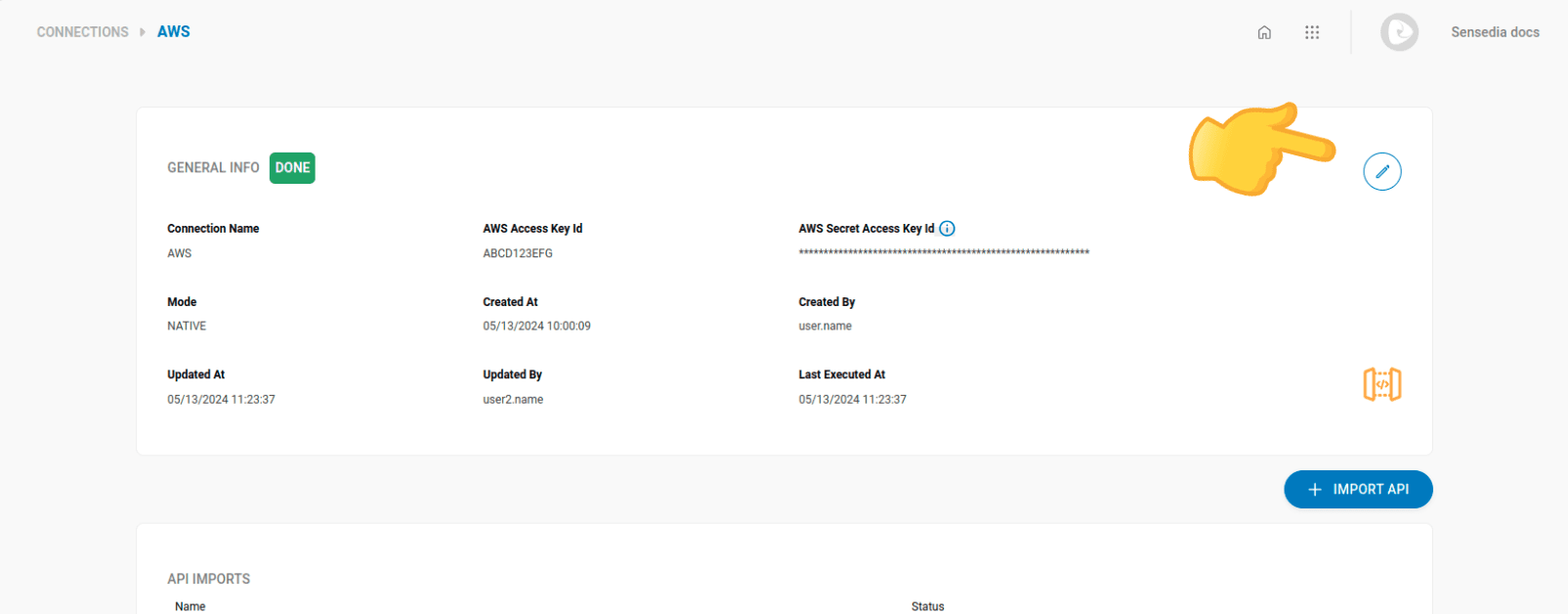
Importing APIs
NOTE
In native connections with the Sensedia gateway, APIs are imported automatically when the connection is created.
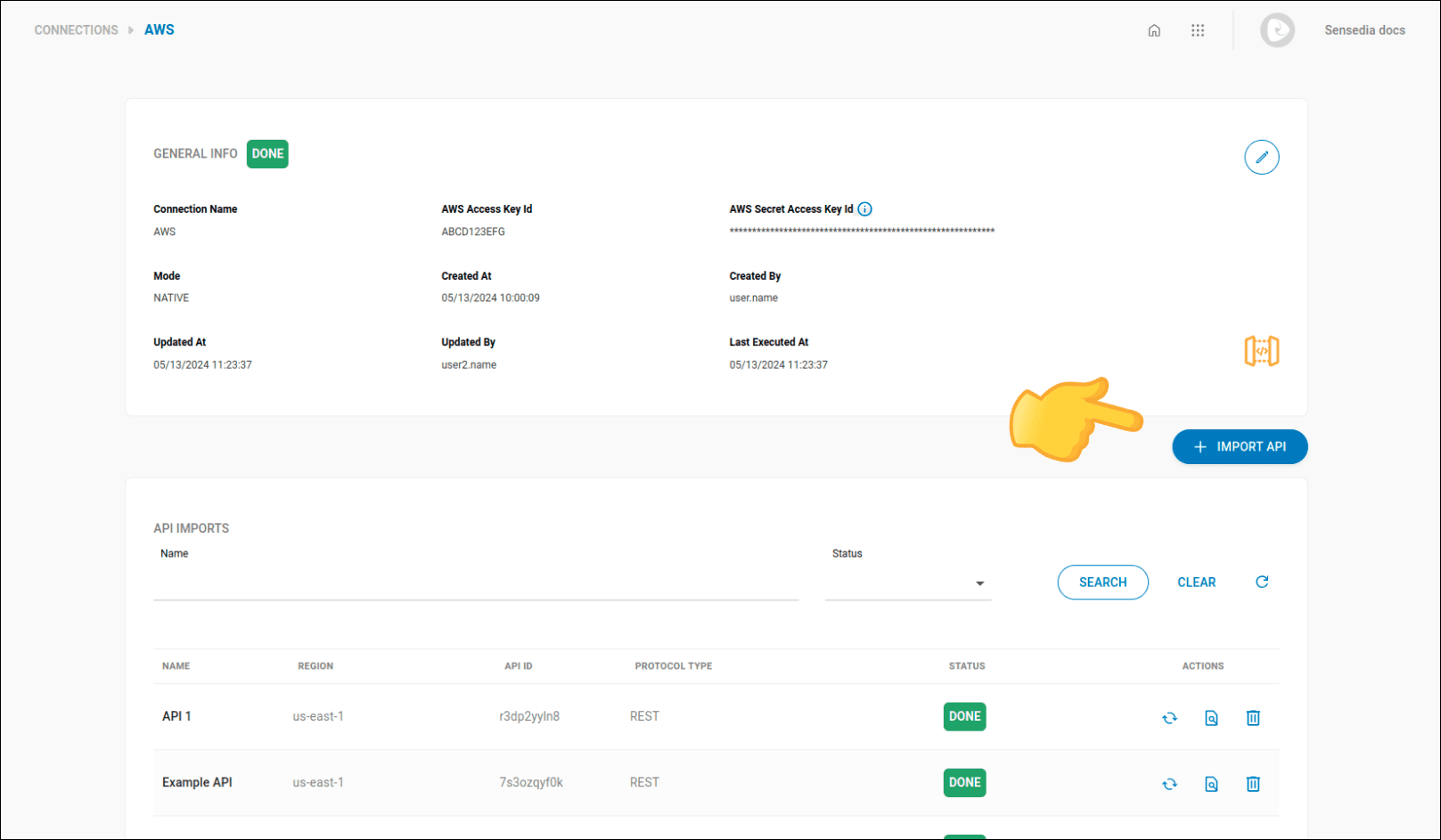
For connections with other gateways, select the APIs you want to import by clicking + IMPORT API.
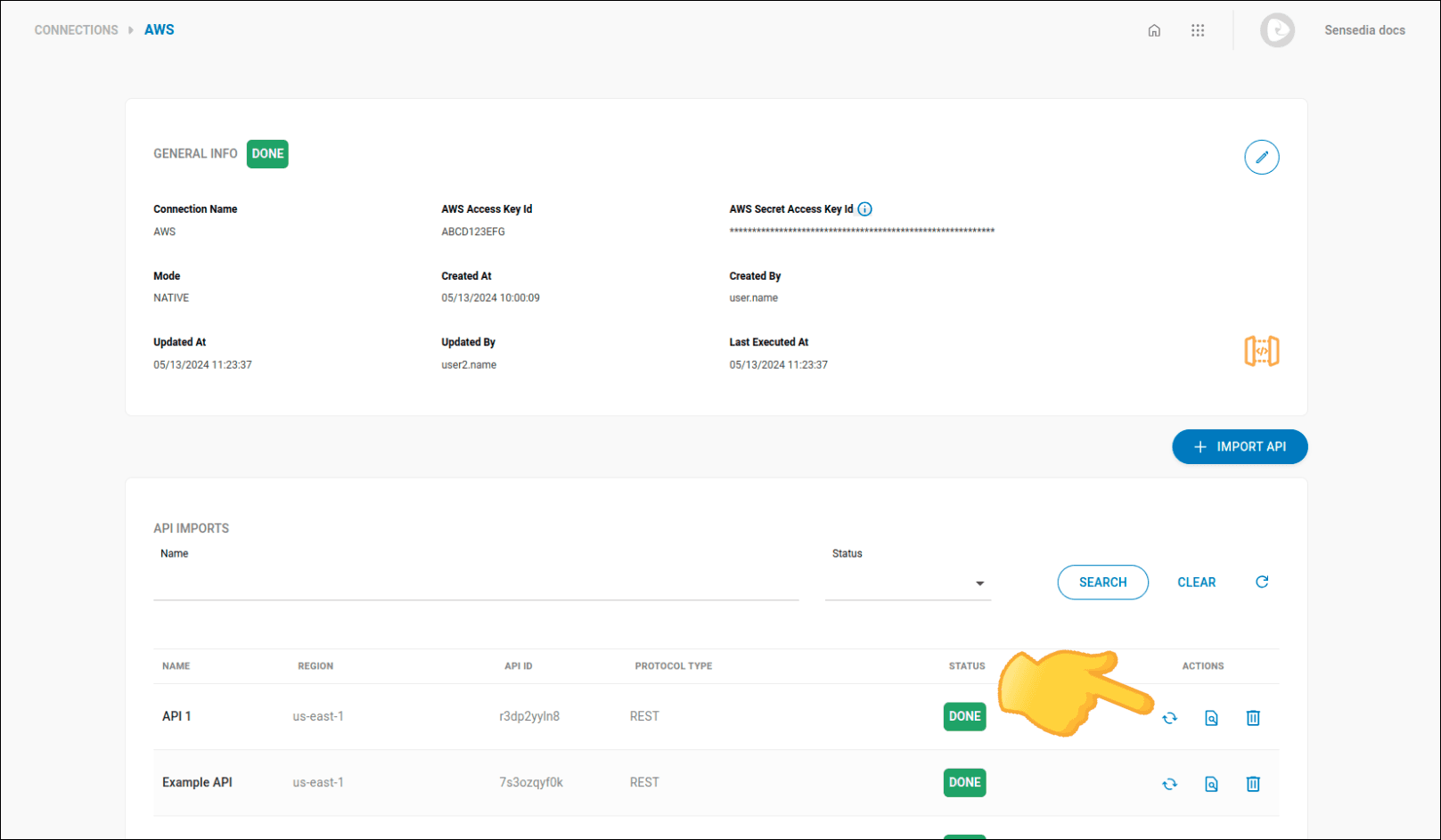
Whenever an API is updated, click
.
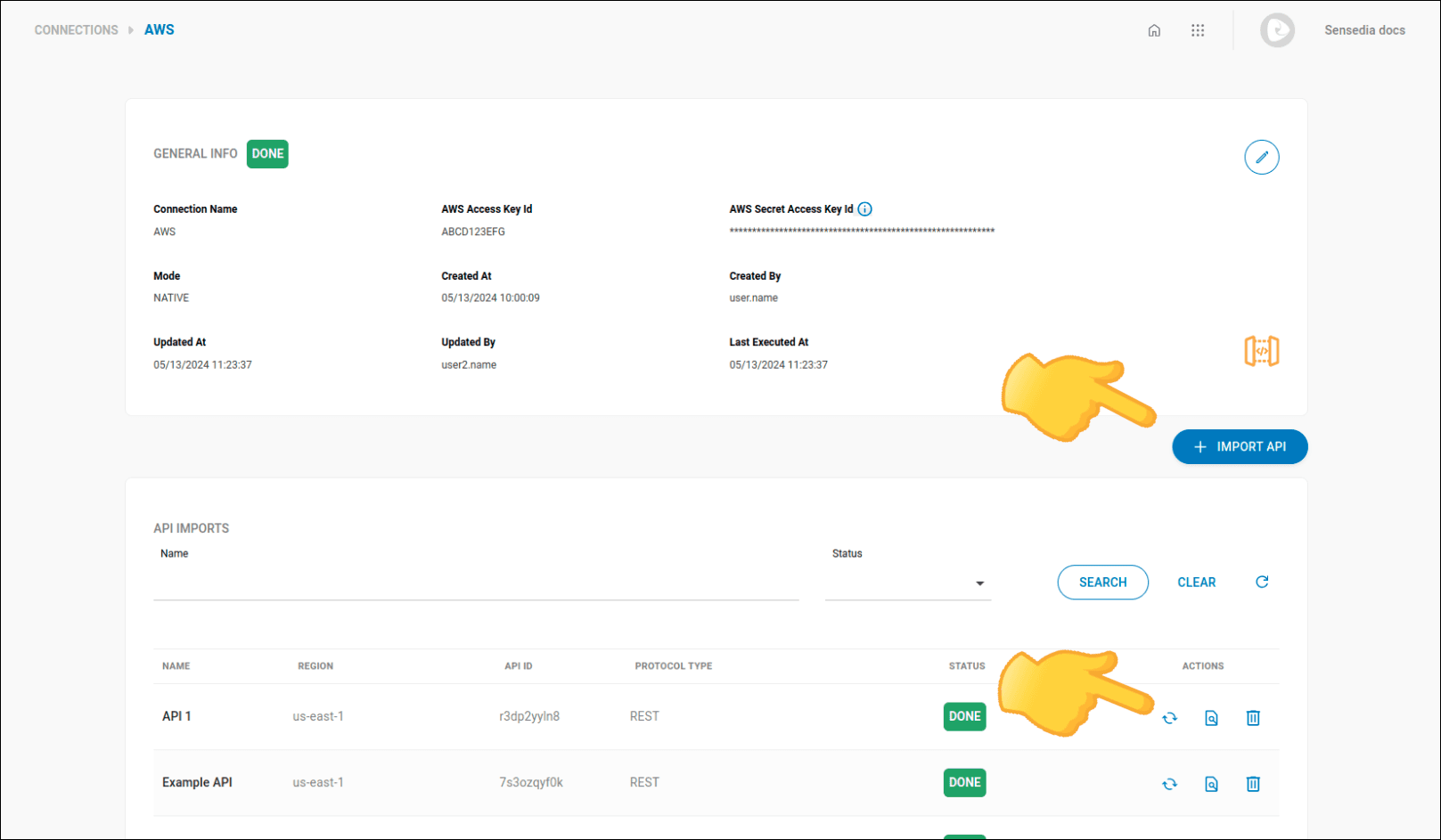
To import APIs, follow the steps below:
Step 1
Go to the Connections screen by clicking the left sidebar menu or the card on the home screen.
Step 2
Find the connection you want to edit and click the icon. Use the search bar to locate the desired connection.
Step 3
On the API Imports screen, click the + IMPORT API button, located just below General Info and above API Imports.
Step 4
Import the desired API.
-
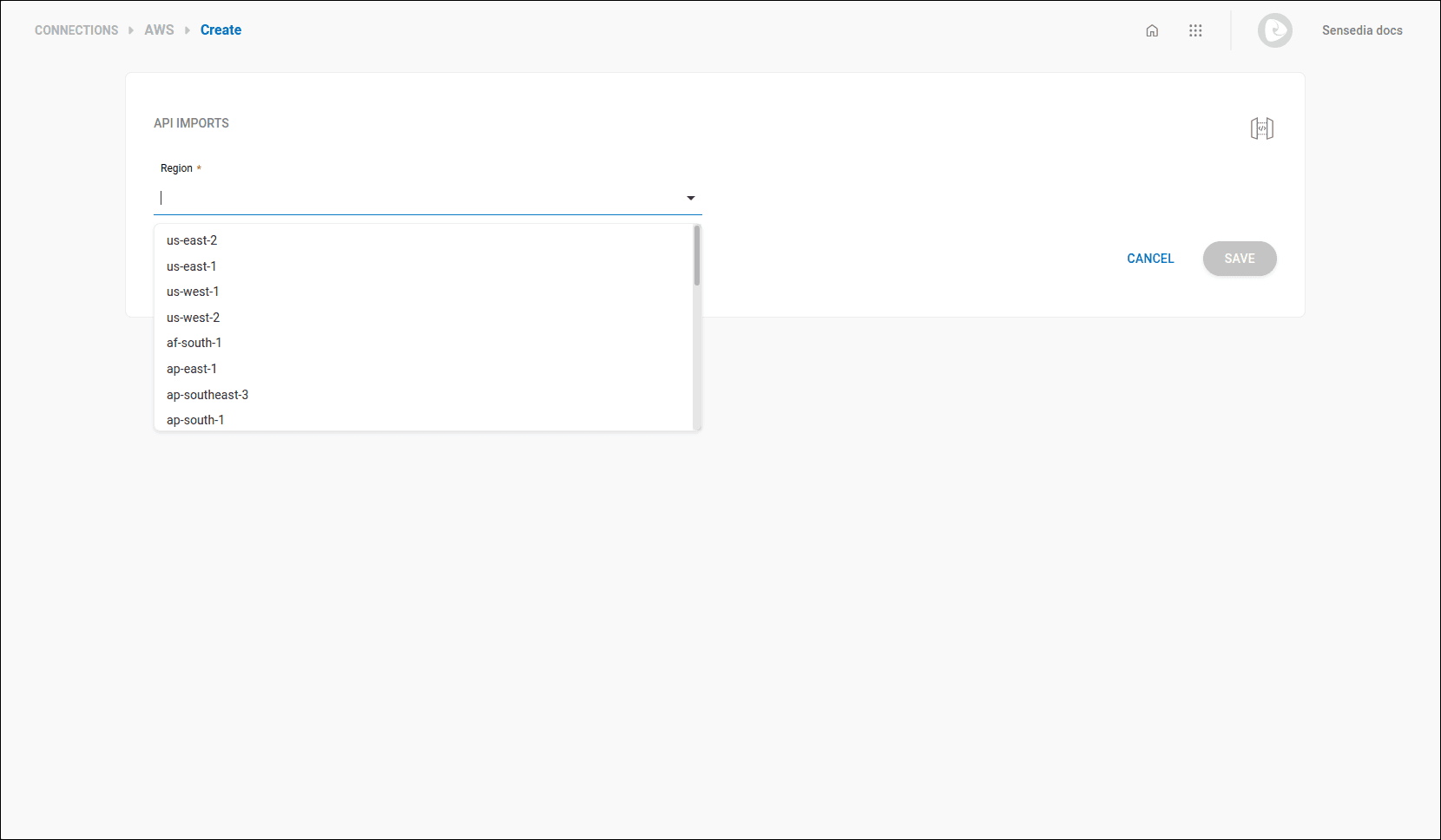
For AWS gateway:
-
Select the region of the APIs you want to import and click SAVE.
-
Select the APIs you want to import and click SAVE.
-
-
For other gateways:
- Click Upload your files and select the file with the API you want to import.
IMPORTANTWhenever an API is updated, click
NOTE
- Accepted specification formats:
.yml,.yaml, and.jsonfor OpenAPI and AsyncAPI.- The total payload size, including all files, must not exceed 5 MB.
Connections Listing
Existing connections are listed on the Connections screen.
Each connection is displayed in a row of the table that contains the following columns:
- PROVIDER: provider logo.
- NAME: connection identifier name.
- MODE: connection mode, which can be NATIVE or NON-NATIVE.
- STATUS: API data synchronization status:
- DONE, indicating that data synchronization was successfully completed;
- IN PROGRESS, indicating that synchronization is in progress;
- FAILED, indicating that synchronization of one or more APIs failed;
- SYNC NOT STARTED, indicating that the synchronization process has not started yet;
- NO IMPORTS, indicating that there are no imported APIs.
- API COUNT: number of imported APIs.
- LAST SYNC: date and time of the last synchronization.
- ACTIONS:
- : to see general connection information and edit its settings.
 : to delete a connection
NOTEIt's not possible to delete connections with IN PROGRESS and SYNC NOT STARTED statuses.
You can search for specific connections using the following fields, located above the listing:
- Name: search by connection name.
- Provider: search by provider.
- Status: search by synchronization status.
After filling in the desired fields, click SEARCH. To clear filled fields, click CLEAR. To update the results, click .
Connection Details
General Info
To access the screen with connection details, where General Info is located, follow the steps described in the section "Viewing connection details".
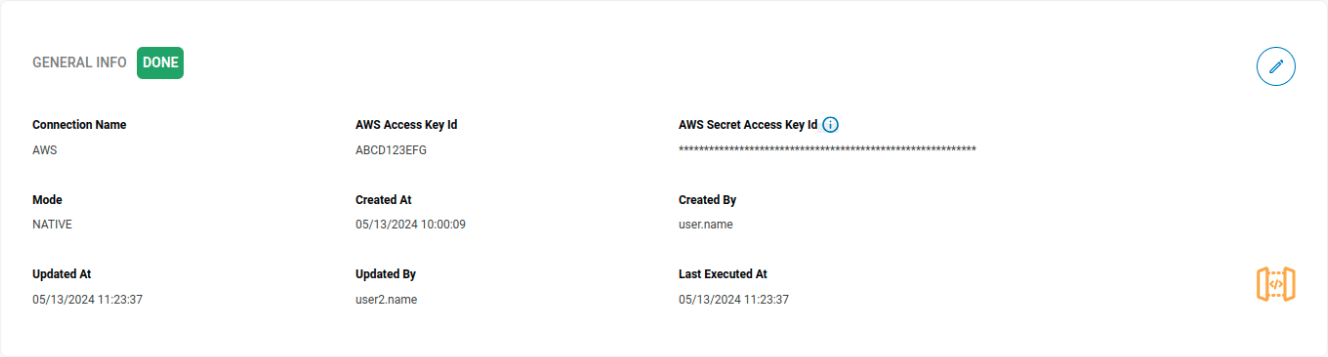
This panel displays the following information about the selected connection:
-
The synchronization status of API data (at the top left corner):
- DONE, indicating that data synchronization was successfully completed;
- IN PROGRESS, indicating that synchronization is in progress;
- FAILED, indicating that synchronization of one or more APIs failed;
- SYNC NOT STARTED, indicating that the synchronization process has not yet started;
- NO IMPORTS, indicating that there are no imported APIs.
-
Connection Name: name of the connection.
-
Mode: connection mode, can be NATIVE or NON-NATIVE.
-
Created At: creation date and time.
-
Created By: name of the user responsible for creating the connection.
-
Updated At: date and time of the last update.
-
Updated By: name of the user responsible for the last update.
-
Last Executed At: date and time of the last data synchronization.
For Sensedia gateways, in addition to the fields above, the following are displayed:
- For API Platform 4.x:
- Manager Domain: Sensedia API Manager URL
- Token: your Sensedia access token. This data is not displayed for security reasons.
- For API Management 5.x:
- Client ID and Client Secret: security credentials.
For AWS gateways, in addition to the fields above, the following are displayed:
- AWS Access Key Id: access key for your AWS resource.
- AWS Secret Access Key Id: AWS key secret. This data is not displayed for security reasons.
API Imports
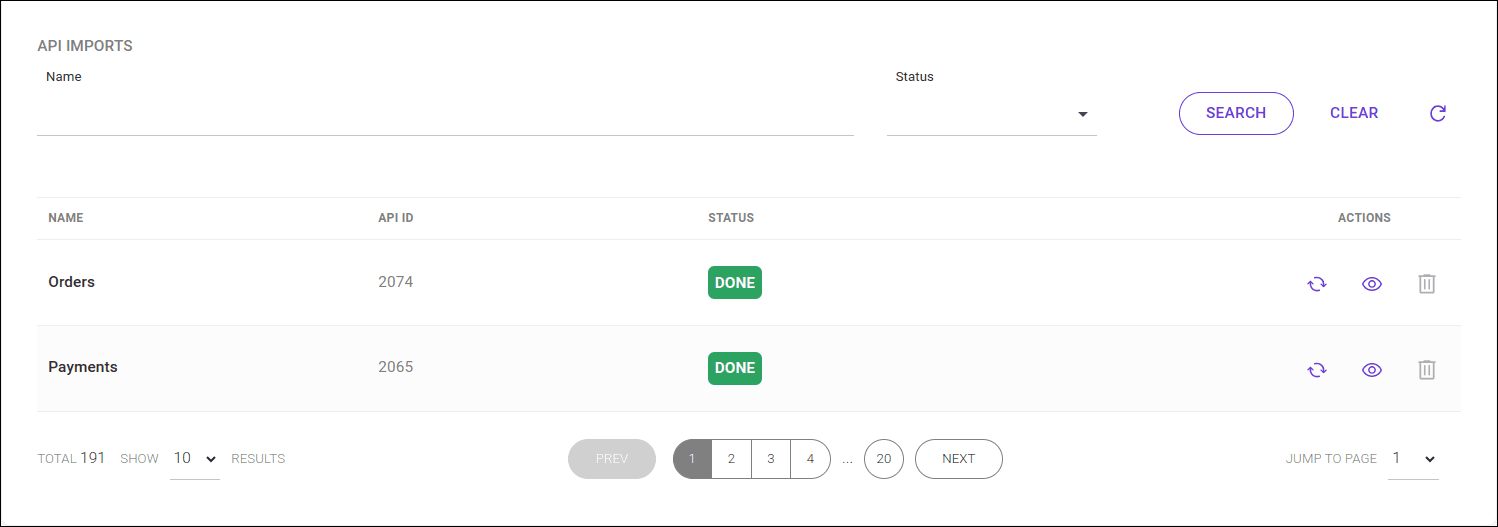
Below the general connection information panel, there is the API IMPORTS panel, from which you can manage API imports for the connection.
Imports Listing
The APIs are listed in a table, which includes the following columns:
- NAME: API name;
- REGION: region where the API is deployed;
- API ID: API identifier;
- PROTOCOL TYPE: communication protocol;
- STATUS: import status:
- DONE: indicating that the import was successfully completed;
- IN PROGRESS: indicating that the import is in progress;
- FAILED, indicating that synchronization of one or more APIs failed;
- NOT STARTED: indicating that the import has not yet started.
In addition to this information, the ACTIONS column provides the following icons/buttons for you to:
-
: update the list.
It's not possible to update data with IN PROGRESS or NOT STARTED status.
-
: view more about the import.
-
: allow deletion of the import.
It's not possible to delete an import with IN PROGRESS or NOT STARTED status.
You can search for specific imports using the following fields, located above the table:
- Name: search by API name.
- Status: search by import status.
After filling in the desired fields, click SEARCH. To clear filled fields, click CLEAR. To update the API list, click .
Viewing Details of a Specific Import
By clicking the button of a specific import in the imports listing, you can view more information about that import.
You will be redirected to a new screen containing two panels:
-
DETAILS, which displays the import information;
-
EXECUTIONS, which displays a list of information about each attempt to synchronize the import data.
DETAILS
The DETAILS panel presents the following information about the import:
- API Id: API identifier;
- Name: API name;
- Region: region where the API is deployed;
- Protocol Type: communication protocol,
- Status: status of the last import update execution:
- DONE: indicating that the import was successfully completed;
- IN PROGRESS: indicating that the import is in progress;
- FAILED, indicating that synchronization of one or more APIs failed;
- NOT STARTED: indicating that the import has not yet started.
- Created At: creation date and time;
- Created By: user responsible for the creation.
NOTEYou can tell whether the connection is Sensedia (
) or AWS (
) by the icon next to the information.
EXECUTIONS
The EXECUTIONS panel displays a list of information about each attempt to synchronize the import data.
Here you can see:
- STARTED BY: user who initiated the import execution.
- STATUS: synchronization status:
- DONE: indicating that data synchronization was successfully completed;
- IN PROGRESS: indicating that synchronization is in progress;
- FAILED, indicating that synchronization of one or more APIs failed;
- REASON FOR FAILURE: reason for the failure, if the synchronization failed.
- TYPE: indicates how the execution was initiated, whether automatic (AUTOMATIC) or manual (MANUAL).
- Started At: start date and time.
- Finished At: end date and time.
By clicking the icon  of a specific execution, you can view more information about it in the ACTIONS column:
- Execution Id: unique identifier of the execution.
- Log: execution log message.